1
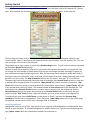
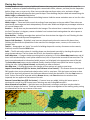
and not the Use Background box is the ideal combination for a floating feature if the icon file has a
transparent background.
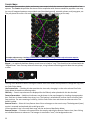
Icon File: — The text field points to the PNG file used for the element. A Browse button launches a
standard system file navigator.
Scale Icon: — The scale of an icon determines how much of a hexagon is filled with the pattern. The
background color (if any) will always fill the hexagon to the edges, but the foreground (the “icon” portion)
may be adjusted for best appearance. The default is 80% and is a good beginning, but it may be necessary
to apply a sample on the map and return to the Edit (detailed below) to adjust the scale.
Default Elevation: — Mapmakers using (displaying) map elevations may use this window to assign a
default elevation to the custom element being created. Specific instances on the map may be raised or
lowered in elevation as desired (if a Terrain element).
Remove
Selecting the Remove option from the Select Action menu repaints the window with a menu listing all
custom elements. Select the desired element and click Remove. Click Close to dismiss the window.
Edit
Once a custom element is created, make changes by selecting Edit from the Select Action menu. When the
window repaints, select the desired element from the menu.
Once the desired element is selected, any or all aspects may be changed. For detailed explanations of the
various fields, see the Add section above.
Click Save to apply the changes or Close to dismiss the window.
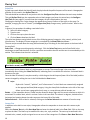
Apply — The last button of the Configure Hexes tab is the Apply button. Changes made to terrain and features
require making changes to their definitions in the database. The mapmaker must click on the Apply button to
commit these changes.
Configure Lines/Text
A useful map includes labels and boundaries. Though the default definitions in Hexographer work well for most
maps, a mapmaker may wish to change the font or color of the text or the width or color of the lines and
boundaries. Selecting Configure Lines/Text provides access to these definitions.
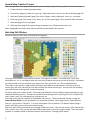
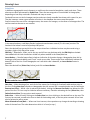
Border Color — The hexagons drawn on the map may be turned on or off (see Show/Hide above) but a
compromise might be to change the color of the hexagon borders. The color-select icon labeled Border Color
in the Miscellaneous section gives the mapmaker control of the border color.
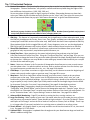
Customize Text — Each text category (title, continent, ocean, etc.) may be customized to suit the needs of the
mapmaker. Remember to click on the Apply button to make the changes visible.
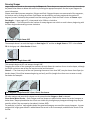
The typeface for a text category is chosen (from those available) in a popup menu. Choose the primary text
color by clicking the familiar color selection icon. If the face has alternate weights (e.g. bold or italic), they are
available in the popup menu. The size of the text (here labeled ‘Width:’) is entered in the text field.
If desired, the mapmaker may specify a text outline. The color and width of the outline are chosen in the same
manner as the primary text color and weight. To disable the text outline, set the width to ‘0’.
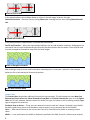
Customize Lines — Lines in Hexographer are used not only for boundaries and roads but also for such things as
coastlines, elevation, and railroads. Each line type available is listed in the Customize Lines section. Each line
has a color choice icon and a text field labeled “Width:” that controls the thickness of the line.
In addition to line thickness and color, Hexographer offers a selection of useful line types or strokes. Two of
them, “hashed line” and “rail line” are special purpose lines. The first is used when drawing slope and
elevation lines. The second is, of course, used to draw train tracks across the terrain.
Configure Numbering
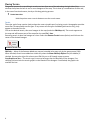
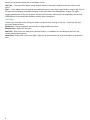
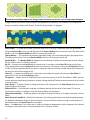
Numbering, as used by Hexographer, refers to the optional coordinate labels that indicate row and column
position of a hexagon within the map. Enable the display of the labels by checking the Grid Numbers box in
the Show/Hide section.
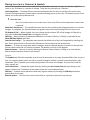
Font Settings — Grid numbers are generally quite small. This makes the font selection crucial. Select an easy21