1
General Map Creation Process
This is the approach most people find easy, but you can always jump around or go back to make corrections.
1. Create a blank or randomly generated map.
2. Place terrain (page 4) to flesh out your map. Optionally sketch it and run the Terrain Wizard (page 16.)
3. Add Icons/Features/Symbols (page 5) for cities, villages, castles, shipwrecks, ruins, etc., as desired.
4. Draw lines (page 7) for roads, rivers, coasts, etc. Or use shapes (page 12) for coasts & other half-hexes.
5. Place text (page 10) for map labels.
6. Add map items (page 6) for special things (a compass rose, 3D/perspective icons, etc.)
Note: Hexographer has many other options and features described in this manual.
Main Map Edit Window
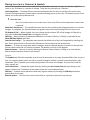
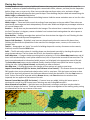
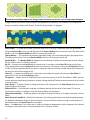
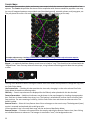
Once you create or load a map, a window like this appears:
At the top of the window are a number of menus. See page 14 for details. The center area is your map
view/edit area. It is in a scrollpane (note the scroll bars just below and just to the left of the map.) Just above
the map are tabs to let you configure your map's icons, lines, text styles, etc. They are detailed later.
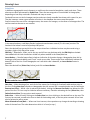
To the right of the map are a large number of buttons with different terrain buttons. Click one to set that
terrain type, then click a hex and the hex will now have the chosen terrain type. You may also click and drag
over several hexes to change each to the selected type.
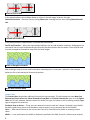
On the far right are a number of tabs. (These may look different or have a different layout depending on your
computer operating system.) The tabs let you switch from editing terrain to placing icons (a.k.a. features like
cities, castles, ruins, etc.) to drawing lines, placing text, etc.
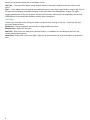
To the left of the map are a number of checkboxes and controls. These are detailed starting on page 18.
Show GM Only Objects (in the left sidebar) is an important checkbox. Most things (terrain, features/icons,
lines, etc.) can be set as “GM Only”. If so, they only appear if this is checked. This feature makes having a
player's and GM's version of the same map very easy.
Note that right-clicking a hex allows you to toggle its GM-Only state. If the hex has an Icon (a.k.a. features like
cities, castles, ruins, etc.) you may also add a feature decoration to the hex by right-clicking. These are letters,
symbols, or numbers placed in the hex at various clock positions. See page 24 for details.
3