1
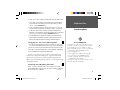
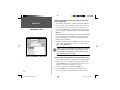
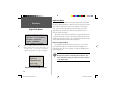
5. Highlight the desired Point of Interest.
6. To view the address and telephone number of the Point of Interest,
click the Properties button (this may be helpful in distinguishing
multiple Points of Interest with the same name). Click the OK button
to exit the ‘Properties’ window.
7. To keep the selected point displayed in the center of the screen, click
the OK button. To return to your previous map display, click the
Cancel button.
Reference
View Menu: Find
To find an address or street with the advanced ‘Find’
feature:
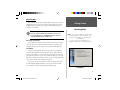
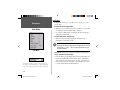
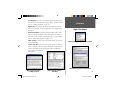
1. Select Find from the View Menu. The advanced ‘Find’ dialog appears.
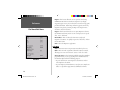
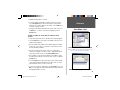
2. Click the Select button to the right of the ‘Address’ field. The ‘Select
Address’ window appears.
3. Enter the number of the address in the ‘Number’ field. If the number
is unknown, or if you want to only search for a street name, you may
leave the ‘Number’ field blank.
4. Enter the street name in the ‘Street’ field. A list of street name
“matches” will appear to narrow your search. Highlight the desired
street name from the list and click the Select Address button.
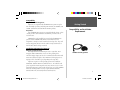
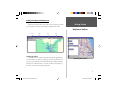
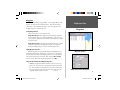
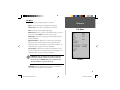
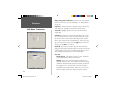
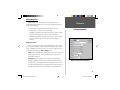
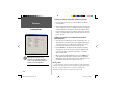
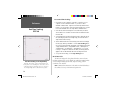
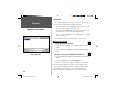
Advanced ‘Find’—Point of Interest Search
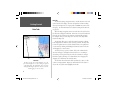
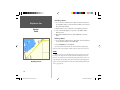
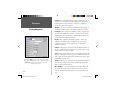
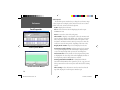
Advanced ‘Find’ search results with the Properties for
the selected Point of Interest displayed.
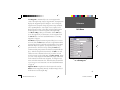
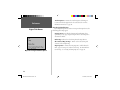
5. The full address (or the street name) appears in the ‘Address’ field in
the advanced ‘Find’ dialog. Enter the city, state, or both to enable the
Search Button.
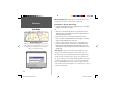
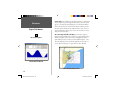
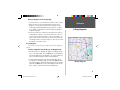
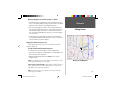
6. Click the Search button. The first matching location will be centered
on the Graphic Map and highlighted in the search results list. Highlight the desired location to view it on the map.
7. To return to your previous map display, click the Cancel button. Click
OK to exit the advanced ‘Find’ window and keep the map centered on
the highlighted address or street.
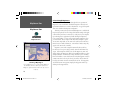
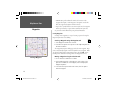
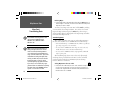
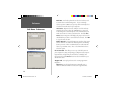
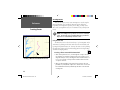
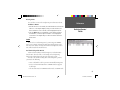
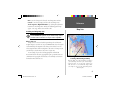
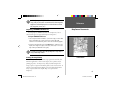
Advanced ‘Find’ Dialog—Address Search
29
MS Manual - Reference.indd 29
5/13/2002, 9:46:01 AM