1
Map Sets
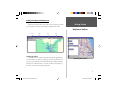
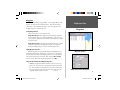
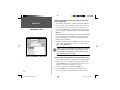
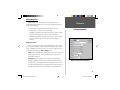
A Map Set is one or more detailed maps selected from the Graphic
Map to be transferred to your GPS unit. Not all GARMIN GPS units
can use detailed maps. Please consult your Owner’s Manual to determine
if your unit has this capability and its limitations. To begin, select the
Maps Tab.
MapSource Tour
Map Sets
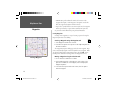
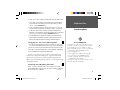
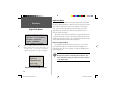
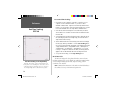
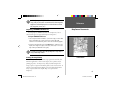
Creating a Map Set:
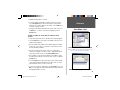
1. Select Map located in the Tools Menu.
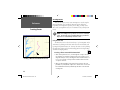
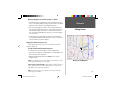
2. Place the Map Tool inside a boundary area. The area will become
outlined in yellow.
3. Click inside the map boundary to add it to the Map Set. The selected
area will now be shaded in pink.
The MapSource data that you have loaded determines the geographical map boundaries. Each product has different boundary areas. When
the Map Tool is placed inside a map boundary area, that area will become
outlined in yellow. If you are having difficulty locating a map boundary
area, change the zoom scale and try again. Most map boundaries can be
seen at the 30 mile (50 km) zoom scale.
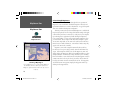
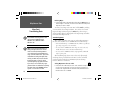
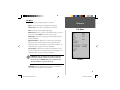
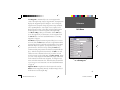
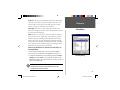
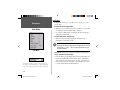
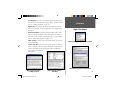
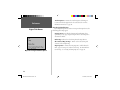
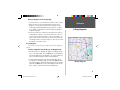
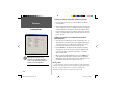
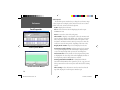
When you add a map to the Map Set, the Name, Area and the Size
of the map are shown in the Maps Tab List. At the bottom of the Maps
Tab List, you will see the number of maps that have been selected and
the required memory for the Map Set. If the Map Set contains a large
number of maps or a large memory capacity, you may get a warning from
MapSource. To remove the warning, reduce the number of maps.
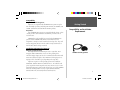
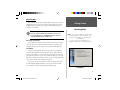
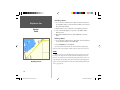
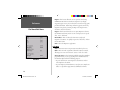
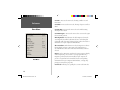
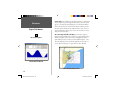
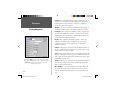
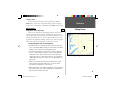
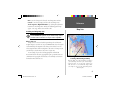
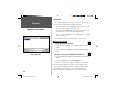
Creating a Map Set
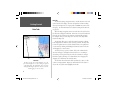
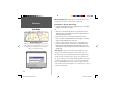
Choose the Map Tool. Place the mouse pointer in the
geographical area that you want to select. The area
will become outlined in yellow. To select the area and
add it to the Map Set, click the left mouse button. When
the area is selected it will be shaded in pink and listed
in the Maps Tab List.
15
MS Manual - Quick Tour.indd 15
5/10/2002, 3:56:36 PM