1
English
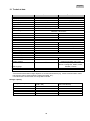
8.2.1
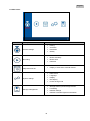
Camera settings
Menu item
Description
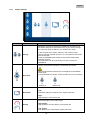
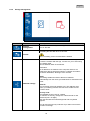
Pairing the camera is necessary to establish a connection. The
connection stays once it has been set up. If you want to change
the camera to another channel, you need to pair it again.
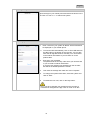
Pairing
In the recorder menu, select “Camera”, then “Pairing a new
camera” and the required camera (1-4). The system counts down
from 60 seconds.
Press the PAIRING button briefly on the camera cable during
these 60 seconds.
The LINK LED is lit up continuously once the connection is
established.
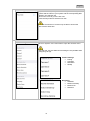
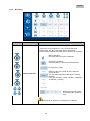
Use the on/off switch to display or deactivate the camera.
Activation
Note that deactivated cameras are not displayed in the SMARTQUAD view.
If you deactivate the camera, it will not make any more recordings.
Camera on
Camera off
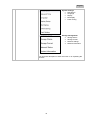
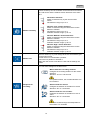
You can choose between “Normal” and “High”.
Resolution
Low:
Optimised setting for mobile access, higher frame rate
High:
High resolution, lower frame rate
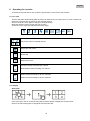
Select the quality of the video image.
Quality
High quality:
High quality for the view display, lower frame rate
Low quality:
Low quality for the view display, higher frame rate
19