1
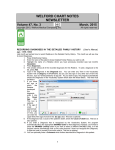
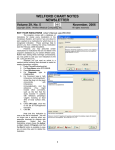
12. To remove a pair
of
medications
from
the
list,
highlight that line
and press Delete.
13. If you wish to
share the list of
medications you
have
designed
with other users,
press the Share
button.
Remember,
however, that this
will overwrite any
lists that the other
users
have
created, so use
this feature with
care. You will first
be required to
provide
the
Master Password.
Then check the
names
of
the
Users with whom
you wish to share
your list and press
OK. Notice that
each
user
is
allowed to have
his or her own Duplicate Class Skip List. This is because some users might wish to be warned
about certain pairs of medications, whereas other users might not wish to be warned. However, by
using the Share function, one user can set up the list, and then other users can use the same list
without having to enter it themselves.
14. If you wish to find all of the entries on the list containing the name of a particular medication, type in
the name of that medication to the right of the Redisplay button and then press the Redisplay
button. This then limits the list to only those pairs which contain the medication you specified.
Note that you
don’t need to
open
the
Duplicate
Class
Skip
List Editor to
add a pair of
drugs to the
list.
If you
see a warning
about
two
drugs being in the same class, and don’t wish to continue to be warned about this pair, simply press the Add
to Duplicate Class Skip List (stop warning about this) button. (If you press this button in error and want
to resume being warned, open the Duplicate Class Skip List, highlight this pair of drugs, and press Delete.
SEND US YOUR TIPS
If you have tips, shortcuts, questions, or suggestions for future newsletter topics, please send them to us at:
Welford Medical Computing, Inc.
or
MEDCOM Information Systems
3779 Hermitage Trail
2117 Stonington Avenue
Rockford, IL 6111
Hoffman Estates, IL 60195
5