1
Pathfinder User Manual
Real-time Movies
Movies can also be created in real-time. This means that it will record while the user is interacting with
the results and it will record everything the user sees except for the cursor. The disadvantage of this
type of movie is that it will play back only as smooth and of the same quality as that which the user who
created the movie saw. So if the scene is very complex and the movie creator’s computer cannot view
the results smoothly, the resulting movie’s play back will suffer as well.
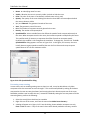
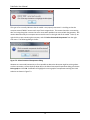
To create a movie of this type, press the record button ( ). A file chooser dialog will prompt for the file
name of the movie. For real-time movies the only allowable type is WMV. Once the file name is chosen,
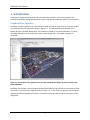
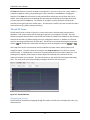
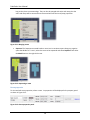
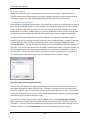
the codec configuration dialog will be shown as in Figure 9-6 (b). When OK is pressed on this dialog, the
movie will begin recording. At this point, anything the user sees will be recorded in the movie. Now the
user can change the camera angle, start and stop playback, select occupants, change view settings, etc.
and the movie will capture everything. At any time, the movie can be paused or stopped. Pausing the
movie will stop the recording but leave the movie file open so that recording can be resumed to the
same file. This allows the user to perform some action that they do not want to be recorded. To pause
movie recording, press the pause movie button ( ). To resume recording, press the resume movie
button ( ). Stopping the movie will end recording and disallow any further recording to the file. To
stop recording, press the stop movie button ( ).
Showing FDS Results
Pathfinder 3D Results provide some support for viewing animation results from the Fire Dynamics
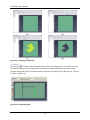
Simulator (FDS) from NIST. Current support provides the ability to view animated slices overlaid with
Pathfinder results.
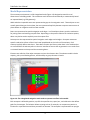
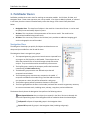
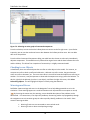
To load FDS results, first open the desired Pathfinder results. Then, under the FDS Results menu, choose
Load FDS Results…, and choose a Smokeview file (.smv) that was generated by FDS. The Navigation
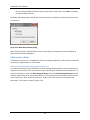
View will open on the left, listing all of the supported FDS output as shown in Figure 9-7.
To unload FDS results, under the FDS Results menu, choose Unload FDS Results.
95