1
Pathfinder User Manual
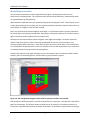
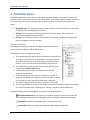
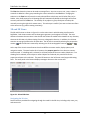
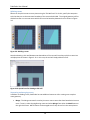
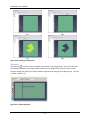
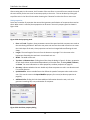
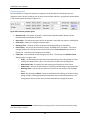
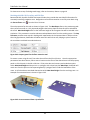
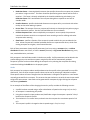
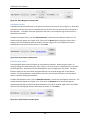
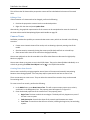
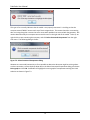
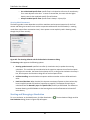
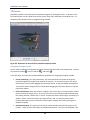
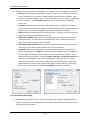
Figure 4-7: Behavior actions list
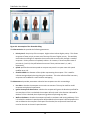
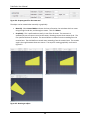
Once the desired action is clicked, a creation panel will be shown above the 3D/2D View depending on
the action. Enter the desired parameters in the creation panel as discussed in the following sections,
and then click Create to create the action and append it to the behavior. If the behavior itself was
selected when adding the action, then the new action will be appended to the end of the list. If, instead,
an action was selected when the new action was created, then the new action is inserted directly after
that selected action.
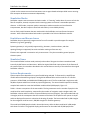
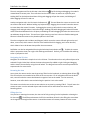
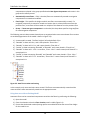
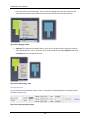
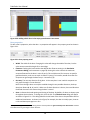
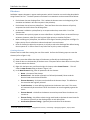
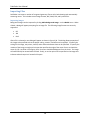
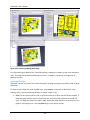
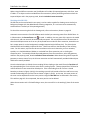
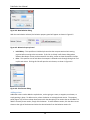
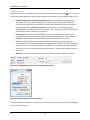
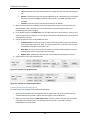
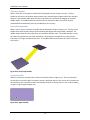
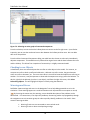
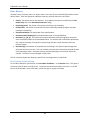
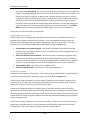
Actions always occur in the order shown in the Navigation View. For instance, as shown in Figure 4-8, an
occupant using “Behavior1” would first go to any elevator, then go to “Room00”, then wait for 20
seconds, then go to “Room09”, and finally exit. The actions can be reordered at any time (except
exiting) by dragging and dropping an action in the list in the Navigation View.
Figure 4-8: Example of action order for a behavior
Goto Waypoint action
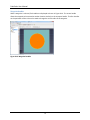
A Goto Waypoint action specifies that an occupant should go toward a specific point on the navigation
mesh. Once they arrive within a certain radius of the point, they will move on to the next action in their
behavior.
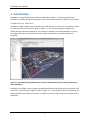
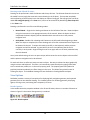
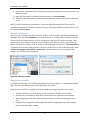
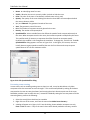
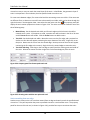
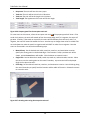
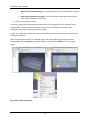
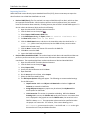
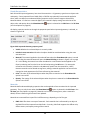
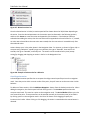
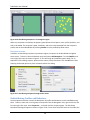
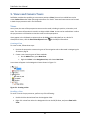
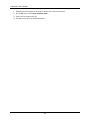
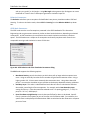
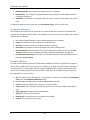
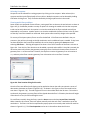
To add one of these actions, click the Add Goto Waypoint… button from the behavior actions list. When
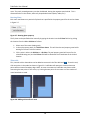
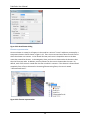
adding the waypoint, the creation panel will look like Figure 4-9. The Location specifies where the
occupant must head. This must be a point on the navigation mesh. The Arrival Radius defines a circular
area around the point. These parameters can be entered manually in the creation panel or be filled in
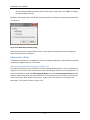
by clicking a point on the navigation mesh in the 3D or 2D View or click-dragging to specify the
location+arrival radius. When clicking or click-dragging, the action is created when the mouse button is
released.
55