1
Basic Functions . 27
Home > Basic Functions > Adding Fields > Dropdown List
Dropdown List
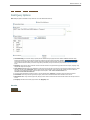
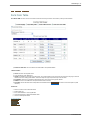
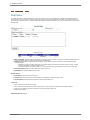
The Dropdown List and all the List type field controls share one common element which is the “List Item”.
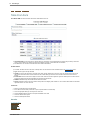
A List Item is what appears in the Dropdown List when you click on the down arrow. A List Item is made up of two parts the “Text” and the “Value” parts.
These two values can be the same, or as an example in a list of US states “New York” will be the Text part and “NY” will be the Value part.
With the Dropdown List, it is always a best practice to enter a Prompt for the user as the first item in the list for example: Enter “<< Select >>” for the
Text part and “0” for the Value part. This will ensure that Validation can be applied to the field forcing the user to make a selection from the list. Without
Validation, users will often submit the form without making a selection, submitting the first item in the Dropdown List as default.
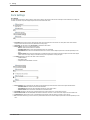
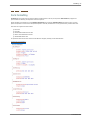
Adding the Dropdown List will introduce new features, and make use of some which have already been covered:
●
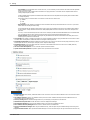
Use of the Auto-Fill feature which in the case of the Dropdown will find the correct value in the list and pre-select that for the user
●
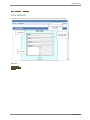
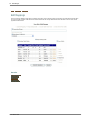
Manually adding a Item to the List Items form
●
Adding List Items by using the Fill List Items with States from a selected Country feature
We will add a Required Field Validator to this Dropdown List in the Validation section.
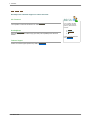
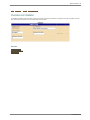
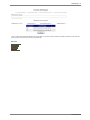
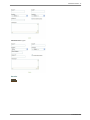
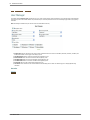
Add DropDown List Presentation
See also
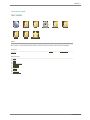
Common Options
Textbox
Checkbox
Listbox
Checkbox List
Radiobutton List
Label
File Upload
Submit Button
Hidden Field
Form Master 2008