1
Chapter
8
Managing Workpapers
§
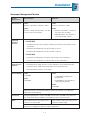
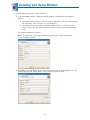
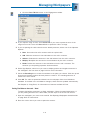
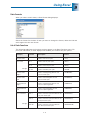
Replace in the roll forward with this file. This workpaper does not appear in the
new binder for the next period, but is replaced by another workpaper. You may
select this option with standard workpapers you fill out for the client each year
(e.g., a bank reconciliation workpaper format you want to use again, not including
the data entry).
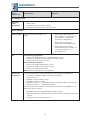
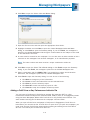
If you select Replace in the roll forward with this file, the Replace File With... field
becomes active. Browse to the standard workpaper that will replace the current
workpaper.
Note: If you choose to replace the workpaper with another file, the
workpaper's properties retain this option. If you do not want to replace it
in subsequent roll forwards, you must modify the roll forward properties
for the workpaper.
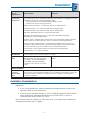
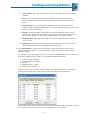
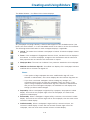
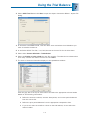
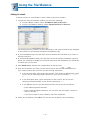
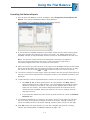
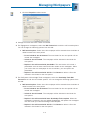
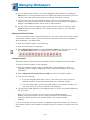
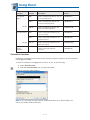
11. Select the check box in the Overwrite column if the new workpaper should overwrite
any current workpaper that has the same workpaper name/index combination.
Overwritten workpapers are moved to the Trash folder with _deleted appended to the file
name.
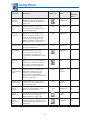
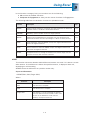
Tip: Click Edit Multiple Options if several workpapers require the same tab
location, roll forward option, and overwrite selection. The Edit Multiple Options
dialog displays, allowing you to set these options for the selected workpapers.
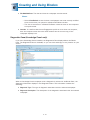
12. Click OK to create the workpapers from the templates.
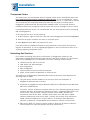
Adding ProSystem fx Knowledge Tools Workpapers
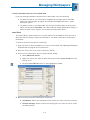
To add ProSystem fx Knowledge Tools workpapers, do the following:
1. Open the binder and select the tab into which you want to insert the Knowledge Tools
workpaper.
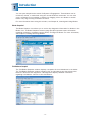
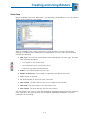
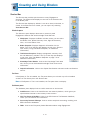
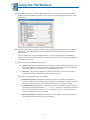
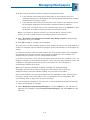
2. On the binder window toolbar click the New Knowledge Tools Workpaper button, or
select File/New/Knowledge Tools workpaper. The New Knowledge Tools Workpaper
dialog displays.
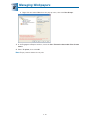
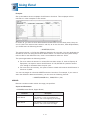
3. Use the Knowledge Tools Title drop-down list to select the Knowledge Tools title
containing the workpaper(s) you are adding.
8-4