1
Chapter
7
Using the Trial Balance
G/L YTD Report
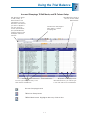
This report shows the accounts in the trial balance and their beginning balances, transaction
amounts, and ending balances for all periods in the fiscal year. The G/L YTD Report
generates detail information for annual binders only.
To create the G/L YTD Report, do the following:
1. Open the write up trial balance (see Opening the Trial Balance on page 7-10).
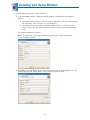
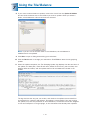
2. Select Engagement/Create Reports/Write Up Report/G/L YTD Report. If the write up trial
balance is in an annual binder, the Select Journal Entry dialog displays.
Important: If the write up trial balance is in a non-annual binder, a message
displays warning that the report will contain write up journal entries only. Click
OK to generate the report with write up journal entries only.
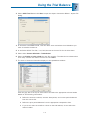
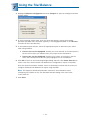
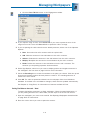
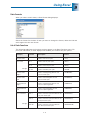
3. Select the journal entry types to display in the report. When you select a journal entry
type, all preceding journal entry types are automatically selected.
4. Click OK. The report is created and filed in the Unfiled Workpapers tab in the binder.
Creating Client Journal Entries
You can also record transactions for the current period with the Journal Entry. In a write up
trial balance, there is a journal entry type CJE (Client Journal Entry). You can use client
journal entries to enter the transactions for the current period. The amounts appear in the
CJE column of the trial balance.
To create a client journal entry, do the following:
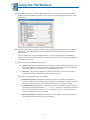
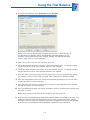
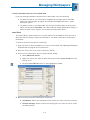
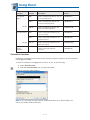
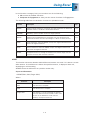
1. Open the Journal Entry Detail window as follows:
§
§
§
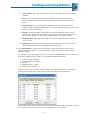
From the Binder window, select Trial Balance/Add Journal Entry.
From the trial balance, Excel, or Word window, select Engagement/Journal
Entry/Add Journal Entry.
From the trial balance, Excel, or Word window, click the JE Summary button on
the Engagement toolbar, select the trial balance from the drop-down list, and then
click the New button.
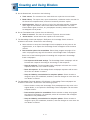
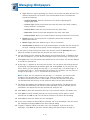
2. If you selected the Add Journal Entry option in step 1, select the write up trial balance
that you want to post the journal entry to from the Trial Balance drop-down list.
3. In the Type field, select the Client Journal Entries option.
4. Complete the Journal Entry as normal. For more information on how to create journal
entries, see Creating Journal Entries on page 7-60.
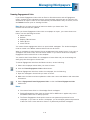
The amounts posted in the client journal entries appear in the write up trial balance in the
CJE column. You can choose to show the detail of the journal entry in the trial balance.
The regular trial balance reports print the client journal entries. For more information on how
to create trial balance reports, see Creating Trial Balance Reports on page 7-66.
7 - 90