1
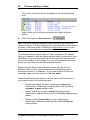
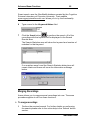
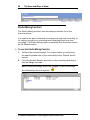
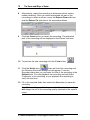
Azam Version 3.0 (Manual last updated June 27th 2005)
The Hows and Whys of Azam
Getting Started with Version 3.0 of the Product
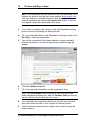
As of June 27th 2005, this manual does not incorporate
screen changes made in Azam Version 2.3 and 3.0, other
than the updated installation procedure. Screenshot
changes, Azam’s simple to use picture and animation
features and Azam Video functions will be described in a
manual which will be ready soon. If you require support,
please view the online help or use the Helpdesk form on
www.azamit.com.
Azam Version 3.0 (Manual last updated June 27th 2005)
i
Contents
What’s in this User Guide?
1
Welcome to Azam
2
Azam at work
Azam at home
Azam for Medical use
Where can you get help to use Azam?
2
3
3
4
We seek your assistance
5
Azam requirements
6
Requirements of the Azam Word Toolbar (optional)
Requirements of the Azam Text to speech function (optional)
Requirements of the Azam Translate function (optional)
External devices used with Azam
Installing Azam
Is Azam installed properly?
6
7
7
7
8
13
Main Azam Functions
20
Azam Overview
21
Starting Azam
22
Record/Play/Send/Search options
25
Installing The Azam Word Toolbar for Microsoft® Word
25
Hot Keys
30
Installing the Microsoft® SAPI 5.0 Speech engine
32
Installing the Microsoft® SAPI 5.0 Voice engine
32
Installing the Microsoft® SAPI 4.0 Speech engine
33
Installing the Lernout & Hauspie Text to Speech engine & voices33
Menu Commands
34
Option Setup
35
Recording a dictation using the Azam Dictation function
38
Recording a meeting using the Azam Meeting function
40
Recording a phone call using the Azam Phone function
43
Before making a phone call
44
www.azamit.com
ii
The Hows and Whys of Azam
Recording a diary entry using the Azam Diary function
47
Recording a diary entry using the Azam Diary function
47
To set the Diary monitor ON
Turning OFF the Nag Me Option
Translation of text and text to speech using the Azam Translate function
Playing back a Recording
Sound Effects
Advanced Azam Functions
Sending a recording via the email program
Searching for a Recording
Merging Recordings
Studio Mixing Function
Azam Import Function
Azam Export Function
Templates and Agendas
Making a recording using a pre-loaded Template
Making a recording using a pre-loaded Meeting Agenda
© Azam International Technologies Limited 2003-2005
49
50
52
55
57
60
60
62
65
68
71
72
74
75
77
What’s in this User Guide?
Using the Azam Text to Speech Function
Azam: its history and philosophy
Why Azam was developed
iii
79
81
81
A personal note
84
The Sense of recording conversations
86
Remote mediation and conflict resolution
87
Azam and the disabled
88
Guidelines on Azam Etiquette
90
Conclusion
93
Appendix
94
License Agreement
$1000 Piracy Reward!
94
103
Additional Notices
105
Glossary of Terms
109
www.azamit.com
1
What’s in this User Guide?
Getting to know Azam.
Installation procedure.
Checking whether Azam is installed properly.
Installing the Azam Word Toolbar for Microsoft® Word.
Functions and use of the Azam Word Toolbar for Microsoft®
Word.
Installing the Microsoft® Speech and Voice engines to use with
the Azam Text to speech function.
Azam hardware and software requirements.
External devices used with Azam.
Where else can you get help?
Main functions of Azam.
How to use the main functions of Azam.
Advanced functions of Azam.
Azam: its history, philosophy, psychology and etiquette.
Note: Azam International Technologies Limited regularly enhances
this manual and welcomes any suggestions for improvements.
Please email [email protected] should this be the case. Are you
on the latest version of Azam? Do you have the current manual?
Check the download page on www.azamit.com!
www.azamit.com
2
The Hows and Whys of Azam
Welcome to Azam
Welcome! Azam will change the way you communicate at work and
at home.
Azam at work
When using Azam to record meetings, you can capture the tone,
avoid missing a word and store the recording for future reference or
management review. You can also forget about writing reams of
minutes. Azam makes it easy to:
Send a complete or partial recording of the meeting to
participants, absentees or anyone who needs to be “part of the
process.”
Index action points for attendees.
Index sections that require external advice (e.g. legal, marketing,
top management) and email just those sections. Later, feedback
can be collated into the Azam recording.
Edit out sensitive or confidential sections prior to general
distribution.
Collate different sessions for presentations or management
review.
Brainstorming with Azam is more creative, both in meetings and in
the “round robin” distribution of thoughts and ideas. Dictaphone
recordings can easily be imported into Azam, so ideas collected
outside the office aren’t lost.
Company leaders use Azam to inspire and motivate their employees,
while busy managers use it to personalise their feedback to staff.
Outside the company, Azam brings you closer to clients, suppliers
and partners, and helps you maintain a transparent relationship with
the press.
Azam’s telephone function is invaluable as a tool for training new
staff, for making the most of conference calls, and for tracking sales
and support calls with clients; because it’s all on record, Azam helps
avoid misunderstandings and resolve disputes.
© Azam International Technologies Limited 2003-2005
Welcome to Azam
3
Interviews are another key area for Azam use, for HR professionals
and marketing/PR agencies alike. Voice recordings allow a qualitative
analysis to be shared with others, or incorporated into reports and
presentations to illustrate the points you’re making.
Azam at home
Azam is fun to use, and brings friends and family closer together. It’s
great for historic events such as baby’s first words or Grandma’s 80th
birthday speech, for personalised birthday and seasonal greetings,
keeping a personal voice diary or sending jokes to friends.
Children and teenagers enjoy using Azam to send messages to
friends. It’s faster and more personal than texting and you aren’t
limited to one friend: Azam messages can be emailed to as many
friends as you like, and then they can have fun editing, cutting and
pasting your message and forwarding it on to others.
Azam for Medical use
With Azam, the families and friends of comatose, brain injured,
traumatised or unconscious patients can create audio voice clips and
send them from anywhere in the world via email. These voice clips
can then be merged onto a CD and played to the patient on a
portable music player. Audio stimulation to stimulate coma victims is
not new, but our delivery method is. Furthermore, Azam can be used
to create voice special effects so as to confuse the subconscious
unconscious of the patient and help to wake them up. We are
undertaking research for this special project. Feel free to participate.
Remember, you don’t have to be a brain surgeon to use Azam in this
way, but it could help brain surgeons and their patients if you do. We
do not charge for this service and our technology can be used free of
charge for this purpose. It is not a miracle cure. Please refer to the
coma section of the www.azamit.com website which explains this
research project in some detail.
If you have purchased copies of Azam, you have also contributed to
the Azam Disabilities Initiative (ADI) and we very much thank you for
doing so!
www.azamit.com
4
The Hows and Whys of Azam
Where can you get help to use Azam?
Azam help is available in five places:
Throughout this book.
Through the searchable online Help which comes with the
product.
Our website: www.azamit.com, especially the regularly updated
FAQs.
Our Helpdesk, accessible via the website.
Our telephone support service (annual-subscription only).
As Azam uses standard Windows functions, help relating to Windows
functionality can be found on Microsoft online help or through their
network of authorised support providers.
© Azam International Technologies Limited 2003-2005
We seek your assistance
5
We seek your assistance
The Azam Disabilities Initiative (ADI) was created to give people with
disabilities easier access to technologies such as email and to help
the unwell. The initiative is funded directly by Azam International
Technologies, from commercial sales of the Azam software product
and the company's owners. Developers and staff continue to give
freely of their time to ensure the success of ADI, especially since
feedback from recipients has been so positive.
We can see a number of areas where we could extend product
functionality to better meet the needs of the disabled and the unwell.
As well as this, we would like to extend ADI beyond the UK to
disabled people everywhere. In order to achieve this aim, we need
your help. We require urgent funding for the following projects:
To enhance Azam for general use by people with disabilities, with
specific functionality based on the type of disability. To research the
use of Azam in providing audio stimulation for comatose and
brain injured patients. To distribute free Azam software to hospital
children's wards initially in English-speaking countries. To provide
national language Azam software support, for use by the disabled
worldwide that do not speak English.
Why not consider business use, or recommend Azam to your
company, hospital or institution so that it can acquire a site license?
As shown throughout this website, Azam can enable every
organisation to save time and money. And the money we receive,
even from one off sales of Azam, to your friends and relatives, helps
to fund this valuable initiative.
Hospital grants and corporate donations are very much welcome.
Information on corporate sponsorship is available on request.
If Azam has helped you or your family and you can afford to do so,
please contact us to discuss how you can contribute to these
projects, so that we can help others.
As stated at the beginning of this page, if you have purchased copies
of Azam, you have also contributed to the Azam Disabilities Initiative
(ADI) and we very much thank you for doing so!
www.azamit.com
6
The Hows and Whys of Azam
Azam requirements
Azam has been designed for use on most current PCs running a
Microsoft Windows Operating System (e.g. Windows XP
Professional, Windows XP Home, Windows 2000, Windows ME and
Windows 98 Second addition). We are unable to provide support for
older versions of Windows such as Windows NT 4 and Windows 95
as these are no longer supported by Microsoft. However, Azam will
run on these older versions if all Microsoft available updates have
been installed. Embedded Windows versions such as Windows XP
Embedded and Windows CE may be capable of running Azam but
they have not been fully tested.
Windows Media Player 9 must be installed before installing Azam.
To record dictation and meetings you will require a sound card with a
microphone and speakers. The sound quality is significantly improved
by using a good microphone, particularly in meetings.
All modems are Data modems (DATA); most are also Fax modems
(DATA/FAX). To record phone conversations you will require a Voice
modem (DATA/FAX/VOICE), sometimes referred to as a V92. Check
before purchasing your modem to make sure it fully supports Voice.
Recording audio without Azam compression produces large sound
files - typically 1MB/minute - so recording 5 hours of communication a
day for a typical working week would occupy 1.5GB of disk space.
Large disk sizes (80-120GB) are relatively inexpensive but you must
also consider the necessary backup requirements of this information.
Requirements of the Azam Word Toolbar
(optional)
The Azam Word Toolbar allows you to control the Azam Message
Player via Microsoft® Word. It is ideal for transcription purposes such
as typing a letter from an Azam recording. If you wish to use this
optional function, refer to the Installing the Azam Word Toolbar for
Microsoft® Word section within this guide.
This function will only work with version 1.5.0.0 or above of Azam, or
version 1.5.0.0 or above of the Azam External Message Player.
© Azam International Technologies Limited 2003-2005
Azam requirements
7
The Azam Word Toolbar does not work with versions of Microsoft®
Word below Microsoft® Word 2000.
Only have one Azam Message Player open at a time, otherwise both
recordings will be played back at the same time causing
unpredictable results.
Requirements of the Azam Text to speech
function (optional)
The Azam Text to speech function allows you to convert your text file
into speech. To enable you to use this function you must install the
Microsoft® Speech engine. It is also advisable to install the
Microsoft® Voice engine to enable you to choose your preferred
voice. You will be prompted to do so at install time or during
download; alternatively these engines may be downloaded manually
from the www.azamit.com downloads page.
Requirements of the Azam Translate function
(optional)
The Azam Translate function facilitates the conversion of most text
files into a permutation of one of several languages. Additionally, it
enables the original text or translated text to be read back to you in a
foreign voice. The resulting audio clip can then be stored within Azam
and emailed. To use this function you must install the Microsoft® and
L+H Speech engines. It is also advisable to install the Microsoft® and
L+H Voice engines to enable you to choose your preferred ‘foreign’
voice. You will be prompted to do so at install time or during
download; alternatively these engines may be downloaded manually
from the www.azamit.com downloads page.
External devices used with Azam
Azam can record your dictation, meetings, and diary entries
using an external microphone.
Azam allows you to use an external modem.
www.azamit.com
8
The Hows and Whys of Azam
Azam can record your saved recordings to any external
recording device provided the device has line-in and line-out
capability. The external device could be a hand-held tape
recorder, a digital recorder, or your hi-fi cassette recorder. You
must use an audio interconnect cable to enable you to record.
Azam also allows you to record from the external device by using
an audio interconnect cable.
If the external device is capable of handling WAV, MP3, WMA
and OGG file formats, then Azam is capable of importing from
the device.
Azam can record phone conversations without a Voice modem,
provided that you use an audio jack cable with the normal phone
connector at one end.
A word of thanks to all our customers worldwide: By buying Azam
software, by recommending it to others and/or by giving monetary
donations, you have helped many, many people with disabilities and
the unwell to install and use Azam software free of charge. Learn
more by logging onto www.azamit.com/adi
Installing Azam
Note: We are unable to provide support for older versions of Windows
such as Windows NT 4 and Windows 95 as these are no longer
supported by Microsoft. However, it is possible that Azam will run on
these older versions if you have applied all of the Microsoft available
updates.
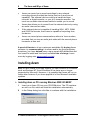
Installing Azam on PCs running Windows 2000/ 98/ ME/XP
1
Insert your Azam CD into your CD-ROM drive. The CD contains
an auto run file, which will start the installation automatically.
2
In the Setup dialog box click Yes to continue with the installation.
© Azam International Technologies Limited 2003-2005
Installing Azam
9
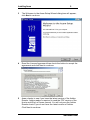
3
The Welcome to the Azam Setup Wizard dialog box will appear;
click Next to continue.
4
Read the License Agreement then check the button to accept the
agreement and click Next to continue.
5
Azam checks to see if you have the latest version of the Adobe
Reader. Adobe reader is required to read the PDF version of the
How’s and Why’s of Azam manual. You will only see the Adobe
Reader check if you do not have the latest version of Adobe.
Click Next to continue.
www.azamit.com
10
The Hows and Whys of Azam
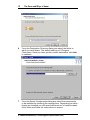
6
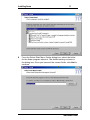
From the Destination Directory dialog box select the folder in
which to install Azam. The default setting is C:\Program
Files\Azam. Once you have set the correct destination, click Next
to continue.
7
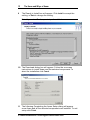
From the Select Components dialog box select the components
to be installed by checking the required box. Depending on which
boxes are checked you will receive different set of install screens
clicks Next and follow the instructions on screen.
© Azam International Technologies Limited 2003-2005
Installing Azam
8
11
From the Select Start Menu Folder dialog box, select the folder
for the Azam program shortcut. The default setting is shown in
the dialog box. Once you have set the correct folder, click Next to
continue.
www.azamit.com
12
9
The Hows and Whys of Azam
The Ready to Install box will appear. Click Install to accept the
setting, or Back to change the setting.
Note: If you select Back, repeat steps 4 and 5 above.
10 The Download dialog box will appear. Follow the on screen
instructions to install Azam and the selected components To
abort the installation click Cancel.
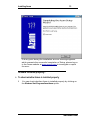
11 The following Completing the Azam Setup dialog will appear
once Azam and all the selected components are installed. To exit
setup click Finish.
© Azam International Technologies Limited 2003-2005
Installing Azam
13
If at any point during the installation an error message appears
which prevents the successful completion of Setup, please log on
to the Azam website at www.azamit.com to investigate or report
the error.
Is Azam installed properly?
To check whether Azam is installed properly
1
You can check whether Azam is installed properly by clicking on
the Windows Start/Programs/Azam/Azam option.
www.azamit.com
14
2
The Hows and Whys of Azam
This will start Azam. A splash screen will appear.
© Azam International Technologies Limited 2003-2005
Installing Azam
15
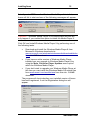
Note: If you do NOT have the Windows Media Player 9 installed,
Azam will fail to start and one of the following messages will appear.
Important: - Windows Media Player 9 is a prerequisite and this will
only happen if you omitted the option to install the Media Player 9.
Click OK and install Windows Media Player 9 by performing one of
the following tasks.
Download and install the Windows Media Player 9 from
Microsoft's Windows download site
www.microsoft.com/windows/windowsmedia/download/defau
lt.asp 9-14MB download.
If you have an older version of Windows Media Player
installed you can upgrade to Windows Media Player 9 by
using the Help, Check for Player Updates menu option
within the Windows Media Player.
If you don't wish to upgrade your Windows Media Player at
this time you can install the Windows Media 9 Runtime files
from www.azamit.com/wmfdist.exe from this site. 3.89MB
download.
The program will check whether your installed version of Azam
has been registered, if not the Registration dialog box will
appear.
www.azamit.com
16
The Hows and Whys of Azam
Note: Your registration key will be sent to you via email when you
register the product through the Azam website www.azamit.com.
You can, however, evaluate Azam for thirty days free of charge
without registering by clicking the Register Later button. If you do
not register, Azam will expire after thirty days.
3
If you want to register later, simply close the Registration dialog
box to continue evaluating the Azam product.
4
Fill in the required details in the Registration dialog box then click
Get a Key to continue registration.
5
You will be connected to the Azam website via your standard
Internet connection, and the following Azam website page will
appear.
6
Click the Validation Code link.
7
Fill in the required information on the registration form.
Note: The Serial Number (xxxx-xxxxxx-xx) can be found in the
Azam Registration dialog box, and the Validation Code (xx-xxxxxx)
can be found on the Azam box sent to you.
8
On completing the registration details you will be sent an email,
with instructions on how to fully register the Azam product.
9
Follow the email instructions to register and continue using the
Azam product.
© Azam International Technologies Limited 2003-2005
Installing Azam
17
The Azam product will now check your PC to see if you have the
required modem installed. The Azam Modem Selection dialog
box will appear. All the installed modems on your PC will be
listed under Line Devices.
Note: If your PC does not have a Voice modem you will receive
the information message 'No Suitable Modems were Found'. To
use the phone functionality you must have a Voice modem
installed. For more information please refer to the online Help in
the 'Troubleshooting' section. For information on Azam hardware
requirements, see Azam requirements (on page 5). If your PC
does not meet the hardware requirements you will not be able to
use the Phone function of Azam. All other functions will be
usable.
10 Click OK to continue. You will be presented with the main screen
as per step 6.
11 If there are no devices listed under Line Devices, then click List.
The program will automatically check your PC for the installed
modems. Once the list appears, select the required modem
(VOICE/FAX/DATA) and click Select.
www.azamit.com
18
The Hows and Whys of Azam
You will be presented with the Azam main window as shown
below. The product is then ready to use.
Note: If you have selected a modem that does not meet the Azam
requirements you will be issued with the following information
message when you select the Azam Phone function. The Azam
Phone function will be disabled. All other functions of Azam will
be usable.
Azam allows you to test the compatibility of your modem.
© Azam International Technologies Limited 2003-2005
Installing Azam
19
12 To run this test from the Modem Selection dialog box select the
modem then click the Test button. The following dialog box will
appear.
13 Type a valid phone number in the Phone number to use field
then click Start. The program will perform the required tests and
the messages from the test can be seen in the dialog box below.
14 Once the tests are completed, close the dialog box by clicking
Cancel, then select the required modem as per step 7 above.
Please tell others that Azam software is available free of charge for
use by persons with disabilities, hospital children's wards and to the
families of comatose, brain injured, or unconscious patients, to assist
in the treatment and rehabilitation of their loved ones. Learn more by
logging onto www.azamit.com/coma
www.azamit.com
20
The Hows and Whys of Azam
Main Azam Functions
Dictation: create, edit, send, store and manage voice messages,
as an alternative to typed emails, or to enrich and personalise
your written messages.
Meeting: use Azam to prepare agendas, record proceedings, and
distribute copies to attendees and interested parties instantly.
Meeting recordings can be protected, categorised and stored for
easy retrieval.
Phone: record telephone conversations with family, friends,
associates and suppliers. Note: in most countries you are obliged
to inform the other party that you are recording a phone call.
Diary: use your voice, rather than a pen, as a memory jogger for
ideas, activities and tasks in the future, as well as your own
personal daily record to keep or share with your friends.
Translate: you will be able to copy and paste any Word document,
email or web page into an Azam text box, translate it and
optionally use one of several synthesised voices to speak the
original text or translated one! Please note this is experimental
technology.
Azaming!:- you are directed to the page in the online help which
shows you some amazing uses and ideas for "Azaming" at work,
school and at home.
What can you do with Azam? Some very simple but clever things,
such as sending emails without typing, distributing minutes without
writing them, keeping an audio history of your life and your dealings
with others.
Key features, core functionality, software and hardware requirements
and some of its many uses at work and at home are explained in this
document and in the online help, which can be accessed by clicking
the Help tab on the main Azam screen. Further information can be
read from our website.
© Azam International Technologies Limited 2003-2005
Main Azam Functions
21
Azam Overview
A word of thanks to all our customers worldwide: By buying Azam
software, by recommending it to others and/or by giving monetary
donations, you have helped many, many people with disabilities and
the unwell to install and use Azam software free of charge. Learn
more by logging onto www.azamit.com/adi
www.azamit.com
22
The Hows and Whys of Azam
Starting Azam
To start Azam
1
Once the Azam product is installed you can start Azam by
clicking on the icon on the desk top of your PC,
or by clicking on the Windows Start/Programs/Azam/Azam option.
© Azam International Technologies Limited 2003-2005
Starting Azam
23
The Azam main window appears.
Following is a brief description of the Azam menu and options. For
further details about using these options please refer to the online
Help by clicking the Help tab on the main Azam screen.
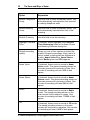
Option
Explanation
Click the Dictation icon from the main window
to list the dictation recordings. Pressing the
Record tab will enable you to create a new
dictation recording.
Click the Meeting icon from the main window
to list the meeting recordings. Pressing the
Record tab will enable you to create a new
meeting recording.
Click the Phone icon from the main window to
list the phone recordings. Pressing the Record
tab will enable you to create a new phone
recording.
www.azamit.com
24
The Hows and Whys of Azam
Click the Diary icon from the main window to
list the diary recordings. Pressing the Record
tab will enable you to create a new diary
recording.
Click the Translate icon from the main window
to list translation record. Pressing the
Record/Go tab will enable you to create a new
translation and enable you to listen to the
resulting translation.
Click the Azaming! icon from the main window
to see some amazing uses and ideas for
"Azaming" at work, school and at home.
© Azam International Technologies Limited 2003-2005
Starting Azam
25
Record/Play/Send/Search options
Installing The Azam Word Toolbar for
Microsoft® Word
Note: The Azam Word Toolbar for Microsoft® Word can be installed
either from the CD which comes with your licensed copy of Azam OR
by downloading a free copy from the Azam website at
www.azamit.com
Installing The Azam Word Toolbar on PCs running Windows
2000/ ME/XP
1
Place the Azam CD in your PC's CD drive.
2
From the Start menu, select Run and the following dialog box
will appear.
www.azamit.com
26
The Hows and Whys of Azam
3
In the Run dialog box type D:\ai2word.exe and click OK, where
D: is the drive letter of your CD.
4
Follow the onscreen instructions to install the Azam Word
Toolbar for Microsoft® Word.
5
Start Microsoft® Word and the Azam Word Toolbar will appear in
the Microsoft® Word menu bar. If the Azam Word Toolbar does
not appear then follow steps 5 to 14 below.
Installing The Azam Word Toolbar for Microsoft® Word from a
download copy
Note: Before installing the Azam Word Toolbar for Microsoft® Word
download a free copy of the ai2word.exe file from the Azam website
at www.azamit.com and save the file onto your PC.
1
Browse to the folder where you downloaded the ai2word.exe file.
2
Double click on the ai2word.exe file.
3
Follow the onscreen instructions to install the Azam Word
Toolbar for Microsoft® Word.
4
On completion of the installation wizard start Microsoft® Word. If
the Azam Word Toolbar is displayed as shown below then the
installation is completed and you can miss out steps 5 to 14.
© Azam International Technologies Limited 2003-2005
Starting Azam
27
Note: Due to the configuration set-up on some PCs you need to follow
steps 5 to 14 to properly install the Azam Word Toolbar for
Microsoft® Word. ONLY follow steps 5 to 14 if you do not see the
Azam Word Toolbar as shown in step 4.
5
Within Microsoft® Word click on the Tools menu and select the
Customize tab.
6
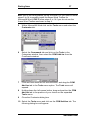
Select the Commands tab and click on the Tools in the
Categories window, then select the COM Add-Ins from the
Commands window.
7
Click and hold down the left mouse button, and drag the COM
Add-Ins tab to the Tools menu option. The Tools menu will
expand.
8
Holding down the left mouse button, drag and position the COM
Add-Ins tab to the position of your choice on the expanded
Tools menu.
9
Close the Customize dialog box.
10 Select the Tools menu and click on the COM Add-Ins tab. The
following dialog box will appear.
www.azamit.com
28
The Hows and Whys of Azam
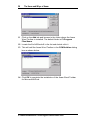
11 Click on the Add tab and browse to the folder where the Azam
Word Toolbar is installed. The default folder is C:/Program
Files\Azam.
12 Locate the file Ai2Word.dll in the list and double click it.
13 This will add the Azam Word Toolbar in the COM Add-Ins dialog
box as shown below.
14 Click OK to complete the installation of the Azam Word Toolbar
for Microsoft® Word.
© Azam International Technologies Limited 2003-2005
Starting Azam
29
Functions and Use of The Azam Word Toolbar for Microsoft®
Word
Note: The Azam Word Toolbar allows you to control the playback of
an Azam recording from either the Azam Internal Message Player OR
the Azam External Message Player while you are using Microsoft®
Word.
1
Start Azam, select the required recording and click the Play
button. The Azam Internal Message Player will start OR double
click an Azam recording sent to you via email and the Azam
External Message Player will start.
2
Start Microsoft® Word.
3
Click on the appropriate Azam Word Toolbar button to control the
playback of the recording.
www.azamit.com
30
The Hows and Whys of Azam
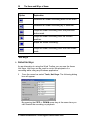
Option
Explanation
Rewinds an Azam recording back to the start.
Rewinds an Azam recording by 2 seconds.
Plays an Azam recording from the previous
index mark.
Plays an Azam recording from its current
position.
Stops an Azam recording.
Plays an Azam recording from the next index
mark.
Hot Keys
Default Hot Keys
As an alternative to using the Word Toolbar you can use the Azam
Hot Keys. Hot Keys can be used to control the playback of a
recording while using any Windows application.
1
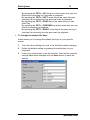
From the menu bar select Tools, Hot Keys. The following dialog
box will appear.
By pressing the CRTL + DOWN arrow key at the same time you
can Rewind the recording on playback.
© Azam International Technologies Limited 2003-2005
Starting Azam
31
By pressing the CRTL + UP arrow key at the same time you can
Rewind the recording by 2 seconds on playback.
By pressing the CRTL + LEFT arrow key at the same time you
can play the recording from the previous mark on playback.
By pressing the CRTL + PGUP key at the same time you can
start Play.
By pressing the CRTL + PGDOWN key at the same time you can
stop the recording on playback.
By pressing the CRTL + RIGHT arrow key at the same time you
can play the recording from the next mark on playback.
To Change the default Hot Keys
Azam allows you to change the default Hot Keys to your specific
needs.
1
From the above dialog box click in the field that needs changing.
2
Delete the default setting by pressing the delete key on your
keyboard.
3
Press your required key to set the function. Once all the required
settings have been changed click the Save button to save the
setting.
www.azamit.com
32
The Hows and Whys of Azam
Note: - In the above dialog box only the first three settings have been
changed.
Installing the Microsoft® SAPI 5.0 Speech
engine
Note: If you do NOT have the Microsoft® Speech engine installed, the
Azam Text to speech function will fail to start and the following
message will appear. “Error code 800 - Unable to initialize Speech
API:”
Before installing the SAPI5SpeechInstaller you must download a free
copy of the SAPI5SpeechInstaller.msi file from the Azam website at
www.azamit.com and save the file onto your PC.
1.
Browse to the folder where you downloaded the
SAPI5SpeechInstaller.msi file.
2.
Double click on the SAPI5SpeechInstaller.msi file.
3.
Follow the onscreen instructions on how to install the
SAPI5SpeechInstaller.msi file.
4.
On completion of the installation wizard, start Azam then
click Tools, Text to speech menu to use the Text to speech
function.
Note: It is also advisable to install the Microsoft® Voice engine. The
Voice engine gives you the choice of selecting your preferred voice.
Installing the Microsoft® SAPI 5.0 Voice engine
Before installing the SAPI5VoiceInstaller download a free copy of the
SAPI5VoiceInstaller.msi file from the Azam website at
www.azamit.com and save the file onto your PC.
1.
Browse to the folder where you downloaded the
SAPI5VoiceInstaller.msi file.
© Azam International Technologies Limited 2003-2005
Starting Azam
33
2.
Double click on the SAPI5VoiceInstaller.msi file.
3.
Follow the onscreen instructions on how to install the
SAPI5VoiceInstaller.msi file.
4.
On completion of the installation wizard, start Azam then
click Tools, Text to speech menu to use the Text to speech
function.
Installing the Microsoft® SAPI 4.0 Speech
engine
Note: If you do NOT have the Microsoft® SAPI 4 Speech engine
installed, the Azam Translation function will fail to start and the
following message will appear. “Error code 800 - Unable to initialize
Speech API:”
Before installing the SAPI 4 Text to Speech engine you must
download a free copy of the spchapi.exe file from the Azam website
at www.azamit.com and save the file onto your PC.
1.
Browse to the folder where you downloaded the spchapi.exe
file.
2.
Double click on the spchapi.exe file.
3.
Follow the onscreen instructions on how to install the
spchapi.exe file.
4.
On completion of the installation wizard, start Azam then
click the Translate icon.
Installing the Lernout & Hauspie Text to
Speech engine & voices
Note: If you do NOT have the Lernout & Hauspie Text to Speech
engine and voices installed, the Azam Translation function will be
unable to speak the translated text properly.
Before installing Lernout & Hauspie Text To speech engine and
voices download a free copy from the Azam website at
www.azamit.com and save the files onto your PC.
www.azamit.com
34
The Hows and Whys of Azam
1.
The following files will need to be downloaded from the
Azam website:
a.
tv_enua.exe – the Lernout & Hauspie (L&H) Text to
Speech Engine.
b.
lhttseng.exe – L&H British English voices.
c.
lhttsfrf.exe – L&H French voices.
d.
lhttsged.exe – L&H German voices
e.
lhttsiti.exe – L&H Italian voices.
f.
lhttsptb.exe – L&H Portuguese (Brazilian) voices.
g.
lhttsspe.exe – L&H Spanish voices.
2.
Browse to the folder where you downloaded the files.
3.
Double click on the tv_enua.exe file first.
4.
Follow the onscreen instructions to install it.
5.
Double click on each of the other files in turn.
6.
Follow the onscreen instructions to install them.
Menu Commands
To use the menus
1
To open a menu do one of the following:
Click on the menu name.
Or press ALT + LETTER at the same time. (LETTER is the
underlined letter in the Toolbar name, for example; to open
the File menu, press ALT + F.)
© Azam International Technologies Limited 2003-2005
Starting Azam
2
35
To choose an option from the menu bar click on the menu or
press the underlined letter for the option.
Option Setup
Azam allows you to setup some user-defined options. When set,
Azam on startup will use those options.
1
From the menu bar select Tools, Options.
2
The Azam Options dialog box will appear. A brief description of
the fields is as follows.
www.azamit.com
36
The Hows and Whys of Azam
Option
Explanation
Default Telephone
Costs
Use this field to enter a monetary value. This
will automatically calculate the cost involved
in making telephone calls.
Default Meeting
Costs
Use this field to enter a monetary value. This
will automatically calculate the cost of the
meeting.
Default Currency
Use this field to set the currency.
Highlight Cost and
Time
If checked, Azam highlights the Cost and
Time Remaining fields in the Azam Phone
and Meeting Recorder dialog box.
Default recording
quality.
Gives you one of four choices to select the
quality of Azam's recordings. Each option is
colour coded to distinguish the difference in
quality. Azam Voice-blue, Azam Stereoblack, Radio-green and CD-magenta.
Azam Voice
If checked, Azam is set to record in Azam
Voice mode. The saved recording shown on
the main screen will be shown in blue. One
minute of recording will use 1MB of disk
space.
Azam Stereo
If checked, Azam is set to record in Azam
Stereo mode. The saved recording shown on
the main screen will be shown in black. One
minute of recording will take 2MB of disk
space.
Radio
If checked, Azam is set to record in Radio
mode. The saved recording shown on the
main screen will be shown in green. One
minute of recording will take 1.25MB of disk
space.
CD
If checked, Azam is set to record in CD mode.
The saved recording shown on the main
screen will be shown in magenta. One minute
of recording will take 10MB of disk space.
© Azam International Technologies Limited 2003-2005
Starting Azam
37
Detect In-Bound
Call After
Sets Azam to receive incoming calls after the
specified number of rings when the Azam
Phone function is set to the answer machine.
Priming On/Off
If checked, Azam will prime in both the
Subject and the keywords field with the
same value as the last saved record.
Prompt for
filename on export
If checked, Azam will prompt you to change
the name of the file you have selected for
export. If you do not enter a new file name,
the system will save the exported file in its
original name.
Run diary reminder
on startup
If checked, Azam will automatically play the
recording that has been set as a reminder in
the Diary function.
Compress before
sending
If checked, Azam will compress a recording
before sending it as an email or exporting it.
OK
Save the dialog box settings.
Cancel
Cancel the changes made to the dialog box
settings.
Note: For more details on the above options please refer to the online
help by clicking the Tools, Option tab on the main Azam screen.
www.azamit.com
38
The Hows and Whys of Azam
Recording a dictation using the Azam
Dictation function
To record a dictation
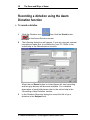
1
Click the Dictation icon
then click the Record button
on the Azam Dictation screen.
2
The following dialog box will appear. If you are using an external
microphone make sure it is attached to your PC. Refer to the
online help in the 'Miscellaneous' section.
When the red Record button is clicked Azam will start recording
and the grey buttons will become available. For a detailed
description of each field please refer to the online help in the
‘Recording a New Dictation’ section.
3
In the Dictation Recorder dialog box insert the title of your
dictation in the Subject field.
© Azam International Technologies Limited 2003-2005
Recording a dictation using the Azam Dictation function
39
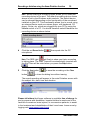
Note: -Before starting a recording Azam allows you to select the
recording device to be used. The default recording device shown
above is set by the Windows audio controls. The default device
can be changed depending on the functionality of the soundcard
installed on your PC. This functionality allows you to record using
an external device such as a stereo player, mini keyboard, CD
player, Guitar, etc. which are plugged into your PC by using the
Line In socket of a PC. You would therefore select Line In as the
recording device as shown below.
4
Click the red Record button
microphone.
then speak into the PC
Note: The RED light
will flash to show you that a recording
is taking place. The Start Time will be automatically inserted and
the End Time will be noted when you press the Stop button.
5
Click the Save button
button
to save the recording or the Close
to close the dialog box without saving.
The saved recording will appear in the main Dictation screen with
the subject title, date, time and duration.
Please tell others that Azam software is available free of charge for
use by persons with disabilities, hospital children's wards and to the
families of comatose, brain injured, or unconscious patients, to assist
in the treatment and rehabilitation of their loved ones. Learn more by
logging onto www.azamit.com/coma
www.azamit.com
40
The Hows and Whys of Azam
Recording a meeting using the Azam
Meeting function
To record a meeting
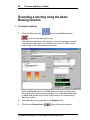
1
Click the Meeting icon,
then click the Record button
on the Azam Meeting screen.
The following dialog box will appear. If you are using an external
microphone make sure it is connected to your PC. Refer to the
online help in the 'Miscellaneous' section.
When the Record button is clicked Azam will start recording and
the grey buttons will become available. For a detailed description
of each field please refer to the online help in the ‘Recording a
Meeting’ section.
2
Insert the title of the meeting in the Subject field.
3
Click the red Record button
when the meeting starts.
© Azam International Technologies Limited 2003-2005
Recording a meeting using the Azam Meeting function
41
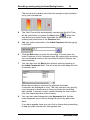
The record level indicator will show the strength of sound picked
up by your microphone:
4
The Start Time will be automatically inserted and the End Time
. When the
will be noted when you press the Stop button
stop button is pressed Azam calculates the duration of the
meeting and inserts this in the Duration field.
5
Add your index comments to the Index Comment field by typing
in the field.
6
Click the Mark button to mark the recording. This will move the
Index Comment to the Comments area. By marking the recording
you can establish tracks in the recording to which a listener can
return instantly.
7
You can also click the Mark button without entering anything in
the Index Comments field. This will enter the time stamp into the
Comments area.
When the recording is retrieved for playback the Index
Comments are displayed in a list. The user can then very quickly,
move forwards or backwards to the point where the recording
was marked. It acts as a ‘track’ marker allowing the user to skim
over less important parts of the meeting.
8
You can also insert keywords in the Keywords field. Add as
many keywords as you like by hitting the return key after each
word.
If you have agenda items you can click on these during recording
to add an index comment for that agenda item.
www.azamit.com
42
The Hows and Whys of Azam
Note: The Index Comments and the Keywords also come into
play when you want to search for a recording. For example, if you
perform a smart search by entering the word ‘Dog’, Azam will find
all of the records with the word ‘Dog’ in the Index Comments area
or in the Keywords field. The smart search utilises the thesaurus
to find other, related records.
There is a limit of 5000 characters per record to include all text in
the Keywords, Agendas and Index Comments fields. Azam will
only search on the first 5000 characters per record. Outside of
the search function, the only limit to your text is that set by your
system.
9
When the meeting has finished click the Save button
save the recording or the Close button
box without saving.
to
to close the dialog
The saved recording will appear in the main Meeting screen with
the subject title, date, time and duration shown.
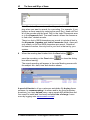
A word of thanks to all our customers worldwide: By buying Azam
software, by recommending it to others and/or by giving monetary
donations, you have helped many, many people with disabilities and
the unwell to install and use Azam software free of charge. Learn
more by logging onto www.azamit.com/adi
© Azam International Technologies Limited 2003-2005
Recording a phone call using the Azam Phone function
43
Recording a phone call using the Azam
Phone function
To record a phone call
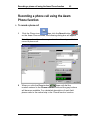
1
Click the Phone icon
then click the Record button
on the Azam Phone screen, the following dialog box will appear.
Note: If you do not have the required modem it is not possible to
record a phone call.
2
Azam will dial the
When you click the Phone button
number entered in the Phone number field and the grey buttons
will become available. For a detailed description of each field
please refer to the online help in the ‘Phone function’ section.
www.azamit.com
44
The Hows and Whys of Azam
Before making a phone call
Before starting a phone call you can set the duration of the call plus
the cost per hour.
To prepare for a call
1
Optionally, click the Settings button on the recorder dialog box to
set the costs and times.
The Times and Costs dialog box will appear.
The Due to start at time is defaulted to the current time of the
PC and the Due to end at time will be thirty minutes after that.
You can change the time setting by clicking in the field and typing
in the required time.
If the call is started before the Due to start at time Azam will
automatically add that amount of time to the end time in its
calculations. If the call is started after the Due to start at time
Azam will automatically subtract that amount of time to calculate
the duration.
2
In the Cost per hour field type in the cost of the call per hour. In
the above example the call duration is thirty minutes, and the call
cost is twelve pence (12p) per minute. Azam automatically
calculates that the total cost of the call will be £3.60. Alternatively
you may wish to include man-hours and office costs in the
calculations.
© Azam International Technologies Limited 2003-2005
Recording a phone call using the Azam Phone function
45
3
Click the OK button to accept the setting. You will be returned to
the Phone Recorder dialog box with the timer set to thirty
minutes.
4
The alarm will be set to remind you of the duration of the call.
The phone call counter will increase while the call continues to be
recorded.
5
Enter the callers name in the Name field.
6
Enter the phone number in the Phone number field.
7
Once you are ready, click the Phone button
number.
8
When the call is answered pick up your phone and click the
to dial the
Record button.
You MUST click on the Record button in order to start the
recording. The record level indicator will show the strength of the
sound:
9
The Start Time will be automatically inserted with the current time
and the End Time will be inserted when you press the Stop
button.
Azam also calculates the duration of the call and
inserts it in the Duration field.
10 Insert index comments by clicking the Mark button
.
www.azamit.com
46
The Hows and Whys of Azam
By marking the recording you can establish tracks in the
recording to which a listener can return instantly. You can also
click the Mark button without entering anything in the Index
Comments field. This will enter the time stamp into the
Comments area. For further details on how to insert Index
Comments refer to the online help under ‘Record incoming call’.
11 Insert any required keywords in the Keywords area. Add as
many keywords as you like by hitting the return key after each
word.
12 Click the Finish the call button
13 Click the Save button
button
to end the call.
to save the recording or the Close
to close the dialog box without saving the call.
Note: Pressing the Finish the call button does NOT end the phone
call. This ONLY stops Azam recording the call. The call is ended
when you replace the receiver on the phone.
The saved recording will appear in the main Phone screen with
the subject title, date, time and duration shown.
Please tell others that Azam software is available free of charge for
use by persons with disabilities, hospital children's wards and to the
families of comatose, brain injured, or unconscious patients, to assist
in the treatment and rehabilitation of their loved ones. Learn more by
logging onto www.azamit.com/coma
© Azam International Technologies Limited 2003-2005
Recording a diary entry using the Azam Diary function
47
Recording a diary entry using the Azam
Diary function
To record a diary entry
1
Click the Diary icon
on the Azam Diary screen.
then click the Record button
The following dialog box will appear. If you are using an external
microphone make sure it is connected to your PC. Refer to the
online help in the 'Miscellaneous' section.
When the Record button is clicked Azam will start recording and
the grey buttons will become available. For a detailed description
of each field please refer to the online help in the ‘Recording a
Diary entry’ section.
www.azamit.com
48
2
The Hows and Whys of Azam
Set the required date by clicking directly on the calendar day. To
move the calendar months forwards or backwards, click the
left/right arrows.
Note: A red circle always marks the current month and day. The
selected day is always marked with a blue circle.
3
Set the Diary time by clicking the up/down arrows.
4
Insert a title for the entry in the Subject field.
5
Click the Record button
to start the recording.
Note: The record level indicator will show the strength of sound
picked up by your microphone.
6
The Start Time will be automatically inserted and the End Time
will be noted when you press the Stop button.
Azam also
calculates the duration of the voice entry and inserts this into the
Duration field.
7
Insert Index Comments by clicking the Mark button
.
By marking the recording you can establish tracks in the
recording to which the listener can return instantly. You can also
click the Mark button without entering anything in the Index
Comments field. This will enter the time stamp into the
Comments area.
© Azam International Technologies Limited 2003-2005
Recording a diary entry using the Azam Diary function
49
8
Insert any required keywords in the Keywords area. Add as
many keywords as you like by hitting the return key after each
word.
9
Click the Save button
button
to save the recording or the Close
to close the dialog box without saving.
The saved recording will appear in the main Diary screen with the
subject title, date, time and duration.
Note: If the Auto Reminder box is checked
the
Diary function will automatically play the recording at the
allocated date and time. For Auto Reminder to work you MUST
set the Azam Diary monitor flag to ON.
To set the Diary monitor ON
To set the diary monitor ON
1
On the main Azam screen select Tools.
2
On the drop down menu select Diary Monitor.
www.azamit.com
50
The Hows and Whys of Azam
You will then be returned to the main Azam screen.
Note: If the Nag Me box is checked
the Diary function
will automatically play the recording every minute until the Nag
Me option is turned off. For the Nag Me reminder to work you
MUST set the Azam Diary monitor to ON. See above instructions
to set Diary monitor on.
Turning OFF the Nag Me Option
To turn off the Nag Me option
1
Clear the Nag Me box from the dialog box when the recording
has been played.
© Azam International Technologies Limited 2003-2005
Recording a diary entry using the Azam Diary function
51
2
Right-click on the record ID from the main function screen, and
select Edit. The following dialog box will appear.
3
Clear the Nag Me box.
A word of thanks to all our customers worldwide: By buying Azam
software, by recommending it to others and/or by giving monetary
donations, you have helped many, many people with disabilities and
the unwell to install and use Azam software free of charge. Learn
more by logging onto www.azamit.com/adi
www.azamit.com
52
The Hows and Whys of Azam
Translation of text and text to speech using
the Azam Translate function
To translate text
1
Click the Translate icon
then click the Record button
on the Azam Translation screen.
2
The following dialog box will appear.
3
In the translate dialog box insert the title of your text in the
Subject field.
4
Either copy and paste a document or web page into the Text to
be translated box, or type the text manually
5
Choose the source language and translation language by using
the Select Language drop down list. . Click the translation icon.
© Azam International Technologies Limited 2003-2005
Translation of text and text to speech using the Azam Translate
function
53
6
If you now want to hear the translated text spoken, use the
Select voice drop down list. Note: Unpredictable results occur if
you use an alternative voice to the text being spoken. For
example, if the text is French and you use an American English
voice, the system will read the text back in a rather bad American
accent that appears to be trying to speak French.
7
Click the Save button
button
to save the translation or the Close
to close the dialog box without saving.
The saved translation will appear in the main Translate screen
with the subject title, date, time and duration.
www.azamit.com
54
The Hows and Whys of Azam
The Standard Azam Internal Message Player
There are two types of Azam Message Player: The Standard Azam
Internal Message Player shown above is built within the main Azam
product and is used to playback a recording, whether it is a Dictation,
Meeting, Phone or Diary recording. On playback, the Azam Internal
Message Player allows you to add extra Index Comments. The
second type of Azam Message player is the external one, which
allows anyone to listen to Azam recordings, without having to license
the full Azam product. It is available for free download from our
website. The text below refers to the internal Azam Message Player
only.
To add extra Index Comments
1
While the recording is playing back, add text in the Index
Comments field and click the Mark button.
For further details refer to the online help in the ‘Play Button’
section.
© Azam International Technologies Limited 2003-2005
Translation of text and text to speech using the Azam Translate
function
55
Playing back a Recording
Azam always uses the Internal Message Player to playback a
recording whether it is a Dictation, Meeting, Phone or Diary recording.
To playback a recording
1
From the main screen select an Azam function e.g. Dictation.
2
Select the recording by clicking on the ID of a recording in the
main screen.
3
Click the Play button.
www.azamit.com
56
The Hows and Whys of Azam
The Azam Internal Message Player will be displayed.
4
5
Click the Play button
to playback the recording.
Click the Stop button
to stop the recording or the Pause
button
to pause the recording.
Azam allows you several ways to move forwards or backwards
within the recording.
6
7
Click the mouse on the playback slide bar and drag it forwards or
backwards to the required position.
Click the Fast forward button
to forward the recording to
the end or click the Fast rewind button
recording back to the beginning.
8
to rewind the
Click the Move forward to the Index Comment button
to move
to the next marked position in the recording or click the Move
backward to the Index Comment button
to move backwards to
the previous marked position in the recording.
© Azam International Technologies Limited 2003-2005
Translation of text and text to speech using the Azam Translate
function
57
9
If you have made any changes to the recording press the Save
button
to save the recording or the Close button
close the dialog box without saving.
to
Sound Effects
Sound effects can be applied to Azam recordings by clicking the
Effects button on the Azam Internal Message Player.
1
Click the Effects button on the Azam Internal Message Player
and the following dialog box will appear.
2
Before you start to use the Sound Effects you MUST select the
control device, this enables you to save the recording with the
effects applied.
www.azamit.com
58
The Hows and Whys of Azam
Note: -When the effects part of the Message Player is displayed for
the first time the device selection is blank. You must click on the drop
down arrow to make a selection from the list of recording controls.
The list will vary depending on the soundcard installed on your PC.
The device you should select should be the same as the one which
records sound passing through your soundcard.
For example it should be one of the following: - Stereo Out, Stereo
Mix, Mixer Out, Mixer or a similar device.
Important: It will NOT include: Microphone, Telephone, Line, CD
Audio, Video or Auxiliary these are listed as ‘standard devices’.
3
The following Sound Effects can be applied to the recordings.
You can Speed up or Slow down the recording by using the arrow
keys.
You can record with Chorus by checking the Chorus box and
applying the effects by using the slide bar.
You can record with Distortion by checking the Distortion box and
applying the effects by using the slide bar.
You can record with Flanger by checking the Flanger box and
applying the effects by using the slide bar.
You can record with Gargle by checking the Gargle box and
applying the effects by using the slide bar.
You can record with Equalizer by checking the Equalizer box and
applying the effects by using the slide bar.
You can record with Reverb by checking the Reverb box and
applying the effects by using the slide bar.
You can record with Reverse by checking the Reverse box.
4
After applying the required effects you can playback the
recording with the applied effects by clicking the Play button.
5
Once all the effects have been applied you can save the
recording by pressing the blue Save button.
© Azam International Technologies Limited 2003-2005
Translation of text and text to speech using the Azam Translate
function
59
Note: -When effects are applied to the Azam recording the setting for
each effect can be saved within the Azam recording by pressing the
standard Save button.
This will allow the recording to be
played back either normally or with the effects, which were applied.
The blue Save button
, on the sound effects part of the
Message Player will create a new Azam recording from the playback
of the original. To save the entire recording to a new recording, the
original recording must be played back in full with the effects part of
the Message Player open. If you only playback part of the recording
then only that part will be saved to a new recording. To enable this
feature to work you must have previously selected the Select control to
use to record effects in a new recording function.
Note: Initial research has shown that using the above special effects
can help to decipher the voices of people with certain speech
impediments. We welcome your input and success stories!
Please tell others that Azam software is available free of charge for
use by persons with disabilities, hospital children's wards and to the
families of comatose, brain injured, or unconscious patients, to assist
in the treatment and rehabilitation of their loved ones. Learn more by
logging onto www.azamit.com/coma
www.azamit.com
60
The Hows and Whys of Azam
Advanced Azam Functions
Sending a recording via the email program
Azam always uses the same procedure to send a recording via email
whether it is a Dictation, Meeting, Phone or Diary recording.
To send a recording via the email program
1
Select a function from Azam, then select a recording by clicking
on the ID of the record on the main screen then click the Send
button.
2
Azam will issue the following Send email Options dialog box.
Azam allows you to select any one of the three options or all
three when sending the email. Read the note below on the
allocated options.
Note: From the above Send email Options dialog box the user can
lock the recording by checking the Lock selected records box. If the
box is checked the recipient will not be able to modify the recording.
The user can convert selected records to Azam voice quality by
checking the Convert selected records to Azam Voice Quality box.
If the box is checked only the recording with Stereo, Radio and CD
quality will be converted.
The user can compress the recording by checking the Compress
selected records box. Compressing the recording saves time for
both the sender and the recipient of the email. The Compress
selected records box will already be checked if your option is
already set in the options menu. Please see Option setup
3
Check the Lock selected records and select OK. Your default
email program will start and attach the selected recording and
send the mail.
© Azam International Technologies Limited 2003-2005
Advanced Azam Functions
61
4
Check the Convert selected records to Azam Voice Quality
and select OK.
5
The Azam Compressor dialog box will appear to show the
recording is being converted.
Note: The Re-Start button will be available if the Stop is clicked.
6
Click Cancel to cancel the conversion.
7
Click Stop to stop the conversion.
8
Click Re-Start to re-start the conversion.
9
Once Azam has finished preparing the selected recording for
emailing, your default email program will send the mail.
Executing the Send option with Microsoft Outlook will process
the mail and attach the recording as detailed below.
10 Fill in the relevant fields then click Send to send the mail.
www.azamit.com
62
The Hows and Whys of Azam
11 Click the Send button
to send the mail.
12 Check the Compress selected records and select OK.
13 Follow steps 5 to 11 to send the recording.
Note: AOL users cannot use the mail function because AOL does
not use (MAPI). AOL will not automatically attach the recording.
AOL users can export the required file then attach the file to their
email. The same procedure is used for sending the recording for
all Azam functions.
Searching for a Recording
The same search procedure fits all four Azam functions. It is not
necessary to select a modem or monitor the phone line for the search
function to work.
To search for a recording
1
to start the search. A search can be
Click the Search button
started from any Azam function.
© Azam International Technologies Limited 2003-2005
Advanced Azam Functions
63
The Search dialog box will appear. For further details please
refer to the online help in the ‘Search Button’ section.
2
The default date is set to the preceding month. This can be
changed by pressing the down arrow and using the calendar
function, or by highlighting the date and over-typing with the
required date. The date range search is in the format of
DD/MM/YYYY.
3
In the Area field click the function that you wish to search or click
All areas to search for all of the recordings within the date range.
4
Click the Search button
in the dialog box.
www.azamit.com
64
The Hows and Whys of Azam
The search results list will be displayed in the Search Results
area.
Azam allows you to refine your search by using the Smart
search.
5
Click and check the Smart search box
Note: The Smart search database is not included in the download
version of Azam. It is only available if you purchase the boxed version
of Azam. Check the Azam IT website at www.azamit.com for more
information on purchasing or upgrading to the boxed version.
The standard Azam search looks for exact matches to the search
keys you entered in both the Keywords and Index Comments of your
recordings. This is quick and efficient if you know the words stored
when you saved your recordings. If you do not remember the exact
words you used then use the Smart search feature.
When using the Smart search feature, Azam will also look for
different forms of your search keys such as plurals/singulars or
past/future tenses. For example - if your search keys contain the
word eat, Azam will also search for ate and eaten.
Azam Smart search also looks for words, which are associated to
your search keys in the following ways –
Words which have the same meaning as search key
(Synonyms) - Searching for eat would include the words
consume, ingest among others.
Words, which are a type of search key (Hyponyms) Searching for cat would include the words lion, tiger among
others.
Words of which search key is a kind (Hypernyms) Searching for lion would include the words cat, big cat
among others.
© Azam International Technologies Limited 2003-2005
Advanced Azam Functions
65
Smart search uses the WordNet® database created by the Cognitive
Science Laboratory at Princeton University. Their website
www.cogsci.princeton.edu/~wn/ allows you to try the functionality
interactively.
6
Type a word in the Keywords/Notes field.
7
Click the Search button
to perform the search. All of the
recordings with the keyword will be displayed in the Search
Results area.
The Search Statistics area will show the keyword and number of
matches for that keyword.
If no matches were found the Search Statistics dialog box will
remain blank and Azam will issue the information message
below.
Merging Recordings
Azam allows you to merge several recordings into one. The same
procedure applies to all four Azam functions.
To merge recordings
1
Perform the required search. For further details on performing
the search please refer to the online help in the ‘Search’ button
section.
www.azamit.com
66
2
The Hows and Whys of Azam
In the Search Results area click on the recording and drag it into
the Merge List area. Repeat with other selected recordings.
Note: Locked recordings cannot be merged. Locked recordings
are indicated by the lock symbol.
3
Select the order in which you wish to merge the recordings by
highlighting the ID of the recording and clicking the Move the
selected recording button.
4
If you wish to delete the recording from the merge list, highlight
the recording and click the Delete button.
5
Click the Merge button
to merge the recordings.
© Azam International Technologies Limited 2003-2005
Advanced Azam Functions
67
The Dictation Recorder dialog box will appear.
6
Type the title in the Subject field.
7
You can play
the entire merged recording, and add Index
Comments or Keywords to the recording. The recording is now
merged and indexed (if required). To save proceed to part 9.
8
Azam also allows you to record your comments into the merged
recording by pressing the Record button.
Note: If you have recorded a comment into the merged recording,
your comments are added to the end of the recording. The
recording produced as a result of the merged recordings will
always be set to the recording quality selected in the options
menu.
9
Click the Save button
to save the recording or the Close
button
to close the dialog box without saving. Clicking
either button will take you back to the Search dialog box.
10 Click on the cross (which is in the top right hand corner) to close
the dialog box.
If saved the merged recording will appear in the main Azam
Dictation screen.
www.azamit.com
68
The Hows and Whys of Azam
Studio Mixing Function
The Studio Mixing function uses the same procedure for all four
Azam functions.
It is used to mix parts of several recordings into one new recording, or
for cutting out parts of a recording and combining them as a new
recording. The Studio Mixing option is selected from the same screen
as the Search screen.
To use the Studio Mixing Function
1
Perform the required search. For further details on performing
the search please refer to the online help in the ‘Search’ button
section.
2
From the Search Results area click on the recording and drag it
into the Merge List area.
Note: Locked recordings cannot be merged. Locked recordings
are indicated by the lock symbol.
© Azam International Technologies Limited 2003-2005
Advanced Azam Functions
69
3
Select the order in which you wish to merge the recordings by
highlighting the ID of the recording and clicking the up/down
arrows to move the recording.
4
If you want to delete the recording from the merge list, highlight
the recording and click the Delete button.
5
Click the Studio button
.
The Azam Mixing Studio dialog box will appear.
6
Highlight the recording: the length of the recording will appear in
the Extract To field.
7
Extract the entire recording by clicking the Extract button.
www.azamit.com
70
The Hows and Whys of Azam
8
Alternatively, replay the recording to determine which section
needs extracting. Once you have determined the part of the
recording you wish to extract, move the Extract From slide bar
and the Extract To slide bar to the required positions.
9
Click the Extract button to extract the recording. The extracted
part of the recording will be displayed in the Extract List area.
10 To preview the new recording click the P’view button.
Azam will build the recording and
11 Click the Build button.
the Dictation Recorded dialog box will appear. From the
Recorder dialog box you can enter the title of the recording in the
Subject field. You can playback the recording and add Index
Comments to the recording, or just playback the recording to
verify its new form.
12 Fill in the required fields then select the Save button to save the
recording.
Note: The recording produced as a result of the mixed recordings
will always be set to the recording quality selected in the options
menu.
© Azam International Technologies Limited 2003-2005
Advanced Azam Functions
71
Azam Import Function
Importing recordings and files with Azam. For further details please
refer to the online help in the ‘Tools’ menu option section. Recordings
and files can be imported from all five Azam functions. You can
import WAV files, Phone Book, Templates, and Agendas. The import
process for all recordings and files is identical, but they are given
different file extensions. They are:
Azam Data Store files - *.cbt
Azam Message files - *.cbz
WAV files - *.wav
MP3 file - *.mp3
WMA file - *.wma
OGG file - *.ogg
Phone Book from Azam Data Store - *.cbt
Phone Book from exported Phone Book file - *.cbb
Templates from Azam Data Store - *.cbt
Templates from exported Template - *.cbc
Agendas from Azam Data Store - *.cbt
Agendas from exported Agenda files - *.cba
The different file extensions ensure the correct import destination.
To use The Azam Import Function
1
From the main menu choose the Tools, Import option.
The following dialog box will appear.
www.azamit.com
72
The Hows and Whys of Azam
2
Select the path and the folder where the required file is stored.
The above example shows that the PhoneBook.cbb file is stored
in the Administrator folder.
3
Click the Open button
to import the file.
The imported file is automatically stored in the correct folder for
Azam to use. For example, the Azam Data Store file (*.cbt) will
be stored in the same path and folder as your Data Store. The
imported phone book file (*.cbb) will be stored in your phone
book file under the profile path.
Note: The import function uses the same above steps for all types of
file that can be imported into Azam.
Azam Export Function
Exporting recordings and files with Azam. For further details please
refer to the online help in the ‘Tools’ menu option section. Recordings
and files can be exported from all five Azam functions. You can
export Phone Book, Templates, Agendas and any recordings created
by Azam. The Export process for all recordings and files is identical,
but they are given different file extensions. They are:
Exported Phone - *.cbb
Exported Templates - *.cbc
Exported Agendas - *.cba
Exported Azam Recordings - *.cbz
To Export a Phone Book, Template or Agenda
1
From the main menu choose the Tools, Export, Phone Book option.
© Azam International Technologies Limited 2003-2005
Advanced Azam Functions
73
The following dialog box will appear.
2
Select the path and the folder where you wish to save the
exported *.cbb file.
3
If necessary, enter a new file name in the File Name field. Click
the Save button
to export the file. The file will be saved
under the selected path and folder.
To Export an Azam Recording
Azam allows you to export a recording into a WAV, MP3, WMA or
OGG format. The same procedure is used for all four Azam functions.
1
On the main Dictation screen, highlight the record ID number of
the recording to be exported. Right-click on the highlighted
record, and select Export, WAV Format. The following dialog
box will appear.
www.azamit.com
74
The Hows and Whys of Azam
2
In the above dialog box, select the path to the location where you
wish to save the exported file.
3
Click OK once the path and the folder have been selected.
4
The Azam File Converter dialog box will be presented to show
the progress of the conversion.
5
The file is converted and stored in the specified location.
Templates and Agendas
The Azam product is pre-loaded with several Templates and
Agendas to assist you in pre-loading index markers to automatically
create the equivalent of CD tracks. You can use these templates to
make a recording in any of the Azam functions. All Templates,
whether pre-loaded or new, must be allocated to a particular function.
© Azam International Technologies Limited 2003-2005
Advanced Azam Functions
75
Making a recording using a pre-loaded Template
To make a recording using a pre-loaded Template
1
On the main Azam screen choose the Tools, Templates option.
2
In the Azam Templates dialog box right-click on the template to
use.
The Type field shows which of the four Azam functions the
record will be created in.
3
Select Create a record.
www.azamit.com
76
The Hows and Whys of Azam
The Meeting Recorder dialog box will appear with the pre-loaded
Template, Index Comments and Keywords.
4
To make a recording click the red Record button. For further
details please refer to the online help in the ‘Tools and
Templates’ section.
© Azam International Technologies Limited 2003-2005
Advanced Azam Functions
77
Making a recording using a pre-loaded Meeting Agenda
To make a recording using a pre-loaded Meeting Agenda
1
On the main Azam screen choose the Tools, Meeting Agendas
option.
2
In the Azam Meeting Agendas box right-click the Agenda to be
used.
3
Select Create Meeting.
www.azamit.com
78
The Hows and Whys of Azam
The Meeting Recorder dialog box will appear with the pre-loaded
Agenda and Keywords.
4
To make a recording click the red Record button. For further
details on recording please refer to the online help in the ‘Tools
and Agendas’ section.
A word of thanks to all our customers worldwide: By buying Azam
software, by recommending it to others and/or by giving monetary
donations, you have helped many, many people with disabilities and
the unwell to install and use Azam software free of charge. Learn
more by logging onto www.azamit.com/adi
© Azam International Technologies Limited 2003-2005
Advanced Azam Functions
79
Using the Azam Text to Speech Function
Making a recording using the Azam Text to speech function
1
From the menu bar select Tools, Text to speech. The following
dialog box will appear.
2
Type the subject in the Subject field.
3
Type the required text in the Text field as shown below.
4
Click the Listen button to listen to your converted text.
www.azamit.com
80
The Hows and Whys of Azam
5
The SAPI5VoiceInstaller installs three types of voices. You can
select the required voice by clicking the dropdown arrow from the
Select Voice field.
6
You can adjust the speed of the voice by using the Adjust voice
speed slide bar.
7
Once you are satisfied with the results click the Save as
Dictation button to save the converted text as a dictation or click
the Save as Meeting button to save the converted text as a
Meeting. The saved recording will be seen either in the main
Azam Dictation or Meeting screen.
8
Click the Browse for Text button.
9
From the Windows browser locate the text (.txt) file and click the
Open button.
10 The text (.txt) file will appear in the Azam Text To Speech dialog
box.
11 Repeat steps 4 to 6 to save the converted text to either a
Dictation or a Meeting recording.
12 Click the Cancel button to cancel the dialog.
Should you wish to translate the text you have just used, press the
Translate button. Any text already used, will be transferred to the
translate function screen.
© Azam International Technologies Limited 2003-2005
Azam: its history and philosophy
81
Azam: its history and philosophy
(Some personal experiences from Andronicos, inventor of Azam)
Why Azam was developed
I worked for years with a rich mix of communication tools - emails,
voice-mails, conference and satellite phones - and, like everyone
else, struggled to balance my desire to listen to others with constant
pressure on my time. To help resolve this conflict, Azam was created:
a tool allowing people to work at those times which suit them,
enabling them to talk or listen to others via email, and to store
important parts of conversations so as to retain valuable ideas.
This is the story behind Azam:
In 1998, I was losing sleep. Living in California - eight hours behind
the UK, nine hours behind Milan and Dusseldorf - I tumbled out of
bed at unearthly hours to join meetings with European colleagues. In
the grand scheme of things it was not a huge problem, but I found it
extremely irritating. My cunning plan was to send faxes or emails
instead, but it takes me half an hour to type just two minutes’ worth of
speech, my handwriting is illegible and my spelling poor; I’m partially
dyslexic.
I came up with the idea, and I certainly do not claim to be the first, of
using voice emails. It was an unoriginal but effective approach. No
typing or scrawling, my words were passed from colleague to
colleague, office to office with their meaning intact. The nuances and
expression came, so to speak, straight from the horse’s mouth rather
than via the horse’s keyboard or fax machine. The downside was that
everyone received a monologue, a set piece to be listened to without
pause from beginning to end.
www.azamit.com
82
The Hows and Whys of Azam
Over time I had further requirements for this little voice email tool.
You've probably read the adverts proclaiming that "accurate, timely
information is money". Well, I wanted our offices in Europe to record
their crucial meetings and to share their discussions online with
others and myself. It wasn't that I wanted to be Big Brother; I simply
wished to hear what led to a recommendation, to get first hand the
range and strength of feeling across the company and have access to
that knowledge instantly. Formal reports would not meet any of the
criteria. Moreover, I didn’t always need to hear the whole meeting as
parts of it were normally enough. Neither did my colleagues desire
lengthy recordings; they wanted only the nuts and bolts, the pithy bits.
To make this possible, and to save others having to listen to my
frequent messages in their entirety, we introduced the editing
functions of Azam.
As the idea for Azam was developed further, I asked if it was possible
to record, edit and store phone calls on my PC, so that I could
participate both in one-to-one calls and one-to-many conference calls
via my computer. It was possible. Yes, I know it still meant that I had
to get out of bed early, but that's life I suppose. Azam#1was born.
I still wanted more; I was aware of time pressures, trying to balance
so many aspects of life. Azam had to be more time-effective. I
wanted to be able to go straight to the relevant sections of the
recording before they were emailed, edited or stored: a fast tracking
system was required. ‘WordNet’, a neat tool developed at Princeton
University, helped us to achieve this goal. Once introduced, Azam
could search for key words in the recording, automatically
1
identifying similar or connected words . If you are a Customs
Official retrieving discussions over the last three years on rabid dogs,
the software will find the details on Fifi the sick poodle!
I had another, personal, use for such a product: romance. I am an
expert on romance, in the sense that I have been divorced twice and
am currently searching for my future ex-wife across five continents. A
"Romantic Template" is included in the product for my benefit.
Oh, and I had one more requirement for this product: I enjoy playing
practical jokes, but our publicist suggested I don't write about this yet.
(David is a very able advisor but quite conservative in nature. I gave
in - under protest - to his strong recommendation not to name Azam
using the well-known Greek/Danish word FETA.)
1
Available in the boxed version of Azam only.
© Azam International Technologies Limited 2003-2005
Azam: its history and philosophy
83
A tremendous amount of research has gone into this version of
Azam. An international team of professionals with years of
experience in cutting-edge software design has helped to create and
mould this product. The findings of psychologists, futurists and
lawyers have all been incorporated. We asked for input from
teenagers, children and employers across the spectrum of the
business community. We have tried to take on board the needs of the
disabled, elderly, dyslexic and “computer afraid” and continue to seek
their advice.
This is how the seeds of Azam were sown. Hopefully it is now a tool
that will help many to communicate with greater ease. If it brings
enjoyment and helps you to avoid one major misunderstanding then it
has all been worth it.
Have fun using Azam: don't just say it - Azam it!
www.azamit.com
84
The Hows and Whys of Azam
A personal note
I started in the computer industry in 1975, and since 1984 have
worked designing software programs, consulting and teaching
technicians and managers in all areas of Enterprise Systems
Management. The simplest explanation of this type of management is
that it should minimise the risk of change and the impact of problems.
A fundamental rule in life is that problems may bring about change
and change may cause problems (getting out of bed early was my
problem).
Building helpdesks for multinationals, automating how they collected,
escalated and managed problems while implementing change, were
amongst my greatest challenges. Key lessons were learned in this
period. Misunderstandings, whether in business or personal life, are
expensive both emotionally and financially. I know what it means to
be "misheard", and appreciate the impact of having one's actions
misinterpreted. Yet wrongly- interpreted messages are all too familiar.
Azam is geared towards opening up communications at a level that
we understand best - the spoken word.
I have observed that tremendous time and effort is spent keeping "in
touch" and avoiding misunderstandings. We write and copy copious
notes, make numerous telephone calls and send confirming emails.
Nevertheless, despite best intentions and hours of dedicated
administration, communications are misinterpreted and confusion
reigns. I can illustrate this dilemma with an example: Louise, a senior
advisor I knew at a customer site, was acknowledged for her efficient
record-keeping. Her meetings were minuted and distributed, essential
in her field as she was a financial specialist. Her conscientiousness
meant that she worked late and struggled to keep up with the
schedules. Following a key meeting, Louise, as normal, distributed a
detailed account of the agreements. She also made numerous offline
telephone conversations, clarifying and outlining action on several
points. These discussions were passed on, and in the "telling"
became summarised and distorted. Mistakes were made and
misunderstandings arose, scuppering the introduction of a muchneeded product.
© Azam International Technologies Limited 2003-2005
A personal note
85
Louise had not the time or the inclination to clarify and outline
everything in writing. Had Azam been used, her words would have
been recorded automatically, passed on to her colleagues across the
company and stored online for review. No extra effort on Louise's part
would have been required. There would have been no distortion.
Such misunderstandings are not unusual or limited to business. I am
sure that we all have a similar personal story to tell.
It was to avoid situations like these that I invented Azam. By
recording our words directly, we preserve the original intent of our
communication: our emotion and tone remains along with the detail of
our message. With Azam, there will be no unintentional distortion as
our words pass from person to person. We do not have to worry that
messages passed down the line will have key information missing.
The last person in the corridor will hear our message exactly as we
meant it to be heard.
Email is fast, flexible and easy to use, but it takes away our voice, our
emotion and character. Azam gives us back our voice and keeps the
much-valued benefits of emails; the ability to edit, paste, store, file
and share.
With this product I hope to use the email technology that we already
have, and which we are comfortable using, in order to create a new
form of online communication. Azam works with us and with our
words, removing the time-consuming need to transcribe them; it
simply fits into our day. Azam helps avoid misunderstandings.
www.azamit.com
86
The Hows and Whys of Azam
The Sense of recording conversations
Today, the concept of recording an important discussion or message
can cause some to raise their eyebrows. This is understandable. I
can remember my very first job, in the computer department of one of
Europe’s largest banks. It was 1975 and we had two huge 4megabyte mainframe computers, with various other devices, in an
area the size of a football pitch. These two monoliths were fed by
banks of dismountable disk drives, each one the size of a camper van
and holding 1 gigabyte of data. Even in the year 2002 any PC that
had less than 256 meg of memory and 10 gig of hard disk would have
been considered old technology. As a young computer technician I
had to attend a review meeting and was rather taken aback to
discover that it was going to be minuted. I questioned whether the
team trusted each other but kept quiet (for the whole meeting) and
accepted this “new” approach.
I wonder if the person who invented the concept of taking minutes
ever had to do a sales job persuading his contemporaries to speak.
Mind you, we are probably talking about a group of priests
somewhere in Mesopotamia 5000 years ago who, if they got "it"
wrong, ended up in the crocodile pit. Things are rather different
today, even in the cutthroat world of business politics. But, if by some
small chance it exists, perhaps Azam can help you to escape the
corporate crocodile pit by avoiding the odd misunderstanding!
I am confident that once this becomes a routine method of alternative
communication, Azam users will wonder why they never used it
before.
© Azam International Technologies Limited 2003-2005
Remote mediation and conflict resolution
87
Remote mediation and conflict resolution
I recently attended an excellent course at the School of
Psychotherapy and Counselling in London (I was there as a student,
not an inmate) on the subject of mediation. I wanted to learn how
Azam could help resolve disputes through remote mediation. After all,
not everyone can afford the cost of, or feels comfortable with sitting in
front of a mediator, arguing their case with the other protagonist:
some people need a little more space!
Research is taking place as I write on the viability of using remote
mediation for basic disputes and relationship counselling. The press
will be briefed at the appropriate time with the findings.
For now Azam includes a simple template to facilitate dispute
resolution. Try using Azam to record each side of a disagreement
between two people and send it to a mutually-respected third party
for resolution. Try it on the kids and use an older child to act as
mediator. It can work and actually teach social skills at the same time.
Finally, speaking from personal experience, sending an Azam
message to heal a rift or prolonged family dispute can be surprisingly
effective. Without going into detail about how it helped me, I can
assure you - it works.
Please email me your experiences. We'll publish the best ones - with
total anonymity of course.
www.azamit.com
88
The Hows and Whys of Azam
Azam and the disabled
I am blessed with four lovely children that I adore with an equal
amount of love. But my first child, Kristian, is special. Born in 1977
with mental and physical disabilities, the doctors gave my wife and I
very little hope that he would live to his second birthday. Even if he
did, there was an overwhelming chance that he would end up
severely disabled. He is now 25 (in 2003), one of the most loving
people you could ever wish to meet, with incredible savant qualities.
It would be wrong and rather tacky to imply that Azam was built with
Kristian in mind - it wasn't - but people like Kristian can benefit from
its ease of use.
What I am very pleased to be able to tell you is that to begin with,
Azam will be given free to every disabled person in the UK who could
benefit from the technology.
I would like your suggestions on how to improve Azam for use by the
disabled. Funds permitting, we aim to give free Azam software to the
disabled in the whole of the EU and the English-speaking world as
soon as possible. The plan is for foreign versions of the product to be
available within two years.
If you are part of an organisation working with disabled customers,
visit the Azam International technologies website for more information
on how to take part in this initiative.
Did you know that many, many persons with disabilities are provided
with free Azam software?
Did you know that hospital children's wards are provided with free
Azam software worldwide?
Did you know the families of comatose, brain injured, or unconscious
patients are provided with free Azam software to assist in the
treatment and rehabilitation of their loved ones?
We wish to thank the organisations and members of the public who
have helped the above worthy causes, by buying Azam software
and/or by giving monetary donations to assist.
© Azam International Technologies Limited 2003-2005
Azam and the disabled
89
If you have bought Azam, we thank you! Please tell your family,
friends and work associates about Amazing Azam and our
philanthropic initiatives.
www.azamit.com
90
The Hows and Whys of Azam
Guidelines on Azam Etiquette
As the inventor of Azam, I was asked to create some guidelines on
Azam etiquette, which incorporate the philosophy of Azam’s
development. They are intended as recommendations to help ensure
your enjoyment of the product, and not as personal guidelines.
Guideline 1
Important Legal Note - If you record someone without
his or her permission, you may be committing a
criminal offence. This depends on your country or
state. If in doubt, seek competent legal advice.
Guideline 2
Important ethical consideration - It is courteous to
advise people that their voices are being recorded.
The day you inform someone that they were
recorded without their consent, even if no law was
broken or it was done as a prank, it is very likely that
that person will never trust you again. Worse still, if
that person is your spouse, they may file for divorce.
There are exceptions to this rule of course, but it's
for you to decide. It is, of course, not for me to give
you or your organisation moral guidelines.
Personally, there have been a few occasions where
I have legally recorded third parties without their
consent.
Guideline 3
Emailing Azam recordings on an ordinary internet
connection takes approximately 1 minute download
time per 1 minute of talk time. Using Azam’s
compress function will improve this substantially
nevertheless. High-speed internet connections at
both ends are recommended for frequent Azam
email users. In my opinion, it is bad manners to
send lengthy Azam recordings to someone without
prior agreement.
Guideline 4
All ISPs and companies set a maximum email size
for attachments or storage on mail servers. Check
the limits at both ends.
© Azam International Technologies Limited 2003-2005
Guidelines on Azam Etiquette
91
Guideline 5
Please respect participants of meetings who do not
wish to be recorded. We all have hang-ups. I know I
do ever since the day I looked into a mirror and saw
no reflection (someone had removed the mirror part
and left the frame). I suggest the pause button be
used when these people speak; this is the best way
to say something "strictly off the record" anyway.
Guideline 6
If more than one person is using an Azam recording
function, the verbal consent of each participant
should be ensured. A simple repeated statement at
the start of the meeting is sufficient: "This is Lucy, I
consent to this conversation being Azam'd." "This is
John, I agree with Lucy"… etc. It is good manners to
do so, provides a reference in case speakers’ voices
are subsequently unrecognisable (Lucy may have
had a cold that day or Lee, your chief software
whizzkid, may not have reached puberty yet) and,
more importantly, it may be the law in your part of
the world.
It would be nice if Azam was pronounced properly,
whichever language you are speaking. Say "AyZam". Azam is a software product to aid effective
and efficient communication. Let's not get it
confused with ASSAM tea.
Guideline 7
If your company makes use of opt-in email enquiries
and wish to use Azam as a communication tool, I
suggest you keep the initial "cold call" recorded
message to a one-minute maximum.
Guideline 8
My motto is "Avoid misunderstandings - don't breed
them." There's nothing wrong with assertive
communication, but please remember there are
limits to what is considered decent and legal.
www.azamit.com
92
The Hows and Whys of Azam
Guideline 9
If you are a mail administrator, please update your
mail configuration to allow Azam attachments to be
sent and received.
Azam recordings are in non-executable code. This
means that computer viruses cannot be passed on
from Azam voice files. Many companies filter emails
received from external parties and automatically
reject certain types of attachments.
Guideline 10
By ensuring only authorised versions of Azam are
installed, more money will be available to develop
future versions of the product, for technical support,
and for the future of free Azam for the disabled
world-wide
If you feel you would like to propose new guidelines for Azam
etiquette and procedures, please email me via the website. I wish to
reiterate the statement in the introduction above, but in different
words: these are guidelines not rules. How you use Azam is, of
course, up to you.
© Azam International Technologies Limited 2003-2005
Conclusion
93
Conclusion
You've now read why Azam was developed and how it evolved,
based initially on my personal requirement for a simple tool to
communicate so that I didn't have to get out of bed early in the
morning in California. I felt quite honoured a few months ago when
external advisors recommended it be named "Andronicos Z's
Avoiding Misunderstandings", or Azam for short. My initial choice for
a name was Feta.
We’ve been dedicated to creating a tool that can be used by the
majority of people, strikes a balance between capability and usability,
and is entertaining.
If you, your colleagues at work, management, family members and
friends intend to use Azam on a regular basis (whether for work or for
fun), you will look back and wonder how you managed before it
existed.
On a final note, if Azam eventually contributes to preventing
0.00121212% of misunderstandings in the world, while improving the
quality of life for those less fortunate in society, then it's all been
worth it.
Don't just say it - Azam it!
Andronicos
(Refer to Andronicos' hints and tips on using Azam in the online Help
Tutorials.)
www.azamit.com
94
The Hows and Whys of Azam
Appendix
License Agreement
END USER LICENSE AGREEMENT FOR AZAM INTERNATIONAL
TECHNOLOGIES SOFTWARE.
IMPORTANT - READ CAREFULLY: This AZAM International Technologies
End-User License Agreement ("EULA") is a legal agreement between
you (either an individual person or a single legal entity, who will be
referred to in this EULA as "You") and AZAM International
Technologies ("AZAMIT") for the AZAMIT software product that
accompanies this EULA, including any associated media, printed
materials and electronic documentation (the "Software Product"). The
Software Product also includes any software updates, add-on
components, web services and/or supplements that AZAMIT may
provide to You or make available to You after the date You obtain
Your initial copy of the Software Product to the extent that such items
are not accompanied by a separate license agreement or terms of
use. By installing, copying, downloading, accessing or otherwise
using the Software Product, You agree to be bound by the terms of
this EULA. If You do not agree to the terms of this EULA, do not
install, access or use the Software Product; instead, You should
return it, with proof of purchase, to Your place of purchase for a full
refund.
SOFTWARE PRODUCT LICENSE
The Software Product is protected by copyright laws and international
treaties, as well as other intellectual property laws and treaties. The
Software Product is licensed, not sold.
1. GRANT OF LICENSE. This Section of the EULA describes Your
general rights to install and use the Software Product. The license
rights described in this Section are subject to all other terms and
conditions of this EULA.
© Azam International Technologies Limited 2003-2005
Appendix
95
General License Grant to Install and Use Software Product. You may install
and use one copy of the Software Product on a single computer,
device, workstation, terminal, or other digital electronic device
("Device"). You may make a second copy of the Software Product
and install it on a portable Device for the exclusive use of the person
who is the primary user of the first copy of the Software Product. A
license for the Software Product may not be shared.
Alternative License Grant for Storage/Network Use. As an alternative to the
rights granted in the previous section, You may install a copy of the
Software Product on one storage Device, such as a network server,
and allow individuals within Your business or enterprise to access
and use the Software Product from other Devices over a private
network, provided that You acquire and dedicate a license for the
storage Device upon which the Software Product is installed and
each separate Device from which the Software Product is accessed
and used. A license for the Software Product may not be used
concurrently on different Devices unless expressly permitted by this
EULA.
Site License. For the purposes of this EULA, a "site" is a computer
network in a single physical location. If the Software Product is
licensed with site license terms specified in the applicable price list or
product packaging for the Software Product, you may make, use and
install as many additional copies of the Software Product on the
number of Client Devices as the site license authorizes. You must
have a reasonable mechanism in place to ensure that the number of
Client Devices on which the Software Product has been installed
does not exceed the number of licenses you have obtained. This
license authorizes you to make or download one copy of the
Documentation for each additional copy authorized by the volume
license, provided that each such copy contains all of the
Documentation's proprietary notices.
Reservation of Rights. All rights not expressly granted are reserved by
AZAMIT.
2. DESCRIPTION OF OTHER RIGHTS AND LIMITATIONS.
Copy Protection. The Software Product may include copy protection
technology to prevent the unauthorized copying of the Software
Product or may require original media for use of the Software Product
on the Device. It is illegal to make unauthorized copies of the
Software Product or to circumvent any copy protection technology
included in the Software Product.
www.azamit.com
96
The Hows and Whys of Azam
Limitations on Reverse Engineering, Decompilation, and Disassembly. You
may not reverse engineer, decompile, or disassemble the Software
Product, except and only to the extent that such activity is expressly
permitted by applicable law notwithstanding this limitation.
Separation of Component Parts. The Software Product is licensed as a
single product. Its component parts may not be separated for use on
more than one Device unless expressly permitted by this EULA.
Trademarks. This EULA does not grant You any rights in connection
with any trade marks of AZAMIT.
No rental, leasing or commercial hosting. You may not rent, lease, lend or
provide commercial hosting services to third parties with the Software
Product.
Support Services. AZAMIT may provide You with support services
related to the Software Product ("Support Services"). Use of Support
Services is governed by the AZAMIT policies and programs
described in the user manual, in "online" documentation, or in other
AZAMIT provided materials. Any supplemental software code
provided to You as part of the Support Services are considered part
of the Software Product and subject to the terms and conditions of
this EULA. You acknowledge and agree that AZAMIT may use
technical information You provide to AZAMIT as part of the Support
Services for its business purposes, including for product support and
development. AZAMIT will not utilize such technical information in a
form that personally identifies You.
© Azam International Technologies Limited 2003-2005
Appendix
97
Term. If the Software Product that was distributed to you was labeled
as an EVALUATION VERSION or TRY & BUY VERSION (or its
functional equivalent) (an "Evaluation Version"), the license granted
under this EULA commences upon the installation of the Software
Product and is effective for 30 days following the date you install the
Software Product (the "Evaluation Term"). Evaluation Version
Software Products may include software code intended to disable
their functionality after the expiration of the Evaluation Term. You
may take no actions to circumvent the operation of such disabling
code, and you accept all risks that might arise from such disabling
code. If the Software Product was not distributed as an Evaluation
Version, or if you converted an Evaluation Version installation of the
Software Product to a non-Evaluation Version of the Software
Product by authorised use of the conversion mechanism provided
with the Software Product (in each case either being or resulting in a
"Full-License Version"), the licenses granted under this EULA
commence upon the installation of the Software Product and are
effective in perpetuity unless terminated per the terms of this
Agreement.
Software Transfer. You may permanently transfer all of your rights
under this EULA (except if your rights are in an Evaluation Version),
provided you retain no copies, you transfer all copies of the Software
Product (including all component parts, the media and printed
materials, any prior versions, and this EULA), and the recipient
agrees to be subject to the terms of this EULA. If the Software
Product is an upgrade, any transfer must include all prior versions of
the Software Product. Upon the occurrence of such a transfer, your
rights under this EULA terminate immediately.
Termination. Upon the expiration of the Evaluation Term (if any), your
rights under this EULA terminate automatically without notice.
Without prejudice to any other rights, AZAMIT may terminate this
EULA if You fail to comply with the terms and conditions of this
EULA. In such event, You must destroy all copies of the Software
Product and all of its component parts. The terms of this paragraph
shall survive any termination of this EULA.
www.azamit.com
98
The Hows and Whys of Azam
3. UPGRADES. If the Software Product is labeled as an upgrade, You
must be properly licensed to use a product identified by AZAMIT as
being eligible for the upgrade in order to use the Software Product. A
Software Product labeled as an upgrade replaces or supplements
(and may disable) the product that formed the basis for Your eligibility
for the upgrade. You may use the resulting upgraded product only in
accordance with the terms of this EULA. If the Software Product is an
upgrade of a component of a package of software programs that You
licensed as a single product, the Software Product may be used and
transferred only as part of that single product package and may not
be separated for use on more than one Device.
4. INTELLECTUAL PROPERTY RIGHTS. The Software Product (including
but not limited to any images, text, and "applets" incorporated into the
Software Product), the accompanying printed materials, and any
copies of the Software Product are protected by copyright laws and
international treaty provisions. AZAMIT and its suppliers retain all title
and intellectual property rights to the Software Product. If this
Software Product contains documentation that is provided only in
electronic form, you may print one copy of such electronic
documentation. You may not copy the printed materials
accompanying the Software Product.
Some components within the Software Product are copyright by
Princeton University, Xiph.Org Foundation and Yuri Goltsman.
Additional notices are provided at the end of this License Agreement.
5. BACKUP COPY. After installation of one copy of the Software Product
pursuant to this EULA, you may keep the original media on which the
Software Product was provided by AZAMIT solely for backup or
archival purposes. Except as expressly provided in this EULA, you
may not make copies of the Software Product or the printed materials
accompanying the Software Product.
6. U.S. GOVERNMENT LICENSE RIGHTS. The Software Product is
commercial computer software developed exclusively at private
expense, and in all respects is proprietary data belonging to AZAMIT
or its suppliers. The Software Product is comprised of "commercial
computer software" and "commercial computer software
documentation" as such terms are used in 48 C.F.R § 12.212.
Consistent with 48 C.F.R. § 12.212 and 48 C.F.R. § 227.7202-1
through § 227.7202-4, all U.S. Government licensees acquire the
Software Product with only those rights set forth in this EULA.
© Azam International Technologies Limited 2003-2005
Appendix
99
7. APPLICABLE LAW. This Agreement is governed by the laws of
England, without reference to conflict of laws principles. The
application of the United Nations Convention of Contracts for the
International Sale of Goods is expressly excluded. This Agreement
sets forth all rights for the user of the Software Product and is the
entire agreement between the parties. This Agreement supersedes
any other communications with respect to the Software Product. This
Agreement may not be modified except by a written addendum
issued by a duly authorized representative of AZAMIT. No provision
hereof shall be deemed waived unless such waiver shall be in writing
and signed by AZAMIT or a duly authorized representative of
AZAMIT. If any provision of this Agreement is held invalid, the
remainder of this Agreement shall continue in full force and effect.
The parties confirm that it is their wish that this Agreement has been
written in the English language only.
8. LIMITED WARRANTY. AZAMIT warrants that the SOFTWARE
PRODUCT will perform substantially in accordance with the
accompanying materials for a period of thirty (30) days from the date
of receipt.
If an implied warranty or condition is created by your state/jurisdiction
and federal or state/provincial law prohibits disclaimer of it, you also
have an implied warranty or condition, BUT ONLY AS TO DEFECTS
DISCOVERED DURING THE PERIOD OF THIS LIMITED
WARRANTY (THIRTY DAYS). AS TO ANY DEFECTS
DISCOVERED AFTER THE THIRTY (30) DAY PERIOD, THERE IS
NO WARRANTY OR CONDITION OF ANY KIND. Some
states/jurisdictions do not allow limitations on how long an implied
warranty or condition lasts, so the above limitation may not apply to
you.
Any supplements or updates to the SOFTWARE PRODUCT,
including without limitation, any (if any) service packs or hot fixes
provided to you after the expiration of the thirty (30) day Limited
Warranty period are not covered by any warranty or condition,
express, implied or statutory.
www.azamit.com
100
The Hows and Whys of Azam
LIMITATION ON REMEDIES; NO CONSEQUENTIAL OR OTHER
DAMAGES. Your exclusive remedy for any breach of this Limited
Warranty is as set forth below. Except for any refund elected by
AZAMIT, YOU ARE NOT ENTITLED TO ANY DAMAGES,
INCLUDING BUT NOT LIMITED TO CONSEQUENTIAL DAMAGES,
if the Software Product does not meet AZAMIT's Limited Warranty,
and, to the maximum extent allowed by applicable law, even if any
remedy fails of its essential purpose. The terms of Section 10 below
("Exclusion of Incidental, Consequential and Certain Other
Damages") are also incorporated into this Limited Warranty. Some
states/jurisdictions do not allow the exclusion or limitation of
incidental or consequential damages, so the above limitation or
exclusion may not apply to you. This Limited Warranty gives you
specific legal rights. You may have others which vary from
state/jurisdiction to state/jurisdiction.
YOUR EXCLUSIVE REMEDY. AZAMIT's and its suppliers' entire
liability and your exclusive remedy shall be, at AZAMIT's option from
time to time exercised subject to applicable law, (a) return of the price
paid (if any) for the Software Product, or (b) repair or replacement of
the Software Product, that does not meet this Limited Warranty and
that is returned to AZAMIT with a copy of your receipt. You will
receive the remedy elected by AZAMIT without charge, except that
you are responsible for any expenses you may incur (e.g. cost of
shipping the Software Product to AZAMIT). This Limited Warranty is
void if failure of the Software Product has resulted from accident,
abuse, misapplication, abnormal use or a virus. Any replacement
Software Product will be warranted for the remainder of the original
warranty period or thirty (30) days, whichever is longer. Neither these
remedies nor any product support services offered by AZAMIT are
available without proof of purchase from an authorized source. To
exercise your remedy, contact AZAMIT at the address in Section 14.
© Azam International Technologies Limited 2003-2005
Appendix
101
9. DISCLAIMER OF WARRANTIES. THE LIMITED WARRANTY THAT
APPEARS ABOVE IS THE ONLY EXPRESS WARRANTY MADE TO
YOU AND IS PROVIDED IN LIEU OF ANY OTHER EXPRESS
WARRANTIES (IF ANY) CREATED BY ANY DOCUMENTATION OR
PACKAGING. EXCEPT FOR THE LIMITED WARRANTY AND TO
THE MAXIMUM EXTENT PERMITTED BY APPLICABLE LAW,
AZAMIT AND ITS SUPPLIERS PROVIDE THE SOFTWARE AND
SUPPORT SERVICES (IF ANY) AS IS AND WITH ALL FAULTS,
AND HEREBY DISCLAIM ALL OTHER WARRANTIES AND
CONDITIONS, EITHER EXPRESS, IMPLIED OR STATUTORY,
INCLUDING, BUT NOT LIMITED TO, ANY (IF ANY) IMPLIED
WARRANTIES, DUTIES OR CONDITIONS OF MERCHANTABILITY,
OF FITNESS FOR A PARTICULAR PURPOSE, OF ACCURACY OR
COMPLETENESS OR RESPONSES, OF RESULTS, OF
WORKMANLIKE EFFORT, OF LACK OF VIRUSES AND OF LACK
OF NEGLIGENCE, ALL WITH REGARD TO THE SOFTWARE, AND
THE PROVISION OF OR FAILURE TO PROVIDE SUPPORT
SERVICES. ALSO, THERE IS NO WARRANTY OR CONDITION OF
TITLE, QUIET ENJOYMENT, QUIET POSSESSION,
CORRESPONDENCE TO DESCRIPTION OR NONINFRINGEMENT WITH REGARD TO THE SOFTWARE.
10. EXCLUSION OF INCIDENTAL, CONSEQUENTIAL AND CERTAIN OTHER
DAMAGES. TO THE MAXIMUM EXTENT PERMITTED BY
APPLICABLE LAW, IN NO EVENT SHALL AZAMIT OR ITS
SUPPLIERS BE LIABLE FOR ANY SPECIAL, INCIDENTAL,
INDIRECT, OR CONSEQUENTIAL DAMAGES WHATSOEVER
(INCLUDING, BUT NOT LIMITED TO, DAMAGES FOR LOSS OF
PROFITS OR CONFIDENTIAL OR OTHER INFORMATION, FOR
BUSINESS INTERRUPTION, FOR PERSONAL INJURY, FOR LOSS
OF PRIVACY, FOR FAILURE TO MEET ANY DUTY INCLUDING OF
GOOD FAITH OR OF REASONABLE CARE, FOR NEGLIGENCE,
AND FOR ANY OTHER PECUNIARY OR OTHER LOSS
WHATSOEVER) ARISING OUT OF OR IN ANY WAY RELATED TO
THE USE OF OR INABILITY TO USE THE SOFTWARE PRODUCT,
THE PROVISION OF OR FAILURE TO PROVIDE SUPPORT
SERVICES, OR OTHERWISE UNDER OR IN CONNECTION WITH
ANY PROVISION OF THIS EULA, EVEN IN THE EVENT OF THE
FAULT, TORT (INCLUDING NEGLIGENCE), STRICT LIABILITY,
BREACH OF CONTRACT OR BREACH OF WARRANTY OF
AZAMIT OR ANY SUPPLIER, AND EVEN IF AZAMIT OR ANY
SUPPLIER HAS BEEN ADVISED OF THE POSSIBILITY OF SUCH
DAMAGES.
www.azamit.com
102
The Hows and Whys of Azam
11. LIMITATION OF LIABILITY AND REMEDIES. NOTWITHSTANDING ANY
DAMAGES THAT YOU MIGHT INCUR FOR ANY REASON
WHATSOEVER (INCLUDING, WITHOUT LIMITATION, ALL
DAMAGES REFERENCED ABOVE AND ALL DIRECT OR
GENERAL DAMAGES), THE ENTIRE LIABILITY OF AZAMIT AND
ANY OF ITS SUPPLIERS UNDER ANY PROVISION OF THIS EULA
AND YOUR EXCLUSIVE REMEDY FOR ALL OF THE FOREGOING
(EXCEPT FOR ANY REMEDY OF REPAIR OR REPLACEMENT
ELECTED BY AZAMIT WITH RESPECT TO ANY BREACH OF THE
LIMITED WARRANTY) SHAL BE LIMITED TO THE GREATER OF
THE AMOUNT ACTUALLY PAID BY YOU FOR THE SOFTWARE
OR U.S. $5.00. THE FOREGOING LIMITATIONS, EXCLUSIONS
AND DISCLAIMERS SHALL APPLY TO THE MAXIMUM EXTENT
PERMITTED BY APPLICABLE LAW, EVEN IF ANY REMEDY FAILS
ITS ESSENTIAL PURPOSE.
12. HIGH RISK ACTIVITIES. The Software is not fault- tolerant and is not
designed or intended for use in hazardous environments requiring
fail-safe performance, including without limitation, in the operation of
nuclear facilities, aircraft navigation or communication systems, air
traffic control, weapons systems, direct life-support machines, or any
other application in which the failure of the Software could lead
directly to death, personal injury, or severe physical or property
damage (collectively, "High Risk Activities"). AZAM International
Technologies expressly disclaims any express or implied warranty of
fitness for High Risk Activities.
13. ENTIRE AGREEMENT. This EULA (including any addendum or
amendment to this EULA which is included with the Software
Product) is the entire agreement between you and AZAMIT relating to
the Software Product and the support services (if any) and they
supersede all prior or contemporaneous oral or written
communications, proposals and representations with respect to the
Software Product or any other subject matter covered by this EULA.
To the extent the terms of any AZAMIT policies or programs for
support services conflict with the terms of this EULA, the terms of this
EULA shall control.
© Azam International Technologies Limited 2003-2005
Appendix
103
14. AZAM INFORMATION TECHNOLOGIES CUSTOMER CONTACT. Should
you have any questions concerning these terms and conditions, or if
you would like to contact Azam International Technologies for any
other reason, please email: [email protected] or write to:
AZAM International Technologies Limited
PO Box 9
High Wycombe
Buckinghamshire HP11 2ZQ
England
www.azamit.com
$1000 Piracy Reward!
The download version of Azam is available free of charge to people
with disabilities, children's hospital wards and in the rehabilitation of
comatose patients. Please refer to the ADI section of the
www.azamit.com/coma website and kindly inform your friends and
relatives about the Azam Disabilities Initiative scheme if you feel they
can benefit. This scheme will be in jeopardy if pirated copies of Azam
software are allowed to propagate. Please do not allow this illegal
activity to take place and report all allegations to the appropriate
authorities such as the local police or CIA (or if in America, the FBI).
Alternatively email [email protected] . A reward of 1000 Dollars
will be paid for the criminal conviction of anyone stealing Azam
Software in this way.
Did you know that hospital children's wards are provided with free
Azam software worldwide?
Did you know the families of comatose, brain injured, or unconscious
patients are provided with free Azam software to assist in the
treatment and rehabilitation of their loved ones?
We wish to thank the organisations and members of the public who
have helped the above worthy causes, by buying Azam software
and/or by giving monetary donations to assist.
If you have bought Azam, we thank you! Please tell your family,
friends and work associates about Amazing Azam and our
philanthropic initiatives.
www.azamit.com
104
The Hows and Whys of Azam
© Azam International Technologies Limited 2003-2005
Additional Notices
105
Additional Notices
Thanks to Princeton University for their database we use in our
contextual searching.
WordNet 1.6 Copyright 1997 by Princeton University. All
rights reserved.
THIS SOFTWARE AND DATABASE IS PROVIDED "AS IS"
AND PRINCETON UNIVERSITY MAKES NO
REPRESENTATIONS OR WARRANTIES, EXPRESS OR
IMPLIED. BY WAY OF EXAMPLE, BUT NOT LIMITATION,
PRINCETON UNIVERSITY MAKES NO
REPRESENTATIONS OR WARRANTIES OF MERCHANTABILITY OR FITNESS FOR ANY PARTICULAR PURPOSE
OR THAT THE USE OF THE LICENSED SOFTWARE,
DATABASE OR DOCUMENTATION WILL NOT INFRINGE
ANY THIRD PARTY PATENTS, COPYRIGHTS,
TRADEMARKS OR OTHER RIGHTS.
Thanks to Xiph.Org Foundation for their audio compression which we
use to compress the AZAM recordings.
Copyright (c) 2002, Xiph.Org Foundation
Redistribution and use in source and binary forms, with or
without modification, are permitted provided that the following
conditions are met:
- Redistributions of source code must retain the above
copyright notice, this list of conditions and the following
disclaimer.
- Redistributions in binary form must reproduce the above
copyright notice, this list of conditions and the following
disclaimer in the documentation and/or other materials
provided with the distribution.
- Neither the name of the Xiph.Org Foundation nor the names
of its contributors may be used to endorse or promote
products derived from this software without specific prior
written permission.
www.azamit.com
106
The Hows and Whys of Azam
THIS SOFTWARE IS PROVIDED BY THE COPYRIGHT
HOLDERS AND CONTRIBUTORS “AS IS” AND ANY
EXPRESS OR IMPLIED WARRANTIES, INCLUDING, BUT
NOT LIMITED TO, THE IMPLIED WARRANTIES OF
MERCHANTABILITY AND FITNESS FOR A PARTICULAR
PURPOSE ARE DISCLAIMED. IN NO EVENT SHALL THE
REGENTS OR CONTRIBUTORS BE LIABLE FOR ANY
DIRECT, INDIRECT, INCIDENTAL, SPECIAL, EXEMPLARY,
OR CONSEQUENTIAL DAMAGES (INCLUDING, BUT NOT
LIMITED TO, PROCUREMENT OF SUBSTITUTE GOODS
OR SERVICES; LOSS OF USE, DATA, OR PROFITS; OR
BUSINESS INTERRUPTION) HOWEVER CAUSED AND ON
ANY THEORY OF LIABILITY, WHETHER IN CONTRACT,
STRICT LIABILITY, OR TORT (INCLUDING NEGLIGENCE
OR OTHERWISE) ARISING IN ANY WAY OUT OF THE USE
OF THIS SOFTWARE, EVEN IF ADVISED OF THE
POSSIBILITY OF SUCH DAMAGE.
Thanks to Yury Goltsman for the CProgressCtrlX class we
have used in some of our progress bars.
Author: Yury Goltsman
Email: [email protected]
Page: http://go.to/ygprg
Copyright
© 2000, Yury Goltsman
---------------------------------------------
Thanks to Underbit Technologies, Inc. for their MPEG audio
decoder library
libmad - MPEG audio decoder library
Copyright (C) 2000-2003 Underbit Technologies, Inc.
This program is free software; you can redistribute it and/or
modify it under the terms of the GNU General Public License
as published by the Free Software Foundation; either version
2 of the License, or (at your option) any later version.
This program is distributed in the hope that it will be useful,
© Azam International Technologies Limited 2003-2005
Additional Notices
107
but WITHOUT ANY WARRANTY; without even the implied
warranty of MERCHANTABILITY or FITNESS FOR A
PARTICULAR PURPOSE. See the
GNU General Public License for more details.
----------------------------------------------Thanks to A.L. Faber for the Blade Type of Dll Interface for
Lame encoder
Blade Type of DLL Interface for Lame encoder
Copyright (c) 1999-2002 A.L. Faber
Based on bladedll.h version 1.0 written by Jukka Poikolainen
This library is free software; you can redistribute it and/or
modify it under the terms of the GNU Lesser General Public
License as published by the Free Software Foundation; either
version 2 of the License, or (at your option) any later version.
This library is distributed in the hope that it will be useful,
but WITHOUT ANY WARRANTY; without even the implied
warranty of MERCHANTABILITY or FITNESS FOR A
PARTICULAR PURPOSE. See the GNU
Lesser General Public License for more details.
-----------------------------------------------Thanks for the LAME encoder used in this software see
http://www.mp3dev.org for their official web site.
-----------------------------------------------Thanks to Google Language Tools which we use to perform the
language translation. see http://www.google.com/language_tools
for their official web site.
-----------------------------------------------Thanks to Lernout & Hauspie (L&H) for their text to speech engine
and voices.
www.azamit.com
109
Glossary of Terms
A
Agenda
A regular list of points for
discussion at a meeting,
which can also be used for
indexing.
Auto Reminder
When checked, the Diary
function will automatically play
the pre-set voice recording.
Azam
(1) A verb: I will Azam you;
Don't just say it - Azam it!
(2) An acronym: 'Andronicos
Z's Avoiding
Misunderstandings'.
C
D
Diary Function
Voice chronicle of
appointments, engagements,
noting
daily/weekly/monthly/yearly
reminders and records.
Diary Monitor
The Diary watchdog;
oversees the diary records
and activates the alarm as a
reminder.
Dictation Function
Recording of something said
aloud, for transcription, action,
advice, etc.
E
Effects
Making a new recording with
sound effects applied
Compress
H
(1) Condense Data Store
removing wasted space left
by deleted recordings.
Hot Keys
(2) Condense a recording by
converting it into a more
space- efficient internal
format. This format is less
efficient than the Azam
default format when editing
and storing recordings, but is
effective when transmitting
recordings through email.
Used as shortcuts keys to
control the playback of
recording
I
Index Comment
A pointer to locate crucial
reference points of the
recording.
www.azamit.com
110
The Hows and Whys of Azam
K
R
Keyword
Record ID
The crucial or dominant words
within the recording that can
be highlighted/accessed
during Search. An explanation
of the recording.
The identification number of a
record. They are used in all
four Azam functions. Azam
automatically allocates ID
numbers.
L
S
Locking
Search
Voice recordings can be
locked when you send or
export them. A locked email
cannot be edited, merged, or
changed in any way using
Azam.
Azam examines all records
through the text in the
Keyword and Index comment
field in order to retrieve the
required record.
M
Mark
To add a time-stamped Index
Comment to the recording.
Smart Search
Smart Search uses a
thesaurus to find words
related to a keyword, and
searches those additional
terms as well as the original
entry.
Meeting Function
Records discussions between
two or more individuals.
Merge
Joining two or more
recordings, or extracts of
recordings, to create a new
composite recording.
P
Studio Mixing
Mixes parts of several
recordings into one recording,
or edits a single recording.
Subject Field
The entry point for the user’s
choice of reference for a
recording, e.g. Monthly Action
Meeting.
Phone
Recording via the telephone
of inbound and outbound
calls.
© Azam International Technologies Limited 2003-2005
Glossary of Terms
111
T
Template
Patterns to be followed while
recording a conversation.
Templates preload into the
keywords section of an Azam
record.
Toolbar
The Azam function which
allows the user to control
Azam Message Player via
Microsoft® Word
www.azamit.com