1
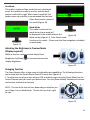
Smart Reader Settings & Features Adjusting Volume for Smart Reader (OCR Playback, Menus & Tic-Toc/Bong) There are 3 independent volume controls on your Smart Reader. The Smart Reader provides up to 10 volume levels for each of the following options. Turn the [Volume Up/Down Wheel] on the left ‘EDGE’ of the Control Console to increase, or decrease, the volume while in OCR Readback Mode to adjust OCR Volume Turn the [Volume Up/Down Wheel] on the left ‘EDGE’ of the Control Console to increase, or decrease, the volume while in System Menu to adjust Menu Levels and Voice prompts. To adjust the Tic-Toc and Bong system sounds simply press the [Volume Up/Down Wheel] in while in Live Camera Preview. You should then hear the Tic-Toc sound playing and you will be able to scroll [Volume Up/Down Wheel] to adjust the level to your preference. Adjusting Reading Speed • To increase/decrease the speed at which the OCR will read, Simply Enter OCR read-back mode by hitting [Capture] . When the document reads aloud turn the [OCR Speed/Marker Wheel] (Right EDGE of Console). Your Smart Reader will indicate “Faster or Slower” and adjust the reading speed. Go To Previous or Next Line • To go back to the previous line, or skip to the next line, press the [Previous Line] or [Next Line] button on the Control Console. ‘Press and hold’ for more than 2 seconds to cycle through previous/next lines quickly. Go To Previous or Next Word (OCR Playback must be paused) • While the OCR read-back is paused press [Brightness Up/Down] to navigate one word at a time. Use [Brightness Down] to go back to the previous word, or [Brightness Up] to skip to the next word. Press either [Brightness Up/Down] more than 2 seconds to cycle through the previous/next words quickly. Pause/Play • Press the [Pause/Play] on the Control Console to pause OCR Playback. • Press the [Pause/Play] again to resume OCR Playback. 22