1
Tips & Tricks
Improving OCR Accuracy
-To improve the accuracy of your Smart Reader ensure that whenever you begin a document
capture the lighting in the room is evenly
distributed over your target document. (Avoid
Hotspots)
-Flatten out books (especially if it has a large
spine) or other materials with an observable
curvature.
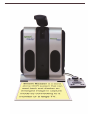
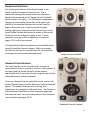
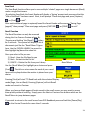
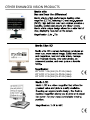
-For optimal OCR Readback please position
your material in the same way as shown in the
picture to the right. You can use the left and
rightmost boundaries to filter out content.
-Turning ON or Off the LED can sometimes
improve your accuracy on some materials this
is done by following the instructions listed on
(Page 23)
Multiple Orientations
-Did you know that your Smart Reader supports all available viewing angles? If your target
document is too large or unusually shaped you can reposition it at another angle to get the
perfect fit (targeting these materials is easier with an attached display).
Volume Adjustments
-There are 3 different volume levels associated with your Smart Reader: System Menus, OCR
Readback & Tic-Toc Level.
-Did you know that you can adjust the Tic-Toc Sound to your preferred level? Simply press in
the volume button and you will immediately hear the Tic-Toc Sound. Scroll the [Volume
Wheel up or down] to find the audio level that you prefer.
-Your System Menu sounds are adjusted by entering the System Menu and scrolling the
[Volume Wheel up or down]. This will change all your volume levels for Menus and the Clock
Annunciation.
Ideal Position
-If you are using your Smart Reader in headless mode (Without Monitor), use the center of the
Smart Readers base foot stand and camera arm as a reference point. This can avoid cutting off
text that you want read.
31