1
PhatNotes 5 User’s Guide
Desktop PC Features
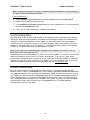
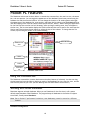
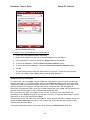
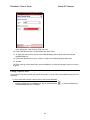
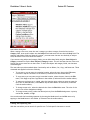
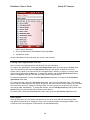
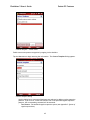
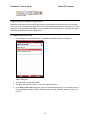
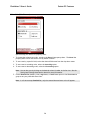
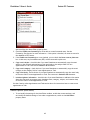
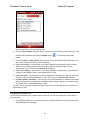
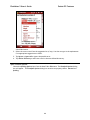
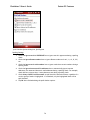
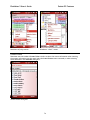
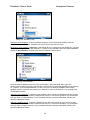
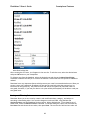
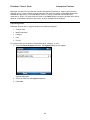
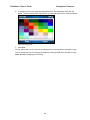
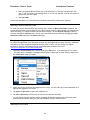
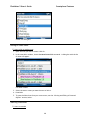
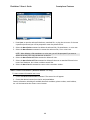
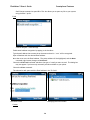
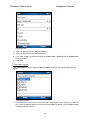
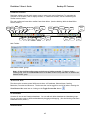
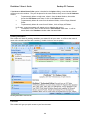
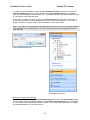
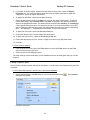
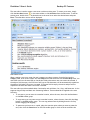
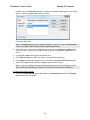
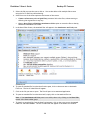
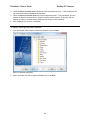
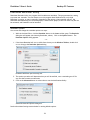
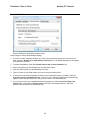
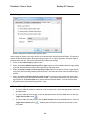
The Notes list view will change, so notes will be grouped by the creation date. You can
expand/collapse each group by clicking on the [+] button, or by double-clicking on the group header,
or by pressing Enter key when the desired group title is selected. Each group title displays the category
name and amount of notes in the group. Notes list view has a similar look when organized by
modification date, category, or color.
•
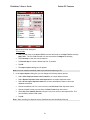
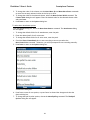
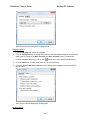
To organize notes by the modification date, choose the Organize/By Modification Date menu
item.
•
To organize notes by the authorization date, choose the Organize/By Authorization Date menu
item.
•
To organize notes by the category, choose the Organize/By Category menu item.
•
To organize notes by the color, choose the Organize/By Color menu item.
•
To organize notes by the priority, choose the Organize/By Priority menu item.
•
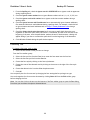
To collapse all the notes groups, choose the Organize/Collapse All menu item.
•
To expand all the notes groups, choose the Organize/Expand All menu item.
•
To return to the regular notes view, choose the Organize/Default View menu item.
While notes are organized by one of the categories listed above, you can still sort notes by any field
and apply text, date, color, and/or priority filters.
Note Properties
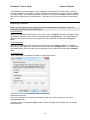
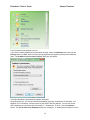
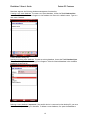
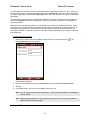
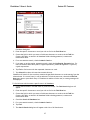
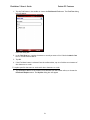
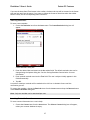
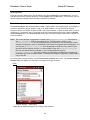
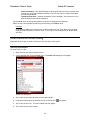
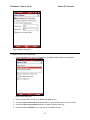
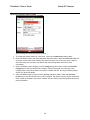
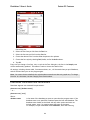
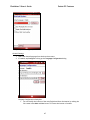
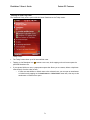
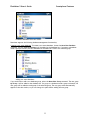
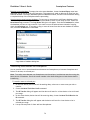
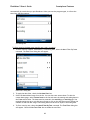
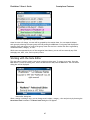
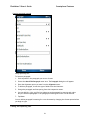
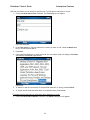
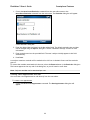
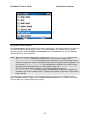
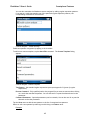
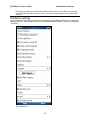
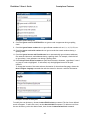
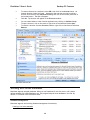
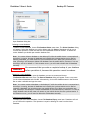
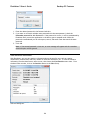
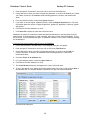
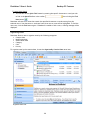
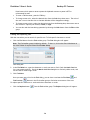
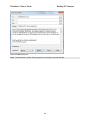
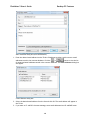
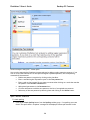
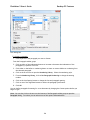
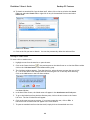
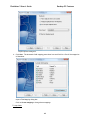
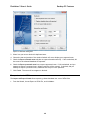
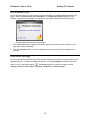
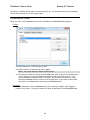
You can also change the properties of the selected notes. Select a note, then go to the Edit menu
and click on Properties.
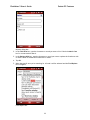
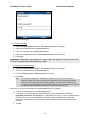
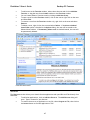
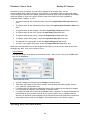
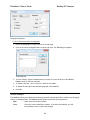
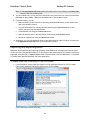
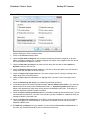
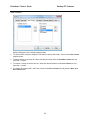
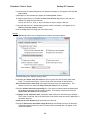
Note Properties dialog.
•
•
•
•
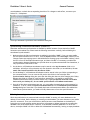
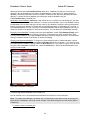
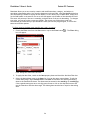
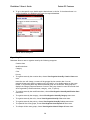
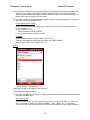
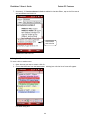
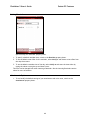
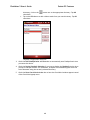
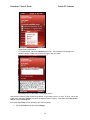
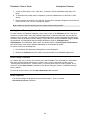
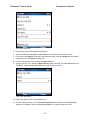
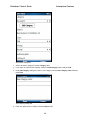
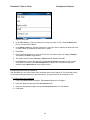
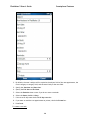
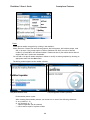
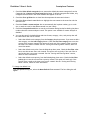
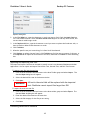
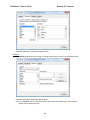
Select the category to change from the Category drop down menu.
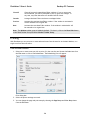
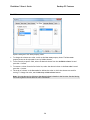
Then select the properties you want to change, which includes the authoring date, priority,
color, password, and reminder time.
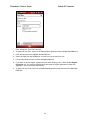
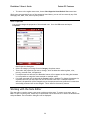
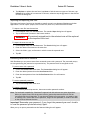
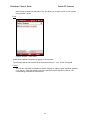
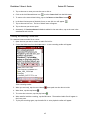
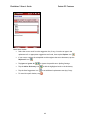
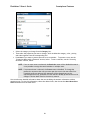
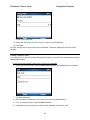
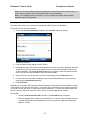
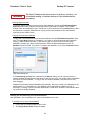
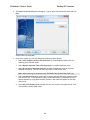
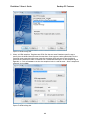
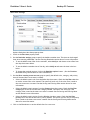
If multiple notes are selected, the Reminder button will not appear in this dialog box because
it is not possible to assign the same reminder to multiple notes.
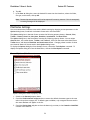
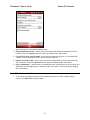
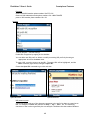
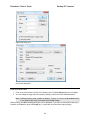
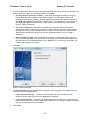
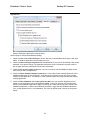
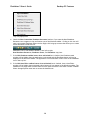
If a single protected note is selected the Protect button is disabled. To change the password or
unprotected the note you must open the note in the note editor first. If multiple notes are
selected, the password will be changed (set) to the unprotected notes; password for notes that
are already protected will not be changed. This has been done for the security reasons.
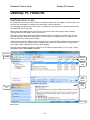
Working with the Note Editor
134