1
PhatNotes 5 User’s Guide
Pocket PC Features
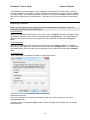
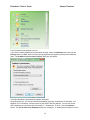
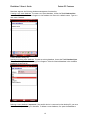
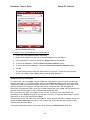
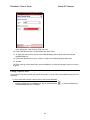
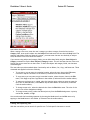
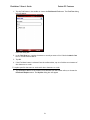
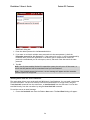
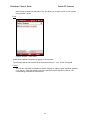
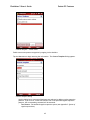
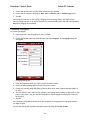
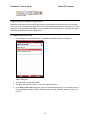
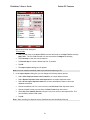
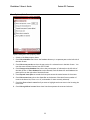
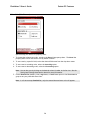
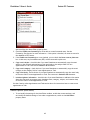
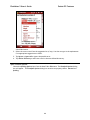
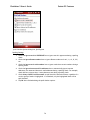
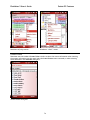
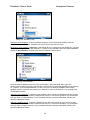
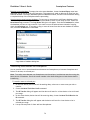
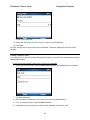
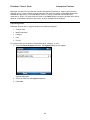
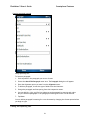
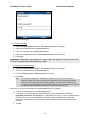
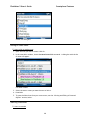
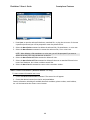
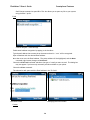
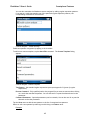
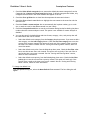
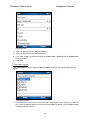
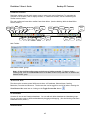
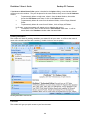
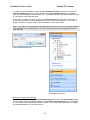
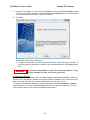
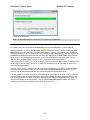
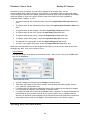
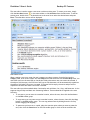
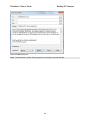
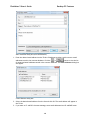
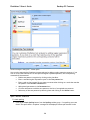
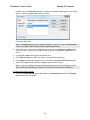
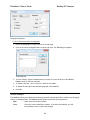
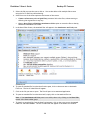
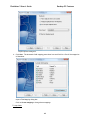
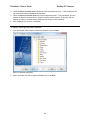
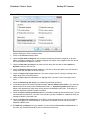
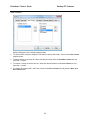
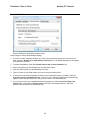
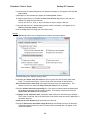
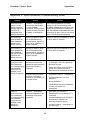
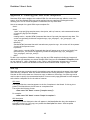
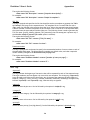
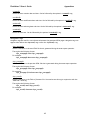
Options dialog box: Note Editor property sheet.
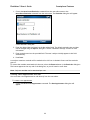
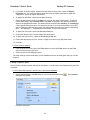
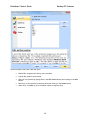
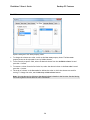
2. Check the Enable text formatting box to be able to create formatted notes. See the
Formatting Text Section for more information. If this option is checked, all notes are stored in
the database in RTF format.
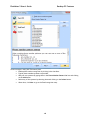
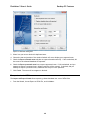
3. If the Enable text formatting box is not checked, you can check the Store notes as plain text
box. In this case, any formatted notes (RTF) will be converted to plain text.
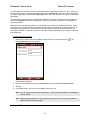
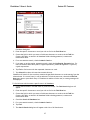
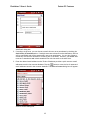
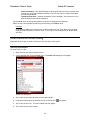
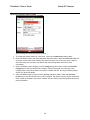
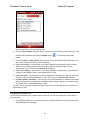
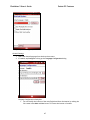
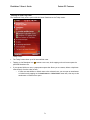
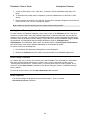
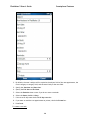
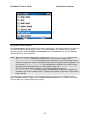
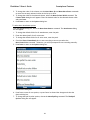
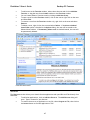
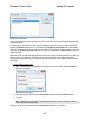
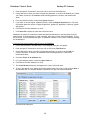
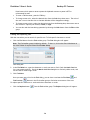
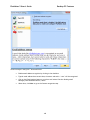
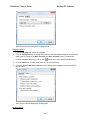
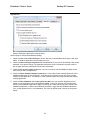
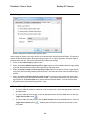
4. Copy note’s subject - check this box if you want PhatNotes to automatically copy the note's
subject or the currently selected text in the note's body to the subject field of a new
Appointment or Task. This field is limited to 4K characters.
5. Copy note’s category - check this box if you want PhatNotes to automatically copy the note's
category to the category field of a new Appointment or Task.
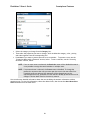
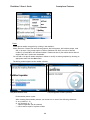
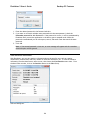
6. Copy note’s body - check this box if you want PhatNotes to automatically copy the note's body
to the note field of a new Appointment or Task. The note text is limited to 6K characters.
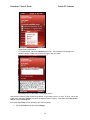
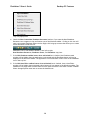
7. Include originator information - check this box if you want PhatNotes to add basic information
about the note (such as program name, database name, category, subject, and creation date)
to the note field of a new Appointment or Task.
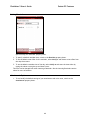
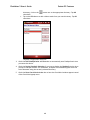
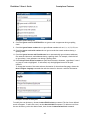
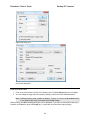
See the Creating a New Appointment and Task section above for instructions how to create a new
appointment or task.
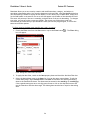
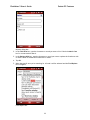
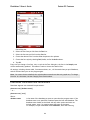
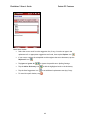
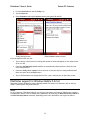
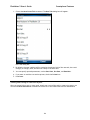
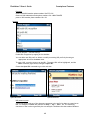
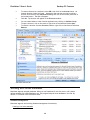
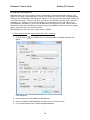
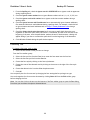
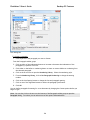
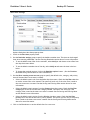
General Options (Note Editor)
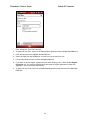
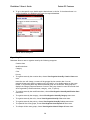
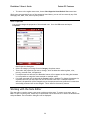
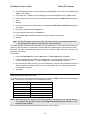
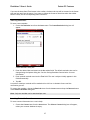
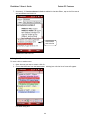
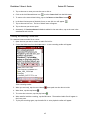
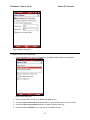
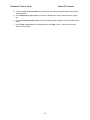
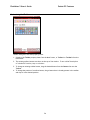
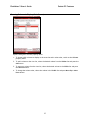
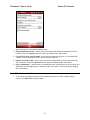
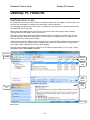
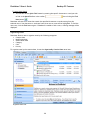
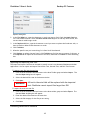
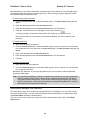
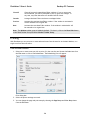
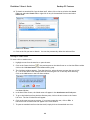
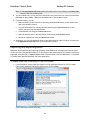
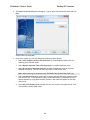
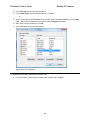
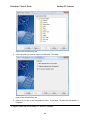
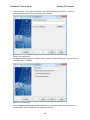
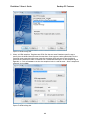
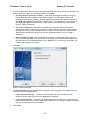
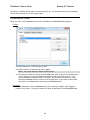
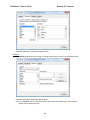
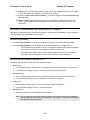
1. To set/modify the settings for the Note Editor toolbars, enable the context analyzer, and
set/modify the default settings of new tasks or appointments, switch to the Note Editor
property sheet.
62