1
HPI
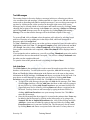
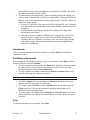
This section displays referral contacts, nurses’ notes, chief complaints, and structured or
narrative HPI. To add the referring provider’s name, click Add/Change Referral and
choose the desired name from either the Patient Contacts, User Contacts, or Clinic
Contacts lists.
• To enter the name of the last person who referred the patient, click Insert Last.
• To enter nursing notes, click Enter Nursing Note and enter text into the narrative
field provided.
• To add chief complaints, click Add HPI, choose a Category if applicable, then
select a Chief Complaint from the drop-down list. Chief complaints may be
changed or deleted and can be customized. After a chief complaint is selected,
you may enter a narrative or structured HPI. Click Last to view the last HPI
entered for the patient, then click Apply to apply that complaint again.
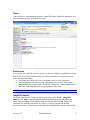
Past History
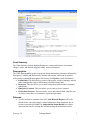
Medical, Ob, Surgical, Family, and Social histories are documented in this section To
review history that has been entered previously, click View History. After reviewing the
history, be sure to check off the appropriate Areas Reviewed for E&M coding calculation
purposes.
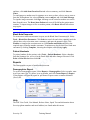
Allergies/Meds Hx
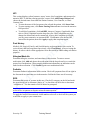
Document allergies, reactions, and onset dates in this section. To enter a current
medication, click Add and choose the medication from the drop-down list, or search the
master list of medications. When entering medication information, an indication can be
linked to the medication. Click Leaflet to print out a medication leaflet.
Pediatric
Document Pediatric information in this section. Check off symptoms from left to right in
the Structured area and enter text in the narrative field in the Notes area if necessary.
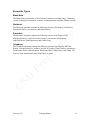
ROS
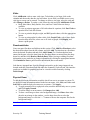
Document the review of systems in this area. Check off a category on the left and mark
the green check box to document “denies of,” or check the red check box to document
“complains of.” Use the narrative field if desired or prompted.
A quick tip: If a full review of systems has been performed with negative findings, mark the
check box for “all systems are negative unless otherwise specified”.
To apply the last ROS documented, click Last then select all or check off the system you
would like to apply to your current note.
Sevocity 5.0
Training Manual
10