1
Libria User Manual
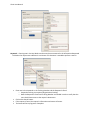
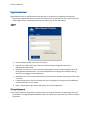
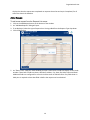
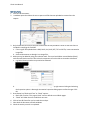
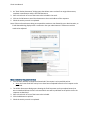
2. An “Email Packet Documents” dialog opens that allows users to select from original documents,
template created letters and the final PDF document.
3. Place a check mark in front of the items to be included in the email.
4. Click on the OK button to email the documents to the email address of the requester.
5. Check the activity to mark it completed.
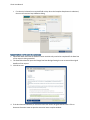
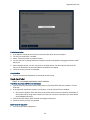
Note: If the email attachments being sent exceed the maximum size allowed by your administration, an
Email Aborted dialog displays with a notification. See your administrator if maximum email size
needs to be adjusted.
Make available for Requester Download
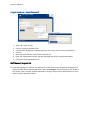
1. Click on Make Available for Requester Download if the request is to be available online.
a. Note: the Create Final PDF activity has to have been completed before the final request can be
published.
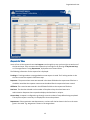
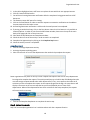
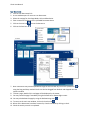
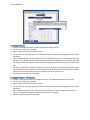
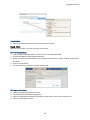
2. The Publish Documents dialog opens showing the Final Document and any template letters that
were created and allows the user to choose which ones will be published on the public site for the
requester to download.
3. Place a check mark in front of the items to be included.
4. Click the OK button to publish.
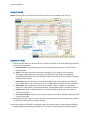
5. Check the activity to mark it completed.