1
SPH-D600.book Page 194 Thursday, June 9, 2011 10:33 AM
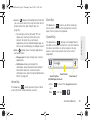
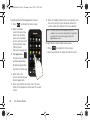
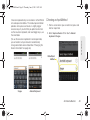
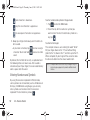
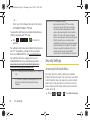
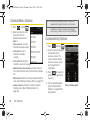
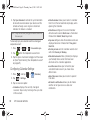
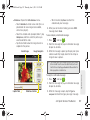
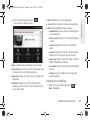
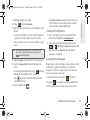
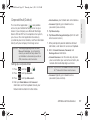
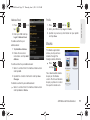
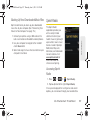
3. Tap the search field (at the top of the screen), enter
a keyword, and tap
.
䡲 This keyword can be a category name (such as
pizza, steak, burger), a business name (Samsung,
Sprint), or a Google friend who is sharing their
location.
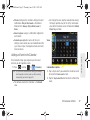
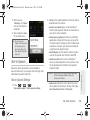
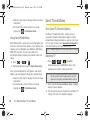
4. Tap
(bottom left) to reveal a detailed list of
information corresponding to those matches now
displayed on your screen with lettered pins.
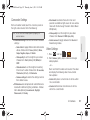
Navigation
Another Google Maps navigation application is
available on your device. It uses your current location
(provided by GPS communication to your device) to
provide various location-based services.
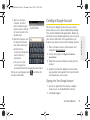
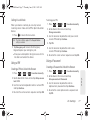
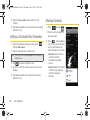
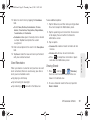
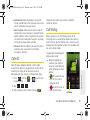
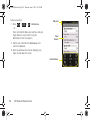
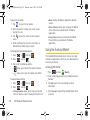
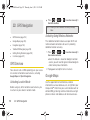
1. Press
and tap
>
(Navigation).
2. Read the onscreen disclaimer and tap Accept.
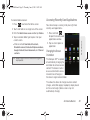
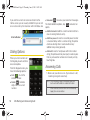
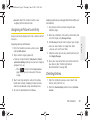
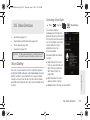
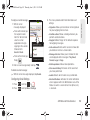
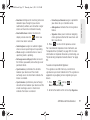
3. Choose from the following onscreen options:
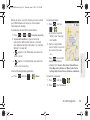
䡲
194
Speak Destination to use the voice recognition
feature to search for matching locations in your
area.
3D. GPS Navigation
䡲
Type Destination to manually enter a destination
address.
Contacts to receive turn-by-turn directions to the
address stored for a selected Contacts entry.
䡲 Starred Places to obtain directions to locations that
have been starred within Google maps
(maps.google.com).
䡲
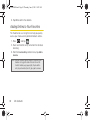
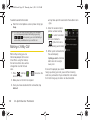
TeleNav GPS Navigator
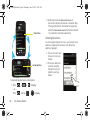
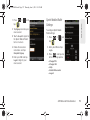
TeleNav GPS Navigator gives you turn-by-turn
directions onscreen and over speakerphone. In order
to use this application, you must first turn on the Enable
GPS Satellites setting.
Note: Depending on your service plan, TeleNav may require
a monthly subscription. Contact Sprint for information
and pricing.
Note: Some features may be available only with a
subscription to TeleNav GPS Navigator Premium.