1
Configuring Options
Options
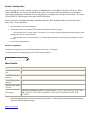
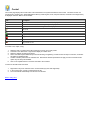
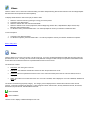
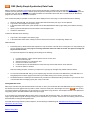
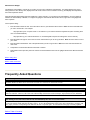
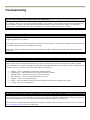
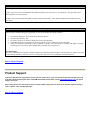
The Options page is used to change configurable options and view useful information about WL3. After logging into WL3, click the
"Options" icon to display the options page:
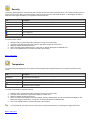
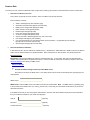
General
1.
The Serial Number of your WL3 Software is displayed.
2.
The WL3 Update Version is the currently installed version of WL3.
3.
When logging into WL3, if you selected the "Remember Password" checkbox, you have the option to restore the login page by
checking the "Disable the caching of the user name and code for user" checkbox. You must select "Save Changes" to
execute the change.
4.
You can configure which page is initially displayed when you first log into WL3. To configure the start page, select the page
from the "Startup Page" list box, and then click the "Save Changes" button at the bottom of the Options Page.
5.
By default, after three invalid login attempts (using the wrong user name and/or code) will result in a one-hour lockout. This
lockout time may be changed or disabled by selecting a new time from the "Invalid Login Timeout Period" list box. Once
selected, click the "Save Changes" button at the bottom of the Options Page to save your selection.
6.
Install the Windows Vista Gadget : The gadget is a great way to monitor your home from a Windows Vista desktop. To install
the gadget on the Vista Sidebar, from a Windows Vista computer, click on the installation link then "Open" button in the
security prompt, and then click "Install".
7.
The "View the server log" link is used to display the WL3 Server history which includes errors and other useful information. If
the log is too large to be displayed, you have the option to delete the current log by pressing the "delete" link.
8.
If you were unable to register this software during the normal registration process, you can register at any time by clicking on
the register your product link.
9.
The "Product Updates and Special Offers" link is used to check the WL3 Update Page for product updates and special offers
that may be available. To have access to this site, you must be a registered user. To find out more about registration click
Register Online. If you are registered, click the "Check for Product Updates" buttons to login to the WL3 update site to check
for updates.
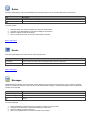
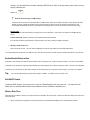
Skins
1.
Skins allow you to customize the look and feel of the web pages by applying different graphic and color schemes. Select from
one of the skins in the drop-down list, then select "Save Changes" to execute the change.
2.
You can have a different skin for each client computer or Windows account that is used to log into WL3.
3.
New skins may be available from the WL3 web site. Note that this information will be obtained from the HAI web site and
therefore a security warning dialog may appear. It is safe to ignore this warning.
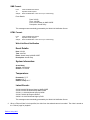
Video-Link Settings
1.
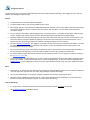
To configure the IP cameras that will be viewed and recorded via WL3, click the "Configure" cameras link.
See Configuring Cameras for additional details.