1
3 TESTING WHILE CONNECTED
Executing and Monitoring Programs
Understanding how to use SYSWIN while connected is best
done by example, and a small sample project supplied with
the software can be used for this purpose. Although the
example project is designed for a CPM1 PLC, it also works
with most other PLCs.
Begin by preparing for online working, and downloading
the program to the PLC:
➧
➧
Open the sample project file
Using the File|Open command, select and open the file
DEMO1C.SWP† = in the SAMPLES sub-directory of
the SYSWIN directory.
If you haven’t got a CPM1 PLC, change the PLC
type to match the unit
In the Project|Project setup dialog, check and set the
correct PLC type for your hardware. The program asks
if you want to convert your data - choose Yes and then
Execute with the Move System Variables option
checked. You may see a Process Program dialog screen.
If so press Execute.
➧
Set the PLC mode to Monitor
In the Online|Mode dialog, make sure this is selected.
Press the Monitoring button on the toolbar
(Ctrl+F11) or select the Online|Monitoring
command. Parts of the program in the workspace should
then be highlighted to show the flow of execution. To view
a larger portion of the program while monitoring, you can
use the Preferences|Overview mode command
(Shift+F12).
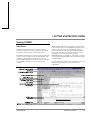
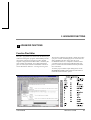
With the sample program running, the monitoring feature
highlights sections of the program showing the execution
sequence. The data elements of appropriate instructions (for
example - the INC instruction in the example) are also
highlighted, showing the data values changing. However,
remember that, because the communications link is
considerably slower than the execution speed of the PLC,
only a sample of the program’s execution is displayed.
➧
Check that the program is correct
Select the Project|Program check command with all
features switched on. Press Execute.
The SYSWIN monitoring continues to show the progress of
program execution visually in the workspace, even while
other dialogs are open in front of it. The monitoring is
active until a network is edited, at which point the
monitoring stops until the changed network has been
verified and downloaded.
➧
Check the PLC communications
Use the Project|Communications dialog to make sure
that the computer and PLC are communicating properly.
If Show full powerflow monitoring is switched on in the
Monitoring section of the Preferences|Drawing menu, then
the power flow is highlighted on the display.
➧
Download the program to the PLC
Use the Online|Download program to PLC command
and transfer the program to the PLC.
†
Several sample programs are supplied, including
DEMO1C.SWP for C series PLCs and DEMO1CV.SWP
for CV series PLCs.
User Manual
OMRON SYSWIN
3-7