1
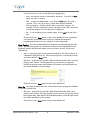
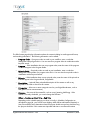
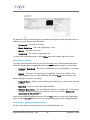
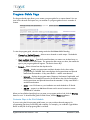
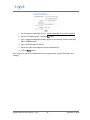
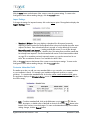
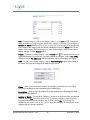
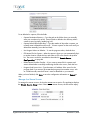
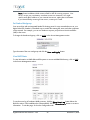
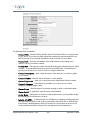
Add the rest of the overlay information. You may change the start time if you do not want the
overlay to run for the duration of the playout. If an overlay was running with the previous playout,
add 10 seconds to this overlay’s start time. Click on the Save button when complete.
Calendar View
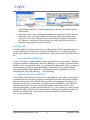
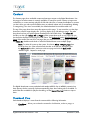
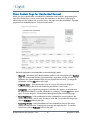
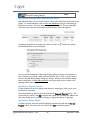
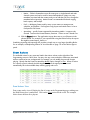
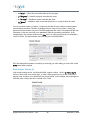
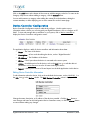
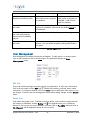
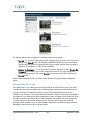
The other viewing mode available under the Programming tab is Calendar View, with today’s date
at the top of the page and a grid displaying the day’s programming. Each empty row in the grid
represents the time until the next 30-minute slot.
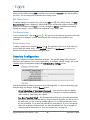
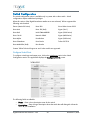
To switch to Calendar View from Classic View, click on Calendar View in the upper-left section of
the page.
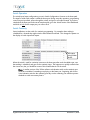
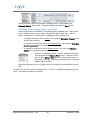
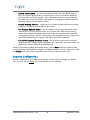
To see the programming for an earlier date, click the double arrows << to the left of the date. To
see the programming for a later date, click the double arrows >> to the right of the date. You can
also jump from date to date by clicking on a date on the calendar under the Calendar tab on the
left side of the page.
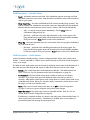
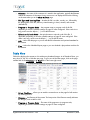
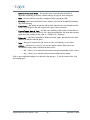
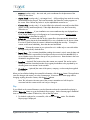
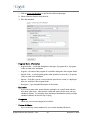
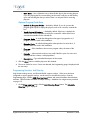
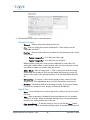
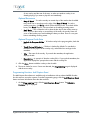
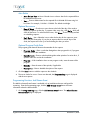
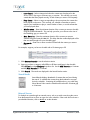
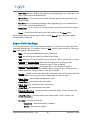
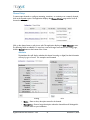
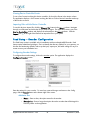
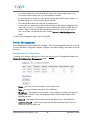
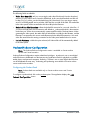
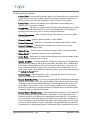
The field names across the top of the Calendar View are:
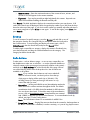
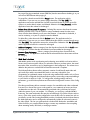
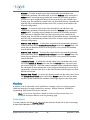
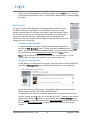
•
Time – the time of day when the event in this slot begins. When no programming is
scheduled the empty sections are divided into 30-minute time slots.
•
Program – the program name of the playout, capture, or other event scheduled for that
time slot as taken from its metadata. If scheduled programming does not fill the 30-minute
slot, the display shows how much open time remains before the next 30-minute time slot.
•
Episode – the name of an episode in a series, if available in the metadata.
•
Source – the source of the playout or event, such as a filename or feed.
•
Start – the exact time the playout or event will start, in HH:MM:SS format.
Digital Broadcaster User Manual v. 3.6.5
61
December 10, 2009