1
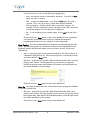
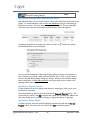
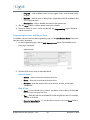
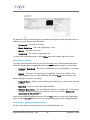
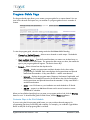
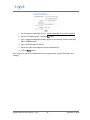
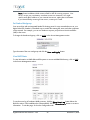
1. Click the Config tab.
2. In the Feed Setup section, click the link for encoder settings.
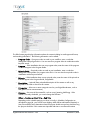
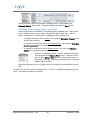
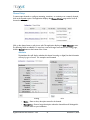
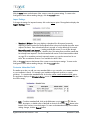
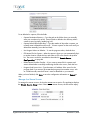
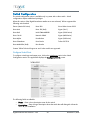
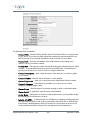
3. In the Monitoring box, set the following:
•
Check the “Enable Network Streaming?” box.
•
Network Streaming IP: 127.0.0.1
•
Network Streaming Port: 1234
4. Click Save in the Monitoring box.
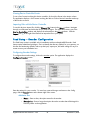
Only one resource including channels and encoder feeds may be streamed at a time. If you try to
enable network streaming for a resource and another resource is already streaming, you will see a
note such as “To enable network streaming for this channel, disable network streaming for Encoder
Feed 1” in place of the Monitor box.
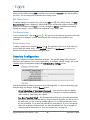
Viewing the Stream
Once you have configured network streaming to generate a web preview you can view the stream
with a media player. Two examples are:
Windows Media Player
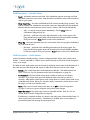
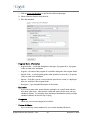
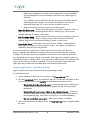
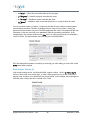
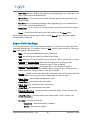
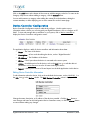
1. Click on the Windows Media Player icon to open it.
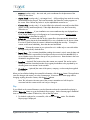
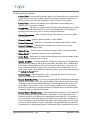
2. Click on Now Playing .. (More) Options…
3. Click on the Network tab.
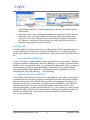
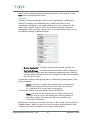
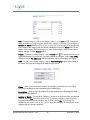
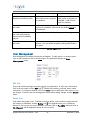
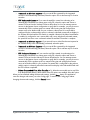
4. In the Streaming proxy settings section, highlight the HTTP protocol and click the
Configure button.
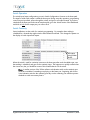
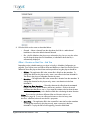
5. Click on the Use the following proxy server radio button. In the Address window,
enter:
mms://<server_ip_address>:8686/b1000.mp4
6. In the Port window enter 1234
7. Click the OK button to return the Options page. Click the OK button. The video
stream should appear in Windows Media Player.
Video LAN Client (VLC)
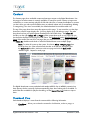
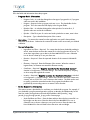
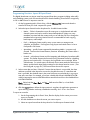
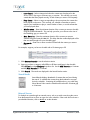
1. Click on the VLC icon to open it.
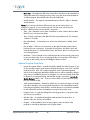
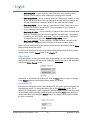
2. Click on File .. Open Network Stream. . .
3. Click on the HTTP/HTTPS/FTP/MMS radio button. In the URL window, enter:
mmsh://<server_ip_address>:8686/b1000.mp4
4. Click the OK button. The video stream should appear in the VLC window.
After you have monitored the channel for a few minutes and are satisfied the playout or encode is
going well, return to the Channel Setup or Feed Setup section of the Config tab and disable
network streaming.
Digital Broadcaster User Manual v. 3.6.5
112
December 10, 2009