1
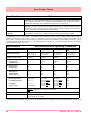
ElecIss1.4
Febuary14
Installation & Operation Instruction Manual
QX, SX and QXe Paperless Recorders
Hycontrol Limited, Larchwood House, Orchard Street,
Redditch, Worcestershire, UK.
Tel: +44 (0)1527 406800
Fax: +44 (0)1527 406810
Email:[email protected] Web:www.hycontrol.com
User manual
ii
43-TV-25-33 GLO Iss.7 Feb 08 UK
Table of Contents
Section 1: Preface .............................................................................. 1
Preface
........................................................................................................... 1
Thank you for choosing an X Series recorder ..........................................................
Documentation..........................................................................................................
Notes .........................................................................................................................
Trademarks ...............................................................................................................
Safety
1
1
1
1
............................................................................................................. 2
Symbols..................................................................................................................... 2
Static Electricity........................................................................................................ 2
Protocols used in this manual
........................................................................ 3
Safety and Symbol Identification .............................................................................. 3
Warnings and Safety Precautions
.................................................................. 3
Do’s and Don’ts......................................................................................................... 3
Hazardous Voltage.................................................................................................... 4
Section 2: Installation .........................................................................................5
Environment and Location ............................................................................ 5
Mechanical Installation .................................................................................. 6
Installation Instructions............................................................................................ 9
Electrical Installation
................................................................................... 13
Installation Category ..............................................................................................
Analogue Input Card ..............................................................................................
QXe Analogue Input (Standard) card .....................................................................
Analogue Output Card............................................................................................
Pulse Input Card.....................................................................................................
Transmitter Power Supply Card .............................................................................
Alarm Relay Cards & Digital Input/Output Cards.................................................
Communications Connections ................................................................................
QXe Expansion Card ..............................................................................................
USB Devices ...........................................................................................................
13
16
19
21
22
24
24
28
29
29
Section 3: Overview ..........................................................................................31
Functions and Features
................................................................................ 31
Recorder Functionality ........................................................................................... 33
Features .................................................................................................................. 34
Options - Hardware ................................................................................................ 37
43-TV-25-33 GLO Iss.7 Feb 08 UK
iii
Section 4: Recorder Setup ............................................................................... 43
Power up
.......................................................................................................43
1. Menu Access ....................................................................................................... 43
2. Log On/Off .......................................................................................................... 44
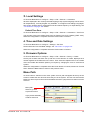
4. Time and Date Settings ....................................................................................... 45
5. Firmware Options ............................................................................................... 45
Menu Path............................................................................................................... 45
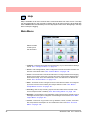
Help......................................................................................................................... 46
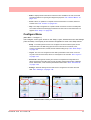
Configure Menu ...................................................................................................... 47
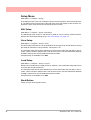
Setup Menu ............................................................................................................. 48
Edit Recording ...................................................................................................... 114
Reports menu ........................................................................................................ 117
Layout ................................................................................................................... 121
Passwords ............................................................................................................. 126
Settings.................................................................................................................. 135
Alarms Menu......................................................................................................... 136
Screen Menu.......................................................................................................... 137
Batch Setup/Batch Control.................................................................................... 141
Recording Menu.................................................................................................... 145
Messages Menu..................................................................................................... 147
Process Menu........................................................................................................ 150
Status Menu........................................................................................................... 154
Finish .................................................................................................................... 167
Section 5: Password Security ....................................................................... 169
Log On/Off ............................................................................................................
Users and Groups .................................................................................................
Administrator ........................................................................................................
Password Policy....................................................................................................
User Interface requirements .................................................................................
Audit Trail .............................................................................................................
Level Permissions .................................................................................................
Default Password Access ......................................................................................
169
169
169
171
172
172
173
176
Section 6: Screen Configuration ................................................................... 187
Process Screen Overview ......................................................................................
Menu Bar ..............................................................................................................
Screen Menu Bar...................................................................................................
Replay ...................................................................................................................
Chart Speeds .........................................................................................................
Screen Activity.......................................................................................................
187
188
189
190
195
196
Section 7: Firmware Options ......................................................................... 201
Firmware Credit System
.............................................................................201
Firmware Options ................................................................................................. 202
iv
43-TV-25-33 GLO Iss.7 Feb 08 UK
Section 8: Communication .............................................................................205
Comms Configuration ............................................................................... 205
Standard Communication Interfaces .......................................................... 205
Protocols............................................................................................................... 206
Hardware Installation
................................................................................. 207
Getting connected - IP Address ............................................................................
Local Area Network setup ....................................................................................
Links to Remote Networks ....................................................................................
Data Logging and Transfer ..................................................................................
Comms and Trend Analysis software
208
209
209
209
.........................................................211
System Requirements ............................................................................................. 211
Software Installation............................................................................................. 212
Start Up................................................................................................................. 213
Communications Server
............................................................................. 216
Comms Server Overview ......................................................................................
Start up..................................................................................................................
Comms Server Setup .............................................................................................
Comms Server Logging ........................................................................................
Comms Database Server
216
216
219
225
............................................................................ 232
System Setup ......................................................................................................... 232
Modbus Capabilities: ................................................................................. 232
OPC Interface - Open Process Control ...................................................... 233
Web Browser .............................................................................................. 234
Internet Security Settings ........................................................................... 235
Section 9: PC Software Suite .........................................................................237
The Trend Analysis Software Suite ....................................................................... 237
System Requirements ............................................................................................ 238
Section 10: Spares List ...................................................................................239
QX Recorder ........................................................................................................ 239
SX Recorder .......................................................................................................... 243
QXe Recorder ....................................................................................................... 248
Section 11: Instrument Care and Maintenance .............................................253
Instrument Care and Manintenance
.......................................................... 253
Cleaning Instructions ...........................................................................................
Backlights .............................................................................................................
Operating Temperature.........................................................................................
Touch Screen.........................................................................................................
Calibration............................................................................................................
253
253
253
253
254
Section 12: Technical Data & Specifications ................................................255
Field IO Specification ................................................................................ 255
Analogue Input .......................................................................................... 256
Relay Alarm/Digital Input Specification ................................................... 256
Relay/Alarm Output Card Options ....................................................................... 256
Digital Input Cards............................................................................................... 257
Specification Tables
................................................................................... 259
Input Range Performance Accuracy Table........................................................... 263
Input Actuation ..................................................................................................... 263
LED Flash Codes.................................................................................................. 267
43-TV-25-33 GLO Iss.7 Feb 08 UK
v
Appendix A: Quality and Safety .................................................................... 269
CE Mark .....................................................................................................269
Safety ..........................................................................................................269
Appendix B: Maths Expressions ................................................................... 271
Full Maths & Script Processing
..................................................................271
Maths Credit Options ............................................................................................
Maths Variable and Function Tables.....................................................................
Full Maths .............................................................................................................
Script Function Application Examples..................................................................
Maths Error Messages ..........................................................................................
271
272
279
280
284
Appendix C: Thermocouple Connections .................................................... 285
How Thermocouples work .........................................................................285
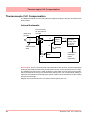
Thermocouple CJC Compensation .............................................................286
Internal Automatic ................................................................................................
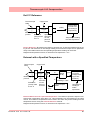
Ext 0°C Reference .................................................................................................
External with a Specified Temperature .................................................................
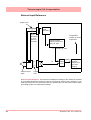
External Input Reference.......................................................................................
286
287
287
288
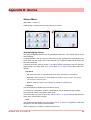
Appendix D: Alarms ....................................................................................... 289
Alarms Menu ......................................................................................................... 289
Appendix E: Ethernet ..................................................................................... 291
Ethernet ................................................................................................................. 291
Email ..................................................................................................................... 292
General operation of the e-mail system ................................................................ 292
Appendix F: Fuzzy Logging ........................................................................... 293
Appendix G: F sub zero Sterilisation ............................................................ 297
The significance of F0 ........................................................................................... 297
Appendix H: Calibration ................................................................................. 299
AI Calibration and CJC Calibration ...........................................................299
Sensor Compensation .................................................................................299
Appendix I: Battery Data ................................................................................ 301
Location: Processor Board
.........................................................................301
Safety Guidelines................................................................................................... 301
Appendix J: Function Codes and Memory Maps ........................................ 303
Modbus Memory Map Supplement:
...........................................................303
Totalisers ...............................................................................................................
Input Text message ................................................................................................
Analogue Input Value ............................................................................................
Communications Input ..........................................................................................
Pen Values .............................................................................................................
Modbus Function Codes
303
303
304
304
304
.............................................................................305
Index ................................................................................................................ 307
vi
43-TV-25-33 GLO Iss.7 Feb 08 UK
Section 1: Preface
Preface
Thank you for choosing an X Series recorder
Thank you for purchasing the newest in our range of electronic data recording for the X Series Advanced Graphic Recorders.
The QX, SX and QXe paperless chart recorders are the latest development of the solidstate replacement for traditional paper recorders.
Many options, features and functions are available to meet a wide range of applications and
requirements including: Power, Water Treatment, Thermal Processing, Food and Beverage,
Pharmaceutical/Biotech and Manufacturing industries.
This manual explains the product functionality operation, configuration and communication
as well as Safety Precautions, Installation & Wiring, Recorder Setup, Troubleshooting and
Spares List. It is recommended that the user reads the manual before installing and operating the recorder.
Documentation
A full set of manuals for the software and the recorders (including some language versions) are available on the CD provided. Also Application Notes and Installation Instructions, first time password setup and database tool information.
Supplementary documentation to accompany these recorders are:
Table 1.1 : Supplementary documentation
Manual
Trend Analysis software user manual
Part number
43-TV-25-25
Notes
• The contents of this manual are correct at the time of issue. The contents may
change at any time without prior notification. This is due to continuous developments to the recorder and it’s functionality.
• Every effort has been made to ensure the accuracy of this document, however
should there be any anomalies found, please contact your supplier.
• All rights are reserved. No part of this manual should be copied or reproduced, stored on a retrieval system or transmitted in any form without the
prior permission from your supplier.
Trademarks
• Microsoft, MS-DOS, Windows, Windows 2000, Windows XP and Windows CE are
all registered trademarks of Microsoft Corporation.
• Compact Flash® and CF (logo) are trademarks of the Compact Flash Association
(CFA).
• For the purpose of this manual the ™ and ® symbols will not follow their own trademark names or registered trademark names in every instance.
• Company names and Product names mentioned in this manual are trademarks or
registered trademarks of their individual owners.
43-TV-25-30 GLO Iss.7 Feb 08 UK
1
Safety
Safety
The X Series range of instruments is compliant with the requirements of BS EN 610101:2001 “Safety Requirements for Electrical Equipment for Measurement, Control and Laboratory Use” and UL 61010C-1 and CSA 22.2-1010.1, as options. If the equipment is used in
a manner not specified, the protection provided by the equipment may be impaired.
The QX and SX range of instruments is compliant to the requirements for Class 1, Div.2
Hazardous (Classified) Locations.
Symbols
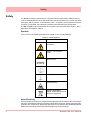
One or more of the following symbols may appear on the recorder labelling.
Table 1.2 : Safety Symbols
Symbol
Meaning
Caution - refer to manual for
instructions
Caution - risk of electric
shock
Direct Current
Protective conductor terminal
Earth (ground) terminal
Static Electricity
Directive 2002/96/EC
WEEE: Waste Electrical and
Electronic Equipment
Static Electricity
All circuit boards and electronic modules associated with this recorder contain components
which are susceptible to damage caused by electrostatic discharge. Should it be necessary
to handle such components, appropriate precautions in accordance with ANSI/ESD S20.20
Electrostatic Discharge Control Program Standard, should be observed.
2
43-TV-25-30 GLO Iss.7 Feb 08 UK
Protocols used in this manual
Protocols used in this manual
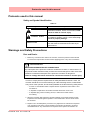
Safety and Symbol Identification
Table 1.3 :
Symbol
Description
WARNING
The WARNING symbol indicates a potentially
hazardous situation, which, if not avoided, could
result in death or serious injury.
CAUTION
This CAUTION symbol may indicates a potentially hazardous situation, which, if not avoided, may
result in property damage.
NOTICE
A NOTICE symbol indicates important information that must be remembered and aids in job
performance.
Warnings and Safety Precautions
Do’s and Don’ts
1. Before any connections are made to the recorder, ensure the protective earth terminal
is connected to a protective conductor before applying power or any other connections.
WARNING
IMPROPER INTERRUPTION OF CONNECTIONS
Any interruption of the protective conductor outside the recorder, or disconnection of
the protective earth terminal is likely to make the recorder dangerous under some fault
conditions. Intentional interruption of the protective conductor is dangerous.
Failure to comply with these instructions could result in death or serious injury.
In order to comply with the requirements of safety standard EN 61010-1:2001, the
recorder should have one of the following as a disconnecting device, located within
easy reach of the operator, and be clearly labelled as the disconnecting safety device:
• A switch or circuit breaker which complies with the requirements of IEC 60947-1 and
IEC 60947-3.
• A separable coupler which can be disconnected without the use of a tool.
• A separable plug, without a locking device, to mate with a socket outlet in
the building.
2. Whenever it is likely that protection has been impaired, the recorder should be made
inoperative and secured against operation. The manufacturer's service centre should
be contacted.
3. Repair is not to be attempted by a customer. Any adjustment or maintenance expected
of an operator as part of the normal operation of the product is referred to as Operational Maintenance. Any maintenance not expected of the operator is referred to as
43-TV-25-30 GLO Iss.7 Feb 08 UK
3
Warnings and Safety Precautions
Corrective Maintenance and is to be carried out only by authorized service personnel
or returned to an authorized repair centre.
4. Where conductive pollution such as condensation or conductive dust is present, adequate air conditioning, filtering and/or sealing must be installed.
5. This recorder contains one battery on the Processor board which must be treated and
disposed of with care. Batteries must not be short circuited. Batteries should be disposed of in accordance with local regulations, they must not be disposed of with normal
refuse.
6. Improper signal and supply wiring - WARNING
WARNING
IMPROPER SIGNAL AND SUPPLY WIRING
Signal and supply wiring should be kept separate. Where this is impractical, shielded cables should
be used for the signal wiring. Where signal wiring is carrying, or could carry under fault conditions,
hazardous voltage (defined as >30 V rms and 42.4 V peak, or >60 Vd.c.), double insulation must
be used for all signal wiring.
Failure to comply with these instructions could result in death or serious injury.
7. If the equipment is used in a manner not specified by the manufacturer, the protection
provided by the equipment may be inadequate.
8. The protective earth terminal must remain connected (even if the recorder is isolated
from the mains supply) if any of the measuring, communications, or relay terminals are
connected to hazardous voltages.
Hazardous Voltage
Hazardous Voltages are defined by EN61010-1 as follows:
WARNING
HAZARDOUS VOLTAGE LEVELS
Voltage levels above 30V rms and 42.4V peak or 60V dc are deemed to be
"Hazardous Live". Ensure operators are not exposed to hazardous voltage levels.
Failure to comply with these instructions could result in death or serious injury.
4
43-TV-25-30 GLO Iss.7 Feb 08 UK
Section 2: Installation
Damage checks
Any damage caused to the recorder or the contents should be reported immediately to your
shipper.
Unpacking
Remove the contents, check the packaging and remove all documentation and accessories
supplied. Retain the box and any packaging for future transportation.
Contents
Check that the contents and accessories are correct against the order or Model Selection
Guide using the model number on the recorder. Contact your supplier immediately should
there be any query.
The contents are based on Unit Model Number ordered and will vary from unit to unit. The
following list is provided as a general guide and not specific to any single unit.
• Recorder - specification as ordered (check against the Model Selection Guide)
• Mounting fixings - Mounting clamps and panel gasket
• Connector kit - mating half connectors to recorder spec. Including a CJC connector for
Thermocouple operation.
• Quick Start Guide - to get you started
• First time Password system instructions - for ESS recorders only
• CD - Viewer software + documentation
• Plastic stylus x 2 (for use with the touch screen)
• Manual (optional) - Hard copy English, French or German
• Any other items ordered as an option
Re-packing
NOTICE
Should the original packing be destroyed or lost, new packaging can be ordered or as a
last alternative, then ONLY pack the recorder in polystyrene granules if the recorder is
FIRST sealed in a strong plastic bag. Failure to do this will invalidate your warranty.
Environment and Location
• The recorder is designed to be mounted into a panel. See “Installation Instruc-
tions” on page 9.
• Mounting angle is unlimited. Choose a suitable location with an ideal viewing angle.
See “Mounting and Viewing Angles” on page 6.
• The location should be free from vibration.
• The environment should be of non-condensing humidity.
• The ambient temperature should be between 0°C and 50°C (32°F to 122°F).
• The relative humidity should be between 10% to 90%.
43-TV-25-30 Iss.7 GLO Feb 08 UK
5
Mechanical Installation
NOTICE
The QXe recorder is an Emissions Class A product. In a domestic environment this
product may cause radio interference in which case the user may be required to take
adequate measures.
Mechanical Installation
Mounting and Viewing Angles
Mounting - The QX , SX and QXe recorders have an unlimited mounting angle.
Viewing - For the best view of the display the viewing angle should not exceed:
QX 55° from the left or right, 40° looking down and 50° looking up at the recorder display.
SX 70 ° from the left or right, 45 ° looking down and 55 ° looking up at the recorder display.
QXe 45° from the left or right, 10° looking down and 30° looking up at the recorder display.
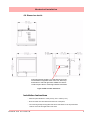
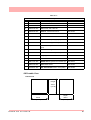
Panel cut-out size for the QX and QXe recorders
138.00
(5.43”)
Panel
Cut-out
Panel
Cut-out
+1
-0
138.00
(5.43”)
+1
-0
>7.00
(0.28”)
>6.00
(0.237”)
Panel
Cut-out
Please note the recommended
spacing for adjacent mounting
Figure 2.1 QX and QXe Panel cut-out
6
43-TV-25-33 GLO Iss.7 Feb 08 UK
Mechanical Installation
Panel cut-out size for the SX recorder
281.00
(11.06”)
Panel
Cut-out
Panel
Cut-out
281.00
(11.06”)
>20.00
(0.787”)
>20.00
(0.787”)
Panel
Cut-out
Please note the recommended
spacing for adjacent mounting
Figure 2.2 SX Panel cut-out
The QX, SX and QXe recorders are DIN Standard sizes and should be panel mounted.
43-TV-25-33 GLO Iss.7 Feb 08 UK
7
Mechanical Installation
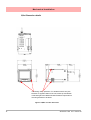
QX Dimension details
4 Mounting clamp positions. For standard units fit only two
brackets on opposite sides of the unit, either top and bottom
or left and right slots. NEMA 4X rated recorders require all four
mounting brackets to be fitted.
Figure 2.3 QX Recorder dimensions
8
43-TV-25-33 GLO Iss.7 Feb 08 UK
Mechanical Installation
SX Dimension details
4 Mounting clamp positions. For standard units fit only
two brackets on opposite sides of the unit, either top
and bottom or left and right slots. NEMA 4X rated recorders require all four mounting brackets to be fitted.
Figure 2.4 SX recorder dimensions
Installation Instructions
• Minimum panel thickness = 2mm (0.078”), max = 20mm (0.78”)
• Both recorders must be inserted from the front of the panel,
• Two mounting clamps are supplied and can be fixed either on the top and bottom
sides or on the left and right sides of the case.
43-TV-25-33 GLO Iss.7 Feb 08 UK
9
Mechanical Installation
QXe Dimension details
4 Mounting clamp positions. For standard units fit only two
brackets on opposite sides of the unit, either top and bottom
or left and right slots. NEMA 4X rated recorders require all four
mounting brackets to be fitted.
Figure 2.5 QXe recorder dimensions
10
43-TV-25-33 GLO Iss.7 Feb 08 UK
Mechanical Installation
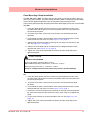
Panel Mounting Clamp Installation
The QX, SX and the QXe recorders slide into the panel cut-out and are held in place by
two (or four) panel clamps. The panel clamps should be fitted on diagonally opposite sides
of the unit and tightened against the rear of the panel using two fixing screws.
The mounting clamp assembly and fitting instructions differ slightly for the two recorders.QX
and QXe
1. Insert the panel gasket onto the recorder so it goes between the back of the
recorder bezel and the panel. From the front panel, place unit in the panel and
push through the panel.
2. To loosen each clamp, unscrew the long screw to accommodate the panel
thickness.
3. From behind the panel, the orientation of the clamp should be with the screw
head towards the rear of the unit. See Figure 2.1 on page 6
4. Take the first clamp and locate the two lugs on the clamp into the slots on the
unit. See Figure 2.1 on page 6
5. Take the second clamp and do the same but in the diagonal position to the
opposite side. See Figure 2.1 on page 6.
6. Tighten the screw using a flat blade screwdriver and the clamp will secure
against the panel.
CAUTION
CONTROL UNIT DAMAGE
Do not over tighten mounting clamp screws.
QX and QXe torque setting should be 0.5 - 0.75Nm/4.4 - 6.6lbf-in
SX torque setting should be 0.5 - 0.70Nm/4.4 - 6.2lbf-in
Failure to comply with these instructions may result in product damage
SX
1. Insert the panel gasket onto the recorder so it goes between the back of the
recorder bezel and the panel. From the front panel, place unit in the panel and
push through the panel.
2. To loosen each clamp, unscrew the long screw to accommodate the panel
thickness.
3. From behind the panel, the orientation of the clamp should be with the screw
head towards the rear of the unit. See Figure 2.2 on page 7.
4. Position the circular mounting boss in the hole on one side of the case with the
lip of the boss inside the case. Ensure the front of the clamp is up against the
panel.
5. Fix the second clamp on the opposite side of the unit. See Figure 2.4 on
page 15.
6. Tighten the screw using a flat blade screwdriver and the clamp will secure
against the panel.
43-TV-25-33 GLO Iss.7 Feb 08 UK
11
Mechanical Installation
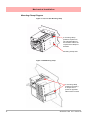
Mounting Clamp Diagram
Figure 2.1 QX and QXe Mounting clamp
2 mounting clamp
positions required on
two opposite sides of
the recorder. Nema 4X
requires all 4 clamps to
be fitted.
Mounting clamp slots
Figure 2.2 SX Mounting clamp
4 mounting clamp
positions (2 shown).
2 clamps are required on opposite
sides of the recorder
12
43-TV-25-33 GLO Iss.7 Feb 08 UK
Electrical Installation
Electrical Installation
Installation Category
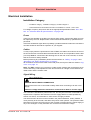
• Installation category - Installation category II, Pollution degree 2
• Follow National and local electrical codes for installation in a Class 1, Div.2 area.
For voltage, frequency and power refer to the appropriate Specification sheet: See “Section 12: Technical Data & Specifications” on page 255.
Fuses
There is a fuse situated on the DC input version power supply, type 2A time-delay, this can
be replaced by the user. Replacement of fuses should be carried out by qualified service
personnel.
If the fuse should blow again there is probably a problem elsewhere within the unit and the
recorder should be returned for inspection to your supplier.
Cables
To fully comply with the requirements of the CE Mark, all cables connected to the rear of
the unit should use screened cable terminated at both ends. A low impedance earth cable
(<50 mΩ) must be connected to the earthing stud on the rear of the recorder, to ensure
that the recorder is always earthed.
Before performing any installation please read the section on “Safety” on page 2.and
“Warnings and Safety Precautions” on page 3.
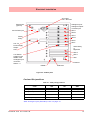
All connections to the unit are made via the rear panel, the layout of which is shown in Figure 2.3 on page 14
Note: The QXe Analogue Input card (Slot A). Cable screen must be well connected to the recorder case using a low impedance bond. Also avoid use of a length of wire between the
cable screen and the recorder case.
Signal Wiring
WARNING
ENSURE SAFETY EARTH CONNECTION
Always ensure the unit is connected to safety earth when connecting to an AC or DC
supply.
Failure to comply with these instructions could result in death or serious injury.
Your recorder is intended for panel-mount use, and only the front face is intended to be
exposed to the operator. Disconnection from the supply MUST be made possible by
means of a switch, circuit breaker or other means of supply isolation.
The disconnection device must be included in the panel installation, clearly marked, in
close proximity to the recorder, and within easy reach of the operator. The protective earth
terminal must remain connected (even if the recorder is isolated from the mains supply) if
any of the analogue or relay terminals are connected to hazardous voltage.
43-TV-25-33 GLO Iss.7 Feb 08 UK
13
Electrical Installation
CAUTION
UNIT DAMAGE CONTROL
To protect against component failures the user should fit an external fuse for the DC
input power supply. The value should be 4A, time delay, high breaking capacity, minimum 60Vdc.rated.
Failure to comply with these instructions may result in product damage
WARNING
HAZARDOUS VOLTAGES
When using the recorder as portable equipment the optional rear cover must be fitted
when hazardous voltages are connected.
Failure to comply with these instructions could result in death or serious injury.
AC Power
AC supply is connected via the standard configuration IEC chassis plug on the rear panel,
100 - 250 Vac, 50-60 Hz (40 VA QX, QXe and 60VA SX). Absolute limits 90V-132Vac
(110V) and 180V-264Vac (240V)
24V AC/DC Power / 48V AC Power
For the QX and the SX the supply range is 24V DC +/- 10% (absolute limits are 20V to 55V
DC). Also accepts 20 to 30V AC. Power to the D.C.variant is connected via a rectangular 3way connector as identified in Figure 2.3 on page 14 for the QX and Figure 2.4 on
page 15 for the SX.
The QXethe supply range is 24V DC +/- 10% (absolute limits are 20V to 30V DC). Also accepts 20 to 25V AC.
Earth screw (ground)
AC supply
100 - 250 VAC
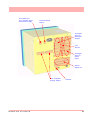
Wire seal provision
SPNC Relay
24V DC/AC Input
Analogue Input /
Analogue Output
/ or Pulse Input
Slot A
Slot B
24V TX Power
Supply Output
Alarm Relay or
Digital I/O
Slot G
Ethernet
CJC Sensor
USB Host
RS485
14
Figure 2.3 QX Connector diagram
43-TV-25-33 GLO Iss.7 Feb 08 UK
Electrical Installation
AC supply
100 - 250 VAC
Earth screw
(ground)
Analogue Input/
Analogue Output/
or Pulse Input
Slot A
24V DC/AC Input
Slot B
Slot C
SPNC
Relay
Slot D
Slot E
Slot F
24V TX
Power Supply
Output
Alarm Relay
or
Digital I/O
LED
Slot G
CJC Sensor
position in the
middle of the
Analogue Input
connector.
Slots A - F
Slot H
Slot I
Ethernet
RS485
USB Host
Figure 2.4 SX Rear panel
Card and Slot positions
Table 2.1 : Card priority positions
Cards
Analogue Input card
Analogue Output card
Pulse Input card
Alarm Relay or Digital I/O card
QX
SX
QXe
A, B
A, B, C, D, E, F
A*, B (option)
B
E, F
-
A, B
A, B, C, D, E, F
-
G
G, H, I
G
“QXe Analogue Input (Standard) card” on page 19
43-TV-25-33 GLO Iss.7 Feb 08 UK
15
Electrical Installation
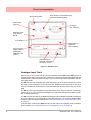
20 to 30VDC / 20 to 25VAC Input
Instrument power (option)
Wire seal provision
Earth screw
(ground)
AC supply
100 - 250 VAC
Analogue Input
card (option)
Slot B
CJC Sensor
Alarm Relay or
Digital I/O
Slot G (option)
24Vdc TX
24V TX Power
Supply Output /
RS485 port /
USB Host card
(option)
USB
RS485
ETHERNET
Analogue Input /
Ethernet connection
card (std) - Slot A
Figure 2.5 QXe Rear panel
Analogue Input Card
Each Analogue Input card has up to 8 input channels for the QX and the SX and up to 6
channels for the QXe. Connections are made via 2 x 12-way screw terminal plugs that fit into
a PCB header on the rear of the unit. The 2-way CJC sensor should remain fitted in the central 2-way header.
The QX can have two analogue input cards fitted giving up to 16 input channels (2 x 8 channel cards). The slot positions are A & B, these are identified on the rear panel on the back
of the unit. Either slot can be used, it is recommended that slot A is used if only one card is
fitted.
The SX can have up to 6 analogue input cards fitted, up to 48 input channels. The slot positions A, B, C, D, E or F; these are identified on the rear panel. PC boards are fitted in order,
slot ”A” starts from the top.
The QXe can use this card as an additional Analogue Input card fitted in Slot B, providing up
to 6 more channels. This card would be used after using the 3 or 6 channel standard QXe
Analogue Input card which is fitted in Slot A, see “QXe Analogue Input (Standard) card”
on page 19.
To fit this option card into the QXe recorder you will require an expansion card to interface
to the recorder. See “QXe Analogue Input (Standard) card” on page 19.
16
43-TV-25-33 GLO Iss.7 Feb 08 UK
Electrical Installation
WARNING
HAZARDOUS VOLTAGES
Insulation from channel to channel: Normally a channel can be safely connected to a
hazardous voltage up to 300V AC common mode* with respect to earth. However,
where a channel is connected to a safety low voltage circuit, an immediately adjacent
channel must be adequately insulated from hazardous voltages between 150V AC
and 300V AC max. This insulation should comprise of at least 1.5mm air gap, or a barrier rated greater than 1400V AC. This is to ensure that protection of the safety low
voltage circuit is fully maintained.
*Common Mode voltage is a voltage applied between the whole channel and earth,
not between pins on a channel. 300V AC is permitted at Measurement Category CAT
ll (Overvoltage Category ll)
Failure to comply with these instructions could result in death or serious injury.
NOTICE
For 12 and 24-way connectors; torque setting 0.4 Nm/3.5lbf-in. Do not over tighten.
Recommended wire size for termination connector is 22-12 AWG (American Wire
gauge) equivalent to 22-14 SWG (Standard Wire Gauge). AWG metric 0.64262.052mm in diameter or SWG metric 0.71 - 2.03mm in diameter.
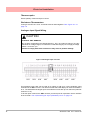
Analogue Input Channel Numbers
Analogue Input cards are either 4, 6 or 8 channels with a full length connector taking up 8
channels even if only 4 or 6 are operational.
Table 2.2 :
QX and SX Analogue Input card
Card Position
Slot A
Slot B
Slot C
Slot D
Channel number
1 to 8
9 to 16
17 to 24
25 to 32
Slot E
Slot F
33 to 40
41 to 48
Table 2.3 : QXe Analogue Input cards
Card
3 CH.
6 CH.
9 CH.
12 CH.
A
1-3
1-6
1-3
1-6
9-14
9-14
B
Analogue Input Connection Details
Current Input
For Current (mA) Input fit a 10Ω resistor across the + and - pins of the 12-way mating half
analogue connector. Figure 2.7 on page 19 shows a 10Ω (±0.1%) resistor fitted to channel 5 for a current (mA) input.
43-TV-25-33 GLO Iss.7 Feb 08 UK
17
Electrical Installation
Thermocouples
Ensure polarity of thermocouple is correct.
Resistance Thermometers
If using 2 wire R/T the + and - terminals must be linked together. See Figure 2.7 on
page 19.
Analogue Input Signal Wiring
CAUTION
CONTROL UNIT DAMAGE
Do not apply a hazardous live voltage between + and - pins within a channel. (eg. 60V
maximum on voltage ranges, 5V maximum on millivolts ranges). Do not apply a voltage
above 1.2V to the * pin.
Failure to comply with these instructions may result in product damage
Figure 2.6 Analogue Input connector
CJC
CH1
CH2
CH3
CH4
CH5
CH6
CH7
CH8
This Analogue Input card can be used as an option to add up to 6 more Analogue Input
channels for the QXe recorder. This will fit into Slot B and will display as channel numbers 9
to 14. The standard fit Analogue Input card is fitted in slot A with up to 6 channels (channels
numbers 1 to 6).
To fit this option card into the QXe recorder you will require an expansion card to interface
to the recorder. See “QXe Analogue Input (Standard) card” on page 19.
18
43-TV-25-33 GLO Iss.7 Feb 08 UK
Electrical Installation
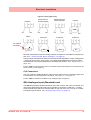
Figure 2.7 Input signal wiring
Volts/mV
Active Burnout
Thermocouples
Passive Burnout
Thermocouples
Current
10R
-ve
+ve
Ohms
+ve
-ve
4-wire R/T
-ve
+ve
3-wire R/T
-ve
+ve
2-wire R/T
+ve optional
connection
R/T
R/T
R/T
Recorder setup will be required if wiring changes are made for Active Burnout Thermocouples. See “*Thermocouple Wiring Changes.” on page 55.
Thermocouple Active Burnout status can be viewed in the Main Menu > Status >Diagnostics
> Analogue Input screen, Input column. The Health Watch/Maintenance firmware option
must be active to access the Maintenance and Diagnostic buttons. See “Diagnostics” on
page 160.
For the QXe recorder Active Burnout is not available. Ohms measurements must have the link between positive (+) and negative (-).
CJC Connectors
The CJC connector resides between channel 4 and channel 5 on the Analogue Input card.
For information on connecting the CJC sensor, see Figure 2.6 on page 18.
For the QXe recorder this is available on the Analogue Input card (option).
QXe Analogue Input (Standard) card
The QXe is fitted with a standard Analogue Input card in Slot A, with up to 6 channels. The
card is also fitted with an Ethernet port as standard. Connection is made via 1 x 18-way
screw terminal plugs that fit into a PCB header on the rear of the unit. To fit up to a further
6 analogue input channels, see “Analogue Input Card” on page 16
43-TV-25-33 GLO Iss.7 Feb 08 UK
19
Electrical Installation
Figure 2.8 QXe Analogue Input card (std) - Slot A
1
2
-+
3 4
*
CH.1
5
6
7 8
9
-+
*
-+
*
CH.2
CH.3
10 11 12
-+
*
CH.4
13 14 15 16 17 18
-+
*
CH.5
-+
*
CH.6
WARNING
HAZARDOUS VOLTAGES
Insulation from channel to channel: Normally a channel can be safely connected to a
hazardous voltage up to 150V AC common mode* with respect to earth. However,
where a channel is connected to a safety low voltage circuit (i.e. is accessible for operators to touch), any channel within the same 'input bank' must be limited at all times
to a maximum of 55Vac or 140Vdc**. This is to ensure that protection of the safety low
voltage circuit is fully maintained.
The inputs are divided into two banks: inputs 1 to 3 are one bank, and inputs 4 to 6 (if
fitted) are another bank. A voltage of up to 150V AC common mode can be applied on
one bank as long as any safety low voltage circuits are on the other bank. The recorder
is protected against accidental connection of a voltage up to 240V AC common mode
which might occur as a temporary fault condition, provided there are no safety low voltage circuits connected to the same input bank as the channel with the fault.
*Common Mode voltage is a voltage applied between the whole channel and earth,
not between pins on a channel.
** this reduces to 33Vrms or 70Vdc if any channel within the input bank is configured
as an ohms or R/T measurement.
Failure to comply with these instructions could result in death or serious injury.
20
43-TV-25-33 GLO Iss.7 Feb 08 UK
Electrical Installation
CAUTION
CONTROL UNIT DAMAGE
Do not apply a hazardous live voltage between + and - pins within a channel (e.g. 60V
maximum on voltage ranges, 5V maximum on millivolts ranges).
The * pin should be connected only as part of ohms or R/T measurements. Ohms and
R/T measurements share a common connection (* pin) with all channels in the same
bank (the inputs are divided into two banks: inputs 1 to 3 are one bank, and inputs 4 to
6, if fitted, are another bank). To avoid damage, ensure that a channel selected as ohms
or R/T remains floating, i.e. the sensor is not connected to any external voltage.
Alternatively, if an ohms or R/T sensor must be biased to an external voltage, ensure
that the other two channels within the same input bank are floating or are biased to the
same voltage (i.e. - inputs of all three channels connected to the same voltage).
Failure to comply with these instructions may result in product damage
Analogue Output Card
Not available on the QXe recorder.
The Analogue Output card connections are made via 1 x 12-way screw terminal plug that
fits into a PCB header on the rear of the unit.
The Analogue Output card position for the QX is shown in Figure 2.3 on page 14, and
Figure 2.4 on page 15 for the SX.
WARNING
HAZARDOUS VOLTAGES
Insulation from channel to channel: Normally a channel can be safely connected to a
hazardous voltage up to 300V AC common mode* with respect to earth. However,
where a channel is connected to a safety low voltage circuit, an immediately adjacent
channel must be adequately insulated from hazardous voltages between 150V AC and
300V AC max. This insulation should comprise of at least 1.5mm air gap, or a barrier
rated greater than 1400V AC. This is to ensure that protection of the safety low voltage
circuit is fully maintained.
*Common Mode voltage is a voltage applied between the whole channel and earth, not
between pins on a channel. 300V AC is permitted at Measurement Category CAT ll
(Overvoltage Category ll)
Failure to comply with these instructions could result in death or serious injury.
43-TV-25-33 GLO Iss.7 Feb 08 UK
21
Electrical Installation
Analogue Output Channel Numbers
The Analogue Output cards are either 2 or 4 channels using a connector that only takes up
half the length of the connector slot. Looking from the rear of the unit the Analogue Out connector is on the left of the Analogue slot with a blanking plate on the right.
Table 2.4 :
Analogue Output card
Card Position
Slot B
Slot E
Slot F
Channel number
9 to 12
33 to 36
41 to 44
Analogue Output Connection Details
Output 1
1
2
3
Output 2
4
5
6
Output 3
7
8
Output 4
9 10 11 12
Loop + Loop Loop +
Loop NC
NC
Loop +
Loop NC
Loop +
Loop NC
NC = Not
connected
Pulse Input Card
The Pulse Input card connections are made via 1 x 12-way screw terminal plugs that fits
into a PCB header on the rear of the unit.
The Pulse Input card position for the QX is shown in Figure 2.3 on page 14, and Figure
2.4 on page 15 for the SX .
The Pulse Input card is not available on the QXe recorder, however, the 8 Digital I/O option
card has 4 channels that can be set as pulse inputs (channels 1 to 4). The operating frequency for pulse inputs on the Digital I/O card is 1kHz max.
Input: Low < 1V, High >4V to <50V DC (8V to 50V p-p AC) or Volt free input: Low = short
circuit, High = open circuit.
22
43-TV-25-33 GLO Iss.7 Feb 08 UK
Electrical Installation
WARNING
HAZARDOUS VOLTAGES
Insulation from channel to channel: Normally a channel can be safely connected to a
hazardous voltage up to 300V AC common mode* with respect to earth. However,
where a channel is connected to a safety low voltage circuit, an immediately adjacent
channel must be adequately insulated from hazardous voltages between 150V AC
and 300V AC max. This insulation should comprise of at least 1.5mm air gap, or a barrier rated greater than 1400V AC. This is to ensure that protection of the safety low
voltage circuit is fully maintained.
*Common Mode” voltage is a voltage applied between the whole channel and earth,
not between pins on a channel. 300V AC is permitted at Measurement Category CAT
ll (Overvoltage Category ll)
Failure to comply with these instructions could result in death or serious injury.
Pulse Input Channel Numbers
The Pulse Input card has channels using a connector that only takes up half the length of
the connector slot. Looking from the rear of the unit the Pulse Input connector is on the right
of the slot with a blanking plate on the left.
Table 2.5 :
Pulse Input card
Card Position
Slot A
Slot B
Slot C
Slot D
Slot E
Slot F
Channel number
1 to 4
9 to 12
17 to 20
25 to 28
33 to 36
41 to 44
Pulse Input Connection Details
Do not connect anything to terminals marked NC (Not Connected). For Frequency and Voltage levels see “Specification Tables” on page 259.
43-TV-25-33 GLO Iss.7 Feb 08 UK
Channel 1
Channel 2
-
-
+
NC
+
NC
Channel 3
-
+
NC
Channel 4
-
+
NC
23
Electrical Installation
Transmitter Power Supply Card
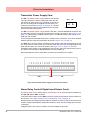
The QX Transmitter power supply option is 24V DC 200
mA and is fitted to the power supply card within the unit.
Connection is made via a 2-way connector at the rear of
the unit, the mating half is supplied with this option. For
connector position see Figure 2.3 on page 14. The 24V
transmitter power supply is not isolated from the recorder,
and is not referenced to ground.
24V
0V
24V DC TXP
The SX Transmitter power supply option is 24V DC 1 A and is fitted below the power supply card within the unit. Connection is made via two 10-way connectors, see Figure 2.4 on
page 15, mating halves supplied with this option. The SX transmitter power supply is isolated from the recorder.
A red LED light will illuminate when there is voltage on the connectors. The LED is situated
between the two connectors at the back of the unit. Figure 2.4 on page 15.
The QXe has a 24V DC 130mA Transmitter Power Supply card that can be fitted as an option. Connection is made via a 2-way connector at the rear of the unit, the mating half is supplied with this option. For connector position see Figure 2.3 on page 14. The 24V
transmitter power supply is not isolated from the recorder, and is not referenced to ground.
The option card also has an RS485 Modbus port and a USB port.
Recommended wire size for termination connector 22-12 AWG (22-14 SWG).
24V
LED
0V
Figure 2.9 Transmitter Power Supply card for the SX recorder
Alarm Relay Cards & Digital Input/Output Cards
The Alarm Relay Cards and the Digital Input/Output Cards are both options available for
the QX, SX and the QXe recorders.
To fit these option cards into the QXe recorder it requires an expansion card to interface to
the recorder. See “QXe Analogue Input (Standard) card” on page 19.
All Alarm Relay card outputs provide 240V AC isolation channel to channel and channel to
recorder. Digital Input/Outputs will provide isolation to 100V AC test voltage (not for mains
connection).
All digital inputs have volt free contacts, and are sampled at 10Hz max.
24
43-TV-25-33 GLO Iss.7 Feb 08 UK
Electrical Installation
The QX and the QXe recorders have only one slot available for digital inputs and relay outputs for either a 4 or 8 channel Alarm Relay card or an 8 or 16 channel Digital I/O card fitted
in slot G, the position is identified on the rear panel. The 16 channel Digital I/O card is not
available on the QXe recorders.
The SX can have up to three Alarm Relay cards fitted in any combination of Alarm Relay
card or Digital I/O cards. The first Alarm Relay card or Digital I/O card is fitted in slot G, any
additional cards will locate in positions H and I.
WARNING
HAZARDOUS VOLTAGES
Digital Input/Output card channels must not be connected to any hazardous live voltages (no higher than 30V AC rms or 60V DC).
Alarm Relay Card channels
Alarm Relay Card channels can be connected to hazardous voltages up to 300V AC,
at Measurement Category CAT II (Overvoltage Category II)
Failure to comply with these instructions could result in death or serious injury.
NOTICE
For 12 and 16-way connectors; torque setting 0.4 Nm/3.5lb-in. Do not over tighten.
Recommended wire size for termination connector is 22-12 AWG (22-14 SWG)
4 and 8 Alarm Relay Cards
The 24-way connector for the Alarm Relay Card , connects to 3 A, 240 VAC SPCO relays.
The pin-outs for 4 and 8 relay Alarm Relay cards are numbered from left to right and they
read as follows for each channel; NC (normally closed), C (common), NO (normally open).
Devices driven by the relays are connected via two 12-way screw terminal plugs.
The last two channels, 7&8, 23&24 or 39&40, can be used as digital inputs, connect across
Common (C) and Normally Open (NO).
CAUTION
IMPROPER MAINS SWITCHING
For 8 channel Alarm Relay cards.
Switching mains on the normally-open contact on channels 7 and 8 is not recommended,
as surges and spikes on the mains supply could cause damage to the input circuitry.
The normally-closed contact is unaffected, and can be used like all the other channels.
A Form C dry contact relay is used for this type of card. The inputs are designed to accept
“Dry contact, no volt inputs”. The relays should be used for non-inductive loads only where
a device requires a voltage to operate it, such as a 12 Volt buzzer, connect it to the normally
open (NO) contacts (unless the fail-safe setting is activated).
The maximum voltage which may be used with the alarm relays is 240V
43-TV-25-33 GLO Iss.7 Feb 08 UK
25
Electrical Installation
Alarm Relay Channel Numbers
The Alarm Relay cards are either 4 or 8 channels with a full length connector taking up 8
channels even though the cards only operate on 4 channels or 8 channels. The 8 channels
Alarm Relay card has 2 digital inputs available on the last 2 channels. There are no Digital
Inputs available on the 4 channels Alarm Relay card.
Table 2.6 :
Alarm Relay card 4 channel
Alarm Relay card 8 channel
Card
position
Channel
number
Digital
Inputs
Card
position
Channel
number
Digital
Inputs
Slot G
1 to 4
N/A
Slot G
1 to 8
7&8
Slot H
17 to 20
N/A
Slot H
17 to 24
23 & 24
Slot I
33 to 36
N/A
Slot I
33 to 40
39 & 40
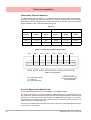
Figure 2.10 Alarm Relay Card connector details
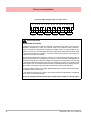
CH 1
CH 2
CH 3
CH 4
CH 5
CH 6
CH 7
CH 8
NC C NO NC C NO NC C NO NC C NO NC C NO NC C NO NC C NO NC C NO
Relay contacts position
NC = Normally Closed
C = Common
NO = Normally Open
Channels 7 and 8 can
be set as Digital Inputs.
(Use C and NO)
8 and 16 Digital Input/Output Card
The 16 channel Digital I/O card is not available on the QXe recorders.
The Digital Input/Output Card has 1A 24V DC rated relays that are connected via two 16way connectors, the left connector for the first 8 channels and right connector for the second
8 channels. The pin-outs for 8 and 16 I/O cards are labelled from left to right, 1 to 16 on the
left side and 17 to 32 on the right. Each channel can be set up as an input or an output. For
output the relay is normally open type.
A Form A dry contacts relay is used for this type of card. The inputs are designed to accept
“Dry contact, no volt inputs”.
26
43-TV-25-33 GLO Iss.7 Feb 08 UK
Electrical Installation
NOTICE
For Digital Inputs, short together the 2 pins of the channels with a switch or a relay.
Pulse Inputs
The 8 and 16 Digital I/O option card has 4 channels that can be set as pulse inputs (first 4
channels). The operating frequency for pulse inputs on the Digital I/O card is 1kHz max.
Input: Low < 1V, High >4.5V to <10V DC (9V to 20V p-p AC) or Volt free input: Low = short
circuit, High = open circuit.
.
Figure 2.11 Digital Input/Output card connector details
CH1 CH2 CH3 CH4 CH5 CH6 CH7 CH8
CH9 CH10 CH11 CH12 CH13 CH14 CH15 CH16
1 2 3 4 5 6 7 8 9 10 11 12 13 14 15 16
17 18 19 20 21 22 23 24 25 26 27 28 29 30 31 32
NO C NO C NO C NO C NO C NO C NO C NO C
NO C NO C NO C NO C NO C NO C NO C NO C
NO = Normally Open
C = Common
Digital Input Card Channel Numbers
The Digital input cards are either 8 or 16 channels with a full length connector taking up 16
channels even if only 8 channels are in operation. Both the digital input cards can be used
as a relay card if required.
Table 2.7 :
Digital Input card 8 channel
Card
position
Channel
number
Digital Input card 16
channel
Card
position
Channel
number
Slot G
1 to 8
Slot G
1 to 16
Slot H
17 to 24
Slot H
17 to 32
Slot I
33 to 40
Slot I
33 to 48
The 16 channel Digital I/O card is not available on the QXe.
43-TV-25-33 GLO Iss.7 Feb 08 UK
27
Electrical Installation
Communications Connections
Ethernet
The Ethernet port is fitted to all X Series recorders as standard and uses a standard RJ45
Ethernet connection. After connection, select the Ethernet port from the Comms menu and
select the required protocol from the Protocol menu eg.Modbus.
2
1
RD+
TDTD+
RD-
8 7 6 5 4 3 2 1
4
3
6
5
8
7
A
B
RJ45 Pin 1 is to the right
from the rear of the unit
24V DC Instrument Power Input
24V DC instrument power is available on all X Series recorders as an option. It is connected using 3-way connector, mating half is supplied. Diagram shows a view looking from the
rear of the unit.
1
2
3
+
- GND
QXe Comms card
An option card is available with RS485 Modbus port and USB device connections. The card
can be purchased and fitted at any time. The RS485 connection uses a 3-way connector.
The card also has connection for 24V DC Transmitter Power Supply, see “Transmitter
Power Supply Card” on page 24.
To fit this option card into the QXe recorder you will require an expansion card to interface
to the recorder. See “QXe Analogue Input (Standard) card” on page 19.
Figure 2.12 QXe Comms card
24V DC TX
Power Supply
28
RS485
Modbus port
USB Host
43-TV-25-33 GLO Iss.7 Feb 08 UK
Electrical Installation
RS485 QX and SX recorders.
The RS485 port is fitted as standard as a part of the processor
card and uses a 3-way connection.
1
After connection, select the RS485 port from the Comms
menu and select the required protocol from the Protocol menu
eg. Modbus. Diagram shows a view looking from the rear of
the unit. See “Comms Services Menu” on page 73.
2
3
+A -B GND
SPNC Relay QX and SX recorders.
(Single Pole Normally Closed). 2-way connector. This is a fail safe
relay which means if the power goes off the relay closes and can be
set to trigger an alarm. So should the power fail the relay is in a “fail
safe” condition. Diagram shows a view looking from the rear of the
unit. Either pins can be Common or Normally closed.
1
2
NOTE: Once the recorder is powered up, if there are no active alarms associated with the
“Fixed Relay”, the contacts will open. When the alarm is on they will close.
QXe Expansion Card
This is an interface card that is required when fitting the following option cards:
• Analogue Input card in Slot B (up to 6 channels)
• Four Relay output card
• 8 Relay/2 Digital Inputs card (6 fixed Outputs/2 Configurable DI/DO)
• 8 Configurable Digital Inputs/Discrete 24V Output card
• Comms card (24Vdc Transmitter Power Supply, Rear USB Port, RS485 Comms Port)
USB Devices
Print Support
Print Support is a firmware option that can be activated using the credit system, refer to the
Options item in “Credits” on page 101.
Not all printers will be compatible with the print support feature on the recorder. The guidelines are they must be a USB printer that shows as a standard PCL (Printer Command Language). The system will not support multi function devices or printers that require specific
drivers. Avoid photo printers and printers that allow stand alone operation with cameras or
media specific printers such as pictbridge.
There isn’t a constant factor to which printers work and those that wont. We recommend that
you follow the guidelines outlined here and plug it in and see.
Examples of printers that are compatible with the system are:
• HP Deskjet 995C
• HP Photosmart 7760
• HP DeskJet 895Cxi
• HP Laserjet 1022n
• HP Laserjet 1300
• HP Deskjet 970Cxi
• HP Deskjet 450cbi
• HP Laserjet 1160
• HP Deskjet 6980
• HP Deskjet 6940
• Xerox 6120N Phaser
• HP Inkjet 1000
• HP Business jet 1200d
• HP Business Inkjet 1000d
• HP Officejet Pro K5400
To set up your printer configuration go to “Printer Menu” on page 110.
43-TV-25-33 GLO Iss.7 Feb 08 UK
29
Electrical Installation
Keyboards
All keyboards are native USB keyboards. English and US keyboards are recognised as US
layout (QWERTY) for all languages except French and German keyboard layouts. French
and German keyboards are activated when the recorder is set to that language.
Cordless keyboards and mice are not supported:
• Dell Model # SK-8115 Keyboard
• IBM ACC42 with USB hubs
• Dell Model # C-BG17-Dual Cordless
Keyboard and Mouse Combination
• IBM SK-8815 with USB hubs
• Logitech Model # LX300 Cordless
Keyboard and Mouse Combination
• IBM SK-8806 with USB hubs
Barcode Reader
Most USB barcode readers emulate keyboards and cause no recognition problems. Examples of tested barcode readers are:
• Peninsula Phoenix 2
• Wasp - WWR 2905 Pen Scanner
• Quick Scan QS2500
• Barcode Traders LC4400 Series
USB Keys
Below are a list of USB keys known to save and load data to and from the recorders. There
will be many others that will function correctly so please test your USB key before using it
for recording and transferring data.
Table 2.8 :
30
Audio Partnership MP3 256
Corsair Flash Voyager
126MB
Flash Drive 512MB
Intelligent Stick 128MB
Kingston Data Traveller
128Mb
Leadtek USB2.0 128MB
Lexar 128mb Jump Drive
Lexar Jump Drive 64MB
Lexar Jump Drive Trio SD
Reader (Grey with 1GB SD)
Memorex Travel Drive
256MB and 512MB
MFlash 128MB
Mobile Disk 128MB
Netac 16MB
NewLink 64MB
PNY 512MB
PQI Cooldisk 128MB
SanDisk Micro Cruzer 1GB
SanDisk Mini Cruzer 128MB
and 1GB
SanDisk Titanium 512MB
SanDisk Ultra II Plus 1GB
Simpletech 128MB and
Newlink 128, 512 and 1GB
SumVision 64MB
Super Flash drive 256MB
Varta 128MB
43-TV-25-33 GLO Iss.7 Feb 08 UK
Section 3: Overview
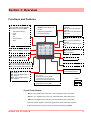
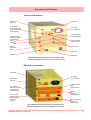
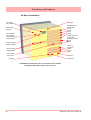
Functions and Features
.
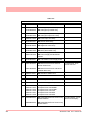
Up to 16 Analogue Inputs
for the QX, 48 for the SX
and up to 12 for the QXe
•
•
•
•
•
•
mA (external shunt)
ohms
Volts
mV
Thermocouple
RTD
Data Storage media:
• QX/SX Compact Flash - up
to 4Gb
• USB ports for keyboard,
mouse and storage
QX - Up to 192 “soft alarms” 6 per pen
SX - Up to 576 “soft alarms” 6 per pen
QXe - Up to 144 “soft alarms” 6 per pen
QX - Up to 32 Totalisers (1 per
pen)
QXe - Up to 24 Totalisers (1
per pen)
SX - Up to 96 Totalisers (1 per
pen)
QX - Up to 4 Analogue Outputs
SX - Up to 8 Analogue Outputs
Fast Scanning Mode
(QX = 8 Inputs,
SX = 16 inputs)
QX - Up to 8 Pulse Inputs
SX - Up to 24 Pulse Inputs
24V Power Supply
QX - Up to 8 Relay Alarm Outputs
SX - Up to 24 Relay Alarm Outputs
QXe - Up to 8 Relay Alarm Outputs
QX - Up to 16 Digital Inputs /
24V Outputs
SX - Up to 48 Digital Inputs /
24V Outputs
QXe - Up to 8 Digital Inputs /
24V Outputs
24V Transmitter Power Supply
QX/SX
Common Relay Output
Communications:
• FTP, TCP/IP
• RS485 Modbus (slave) QX/SX
• 10/100 Ethernet, Web and Email
• USB ports for keyboard and mouse
• OPC Server
• RS485 Modbus (slave) QXe
Key:
Standard
Option
Crystal Clear Display
•
QX has a 5.5” Digital Colour LCD (TFT), QVGA Resolution (320 x 240 pixels)
•
SX has a 12.1” Digital Colour LCD (TFT), SVGA Resolution (800 x 600 pixels)
•
QXe has a 5” Digital Colour LCD (TFT), QVGA Resolution (320 x 240 pixels)
• Clear and intuitive operation, Industrial rugged Touch Screen with rapid navigation
• Custom build screens in the recorder or using Screen Designer (not QXe )
43-TV-25-33 GLO Iss.7 Feb 08 UK
31
Functions and Features
Comprehensive Connectivity
• 10/100 Ethernet (DHCP), Web, OPC Server and E-mail
• FTP and TCP/IP transfer of encrypted data by using TrendServer software.
• RS485 Modbus Protocol (A Comms option card and expansion card are required for the
QXe recorder).
• USB ports for keyboard, mouse and printer (Rear port is an option for the QXe ).
Data Storage
• On-board non-volatile Flash memory - up to 2GB for QX and the SX, - up to 400MB for
QXe .
• Removable Compact Flash and USB storage (See “Storage Media Format” on
page 145.) for formatting information of Compact Flash cards and USB keys).
Compact Flash not available for the QXe .
• No moving parts - all solid state flash memory
Security Stringent - Total Data integrity
• Password Protection - 21CFR Part 11
• ESS - Extended Security System
• Password Newtwork Synchronisation
Plus..
• Health Watch for preventative maintenance
• Remote Access - Advanced Software Data Analysis at your PC
• Independent Chart and Logging speeds
• Global Language Support
• Rapid review and replay of data at recorder
• Approvals - CE, CSA, UL. QX and SX also have FM approval.
• NEMA 4X / IP66 option.
• Logging speed up to 50Hz (20 msec), 10Hz (100msec) for QXe .
• Up to 16 Analogue Inputs for the QX
• Up to 48 Analogue Inputs for the SX
• Up to 12 Analogue Inputs for the QXe
• Remote Viewer via the recorder web page
• Events - set up occurrences to trigger actions
• Single and concurrent batch capability
• Print Support
• Counters
• Modbus master communications
• Alert System
• Sound system - add sound effects to identify occurrences
• Email facility - the recorder will email an event notification and include a screen shot of the
occurrence as an attachment.
32
43-TV-25-33 GLO Iss.7 Feb 08 UK
Functions and Features
Recorder Functionality
• X Series recorders provide flexible electronic data acquisition and recording in a high
functionality instrument. QX is a DIN standard 144mm format recorder with a 5.5” QVGA
display and the SX is a large 12.1” diagonal display format recorder. The QXe is a DIN
standard 144mm format recorder with a 5” QVGA display.
• The QX has up to 16 Analogue inputs, and the SX has up to 48 Analogue inputs and the
QXe has up to 12 Analogue inputs.
•
QX and the SX has 70Mb to 1850MB of expandible non-volatile flash memory available
plus additional removable storage media, the QXe has 70Mb to 400MB.
• All recorders use digital colour TFT LCD screens to provide easy to read displays with wide
viewing angles for the best all around data viewing.
• The touch screen operator interface provides fast, easy access to the recorder menus making set up and data analysis quick and efficient. Navigation through the menus and text
entry are direct and intuitive.
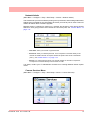
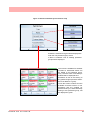
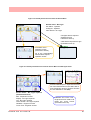
Example of a recorder menu path from the Main Menu to change the Pen Scale configuration with clear rapid navigation
43-TV-25-33 GLO Iss.7 Feb 08 UK
33
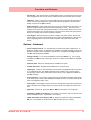
Functions and Features
Features
Display
• 5.5” Colour Active TFT for the QX and 12.1” Colour Active TFT for the SX and 5” Colour
Active TFT for the QXe - with more than 256,000 colours makes it easy to interpret process
data and take action with the intuitive bar charts, digital values, trends or customised displays. A screen saver function can be set from 1 to 720 minutes to extend the life of the backlight.
• Touch Screen - the heavy duty durable touch screen provides easy data entry and rapid
navigation though the menus.
• Help Files - A complete contextual help system can be accessed and visualised on the
screen of the recorder.
Communications
• Ethernet Connectivity - the Ethernet (DHCP standard) connection, with support for various
protocols, provides comprehensive connectivity to local area networks (LANs). The standard
Ethernet interface makes networking of the recorder to a LAN or the world wide web fast and
convenient. Dynamic Host Configuration Protocol (DHCP) automatically acquires the settings (IP address) for network communications from a DHCP server. Modbus Master and
Modbus Slave facility now available for all recorders.
• RS485 Modbus - the RS485 connection allows process data to be transferred to other
devices, or to record data received in MODBUS RTU protocol (slave mode only). Modbus
Master and Modbus Slave facility now available for all recorders. (A Comms option card and
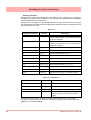
expansion card are required for the QXe recorder).
• Simple Network Time Protocol (SNTP) - The recorder can be synchronised over the ethernet network via a SNTP client or synchronise other recorders via a Server.
• Web Server - with the recorder connected to a LAN, all process variables, alarm and messages can be viewed from an internet browser; values are automatically refreshed.
Data Storage
Internal Data Storage - 70MB to 1850MB of expandible internal non-volatile flash memory
is available for data storage and chart history (replay of data on the display)
.
Internal memory / Logging rate = 1 sec
34
Type
Pens
70MB
180MB
400MB
890MB
1850MB
QX, SX
QXe
8
8
24days
24days
61d
-
137d
137d
301d
-
622d
-
QX, SX
QXe
16
16
12d
12d
30.5d
-
68.5d
68.5d
150d
-
311d
-
QX, SX
32
6d
15d
34d
75d
155d
SX
48
4
10d
22d
50d
103d
SX
96
2
5d
11d
25d
51d
43-TV-25-33 GLO Iss.7 Feb 08 UK
Functions and Features
Data Export - Removable compact flash and USB flash storage device provides multiple data storage
alternatives. Data is stored in a secure binary encrypted format, with the recorder’s configurations, providing added security of the data files. (Compact Flash is not available for the QXerecorder).
Removable Compact flash and
USB flash storage devices
External USB Devices
• The QX and the SX recorders have two USB host ports, one front and one at the rear. The
QXe recorder has one front USB Host and another USB port available as an option at the
rear. The USB ports can be used for attaching external USB devices such as a keyboard,
mouse or a USB data storage key. The keyboard and mouse can be used to navigate the
recorder’s screen along with text entry.
Remote Viewer
• This is a firmware option that extends the user interface of the recorder onto the desktop
PC. Providing remote viewing of the unit launched from a web browser. Full remote control
is available as an option which is password protected to prevent unauthorized access.
Compatible with Microsoft™ Internet explorer 6 and higher.
Security
• Total Data Integrity - data is stored in secure encrypted files making it easy to retrieve the
data dependent on process information. Data is automatically recognised without having to
remember file names.
• Password Protection - Up to 4 levels of password protection with up to 50 different users
are available. Multiple levels of password protection and an audit trail of actions enhance
the security of the data.
• Password Network Synchronisation is a credit function in the recorders that provides a
means of keeping the passwords of users in sync for network connected recorders. It uses
a Password Master/Slave setup to update passowrd changes.
• Extended Security System (option) - ESS provides features including entry of unique
User ID’s and associated passwords, time-out of password entry, password expiration, and
traceability of user actions. ESS is compatible with the requirements of 21CFR part 11.
Events
Events is a firmware option that can be activated using the credit system. Events are certain
conditions or operations which can be set up and logged according to the time and date of
the occurrence. Subsequently events can be reviewed in a list or represented on a graph.
An Event is made up from a Cause and an Effect. For example, set up a cause such as Pen
1 going into an alarm state and the effect of this could be to start a totaliser or acknowledge
the alarm.
43-TV-25-33 GLO Iss.7 Feb 08 UK
35
Functions and Features
Batch
The Batch function allows the user to segment portions of data for further analysis. Batch
enhances the management of data collected in a non-continuous process, known as batch
processing, used in thermal treatment, sterilisation, food processing and chemical reactions.
Concurrent batch mode is now available where each batch is associated to a group of pens.
Other features include Batch logging control, Automated batch counters and Event driven
batch control.
Batches are controlled with command lines entered into the recorder, these include Start,
Stop, Pause, Resume and Abort batch. Batch Markers are placed on to the recorder’s chart
and entered into the messages system for every batch command applied.
Counters
Up to 16 User Counters are available and can be used as a part of the Events system. User
Counters can be set up as a Cause or an Effect of an Event. A Counter Effect can be used
to count an occurrence or to reset different types of counters depending on hardware availability. Other counters available are Alarm, Event, Digital Input, Relay Output and Pulse
counters.
Other Standard features ..
• CE Mark - Conformity with 73/23/EEC, Low Voltage and 89/336/EEC EMC Directive.
• Soft Alarms - 6 "software" alarms per pen are easily set up to display and record selected
out-of-limit conditions. These can be tied to the relay or digital outputs to activate the user’s
external equipment.
• Common Relay Output - A separate relay output at the rear of the unit can be set up as an
alarm output. (Not available for the QXe recorder).
• Communications - the recorder supports FTP, Modbus TCP/IP (master and slave mode),
Web and E-mail over Ethernet (DHCP standard) communications port and Modbus RTU
(master and slave mode) via an RS485 port. USB ports allow the use of an ASCII barcode
reader. (RS485 port is an option for the QXe recorder). Email sent to your network connected PC triggered by an Alarm or an Event.
• Independent Display Chart Speeds and Logging rates - logging rates can be programmed completely separate from the chart display speed, allowing the data to be displayed and stored at the rates that best suit the application.
• Language Support - standard language prompts for English UK & US, French, German,
Italian, Spanish, Brazilian, Polish, Hungarian, Slovakian, Czech, Turkish, Romanian, Russian, Greek, Portuguese and Bulgarian.
• Logarithmic Scales - all displayed scales can be set as linear or logarithmic. max 99
decades
• Enclosure rating - standard NEMA 3 / IP54 type front face protection. NEMA 4X / IP66
available as an option.
• Fuzzy Logging - this standard feature provides a unique method to increase the storage
capacity of the recorder. The data is monitored to determine changes in process data; if no
changes are observed data is logged periodically. If data is changing rapidly, it is recorded
normally at the programmed rate. By not logging data that is static, data compression of up
to 100:1 or more can be achieved saving valuable memory.
36
43-TV-25-33 GLO Iss.7 Feb 08 UK
Functions and Features
• Security tag - “wire seal provision” provides added security to seal the front door and rear
when using optional rear cover to prevent undetected entry to these areas of the recorder.
• USB Ports - (USB 1.1 only) Front and rear USB host ports for data and setup transfers or
remote screen through these ports. Attach external devices (keyboard or mouse). (Rear
USB is an option for the QXe recorder).
• Replay with Zoom - Select replay mode and zoom-in on a specific area on the screen. The
data can easily be replayed at the recorder with the ability to “zoom”. The touch screen
makes it fast to review and analyse historical data. A "Jump" function allows you to go from
the alarm list directly to the trend showing the occurrence of the alarm. Hide pens function
allows you to display only the pens required for analysis.
• Print Support - Network printing from status, message and replay screens. Plus screen
capture facility of process screens instantly using a basic USB standard PCL (Printer Command Language) printer. Print screen function captures every pixel that is sent to the
printer!
Options - Hardware
• Alarm & Digital IO Cards - 4 or 8 outputs relay contacts SPCO 240V, 8 Digital I/O or 16
Digital I/O - SPNO 24VDC. (16 Digital I/O not available for the QXe recorder). Programmable alarm set points can be configured to activate up to 16 outputs for the QX,8 outputs for
the QXe and 48 outputs for the SX.
• Analogue Output - 2 or 4 outputs available per card for the QX with 2, 4, 6 or 8 outputs
available for the SX recorder. Output type: 0-20mA or 4-20mA. (Not available for the QXe
recorder).
• Nema 4X / IP66 - Nema 4X / IP66 protection available as an option.
• Portable Recorders - Portable cases available as an accessory item.
• Digital Input - 2 inputs on 8 channel Alarm card, 8 inputs on 8 Digital I/O card and 16 inputs
on a 16 Digital I/O card. The digital inputs allow users to initiate, from a remote location
through a dry contact closure, selected recorder functions. (only 8 Digital I/O available for
the QXe recorder).
• Pulse Frequency - four frequency inputs per board, are available to measure pulse signals
up to 25 kHz (max. 2 cards). (Not available for the QXe recorder, but 4 pulse inputs can be
used on the Digital I/O option card).
• Pulse Inputs - The 8 Digital I/O option card has 4 channels that can be set as pulse inputs
(first 4 channels). The operating frequency for pulse inputs on the Digital I/O card is 1kHz
max.
• Approvals - CSA and UL approvals. QX and SX also have FM CL1 Div 2 approval.
• 24VAC/DC or 48VDC Power Supply - 20 to 55VDC / 20 to 30VAC. Only 24V AC/DC available for the QXe recorder - 20 to 30VDC / 20 to 25VAC.
• 24VDC Transmitter Power Supply - QX can supply up to 200mA to external transmitters,
SX up to 1A. (Available as an option for the QXe recorder with up to 130mA).
43-TV-25-33 GLO Iss.7 Feb 08 UK
37
Functions and Features
SX Standard Screens
The SX recorder has up to 20 screens available for displaying combinations of charts, bars and DPMs
can be configured, 4 examples below.
16 Digital Panel Meters
showing Max/Min values and
Totals for each pen
DPM and Scales
38
Horizontal Chart, 8 Vertical Bars & 8 DPMS
16 Horizontal Bars
showing Max/Min values and
Totals for each pen
43-TV-25-33 GLO Iss.7 Feb 08 UK
Functions and Features
QX Standard Screens
The QX recorder has up to 12 screens available for displaying combinations of charts, bars and DPMs
can be configured, 6 examples below.
Horizontal Chart and DPMs
Horizontal Chart, 4 Vertical Bars
and 4 DPMs
8 Digital Panel Meters
8 Horizontal Bars
DPMs and Scales
Vertical Chart, 8 Horizontal Bars
and 8 DPMs
43-TV-25-33 GLO Iss.7 Feb 08 UK
39
Functions and Features
QXe Standard Screens
The QXe recorder has up to 10 screens available for displaying combinations of charts, scales and
DPMs can be configured, 6 examples below.
Horizontal Chart and 6 DPMs
40
Horizontal Chart, 3 Vertical Bars
6 Digital Panel Meters
3 Horizontal Bars
Horizontal Bars and DPMs
Vertical Chart, 3 Horizontal Bars
and 3 DPMs
43-TV-25-33 GLO Iss.7 Feb 08 UK
Functions and Features
QX Rear Connections
Earth screw
(ground)
Wire seal
20 to 55VDC/
20 to 30VAC Input
24/48V Instrument
power (option)
AC supply
100 - 250VAC
Common Relay
Output (SPNC)
Analogue Input /
Analogue Output /
or Pulse Input
Slot A
Slot B
24V TX Power
Supply Output
Alarm or
Digital I/O
Slot G
CJC Sensor
Ethernet
RS485
USB Host
100-250VAC Rear Panel AC power is connected via the
standard configuration IEC chassis plug on the rear panel
QXe Rear Connections
Wire seal
AC supply
100 - 250VAC
Earth screw
(ground)
Analogue Input
card
Slot B (option)
20 to 30VDC/
20 to 25VAC Input
24VInstrument
power (option)
Alarm or
Digital I/O
Slot G (option)
24V TX Power
Supply Output /
RS485 port and
USB Host
(option)
Up to 6 Analogue
Inputs and
Ethernet (std)
100 - 250VAC Rear Panel AC power is connected via the
standard configuration IEC chassis plug on the rear panel
43-TV-25-33 GLO Iss.7 Feb 08 UK
41
Functions and Features
SX Rear Connections
AC supply
100 - 250VAC
Wire seal
Analogue Input /
Pulse Input
Slot A
Slot B
Slot C
Slot D
Earth screw
(ground)
20 to 55VDC /
20 to 30VAC
24/48V Instrument
power (option)
Analogue Input /
Pulse Input
Analogue Output
Slot E
Slot F
Common Relay
Output (SPNC)
Alarm or
Digital I/O
Slot G
Slot H
Slot I
24V TX Power
Supply Output
CJC Sensor
Slots A to F
Ethernet
USB Host
RS485
100-250VAC Rear Panel AC power is connected via the standard
configuration IEC chassis plug on the rear panel
42
43-TV-25-33 GLO Iss.7 Feb 08 UK
Section 4: Recorder Setup
Configuration of the recorder is performed in the Menu screens and the data is displayed in
the Process screens. This section takes you through the Menu system and how to set up
your recorder. See “Section 6: Screen Configuration” on page 187 for information on
setting up screens to display the data.
User Interface Control
All user actions can be performed via the touch screen using the stylus. All on-screen selection and navigation areas are large enough so the unit can be operated without falsely selecting an adjacent option using the stylus provided.
The stylus is to be used to operate the touch screen. It has a rounded end to avoid damage
to the screen. Only a light touch is required to activate the screen. Two styluses are provided
and there is a special slot at the top of the recorder to slide the stylus in from the right. If the
touch screen does not match correctly to where you are touching it with the stylus the screen
may need calibrating. See “Calibrate” on page 140.
Other User Interface Control
All user actions can be performed using a mouse or keyboard attached to a USB host port.
Power up
1. Menu Access
When the recorder is powered up the display will show a splash screen followed by an initialisation screen displaying the default language flag.
The first screen to appear on the recorder is a default process screen with the menu bar at
the top. Select the Menu button to access the menu system to configure the recorder. The
Menu button takes you to the Main Menu.
From the Main Menu you may be required to Log In, if the Password function is active, see
“2. Log On/Off” on page 44. If not, the next configuration required is to set the recorder
to the correct local settings, see “3. Local Settings” on page 45.
Figure 4.1 Default process screen
Access to
Main Menu
43-TV-25-33 GLO Iss.7 Feb 08 UK
43
2. Log On/Off
If Password (ESS - Extended Security System, 21CFR) security is active on your recorder
a password is required to enter the menu system and process screens. Limited access is
available without logging on.
For ESS recorders only, locate the First Time Password System Setup sheet included in
with your recorder or see “First Time’ Password System Setup” on page 170.
All Users
When Log On is required the Log On button will appear in the top right of the Main Menu
screen. The Log On button can be set to switch to auto Log Off at a specified period of time.
To Log On select the Log On button at the top right of the Main Menu screen.
Log On Button
Log Off Button
• Log On - User is presented with a user name and password entry box. First time user
login is “Admin”. No password is required. Access for the first time user is removed
once the password system has been configured.
• Log Off - Once the user has logged on, the option in the Main Menu will turn to Log Off,
once selected the user is logged off and returned to the current process screen.
First Time Log On
The first time the system is used a default user name and password is available, the user
name is “Admin” and will have no password, this is known as the “first time” user. Access to
the first time user is removed once the password system has been configured. The first time
user is reinstated if the password system is reset.
For more detailed information see “Section 5: Password Security” on page 169.
44
43-TV-25-33 GLO Iss.7 Feb 08 UK
3. Local Settings
Go from the Main Menu to Configure > Setup > Edit > General > Localisation
All text is displayed in the currently selected language. Help system language can be selected independently, currently English only available. To configure local settings, languages,
time zones, daylight saving, temperature units and mains frequency for input filtering, see
“Localisation” on page 106 section.
Default Time Zone
Go from the Main Menu to Configure > Setup > Edit > General > Localisation > Time Zone
The recorder is set to the default Time Zone for Eastern Time (US, Canada), (GMT -5.00).
When the configuration is complete select the Finish button to Commit.
4. Time and Date Settings
Go from the Main Menu to Configure > Settings > Set Time
Set the Recorder Time and Date settings, see “Set Time” on page 135.
When the configuration is complete select the Finish button to Commit.
5. Firmware Options
Go from the Main Menu to Configure > Setup > Edit > General > Factory > Credits
Check your recorder has been set up with the correct amount of credits, displayed as a
number against the Credits item in the menu. Then select the Options item in the Credits
menu and enable the firmware options you require by changing the cross to a tick/check
symbol.
When the configuration is complete select the Finish button to Commit, Discard or Commit
Later. Select the Back button to return to the previous menu.
Menu Path
As each button is selected in the menu system a menu path will appear at the top of the
screen to enable the user to know where they are in the system. The user can select these
buttons to return to previous menus and enables the user to jump back more than one menu
at a time.
Menu path.
Select to go back
to previous menus
A grey arrows indicates
a further sub menu
43-TV-25-33 GLO Iss.7 Feb 08 UK
45
Help
Help is available on all menu screens and is context sensitive from each screen. The Help
icon will reside either in the top right or bottom right on all menu screens. All the Help files
have a Home button that will take you to the Help System main index. Navigating in the help
does not stop the logging.
Main Menu
Select a button
to take you to
the next menu
• Configure - Configure the recorder through the Setup, Layout, Passwords and Settings
menus. See “Configure Menu” on page 47.
• Alarms - Acknowledge Alarms, Alarm configuration and their associated condition and
View the current alarm status. See “Alarms Menu” on page 136.
• Screen - The Screen Menu includes an Edit button to configure Pen/Channel mapping,
Replay previous data, Screen List to change the screen currently being displayed and
Clean Screen facility. There are Calibrate and Touch Test features to re-calibrate the
screen. See “Screen Menu” on page 137.
• Batch - The Batch function manages sections of data. Batch markers are configured
by the user and are used to identify and analyse batches of data. See “Batch
Setup/Batch Control” on page 141.
• Recording - Start or Stop recording. Export Now will transfer data to external media
such as Compact Flash or USB key. See “Recording Menu” on page 145.
• Messages - The messages screen will display certain message areas. Specific types of
messages have been put into categories or all messages can be viewed. See “Mes-
sages Menu” on page 147.
• Process - Controls for any process in use eg. Max/Mins, Totals, Counters, User Variables, Script Timers and Reports can be controlled from this screen See “Process
Menu” on page 150.
46
43-TV-25-33 GLO Iss.7 Feb 08 UK
• Status - Displays status information screens that are available to the user, these will
provide information for reporting and diagnostic purposes. See “Status Menu” on
page 154.
• Finish - When an operation is complete use the Finish button to Commit, Discard or
Commit Later. See “Finish” on page 167.
• Help - The Help icon appears as a question mark on all menu screens. The Help files
are context sensitive and will supply information for each menu screen where the icon
appears. See “Help” on page 46.
Configure Menu
(Main Menu > Configure >)
The Configure screen gives access to the Setup, Layout, Password menus and Settings
(Time and Date). The majority of the recorder configuration is done in the Setup menus.
• Setup - In the Setup menu the user can configure how the recorder acquires, stores
and actions data. The Edit Setup gives access to sub-menus for Field IO, Pens,
Comms, Events/Counters, General, Screen and Recording set up. See “Edit Setup”
on page 49.
• Layout - The user can configure how the data is presented on the screen. From the
Layouts screen choose to Edit, Saved or Load layouts in the recorder. See “Layout”
on page 121.
• Passwords - Manages the security and access to full password configuration that
allows restricted access within the recorder, providing password protection at different
levels. Administrate, Load and Save passwords from this menu. See “Passwords”
on page 126.
• Settings - Recorder settings such as Set Time to configure the recorder's time and
date. See “Settings” on page 135.
Select a button to take you to the next menu
43-TV-25-33 GLO Iss.7 Feb 08 UK
47
Setup Menu
(Main Menu > Configure > Setup)
In the Setup menu the user can configure how the recorder acquires, stores and actions data. The Setup screen gives access to the Edit menu where the majority of the recorder configuration is done, also Save and Load setups from this screen.
Edit Setup
(Main Menu > Configure > Setup > Edit Setup)
The Edit Setup gives access to sub-menus for Field IO, Pens, Comms, Events/Counters,
General, Screen and Recording set up. See “Edit Setup” on page 49.
Save Setup
(Main Menu > Configure > Setup > Save)
The Save button will produce a list of destinations to save the set up to and allow for naming
the setup file. Maximum of 50 characters. File format is .set
The Compact Flash and the front USB device port are found under the front flap on the recorder. There is another USB port at the rear of the recorder. The first USB device fitted will
be USB1, therefore the second USB device fitted is USB2.
Compact Flash not available for the QXe .
Load Setup
(Main Menu > Configure > Setup > Layout)
Setups can be loaded from Compact Flash or USB key. The Load button will produce a list
of source files to load setups from.
The Compact Flash and the front USB device port are found under the front flap on the recorder. There is another USB port at the rear of the recorder. The first USB device fitted will
be USB1, therefore the second USB device fitted is USB2.
Compact Flash not available for the QXe .
Back Button
Takes you back to the previous menu
48
43-TV-25-33 GLO Iss.7 Feb 08 UK
Edit Setup
(Main Menu > Configure > Setup > Edit Setup)
Edit Setup will access the main configuration of the recorder through further sub-menus for:
Field IO, Pens, Comms, Events/Counters, General, Screen and Recording set up.
The Edit button may display a warning message if the Commit Later option has been selected This means changes to the configuration have been made but the changes have not
been committed to the recorder. See “Commit Later” on page 167.
Select a button to take you to the next menu
• Field IO - This button displays a sub menu containing Analogue In, Analogue Out,
Alarm/Digital IO and Pulse Inputs card menus. See “Field IO Menu” on page 50.
• Pens - This button displays all the configuration areas for setting up Pens including
Scales, Maths, Alarms, Logging and Totalisers. See “Pens Menu” on page 62.
• Comms - This button displays Services, TCP/IP and Network Admin. Services takes
you to a sub menu containing Modbus, Web, Email, SNTP, FTP and Peers menus.
See “Comms Services Menu” on page 73.
• Events/Counters - Events and counters are firmware options that can be activated
using the credit system. Events are certain conditions or operations which can be set up
and logged according to the time and date of the occurrence. See “Events Menu”
on page 82. User Counters can be set up and used as a Cause or Effect in the
Events system to count an occurrence. See “Counters Menu” on page 96. Preset Markers are also available to be configured for use in the event system and as a
mark on chart.
• General - This button displays a sub menu containing general recorder information
including recorder Ident, Error Alert, Factory, Batch, Printer set up and Groups (Pens)
menus. See “General Menu” on page 98.
• Screen - This button displays a sub menu containing Screen Saver, Chart speed and
screen Brightness set up. See “Screen Saver” on page 112.
43-TV-25-33 GLO Iss.7 Feb 08 UK
49
• Recording - Set up Scheduled recording and specify the Storage Bias for recording
logged and chart data. “Edit Recording” on page 114.
• Reports - Reports can be generated manually or on a periodical basis using event system to show daily/weekly/monthly totals, max mins, averages etc.. the reports can be
printed, e-mailed as attachments or exported to external media. The report details
must be set up first before a report can be run, see “Reports menu” on
page 117. To run a report see “Reports (Process)” on page 152.
Field IO Menu
(Main Menu > Configure > Setup > Edit Setup> Field IO)
Select which type of Field Inputs/Outputs are required for configuration depending on what
type of cards are fitted in the recorder.
• Analogue In - Select this to configure each Analogue Input channel. See “Analogue
In Menu” on page 52.
• Analogue Out - Select this to configure each Analogue Output channel. See “Analogue Out Menu” on page 55. (Not available for the QXe recorder).
• Alarm/Digital IO - Select this to configure Relay Alarm Output card or Digital Input/Output card. See “Alarm / Digital IO” on page 56.
• Pulse Inputs - Select this to configure each Pulse Input channel. See “Pulse Input”
on page 58. (Not available for the QXe recorder).
• Linearisation Tables - To be used with Analogue Input type Volts, Amps or Ohms.
These are user defined tables that can be set up to allow a non-linear input signal to be used. See “Linearisation Tables” on page 59.
50
43-TV-25-33 GLO Iss.7 Feb 08 UK
Table 4.1 : Card Positions and Channel Numbers
QX
Slot position
Card type
Channel
numbers
Slot A
8 Analogue In
Pulse Inputs
1 to 8
1 to 4
Slot B
8 Analogue In
Pulse Inputs
4 Analogue Out
9 to 16
9 to 12
9 to 12
Slot G
4 Relay Output
8 Relay/2 Digital In
8 Digital Input/Output
16 Digital Input/Output
1 to 4
1 to 8
1 to 8
1 to 16
SX
Slot position
43-TV-25-33 GLO Iss.7 Feb 08 UK
Card type
Channel
numbers
Slot A
8 Analogue In
Pulse Input
1 to 8
1 to 4
Slot B
8 Analogue In
Pulse Input
9 to 16
9 to 12
Slot C
8 Analogue In
Pulse Input
17 to 24
17 to 20
Slot D
8 Analogue In
Pulse Input
25 to 32
25 to 28
Slot E
8 Analogue In
Pulse Input
4 Analogue Out
33 to 40
33 to 36
33 to 36
Slot F
8 Analogue In
Pulse Input
4 Analogue Out
41 to 48
41 to 44
41 to 44
Slot G
4 Relay Output
8 Relay/2 Digital In
8 Digital Input/Output
16 Digital Input/Output
1 to 4
1 to 8
1 to 8
1 to 16
Slot H
4 Relay Output
8 Relay/2 Digital In
8 Digital Input/Output
16 Digital Input/Output
17 to 20
17 to 24
17 to 24
17 to 32
Slot I
4 Relay Output
8 Relay/2 Digital In
8 Digital Input/Output
16 Digital Input/Output
33 to 36
33 to 40
33 to 40
33 to 48
51
QXe
Slot position
Card type
Channel
numbers
Slot A
3 Analogue Inputs
6 Analogue Inputs
1 to 3
1 to 6
Slot B option card
6 Analogue Inputs
9 to 14
Slot G
4 Relay Output
8 Relay/2 Digital In
8 Digital Input/Output
1 to 4
1 to 8
1 to 8
To fit the Analogue Input option card (Slot B) into the QXe recorder you will require an expansion card to interface to the recorder.“QXe Analogue Input (Standard) card” on
page 19
Analogue In Menu
(Main Menu > Configure > Setup > Edit Setup> Field IO > Analogue In)
Press the Analogue In button to display all the analogue inputs available.
Click on individual Analogue In number to set up each channel profile. Each channel has a
list of menu items to be configured.
Refer to connection details and “Analogue Input Channel Numbers” on page 17..
Menu path to current menu
The Analogue In screen
displays all the available
Analogue Input channels.
Each channel displays its’
individual settings.
Select a numbered channel to edit the configuration of each input
• Enabled - Toggle On and Off.
• Type - Select this for a list of available Signal Inputs.
• Sample Rate - Select this for a list of available Analogue Input sample speeds. A Fast
Scanning range of 50Hz (20ms) is available as a firmware option (not available for the
QXe recorder). See “Firmware Credit System” on page 201. Arranged in 2
banks of 3 inputs, and sample rate must be the same within each bank, only for QXe
recorder.
52
43-TV-25-33 GLO Iss.7 Feb 08 UK
• Range (Ohms, Volts and Amps only) - Toggle between Preset and User Defined. The
Preset option will make available a list of Range Types or select User Defined to specify
High and Lower Limits.
• Range Type (Ohms, Volts and Amps only) - Only available when Range is set to Preset. Select for a list of available ranges. The factory default range is +/-12V. See
“User Defined Maximum Input Ranges” on page 256
• Damp Level - The damping filter is an advanced algorithm offering improved response
over more traditional methods. It works by producing configurable levels of damping but at the same time being able to respond rapidly to large input changes. Enter the
Damp Level in Engineering Units.
Figure 4.2 Effects of Damping and Rolling Average example
Rolling Average of input signal
(Pen 11)
Input signal
(Pen 67)
Damping on input signal
(Pen 10)
Note: the Damping (Pen 10) has been offset for this
example to be able to see the damping effect clearly
• Linearisation Tables (Ohms, Volts and Amps only) - Select a table from the drop down
list if required. See “Linearisation Tables” on page 59.
• Use Pen Scale - Toggle On and Off, this is enabled by default. Analogue # defaults to
the corresponding Pen #, eg. A1 will default to Pen 1. If you change A1 to display
another pen scale eg.Pen 3, you must go into Pen 3 and change the maths to A1. This
will ensure that Pen Scale 3 will display A1 input. With this enabled the Engineering
zero and span is the same as the pen scale. Disable this and the Engineering zero and
span will not reflect the pen scale. When disabled, see Eng. Span & Eng Zero bullet
points below.
This is not available when using Linearisation Tables.
43-TV-25-33 GLO Iss.7 Feb 08 UK
53
• Units - (Ohms, Volts and Amps only). This is the Units of Measurement for each input.
Select and enter a value. Max 13 characters. For Thermocouple and Resistance Thermometer units, see “Localisation” on page 106 .
• Label - Select and enter a identification label for the input. Select and enter a label. Max
15 characters.
• SQRT Extract - (Ohms, Volts and Amps only). Toggle On and Off. The Square root
extraction in the analogue input is used to linearise certain sensors that have a non linear output - for example in the calculation of flow. So when you check the Square root
extraction in the Analogue input section it carries out the following calculation. It ratios
the analogue input range that you set, to 0 to 1. So any sensor input is represented by a
number from 0 to 1. We then take the square root. We then re ratio the result back to
the user set range.
• Sensor Comp - Sensor Compensation may be required to improve accuracy on a sub
range. This is an adjustment to the value of the signal input on each channel, based on
the Engineering units settings. See “Sensor Compensation” on page 299
• High Limit - Available when Range is User Defined. Select and enter the high limit
value.
• Lower Limit - Available when Range is User Defined. Select and enter the lower limit
value.
• RT Type - Only available when Type is set to RT (Resistance Thermometer). Select this
for a list of available RT types.
• Burnout Type - Only available when Type is set to TC (Thermocouple). Toggle
between Active and Passive. Active means it will send out a current to the TC. Set to
Passive means it takes a reading without sending out a current. The T/C is wired differently for Active and Passive Burnout (see Figure 2.7, “Input signal wiring,” on
page 19 ). (Active Burnout is not available for the QXe recorder).
Active Burnout checks the health of the thermocouples every 30 seconds, if your process requires continuous check of the thermocouples to see if they are in burnout you
should use Passive Burnout. Active burnout is an implementation of thermocouple
health and provides error warning messages for a range of thermocouple activity/failure
conditions. Passive burnout does not provide any error warning messages.
If the thermocouple wiring changes and the channel is set to Active, select Passive and
Commit the change. Then return to the menu and select Active and Commit the change
to update burnout settings.
• Show Burnout - Only available when Type is set to TC. Toggle between Upscale and
Downscale Burnout.
• TC Type - Only available when Type is set to TC. Select this for a list of available TC
types.
• CJ Comp - Only available when Type is set to TC. Select this for a list of available CJ
Compensation. See “Thermocouple CJC Compensation” on page 286.
• • Int Automatic - Uses the cold junction sensor in the recorder as a variable reference temperature
• • Ext 0 Deg C - Assumes the cold junction is held at 0°C to provide a 0mV reference, external to the recorder
• • Ext with Spec Temp - Uses a reference junction held at a constant temperature. Specify the temperature that the cold junction sensor is to be set at.
• • Ext Input - Use a thermocouple or resistance thermometer from another channel to measure the cold junction sensor
54
43-TV-25-33 GLO Iss.7 Feb 08 UK
• External Input - Only available when CJ Compensation is set to Ext Input. Select the
input required as an external input.
• Eng. Span - (Ohms, Volts and Amps only). Only available when not using “Use Pen
Scale” option. This is the highest value of the engineering range and corresponds to the
top of the input range. Select and enter a value using the on-screen keyboard.
• Eng. Zero - (Ohms, Volts and Amps only). Only available when not using “Use Pen
Scale” option. This is the bottom of the engineering scale and represents the bottom of
the input scale. Select and enter a value using the on-screen keyboard.
• Demo Setup - Only available if there is no Analogue Input card fitted. Examples of various inputs are available without having an actual signal input coming into the recorder.
• • Demo Type - Select this for a list of available Demo Type inputs.
• • Cycle Time - Enter the Cycle Time, in seconds, of the Demo Input. Select and
use the on-screen keyboard.
• • Add Noise - This is to Add Noise to the Demo Input as a percentage value.
Select and use the on-screen keyboard.
When the configuration is complete select the Finish button to Commit, Discard or Commit
Later. Select the Back button to return to the previous menu.
*Thermocouple Wiring Changes.
If the recorder is set to Active, select Passive and Commit the change. Then return to the
menu and select Active and Commit the change.
Analogue Out Menu
(Not available for the QXe recorder).
(Main Menu > Configure > Setup > Edit Setup> Field IO > Analogue Out)
Only available when an Analogue Out card is fitted as an option, 2 or 4 outputs are available
per card.
The outputs are factory calibrated to meet the published specification and cannot be field
calibrated.
Refer to connection details and “Analogue Output Channel Numbers” on page 22
Menu path to current menu
The Analogue Out screen
displays all the available
Analogue Output channels.
Each channel displays its
individual settings.
Select a numbered channel
to edit the configuration of
each output
43-TV-25-33 GLO Iss.7 Feb 08 UK
55
Press the Analogue Out button to display all the analogue outputs available. Click on individual Analogue Out number to set up each channel profile.
• Enabled - Toggle On and Off.
• Allow Overrange - Toggle On and Off. Disabled as default, this will allow the output signal to go overrange to 21mA, if disabled the maximum is 20mA.
• Transmit Pen - Eg. Select a pen to output 4-20 mA loop. This will take the scale value
from the pen it is transmitting and convert to 4-20mA output signal. eg if the scale is 050% this signal will fit the scale so 4mA = 0% and 20mA = 50%. For 0-20mA output signal with the same 0-50% scale, this would read 0mA = 0% and 20mA = 50%.
• Output - Select either 4-20mA or 0-20mA.
• Label - Select and enter an identification label. Select and use the on-screen keyboard.
Up to 16 characters.
When the configuration is complete select the Finish button to Commit, Discard or Commit
Later. Select the Back button to return to the previous menu.
Alarm / Digital IO
(Main Menu > Configure > Setup > Edit Setup> Field IO > Alarm/Digital IO)
The Alarm/Digital IO button will display all the digital inputs/outputs available. Click on each
individual Alarm IO or Digital IO number to set up each channel profile.
Cards available are:
2 types of Alarm Relay cards
• 4 Alarm Relay Output
• 8 Alarm Relay Output with 2 Digital Inputs
2 types of Digital IO cards
• 8 Digital Inputs or Outputs
• 16 Digital Inputs or Outputs. (Not available for the QXe recorder).
Alarm Relay Card
4 Alarm relay output card or 8 Alarm relay Output with 2 Digital Inputs (6 fixed outputs and
2 configurable Digital Input or output) cards.
Digital IO Card
There are 8 or 16 Digital channels per card that can be setup as inputs or outputs. The Digital I/O card also has 4 channels that can be set as pulse inputs (channels 1 to 4). The operating frequency for pulse inputs on the Digital I/O card is 1kHz max.
Input: Low < 1V, High >4.5V to <10V DC (9V to 20V p-p AC) or Volt free input: Low = short
circuit, High = open circuit.
To view and log a channel selected as a Pulse input, set up an extra pen with a Maths function of LPULn in Edit Maths in the Pens menu. For more information see “Appendix B:
Maths Expressions” on page 271.
For connection details see For connection details See “Alarm Relay Channel Numbers”
on page 26
56
43-TV-25-33 GLO Iss.7 Feb 08 UK
Menu path to current menu
The Digital IO screen
displays all the available
channels that can be set
up to be digital inputs or
outputs.
Each channel displays
its individual settings.
Select a numbered
channel to edit the configuration of each input
or output.
For all cards select an Alarm/Digital # to display the configuration menu. Each Alarm/Digital
has a list of menu items to be configured.
• Enabled - Toggle On and Off
• Digital Type - Set to Output Relay contact (Power) for the Alarm Relay cards. Toggle
between Input and Output or Pulse Input for the Digital IO card. On the 4 Relay Alarm
card, only output type is available. Channels 1 to 6 on the 8 Alarm Relay card are outputs, channels 7 & 8 can be either inputs or outputs.
Note: Pulse Input only available on channels 1 to 4 for slot G, 17 to 20 for slot H
and 33 to 36 for slot I.
• Output - (Output only). The relay outputs can be set to be either Latched or Single
Pulse. A Latched relay will be maintained in its active state until the trigger source has
returned to a non-alarm state (unless acknowledged). For Single Pulse the relay will go
active for a period of time, specified by the user, then return to a non active state. The
time out period remains independent of the length of time the active state remains. If
the output is set to Single Pulse, when the alarm is activated the signal will display a
single pulse for the duration set. See Pulse Duration. The alarm will trigger again when
it goes back into an active alarm state.
NOTICE
Outputs that are set to Single Pulse should not be used as a part of
a maths expression as it can cause spurious values.
• Pulse Duration - (Output only). Available when Single Pulse is selected as an Output.
Specify the pulse length in seconds from 0.1 (100ms) to 6480 (108 minutes) in 0.1 second increments. Select and enter the pulse length.
• Failsafe - (Output only). Toggles On and Off. Each relay channel can be independently
selected with the fail safe option. This will invert the state of the relay output. With Failsafe Off, normally open (NO) relays have open contacts when the power is off, and
open contacts when there is no active alarm. The contacts will close when an associated alarm goes active. With Failsafe On, normally open relays have closed contacts
when the recorder is powered on and there are no open active alarms, and the contacts
open with an alarm active or when the power is removed. See “Failsafe Relay
Positions” on page 258.
43-TV-25-33 GLO Iss.7 Feb 08 UK
57
• Label - Select and enter an identification label. Up to 16 characters.
• Active Label - (Input and Output only). This is the label that is shown when an alarm
becomes active. Select and enter a label. Not available for Pulse Input. Up to 12 characters.
• Inactive Label - (Input and Output only). This is the label that is shown when an alarm
becomes inactive. Select and enter a label. Not available for Pulse Input. Up to 12 characters.
• Reports To - This will acknowledge the Alarm/Digital IO to a selected destination.
Select User message to add the Digital IO occurrence to the messages list only. Select
Mark On Chart to display the occurrence on a chart and to the messages list.
When the configuration is complete select the Finish button to Commit, Discard or Commit
Later. Select the Back button to return to the previous menu.
Pulse Input
(Not available for the QXe recorder).
(Main Menu > Configure > Setup > Edit Setup> Field IO > Pulse Input)
Only available when a Pulse Input card is fitted as an option. The Pulse Input card operates
up to a frequency of 25kHz max. See “Pulse Input Channel Numbers” on page 23.
Input: Low < 1V, High >4V to <50V DC or Volt free input: Low = short circuit, High = open
circuit.
If a Pulse input card is fitted in slot A the first 4 pens will display the maths function of HPULn
in Edit Maths in the Pens menu as default to display the pulse reading. For more information
see “Appendix B: Maths Expressions” on page 271.
Menu path to current menu
The Pulse Input screen
displays all the available
pulse input channels that
can be set up.
Each channel displays its
individual settings.
Select a numbered channel to edit the configuration of each Pulse input.
Press the Pulse Input button to display the available pulse inputs.
Click on individual Pulse Input number to set up each channel profile.
• Enabled - Toggle On and Off.
• Hertz - Fixed as Frequency Measure (in Hertz).
58
43-TV-25-33 GLO Iss.7 Feb 08 UK
• Update Rate - Fixed at 1Hz
• Label - Select and enter an identification label for the pulse input. Select and enter a
label. Up to 16 characters.
When the configuration is complete select the Finish button to Commit, Discard or Commit
Later. Select the Back button to return to the previous menu.
Linearisation Tables
(Main Menu > Configure > Setup > Edit Setup> Field I/O > Linearisation)
Linearisation Tables - To be used with Analogue Input type Volts, Amps or Ohms.
These are user defined tables that can be set up to allow a non-linear input signal to be displayed on the recorder. By entering a set of non-linear signal input values (X) into the linearisation table, the recorder will use the table to generate linear output (Y) in engineering
units, to be displayed and/or log on the recorder.
• Select the next available table and rename it for ease of identification by selecting the
name button.
• Select the Values button to take you to the start of a new table. Press the Add button to
produce the first line. More than one set of points are required to do the conversion.
• Click into the text entry boxes under the X and Y boxes and enter the required values
(or leave it if your table starts at 0). The Signal Input (X) goes in the first column and the
Engineering units (Y) in the second column.
• To add a line at the bottom, click on Add. To ad a line above or below, click on a line and
use the Insert Above and Insert Below buttons. To delete a line, click in the line and
select Delete.
• When you have finished your table select the tick box, this will also verify the table and
produce a Data Error box if there are any problems.
43-TV-25-33 GLO Iss.7 Feb 08 UK
59
Data Error box
If incorrect vales are entered a Data Error box will appear saying “Data line * is invalid”. This will appear
when you select the tick box at the bottom of the screen. The error box will indicate which line has the
error. There may be more than one error in the table, if so the data error message box will appear for
each error starting from the top line down going to the next as each error is fixed.
Linearisation Table examples
Figure 4.3 shows an example of a set of non linear signal inputs (X) and the required values
in engineering units (Y) that have been entered into a linearisation table. They would produce the following curve.
Figure 4.3 Example of a 0-10V non-linear input signal
10
8
Y
(Eng. Units)
6
4
2
0
0
2
4
6
8
10
X
(Signal Input)
A straight line is drawn between each point, as shown by the continuous (red) line in Figure
4.3. For a more accurate curve, as shown by the dotted line (blue), add more data points
into the linearisation table.
The Linearisation tables that you set up here can then be used in the “Analogue In Menu”
on page 52
If the full input range is greater than the range used in the linearisation tables then the signal
will carry on following the slope of the last two inputs. For example if we had a -50 to +50V
range and just used the 0 to 10V linearisation table then the signal would look like Figure
4.4.
If the Analog input has been set to millivolts, and that the span is greater or equal to 1000
mV, then the linearisation table X values should be specified in Volts
60
43-TV-25-33 GLO Iss.7 Feb 08 UK
Figure 4.4 Linearisation table used for part of the range
50
40
30
20
10
Y (Eng.
Units)
0
-10
-20
-30
-40
-50
-50 -40 -30 -20 -10 0 10 20 30 40 50
X (Signal
Input)
The last two points are used to follow the slope for the rest of the signal.
At the bottom of the 0-10V table the last two inputs are X=0, Y=0 and X=2, Y=6.
At the top of the 0-10V table the last two points are X=8, Y=9.8 and X=10, Y=10.
Figure 4.4 shows these last two inputs at the top and bottom of the 0-10V signal.
43-TV-25-33 GLO Iss.7 Feb 08 UK
61
Pens Menu
(Main Menu > Configure > Setup > Edit Setup> Pens)
Select the Pens button to display all the pens available.
Menu path to current menu
The Pens screen displays
all the available pens.
Each pen displays its
scale settings.
Select a pen number to
edit the setup of each pen
including the Scale,
Logging, Alarms and
Totaliser
Click on individual pen number to set up each pen profile.
• Enabled - Toggle On and Off.
• Tag - Select and use the on-screen keyboard to type in an identifier for the pen. Up to
48 characters.
• Description - (Screen Designer screens only) Enter a screen description in this field
that will then be displayed on the Screen Designer screen.
• Maths Type - Analogue signals may have a mathematical calculation performed on
them before they are represented as a pen. Basic maths is standard in all recorders.
Full Maths or Math Scripting are options that must be activated. See “Options” on
page 156.
• Edit Maths - Edit the Maths for this particular pen. For details see “Appendix B:
Maths Expressions” on page 271.
• Scale - Select Scale to go to a sub menu to set up the scale parameters. See “Scale
Menu” on page 63
• Logging - Select Logging to go to a sub menu to set up the logging configuration. See
“Logging Menu” on page 64
• Alarms - Select Alarms to go to a sub menu to set up the alarm profile. See “Alarms
Menu” on page 66
• Totaliser - Select Totaliser to go to a sub menu to set up the totaliser settings. See
“Totaliser Menu” on page 68
• RAV - This will display the Rolling Average for this pen. The recorder takes an average
of the number of samples entered.
Enable the RAV function and enter the Number of Samples (Max 500). Then enter the
Sample Interval, or how often a reading is taken, in seconds. The Prefill will add in
samples based on the sample intervals specified and then take an average reading. No
Prefill will work out the rolling average on the samples as they occur. See Figure 4.2,
“Effects of Damping and Rolling Average example,” on page 53.
62
43-TV-25-33 GLO Iss.7 Feb 08 UK
• Group - This pen can be allocated to a Group with other pens to display information, be
used for batch control or run reports on groups of pens. Select this to display the list of
available Pen Groups. If you select a group here this pen will be added to it. The group
can then be renamed, to rename these groups, see “Groups” on page 111. Groups
are used as a part of the Batch system, see “Batch Menu” on page 107.
• Colour - Each Pen has a Default Pen Colour but this can be changed if required. Select
and use the colour palette to set the pen colour.
• Trace Width - Select and set the Trace Width for this pen when it is displayed on a
chart. The default trace width is 1 with a maximum of 7.
When the configuration is complete select the Finish button to Commit, Discard or Commit
Later. Select the Back button to return to the previous menu.
Scale Menu
(Main Menu > Configure > Setup > Edit Setup> Pens > Scale)
Individually configure each scale per pen in the scale menu.
Menu path to current menu
Select the Scale button to take you to the Scale menu
Click on Scale to set up each scale profile per pen.
• Units - Scale measurement Units. Select this and enter the units. Up to 16 characters.
• Span - This is the highest value of the scale. Select to enter the Span value.
• Zero - This is the bottom of the scale. Select to enter the Zero value.
• Scale Type - Toggle between Linear or Logarithmic (Log).
• Divs Select - Only available with Linear Scale Type. Toggle between Auto or User
Defined.
• Major Divs - Only available when Divs Select is set to User Defined. Select and enter
the major division position.
43-TV-25-33 GLO Iss.7 Feb 08 UK
63
• Minor Divs - Only available when Divs Select is set to User Defined. Select and enter
the minor division position.
• Start Decade - Only available when the Scale Type is set to Log. Select and enter the
start value of the first decade.
• No. Decades - Only available when the Scale Type is set to Log. Select and enter the
number of decades required. Max 99 decades (although not all will be displayed on the
recorder).
• Numb Format - Displays the Notation of the number format, Scientific or Normal.
• • Notation - Toggle between Scientific or Normal
number format. The scientific format displays the
value to the power of 10 shown here. Notice the
value has been rounded up.
• • Auto - Toggle Between Automatic number formatting and User Defined.
Normal
Scientific
• • After Decimal - Only available when User Defined is selected. Select and
enter the number of decimal places. (up to 15 decimal places)
When this pen setup is complete go back to the Pen # menu and complete the pen setup
for all other pens.
Logging Menu
(Main Menu > Configure > Setup > Edit Setup> Pens > Logging)
Menu path to current menu
Pen Logging can be set to log as Continuous or Fuzzy
Click on Logging to set up each logging profile per pen.
• Enabled - Toggles On and Off to activate or de-activate logging for this pen.
64
43-TV-25-33 GLO Iss.7 Feb 08 UK
• Type - Toggles between Continuous or Fuzzy logging.
Continuous logs every value based on the Method chosen (Sample, Average or Max/
Min).
Fuzzy Logging has been developed as a secure data storage technique which has a
self teaching data storage algorithm so the recorder stores data at a variable rate to
match the process being monitored. Fuzzy Logging has intelligent resources to enable
the most effective and efficient way of using the scan rate, storage capacity and recording time. See “Appendix F: Fuzzy Logging” on page 293
• Rate Units - Set the Units for the logging rate to be displayed. Select and choose the
logging rate units from the drop down menu.
• Rate - This is the speed at which data is required to be logged.
If the Millisecond option is selected as the Rate Units for the logging, then a drop down
menu of options will appear. When all other Rate Units are selected a keypad will
appear for user entry. Fastest rate is 20mS and slowest is 60 hours.
• Alarm Rate Units - Only available if the logging Type is set to Continuous. Set the Units
for the Alarm logging rate to be displayed. Select and choose the alarm logging rate
units from the drop down menu.
• Alarm Rate - Only available if the logging Type is set to Continuous. This is the new
logging rate used when this pen goes into an active alarm state. To enable this feature
to change the logging rate in an alarm state, see Change Log in the Alarms menu.
If the Millisecond option is selected as the Alarm Rate Units for the logging, then a
drop down menu of options will appear. When all other Alarm Rate Units are selected
a keypad will appear for user entry.
• Method - Only available if the logging Type is set to Continuous. Select from a list of
Methods.
Sample: logs the last sampled reading.
Average: logs the average of all the samples taken since the last log.
Max/Min: logs the highest and the lowest of the sampled readings since the last log.
• Align - Only available if the logging Type is set to Continuous. Select and enter a value
from the list to align the logging at specified intervals. This will hold the start of logging
until the aligned time selected occurs based on the recorders real time clock.
• Auto Fit - Only available if the logging Type is set to Fuzzy. Toggles On and Off. AutoFit
ensures that the last sampled data point is logged before the signal goes out of the tolerance set in Band 1 or Band 2. When displayed on a graph, the input signal will automatically fit to this last logged point. This gives a better fit for stepped input changes.
• Band 1 % - Only available if the logging Type is set to Fuzzy. This is where the tolerance is set for the input signal. Specify, as a percentage of the scale range, the tolerance band allowed above and below the input signal. Select and enter a value.
• Fuzzy Band 2 - Only available if the logging Type is set to Fuzzy. Toggles On and Off.
This is to enable a second tolerance to be set, configure it to be On to activate. Only
used in conjunction with Autofit On, to specify the Band 2 %.
• Band 2 % - Only available if the logging Type is set to Fuzzy. This is where a tighter tolerance can be specified which must be set within the limits of Band 1. Specify, as a percentage of the scale range, the tolerance band allowed above and below the input
signal. Select and enter a value.
When the setup is complete go back to the Pen # menu and complete the pen setup.
43-TV-25-33 GLO Iss.7 Feb 08 UK
65
Alarms Menu
(Main Menu > Configure > Setup > Edit Setup> Pens > Alarms)
This is for setting up alarms on this pen only, a maximumu of 6 alarms per pen are allowed.
Select the first available alarm eg. Alarm 1 and configure each alarm.
Menu path to current menu
The Pen Alarms screen displays up
to alarm set points per pen.
Each alarm displays its individual
alarm setting.
Select an alarm number to edit the
setup of each alarm
When an alarm has been configured an Alarm Marker or Pen Pointer will appear for each
alarm depending on the type of process screen. See “Alarm Markers” on page 196
• Enabled - Select Enable to see a list of ways to enable or disable the alarm. Disable,
Enabled Always or Dig Enabled.
• Enabled by Digital - Only available when Enabled is set to Dig Enabled. Select and
choose which digital signal(s) will enable this alarm (on this pen only).
• Type - Select this to display a list of different types of Alarms. High, Low, Deviation,
Rate Up or Rate Down. Set a High alarm to activate when the signal goes above the
Alarm Level, or set a Low alarm to activate when the signal goes below the Alarm
Level. Deviation is the how far this pen can deviate from the Ref Pen before triggering
an alarm. See Deviation Level and Ref Pen.
Rate Up and Rate Down Alarms are used to trigger an alarm when the signal changes
a defined amount over a specified time. See Deviation Level and Time Period.
• Level - Select and enter a figure at which the alarm is to be triggered.
• Deviation Level - Only available when Alarm Type is set to Deviation, Rate Up or Rate
Down. Select and use the numeric keypad to enter the amount of deviation (in engineering units). For Deviation enter the amount of deviation allowed on a designated pen
(Ref Pen) before an alarm is triggered.
For Rate Up and Rate Down enter, as a percentage, how far the signal can deflect
before an alarm is triggered.
• Ref Pen - Only available when the Alarm Type is set to Deviation. Select and enter the
pen that this alarm is referenced to. This works like an actual pen that dynamically
tracks a designated pen.
66
43-TV-25-33 GLO Iss.7 Feb 08 UK
• Time Period - (Only available when the Alarm Type is set to Rate Up or Rate Down).
Enter (in seconds) how long the signal is allowed to deviate, at the specified deviation
level, before an alarm is triggered.
• Tag - Enter a tag or name to identify this alarm. Up to 17 characters.
• Allow Change - If activated this will allow quick configuration changes to this alarm
level from the Alarms > Configure button on the Main Menu.
This does not change the original setup.
• Relays Out - Select and choose which Relay Output(s) is triggered by this alarm (on
this pen only). The Fixed button will use the common relay output on the power board
(24V relay). (Common relay output is not available for the QXe recorder).
• Latched - A latched alarm will maintain in its active state until the trigger source has
returned to a non-alarm state and the alarm has been acknowledged. A latched alarm
will continue to flash, if an alarm marker or pen pointer is displayed, until it is acknowledged and in a non-alarm state. See “Acknowledging Alarms” on page 289 A
Reflash option is available to keep the alarm flashing whilst in an alarm state even after
it has been acknowledged. See Reflash.
• Change Log - Toggles On and Off. Select this to change the Log speed when an alarm
occurs. The Log rate changes when alarm is active and stays at the alarm rate for as
long as the alarm is active then returns to the normal logging rate. Set up the new alarm
logging rate in Alarm Rate in “Logging Menu” on page 64 .
• Mark Chart - Toggles On and Off. Selecting On will place a Mark on the Chart with
automated messages when the alarm becomes active. From the position of the Mark
on Chart the chart background colour will change to show it is in an alarm state.
• Email Alarm - Enable this to send an email when any alarm is triggered on this pen.
This function is a firmware option that is activated from the Factory menu >
“Credits” on page 101.
• Recipients - Only available when email has been enabled. Select your recipients from
the list provided. Email addresses and Server names must be entered in “Email” on
page 78.
• Hysteresis - (not available for Deviation). Toggles On and Off. When this is activated,
you can set a tolerance level for an alarm. It allows a specified percentage value of the
span of the scale to be added to the alarm level.
• Hyst Level % - (not available for Deviation alarm). Enter as a percentage of the span of
the scale. This is how much tolerance the signal can have past the set alarm activation
point until the alarm is de-activated. The example in Figure 4.5 shows the alarm activating at 40% which is the set low alarm level. The alarm is not de-activated until the
signal is at 50%, which is 10% past the set alarm level. So the Hyst Level % would be
set to 10%. Reverse the process for a high alarm.
• Damping - Toggles On and Off. Damping is a time delay that works going into alarm
only. When switched On, the alarm level must be breached for a specific period of time
before an alarm is triggered.
• Damping Time - Set the amount of Damping time in seconds
• Reflash - Toggles On and Off. Activate this to re-enable an active alarm that has been
acknowledged. Set the Reflash Time.
• Reflash Time - Only enabled when Reflash is active. Set the time period after the alarm
has been acknowledged for the alarm to reflash if it is still in an alarm state.
When the setup is complete go back to the Pen # menu and complete the pen setup.
43-TV-25-33 GLO Iss.7 Feb 08 UK
67
Figure 4.5 Hysteresis Level
100%
Alarm de-activated
at this point
10% Hysteresis level
50%
40%
0%
Low Alarm Level
Alarm activated
at this point
Totaliser Menu
(Main Menu > Configure > Setup > Edit Setup> Pens > Totaliser)
The Totals option must be active to use this option. See Table 7.1, “Firmware Options,”
on page 201.
To Start, Stop, Reset and View Totals, see “Totals” on page 150.
The Totaliser function is normally associated with flow monitoring applications. The input to
the recorder would be a measure of flow rate (eg. In litres per second) and the total amount
that has flowed over a specified time period. Multiple totalisations are possible with the use
of extra pens (firmware Credit option). Totalisation values are 10 digits plus exponent.
NOTICE
IEEE floating point numbers with large unit factors beyond the IEEE range may incur
incremental errors, specially if incrementing by a small amount each time. If this is your
type of application a work around would be to set the Unit factor to 1 and then divide
the total by your original unit factor.
Click on Totaliser to set up the totalising profile per pen.
Totaliser menus showing Normal and Sterilisation types
Menu path to current menu
68
43-TV-25-33 GLO Iss.7 Feb 08 UK
Select Totaliser from the Pen screen to display the totalising setup menu
• Enabled - Toggles On and Off to activate or de-activate totalising for this pen.
• Type - Select this for a list of Types of totalising. Normal or Sterilisation. Normal totaliser
function is usually associated with flow monitoring applications.
Sterilisation* is where items are subjected to heat over a period of time. Each pen can
be totalised according to the Fo or Po sterilisation* function at 250 °F (121.11°C). The
Standard Reference Temperature and Thermal Resistance (Z Value) are adjustable. All
temperature limits are adjustable. Start temp, Reference temp and Z factor are all user
defined, allowing support for many different types of sterilisation applications. See
“Sterilisation” on page 70
• Tag - Select and enter an identifier for the pen. Up to 17 characters.
• Add to Msgs - Toggles On and Off. Select this to add a totaliser to the messages
screen. Eg. Total1: Total 1 Reset
• Units - Normal Totaliser only. This is the Units of Measurement for the totaliser. Select
and enter the units. Up to 12 characters.
• Time Factor - Normal Totaliser only. Time factor – Totaliser adds a value once per second, so you need to Divide by this factor. For example:
If your flow meter is in units/second Time factor is 1.
If your flow meter is in units/minute, the unit will DIVIDE by the time factor, in this case
60 – so every 1 second, 1/60th of the unit is added.
If your flow meter is in units/hour, the unit will DIVIDE by the time factor, in this case
3600 – so every 1 second, 1/3600th of the unit is added.
• Unit Factor - Normal Totaliser only. The Totaliser adds the engineering unit from the
instrument, onto the total (after the time factor is applied). You then need to Divide by
the unit factor. For example:
If your flow meter is in litres/time and you want to Totalise in litres – there 1 litres in 1
litre, so your unit factor would be 1, so every 1 second 1/1 unit is added.
If your flow meter is in litres/time and you want to Totalise in Cubic meters – there are
1000 litres in 1 cubic meter, so your unit factor would be 1000, so every 1 second 1/
1000th of a unit is added.
• No Backflow - Normal Totaliser only. If the flow reading should go into a negative value,
eg. The flow meter has been switched off, and “No Backflow” is inactive, the totaliser
will subtract from the total value. When “No Backflow” is active any negative values are
ignored and the total value is held while the flow meter is off until the backflow level is
exceeded.
• Backflow Level - Only active when No Backflow is set. Set the level at which totalising
will stop if the signal flow goes below this limit and if the No Backflow option is active.
• Restrict Range - Normal Totaliser only. Toggles On and Off. When active the totaliser
restarts at Min range once it reaches Max range.
• Min. Range - Normal Totaliser only. Only available when Restrict Range is active.
Select and enter the minimum limit for the totals to range to.
• Max. Range - Normal Totaliser only. Only available when Restrict Range is active.
Select and enter the maximum limit for the totals to range from.
43-TV-25-33 GLO Iss.7 Feb 08 UK
69
• Use Remainder - Normal Totaliser only. Only available when Restrict Range is active.
Toggles On and Off. If the total exceeds the maximum range set, the total will reset to
the minimum range set. When Use Remainder is active, it will carry over any amount in
excess of the maximum range set.
• Temp Input Units - For Sterilisation, select the temperature input units.
• Start Temp - For Sterilisation, select the Start Temperature.
• Ref. Temp - For Sterilisation, select the Reference Temperature.
• Z Factor Temp - For Sterilisation, select the Z factor temperature
• Include Cooling - For Sterilisation, Include Cooling if required
• Completion Value - For Sterilisation, if cooling is not required, enter a Completion
Value. The totaliser will stop at this value.
• Numb Format - Displays the Notation of the number format, Scientific or Normal.
• • Notation - Toggle between Scientific or Normal number format.
• • Auto - Toggle Between Automatic number formatting and User Defined.
• • After Decimal - Only available when User Defined is selected. Select and
enter the number of decimal places. (up to 15 decimal places)
When the setup is complete go back to the Pen # menu and complete the pen setup.
Sterilisation
*Specification for Sterilisation. The definition Fo/Po is the sterilisation/pasteurisation time in
minutes required to destroy a stated number of organisms with a known z at temperature T.
For example, "F18/250" represents the time in minutes required to destroy a stated number
of organisms at a temperature of 250F (121.11C) with a z = 18 degrees F. F values are used
to compare the sterilizing values of different processes, however, F values cannot be compared unless the z values are the same. When temperature is not specified (for example, F
= 8.6) it is understood that the temperature is 250F (121.11C); the subscript O (as in the
term Fo = 7.4) is used to indicate that the z = 18 degrees F and the temperature is 250F
(121.11C). See “Appendix G: F sub zero Sterilisation” on page 297.
Displaying Totals
Totals can be displayed by setting up a separate pen to display the totalised value. Totals
are best displayed in a DPM screen. If you use a separate pen to display a total be aware
that if the total is stopped the pause symbol will not appear as it does for a totaliser pen.
First, select a pen you are going to use to display the total of another pen. Extra pens are
available as a Firmware option see “Credits” on page 101). For this example this will be
Pen 4. To Start, Stop, Reset and View totals, see “Totals” on page 150.
In the pens menu for the totalising pen (Pen 4), select Edit Maths and enter “T” followed by
the pen number you wish to totalise eg.T3. Pen 4 is now set to totalise the value of Pen 3.
It may be necessary to set a larger scale for the totalising pen (pen 4) as the totalising value
may become larger than the pen scale of the pen being totalised (pen 3).
When the configuration is complete select the Finish button to Commit, Discard or Commit
Later. Select the Back button to return to the previous menu.
Go to the recorder’s process screen and select a screen showing DPMs. The totalising pen
(pen 4) will display the totalising value of pen 3.
70
43-TV-25-33 GLO Iss.7 Feb 08 UK
Comms Menu
(Main Menu > Configure > Setup > Edit Setup> Comms)
Services
Modbus, Web, Email, SNTP, FTP and Peers. See “Comms Services Menu” on page 73
TCP/IP
(Main Menu > Configure > Setup > Edit Setup > Comms > TCP/IP)
Transmission Control Protocol/Internet Protocol.
A protocol for communication between computers, recorders and other devices.
Automatic DNS Names - The recorder will automatically register a unique Network ID using
the serial number. The format is xs-nnnnnn, where nnnnnn is the serial number of the recorder. This allows you to locate the recorder for browsing if you are using DHCP (Dynamic
Host Configuration Protocol).
TCP/IP Settings
• Static IP - Toggle On and Off. With this enabled the IP address will be the same every
time the recorder is powered up. With this feature Off, the recorder’s IP address is created dynamically using a DHCP (Dynamic Host Configuration Protocol) Server. With
this feature On the IP address can be fixed by entering a known available IP address
below.
• IP Address - (Available when Static IP is On). This is an identification address for communications between two devices. The IP Address identifies a specific recorder.
• Sub Net Mask - (Available when Static IP is On). Acts as a filter when identifying an IP
address
• Gateway - (Available when Static IP is On). A configuration parameter transmitted to
each network device
43-TV-25-33 GLO Iss.7 Feb 08 UK
71
• DNS/WINS/MDNS - Set to Automatic, click on this to activate and de-activate options.
DNS = Domain Name System, WINS = Windows Internet Name Service, MDNS = Managed Data Network Services. See “DNS/WINS/MDNS” on page 72
• Ports - The Port numbers are associated with the IT system in use. Port numbers are
set to a default but can be changed by the user to allow data traffic to use a specified
port. See “Ports” on page 72
DNS/WINS/MDNS
(Main Menu > Configure > Setup > Edit Setup > Comms > TCP/IP > DNS/WINS/MDNS)
Set to Automatic, click on this to activate and de-activate options. DNS = Domain Name System, WINS = Windows Internet Name Service, MDNS = Managed Data Network Services.
• Auto DNS - This is a sub menu for DNS/WINS/MDNS. Toggles On and Off. With this
deactivated the DNS Server address can be changed from the default, if required.
• Pri. DNS Address - This is a sub menu for DNS/WINS/MDNS. Only available when
Auto DNS is deactivated.
• Sec. DNS Address - This is a sub menu for DNS/WINS/MDNS. Only available when
Auto DNS is deactivated.
• Auto WINS - This is a sub menu for DNS/WINS/MDNS. Toggles On and Off. With this
deactivated the Windows Internet Name Service can be changed from the default, if
required.
• Pri. WINS Address - This is a sub menu for DNS/WINS/MDNS. Only available when
Auto WINS is deactivated.
• Sec. WINS Address - This is a sub menu for DNS/WINS/MDNS. Only available when
Auto WINS is deactivated.
• Auto MDNS - This is a sub menu for DNS/WINS/MDNS. Toggles On and Off. This will
deactivate the Managed Data Network Services.
When the setup is complete go back to the TCP/IP menu and complete the Comms setup.
Ports
(Main Menu > Configure > Setup > Edit Setup > Comms > TCP/IP > Ports)
The port numbers are associated with the IT system in use. Port numbers are set to a default
but can be changed by the user to allow data traffic to use a specified port.
• HTTP - HyperText Transport Protocol is the communications protocol that enables Web
browsing. Select and enter the desired port number if required. (Defaults to 80)
• Modbus - communications protocol used for automation applications. Select and enter
the desired port number if required. (Defaults to 502)
When the setup is complete go back to the TCP/IP menu and complete the Comms setup.
When the configuration is complete select the Finish button to Commit, Discard or Commit
Later. Select the Back button to return to the previous menu.
72
43-TV-25-33 GLO Iss.7 Feb 08 UK
Network Admin
(Main Menu > Configure > Setup > Edit Setup > Comms > Network Admin)
This must be set up to ensure network printing can be performed, and emailing made easier,
without being prompted for this information each time you want to print or email. This information will remain after a firmware upgrade.
Network Admin is required for printers on a network and shared or work group printers.
Shared or work group printers must contain the correct file path, see “Printer Menu” on
page 110.
• Username - Enter your network Logon/username
• Password - Enter you network password. For a local printer connected directly to the
recorder via USB no domain is required. Ensure the printer name is set to the default
(LPT1:), see “Printer Menu” on page 110.
• Domain - For network printers enter your network domain. No domain is required for
Local printers connected directly to the recorder via USB.
If in doubt, contact your IT Administrator for advice on entering Network Admin requirements.
Comms Services Menu
(Main Menu > Configure > Setup > Edit Setup> Comms > Comms Services)
43-TV-25-33 GLO Iss.7 Feb 08 UK
73
• Modbus - Communications protocol for Ethernet and RS485. See “Modbus” on
page 75.
• Web -Browse your recorder using the web browse feature. See “Web” on page 78.
• Email - Setup email accounts to send alarm and event information. See “Email” on
page 78.
• SNTP - Simple Network Time Protocols is a protocol for synchronising the clock
on the recorder with a Network Server. See “SNTP” on page 80.
• FTP (File Transfer Protocol) - used to transfer data to and from the recorder. See
“FTP (File Transfer Protocol)” on page 81 .
• Peers - Sets up the recorder to be identified on a network (Peer to Peer). See
“Peers” on page 81.
Standard Communication Interfaces
Rear Ethernet Communication Port
The rear of the recorder is fitted with an Ethernet10/100 port and RS485 port, which supports:
• RS485 Modbus protocol and TCP/IP Modbus.
• Web Browser. See “Web” on page 78
• OPC Server connectivity to third party software. OPC Server connection must be enabled by selecting the OPC option in “Credits” on page 101. For more details on
OPC Servers see “OPC Interface - Open Process Control” on page 233
Rear RS485 Port
(A Comms option card and expansion card are required for the QXe recorder).
• RS485: 2 wire to support Modbus RTU.
The RS485 connector plugs into the back of the recorder. Recorders can be setup as either
Master or Slave devices. See Figure , “Modbus Master Communications,” on page 75.
Front and Rear USB Communication Ports
The front and rear of the QX and SX recorders are fitted with a USB communication port.
The QXe recorder has a USB port at the front, as standard and another available at the rear
as an option.
The USB Host ports will provide an interface for:
• Save and Load Data
• Save and Load Setups
• External keyboard & mouse
• Barcode reader
• Mass storage device (USB key)
• Local printer
74
43-TV-25-33 GLO Iss.7 Feb 08 UK
Modbus
(Main Menu > Configure > Setup > Edit Setup> Comms > Comms Services > Modbus)
Modbus is available as a Firmware option see “Credits” on page 101).
Modbus can be used with RS485 or Ethernet ports. The Modbus protocol defines a message structure that devices will recognise and use, regardless of the type of network over
which they communicate. (RS485 is an option for the QXe recorder).
Modbus Master Communications
The recorder can communicate with up to 32 slave devices on both RS485 and/or Ethernet
at a maximum poll rate of 1 second (slowest 1 hour). Each slave can perform up to 8 “transactions”, where a transaction can retrieve or send 1 or more registers from a slave, or retreive or send 1 or more Pens to a slave. Access to slave registers within the maths function
has been provided using scv[x,y,z] where x = Slave number, y = Transaction Number, and
z is the each successive register retrieved starting from 1.
The Modbus master can be used in conjunction with the Modbus slave functionality of the
recorder, or OPC to enable the recorder to act as a communications bridge. Data from the
slaves connected to a Modbus master is made available as a map on the slave side of the
Modbus master; this allows another master to get access directly to another master’s slaves
data without the master having to re-process that information. Or a Modbus master can
process the data and expose it to the network as its own pens in Modbus or OPC.
Modbus master must be enabled as a firmware option and requires Full Math or Scripting to
assign values to a pen, see “Credits” on page 101.
X Series
Master
Other Master
485 or TCP/IP Slave network
TCP/IP
Slaves
Full Modbus status can be viewed in “Modbus Status” on page 164.
43-TV-25-33 GLO Iss.7 Feb 08 UK
75
Refer to the Modbus Master Installation Instructions that are on the CD to help set up
other modbus devices to talk to the recorder. (43-TV-33-89 - 43-TV-33-102).
Master
• Enabled - Toggle On to make this recorder a Master device
• Poll Rate - Enter a time period in seconds of how often there is a request for data
• Legacy Ethernet - Tick this to connect to 100mm & 180mm recorders.
• Slave 1 ..32 - Up to 32 slaves can be setup per master device. Setup each Slave in turn
starting with number 1.
• • Enabled - Toggle On to enable Slave #
• • Friendly name - Enter a name to easily identify this slave device
• • ID - This is to connect to slave ID
• • Port - Select this for a list of available ports, either Ethernet or RS485. For port
configuration see “Ports” on page 72.
• • Network Name - (Ethernet only). Enter the recorders IP address or the Network
name, eg. xs-nnnnnn, where nnnnnn is the recorder’s 6-digit Serial number. See
“System” on page 155 for the recorder’s IP address and serial number.
• • Protocol - Select this for a list of available protocols. Modbus or Modbus X*.
Modbus and Modbus X can both use Ethernet or RS485 Ports. Protocols define
the format in which the data is transferred from the recorder to a PC or transfer
between other devices and peripherals. FPLB – Floating Point Little Endian
Byte Swapped Format & FP B - Floating Point Big Endian Format are standard
notations.
• • Transaction 1 ..8 - A request for a register or set of contiguous registers
Enabled - Toggle On to enable the first transaction request
Direction - Direction for the data to flow; In to or Out from the recorder
Command - This is the type of Registers used by the slave device. Refer to the
individual memory map for the register type used for each type of device.
Data Type - Refer to individual memory maps for each type of device to determine the type of data. Eg. signed 16-bit int, unsigned 16-bit int or IEEE
float. X Series devices use IEEE float.
Start Addr. - This is the register address number to start the transaction from
No. Of Items - Enter the number of items from the start address that are
included in the transaction. For example displayed here will be
10 SCV[1,1,1] - [1,1,10].
This means the transaction will take 10 items from the start address with a
Serial Comms variable of Slave [1], Transaction [1], Register [1] - to Slave [1],
Transaction [1], Register [10]
76
43-TV-25-33 GLO Iss.7 Feb 08 UK
Each Master device can have up to 32 slaves
and each slave can perform up to 8 transactions.
Slave
• Enabled - Toggle On to make this recorder a Slave Device
• Port - Select this for a list of available ports, either Ethernet or RS485. For port configuration see “Ports” on page 72.
• Protocol - Select this for a list of available protocols. Modbus or Modbus X*. Modbus
and Modbus X can both use Ethernet or RS485 Ports. Protocols define the format in
which the data is transferred from the recorder to a PC or transfer between other
devices and peripherals. FPLB – Floating Point Little Endian Byte Swapped Format &
FP B - Floating Point Big Endian Format are standard notations.
• Slave ID - This is a unique Modbus ID/Address used by the recorder to identify Modbus
messages. Applications that talk to the recorder with Modbus will need to know this
number to return messages to the device. If you are using the Communication Server
on TrendServer the same Slave ID number must be entered. (1-254)
RS485
• Baud Rate - Select this for a list of available Baud Rates. This is the speed, in bps (bits
per second), at which data is transferred.
• Byte Options - Select this button for a list of available Byte Options. The Byte Options
consist of 3 digits comprising of Parity (set to None N, Even E or Odd O), 8 Data Bits
and Stop Bits, signifying the end of the character string, 1 or 2,
• Line Turn Around - This is for a 2-wire line type. Data has to be fully transmitted
before the line can be turned-around and data can be received, or vice versa.
• Reply Delay - Enter a delay time, in milli seconds, before the recorder sends a reply.
Recommended delay should be set to 12mS (min.) if using the Comms Server.
*Modbus X - Modbus X protocol differs from standard Modbus by the 4 floating point order
which is reversed for application compatibility.
To check communications connections and trouble shooting network settings versus SCV
parameters see “Comms Status” on page 164. This screen will help to identify which area
to focus on if the recorder connections are not doing what you expected.
When the configuration is complete select the Finish button to Commit, Discard or Commit
Later. Select the Back button to return to the previous menu.
43-TV-25-33 GLO Iss.7 Feb 08 UK
77
Web
(Main Menu > Configure > Setup > Edit Setup > Comms > Comms Services > Web)
The Web browse function is enabled/disabled from this menu. Select this to enable and allow the recorder to be browsed on a web page. Internet access is required. The Web button
is password protected if passwords are enabled. For web browsing information see “Web
Browser” on page 234 and “Internet Security Settings” on page 235.
See “Level Permissions” on page 173 for information on how to Web Browse and have
full remote control of your recorder from your PC. The Remote View function is a firmware
option that is activated from the Factory menu > “Credits” on page 101.
Email
(Main Menu > Configure > Setup > Edit Setup > Comms > Comms Services > Email)
Set up this email menu in order to send emails for the following:
1. When an Alarm is triggered, see Email Alarms in the “Alarms Menu” on page 66
2. An Email can be sent as a part of an Event occurring, such as:
• Alarms – In to, Out of or Acknowledged
• Totaliser – Start, Stop or Reset
• Digital Inputs – On, Off or State change
• TC Burnout – on a specific Analogue Input channel
• Scheduled Events – Once, Interval, Specific days, Month End.
For more information on setting up events that will send emails, see “Event Effects” on
page 89.
Server Name - Enter your server name that will handle the transfer of the emails. Ask your
IT Admin for the server details. One method of finding this information is to go to Microsoft
Outlook™, Tools, Email Accounts, select “View or change existing email accounts”. Select
your email server from the box eg. Microsoft Exchange Server™ and click on the Change
button. The server name you require is displayed in the Exchange Server Settings dialog.
Enter this name exactly using the on-screen or USB keyboard.
78
43-TV-25-33 GLO Iss.7 Feb 08 UK
Authentication - Indicates whether a username or password is read by the server. Check
with your IT Admin.
For Network printers and drivers, if you intend to connect the recorder on a Microsoft network administered as a domain, you may have to authenticate the recorder as a user with
sufficient permissions to use the resources that you want (network printer, network drive).
Usually, several devices (computers or recorders) can be authenticated on the same network with the same name.
Username - Your network email address. (or this could be a generic name used to identify
the recorder)
Password - Enter your password associated with your user name. If you have a system
where the log in password expires and requires you to change it periodically, you will need
to update the logon password in the recorders when you are forced to change your PC password.
User Address - Your network email address. Or this could be a generic name used to identify the recorder. No spaces!
Recipients Address - Enter up to 12 email addresses of the destination you want the email
to be sent to.
Templates - These are user defined templates containing email text. If you require standard text to
be sent out in an email then set them up here and give it a template name.
These templates can be used with the events function to send an email as an effect of an occurrence.
See “Event Effects” on page 89.
Select a template from the list, add a Subject heading (up to 50 characters) and Message Body text
as you would for a normal email. Type into the message body text box up to 80 characters per line and
up to 100 lines of text can be entered including “Embedded Process Values” on page 89 . This
will include specific pen data to your email.
Contact your IT Administrator for advice on entering Server name requirements.
Figure 4.6 Templates for Email using Embedded Values
43-TV-25-33 GLO Iss.7 Feb 08 UK
79
SNTP
(Main Menu > Configure > Setup > Edit Setup > Comms > Comms Services > SNTP)
Simple Network Time Protocols is a protocol for synchronising the clock on the recorder with
a Network Server.
• Server Enable - Toggle On and Off. Activate this to make this recorder the server.
Other recorders, set up as clients, can synchronise their time to this server recorder.
• Client Enable - Toggle On and Off. Activate this to set this recorder to synchronise time
with the server. See Figure 4.7 on page 80.
• Server Name - (up to 32 characters). Only available when Client Enable is active. This
is the name of the Network Server that can be used for time synchronisation. Enter the
server name to be used for time synchronisation (this could be a Time Server on the
internet or on your network). If a recorder is acting as the Server, the Client recorders
must have the recorder’s network ID. eg. xs-nnnnnn, this is the 6-digit Serial number.
See “System” on page 155 for the recorder’s serial number.
• Period - Only available when Client Enable is active. Select and enter the time period in
seconds required between checking and updating the time using the on-screen keyboard. This will be between 600 and 3600 seconds.
• Threshold - Only available when Client Enable is active. This is a specified amount of
time (in seconds) that the recorder clock must be within to ensure synchronisation with
the network server. Eg. if set to 3600 the recorder time must be within 1 hour of the network server to ensure time sync will take place.
Figure 4.7 Client/Server network
When using time synchronisation
via SNTP, always make sure that
the recorders and the PC if any
are configured to the same time
zone. See “Localisation” on
page 106
Client/Server Network
Figure 4.7 on page 80 shows a Network Server at the top, a recorder acting as both a
server and a client in the middle and a string of client recorders at the bottom. A recorder
can be set up to be a server and a client. Setting it as both means this recorder will synchronise time with the network server. But will also allow other recorders to time sync with it. This
saves many recorders trying to time sync with the network server.
When the configuration is complete select the Finish button to Commit, Discard or Commit
Later. Select the Back button to return to the previous menu.
80
43-TV-25-33 GLO Iss.7 Feb 08 UK
FTP (File Transfer Protocol)
(Main Menu > Configure > Setup > Edit Setup > Comms > Comms Services > FTP)
This is a method of transferring data and setups to and from Trend Analysis software
and the recorder.
• Enabled - Tick to enable FTP transfer
• Allow Upload - Tick to allow FTP transfer from Trend Analysis software to the
recorder.
• Allow Download - Tick to allow FTP transfer from the recorder to Trend Analysis
software .
• Log Messages - Tick to add a message to the messages list when an FTP transfer is
performed
• Mark Chart - Can only be active when Log Messages is enabled. Tick to mark the chart
when an FTP transfer is performed.
Refer to “Section 8: Communication” on page 205 in this manual and the Trend Analysis software manual for setting up FTP transfer.
Peers
The Peer services communication function sets up the recorder so it can be recognised on
a network containing other X Series recorders. This means that multiple recorders will be
able to discover other recorders on the same local network in order to share data between
them. For example basic unit information such as firmware version, recorder name and network identity. This will be used mainly with the Trend Analysis software to allow discovery
of recorders in order to transfer data via FTP or Modbus.
• Enabled - tick to enable
• Set Number – Default to set 1, this should not have to be changed unless a lot of
recorders are being used on the same network.
• Start Port - Default port number 8955
• End Port- Default port number 8970
The port numbers have been specially selected for this type of network communications. It
is recommended that the ports are not changed unless specifically requested by your IT network administrator. If this is changed on the recorder it must also be changed on all other
recorders, Trend Server and Comms Server.
If you experience and security issues using peers, see “Internet Security Settings” on
page 235.
43-TV-25-33 GLO Iss.7 Feb 08 UK
81
Events/Counters
(Main Menu > Configure > Setup > Edit Setup > Events/Counters)
Events - See “Events Menu” on page 82.
Counters - See “Counters Menu” on page 96.
Preset Markers - See “Preset Markers” on page 96.
Time Sync - See “Time Sync” on page 97
Events Menu
(Main Menu > Configure > Setup > Edit Setup > Events/Counters > Events)
Events is a firmware option that can be activated using the credit system.
All Event occurrences can be viewed in “Events Status” on page 163.
Events are certain conditions or operations which can be set up and logged according to the
time and date of the occurrence. Subsequently events can be reviewed in a list or represented on a graph.
82
43-TV-25-33 GLO Iss.7 Feb 08 UK
An event is made up from a Cause and an Effect. For example set up a cause, such as Pen
1 going into an alarm state and the effect of this could be to start a totaliser or acknowledge
the alarm.
Select the first available event eg. Event 1. In the Event 1 menu tick to enable and change
the Event tag if required. Each Event has four Causes and four Effects available, these can
be used in different combinations:
NOTICE
Remember that any of the Causes will trigger All the Effects.
Cause 1 and Effect 1 are not linked.
• An event can have up to 4 causes that triggers just one effect eg. A pen going into
alarm, a Totaliser starts, Max/Mins reset and a Batch starts. This could have the effect
of starting Logging.
• An event can have one cause that has up to 4 effects, eg. A pen could go into alarm and
the effects could be that the alarm is acknowledged and a Totaliser is started, there is a
Mark placed on the chart and an Alarm is sounded. See “Event 1 example:” on
page 85 .
• An event can have up to 4 causes that have up to 4 effects, eg. A pen goes into alarm
and a Totalisers is started, A scheduled export starts and Max/Min values are reset. The
effects could be the alarm is acknowledged and a mark on chart is displayed to show
the start of the totaliser, an Email is sent to notify a scheduled export has been made
and a sound effect is played to identify the Max/Min values have been reset.
In summary Cause 1, 2, 3 or Cause 4 will trigger Effect 1, 2, 3 and Effect 4.
When selecting Totalisers and Alarms etc. ensure they are enabled and configured in the
Pens menu.
43-TV-25-33 GLO Iss.7 Feb 08 UK
83
Table 4.2 : Events - Cause and Effect
Cause
Effect
Into Alarm
Alarm
Out of Alarm
Acknowledge Alarm
Totalisers
Start
Logging
Stop
Totaliser
Reset
On
Digital Inputs
Mark on Chart
Off
Digital Outputs
Alarm Acknowledge
Email
State Change
Screen Change
T/C Burn Out
Analogue Input #
Once
Scheduled
Interval
Specific Days
Month End
User Counters
User Counter #
Max Mins (Reset)
Reset Max/Min values
Power On
Print Screen
Counters
Max Mins (Reset)
Chart Control
Clear All Messages
Delayed Event
Script Timers
Setup Change
System
Play Sound
Internal Mem. Low
Export Mem Low
FTP Mem Low
User Action
Mark Chart
Display Alert
Batch
Reports
Start Batch
Batch
Stop Batch
Pause Batch
For Maths variable for counters, see “Maths Variable and Function Tables” on
page 272
84
43-TV-25-33 GLO Iss.7 Feb 08 UK
Figure 4.8 Event 1 example:
Event 1 example: Adding Cause 1
Event 1 example: Adding Effect 1
Select which Pen number
and which alarm on that
pen, will have the alarm
acknowledged.
Event 1 example: Adding Effect 2
43-TV-25-33 GLO Iss.7 Feb 08 UK
85
Event Causes
• Alarms - Set to cause an event when a pen goes Into Alarm, Out of Alarm or an Alarm
is Acknowledged. Set the pen number and the Alarm that will trigger this event.
• Totalisers - Set to cause an event when a totaliser Starts, Stops or is Reset. Select
which pen has been set up as a totalise pen to trigger this event
• Digital Inputs - Set to cause an event when a Digital Input is turned On, Off or has a
State change. Select the Digital to trigger this event.
• TC Burn Out - Select which analogue input has a thermocouple on that will trigger this
event when it goes into a burnout state.
• Scheduled - See “Scheduled Events” on page 86.
• User Counters - See “User Counters” on page 88.
• Max Mins (Reset) - A manual reset of the Max/Min values by the user can be used as a
cause to then trigger an effect. Max Min values can be reset in the process menu, see
“Max/Min” on page 150 .
• System - An occurrence in the system can be used as a cause to trigger an
event effect. System occurrences include Power On, Setup Change, Internal
Memory Low, Export Memory Low and FTP Memory Low. The system monitors the memory storage levels and triggers the alert when the low level set is
reached. To set the memory low level go to the Edit Recording menu, go to
“Storage Alarm” on page 117.
• User Action - Select a User action such as placing a mark on the chart as a cause to
trigger and event
• Batch - Use a batch control as a cause to trigger an event effect. An event
cause can be set up so that when you Start, Stop or Pause a batch it will cause
an effect to occur. Batches work using groups of pens so when setting up an
event with a batch control as a cause you must assign a group of pens. See
“Groups” on page 111.
Scheduled Events
A scheduled event can be set up as a cause so that when a scheduled event occurs it triggers an effect. With scheduled events you can specify the time and date for something to
happen. Eg. A schedule can be setup every weekday at 12.00pm to send an Email.
86
43-TV-25-33 GLO Iss.7 Feb 08 UK
• Enabled - Tick to enable
• Type - Scheduled
• Sub Type - Set Once, Interval, Specific Days or Month End
Once – This is a once only occurrence
Interval - A scheduled can be setup at timed intervals eg. every 12 hours.
Specific days - Select the day(s), time and how often (count) the schedule will occur
Eg. Friday at 12.00 with a count of 10 will carry on for 10 weeks or Monday through to
Friday at 12.00 with a count of 10 will carry on for two weeks.
Month End - If Month End is selected with a count of 10 it will carry on for 10 months.
The recorder refers to a built in calendar and clock and will schedule the event to occur
at midnight on the last day of each month.
• Date/Time - Only available when Once is selected as a Sub Type. Select the time and
date for a one off occurrence.
• Period - Only available when Interval is selected as a Sub Type. Set the time interval
for how often this event should occur, eg. every hour would be 1h:00m:00s
• Alignment - Only available when Interval is selected as a Sub Type. Select and enter a
value from the list to align the scheduled event at specific intervals.
For certain applications it maybe desirable for a relatively fast schedule interval event,
for example every 10 minutes, to be aligned with a particular time. For example on the
hour.
When the alignment function is not used, the schedule interval starts immediately on
committing the configuration. When the alignment function is used, the schedule interval starts when the first interval event coincides with a subsequent interval that lines up
with the desired alignment ie. Top of the hour.
Figure 4.9 Interval alignment
Time
1.00 1.10 1.20 1.30 1.40 1.50 2.00 2.10 2.20 2.30 2.40 2.50 3.00
non aligned
aligned to
the hour
Example of a schedule interval event
started at 17 minutes past the hour
Figure 4.9 shows if a 10 minutes schedule is required to align with a whole hour, and the
configuration is committed at 17 minutes past, the recorder will wait until 20 past before
starting the schedule interval. As starting at 20 past with 10 minute increments will ensure
alignment with a whole hour.
43-TV-25-33 GLO Iss.7 Feb 08 UK
87
• Count - Only available when Interval, Specific Days or Month End are selected as a
Sub Type. This is how often you want this to occur. The recorder will carry on with this
schedule for the amount entered in the count. Eg. If 24 is entered into the count the
scheduled event will occur at the specified time for 24 hours. A count of zero will carry
on indefinitely.
• Days of the Week - Only available when Specific Days is selected as a Sub Type.
Select the days of the week when this scheduled event is to occur.
• Time of Day - Only available when Specific Days is selected as a Sub Type. Select the
Time Of Day when this scheduled event is to occur.
User Counters
User Counters are quite simply counters that are set up by the user. User Counters can be
used as a Cause to trigger an Event Effect. The User Counter information must be setup in
the before it can be used as a part of the event system. See “Counters Menu” on
page 96.
For a User Counter to be used as a Cause, a User Counter must already be set up and be
counting something. eg. a User Counter as an Effect of another Event.
An example of this could be:
First setup your counter in the Counters menu. Enable it, Name it, enter the number the
count will Start At and enter at what number it will Rollover and start again. See “Counters
Menu” on page 96.
Event 1 has been set up with Cause 1 as a Scheduled interval every 30 seconds. The Effect
is that User Counter 1 is set to increment by 1. When the scheduled interval occurs, every
30 seconds, Counter 1 will increment by 1.
Event 1 example
Cause = Scheduled interval every 30 seconds
Effect = User Counter increments by 1
88
43-TV-25-33 GLO Iss.7 Feb 08 UK
A second Event can then be set up using the User Counter Effect in Event 1 as the Cause
for Event 2. In this example the Cause will be triggered by User Counter 1 (in Event 1) reaching an count of 50. The Effect of this will be a Mark on Chart.
Event 2 example
Cause = User Counter 1 triggers at 50 increments
Effect = A Mark is placed on the Chart
In summary: every 30 seconds a scheduled interval will cause a counter to increment by 1.
When the increments reach 50 a mark will be placed on the Chart.
Event Effects
• Enabled - Tick to enable
• Type – Choose from Mark on Chart, Logging, Totaliser, Digital Outputs, Alarm Ack,
Email, Screen Change, Print Screen, Counters, Max Mins (Reset), Chart Control, Clear
All Messages, Delayed Event, Script Timers, Play Sounds, Display Alert and Batch.
Depending on the Type of effect selected the menus will change as follows:
• Mark on Chart - Is an effect if a pen goes into an alarm state a mark will be placed on a
chart and will display, for example: “Pen 2 Alm 1: Into Alarm (37)”.
Select Marker Type as Preset to display a list of all available markers that have been
previously added to the recorder. To add Preset Markers go to “Preset Markers” on
page 96.
Select the Marker Type as User Defined to add pen information using Embedded Process Variable.
Embedded Process Values
Adding Embedded Process Values in a Mark on Chart means you can display information
such as:
43-TV-25-33 GLO Iss.7 Feb 08 UK
89
Table 4.3 : Embedded Process Variables
Variable
Description
V
Value
T
Tag
Z
Zero range
S
Span range
U
Unit Text
time.v
Time in HH:MM:SS format
date.v
Date in DD:MM:YY format
td.v
Time and Date in HH:MM:SS and DD:MM:YY format
name.v
id.v
recorder name
recorder ID
serial.v
serial number
.
Table 4.4 : Embedded examples
Text Entry
Function
Examples
[[P1.V]]
will embed the current Value of P1
<<16.233>>
[[P1.T]]
will embed the current Tag of P1
<<Pen 1>>
[[P1.Z]]
will embed the Zero point of P1
<<0>>
[[P1.S]]
will embed the span point of P1
<<100>>
[[P1.U]]
will embed the Unit text of P1
<<deg C>>
[[time.v]]
will embed the current time
<<11:51:23>>
[[date.v]]
will embed the current date
<<10:11:06>>
[[td.v]]
will embed the current time and date
<<11:51:23 10:11:0>>
[[name.v]]
will embed the current recorder name
<<Furnace1>>
[[id.v]]
will embed the current recorder ID
<<21>>
[[serial.v]]
will embed the recorder serial number
<<200034>>
[[BATMD1.v]]
will embed the batch mode. 1 = Running,
2 = Stopped, 3 = Paused
<<Batch-1- 0001234
Stopped >>
[[BATMD1.t]]
will embed the batch name
<<Batch-1-0001234
Group 1>>
Batch mode is for each group BATMD1 to BATMD6. Used in embedded variables as
[[BATMD1.v]], will also allow the current batch name to be embedded using [[BATMD.t]].
90
43-TV-25-33 GLO Iss.7 Feb 08 UK
Maths variables as embedded variables
Other information can be accessed by exchanging the Pn with the following variables, see
Figure 4.5.
Table 4.5 : more embeded variables
Syntax
Syntax
Syntax
An
GLBVn
HPULn
BATMDn
HPC1
LPULn
BLKVn
INTHRS
RAn
CFFREE
IOC1
RTCOMPn
CJCn
LPC1
RTCALn
CJCnC
Pn
Tn
CVn
PnAnL
UC1
Dn
PnMINU
USB1FREE
DIOn
PnMAXU
USB1FREE
EC1
PSTVn
UV1
FTPHRS
PRC
In Figure 4.10 is an example that shows pen information can be used as an emebedded
varaible.
An example for pen information, in Mark on Chart enter: [[name.v]] [[P1.T]] [[P1.V]]
[[P1.U]].
Figure 4.10 Embedded variables for pen information
This will display the marker as: Furnace1 Temperature is 14.81 Deg C.
If Pen 1 name is Furnace1, Tag is “Temperature”, the current value is 14.81, and the Unit
text is “Deg C”.
43-TV-25-33 GLO Iss.7 Feb 08 UK
91
Embedded process variables can be used for Pen reports. See “Pen Report Syntax” on
page 120
Embedded variable are not case sensitive and spaces are allowed.
Event Effects (continued)
• Logging - Is an event effect that can Start or Stop logging, enter which one in Sub
Type. From Selection Type choose either Multiple pens, Pen group or All Pens and
select the relevant pen(s) below.
• Totaliser - Is an event effect that can Start, Stop, Reset or Reset and Start a Totaliser in
Sub Type. From Selection Type choose either Multiple pens, Pen group or All Pens and
select the relevant pen(s) below.
• Digital Outputs - Is an event effect that can switch a Digital Output On or Off. Enter
which one in Sub Type and select the relevant relay output(s)
• Alarm Acknowledge - this is an effect of an event that can acknowledge a latched
alarm on a Single Pen, Pen Group or All pens. Select the pen and the number of alarm
to be acknowledged.
• Email – Is an event effect that will send an Email when triggered by a Cause. Eg.
Cause = Totaliser Starts, Effect = Email is sent.
• • Sub Type - Auto, Single Line User or Multiline User. Auto will enter what the
Event was eg. Scheduled or Alarm triggered. Single Line User can have up to
69 characters of text or use “Embedded Process Values” on page 89.
Multiline User can have up to 80 characters per line with up to 1000 characters
including spaces, carriage returns and line feed in total. They can also include
embedded process variable. “Maths variables as embedded vari-
ables” on page 91 can be used in an email.
• • Recipients - Enter email recipients from the list. If no email recipients are
present in the list, they must be entered first in the Email menu, see “Email”
on page 78.
• • Embed Screenshot - This feature allows a screen shot of the current screen to
be attached to an out-going email, the attachment is in bitmap (.bmp) format.
92
43-TV-25-33 GLO Iss.7 Feb 08 UK
• • Email Text - Only available when Single Line User is selected as a Sub Type.
Enter text here to add a Mark on Chart when the Email is sent.
• • Email Template - Only available when Multiline User is selected. These are
sets of text scripts that can be pre-written and assigned to an Email. Select a
template from the list. To set up templates for multiline text, see “Email” on
page 78.
Figure 4.11 Event Effect using a Template with Embedded values
• Screen Change - (or Backlight On/Off) Select Screen Change as an effect to change
the screen when triggered by an active alarm or sytem alert message. Eg. Pen 1 goes
into Alarm and the screen changes from a chart to a DPM screen where Alarm markers
are visible.
Backlight: select On or Off. When the Event is triggered the effect is to turn the backlight
to what state has been selected, On or Off. If an active alarm is triggered it will override
this state as it has a higher priority.
• Print Screen – As an Effect, this will print the current process screen when triggered by
a Cause. Eg. Cause = Digital turns on, Effect = Print Screen. To set up network printer
information see “Network Admin” on page 73.
• Counters - Counters can be used as an Effect of an Event to count an occurrence or to
reset different types of counters. A User Counter must be set up first before it can be
used as a part of an Event. See “Counters Menu” on page 96.
• • Enabled - Tick to enable Event
• • Type - Counters
• • Event Action - Increment will add by whatever value is entered in “Increment
By”. Reset will restart the counter to whatever number is entered in Reset To.
• • Sub Type - (only available when Reset is selected as the Event Action). Select
to reset User, Pulse, Events, Digital Inputs, Relay Outputs or Alarm counters.
Selecting any of these Sub-Types will activate the corresponding menu item(s)
so you can then specify the number of the Sub-Type to be reset. To view
counters using a maths equation, see “Maths Variable Table” on
page 272.
43-TV-25-33 GLO Iss.7 Feb 08 UK
93
• • User Counters - (only available when Sub-Type is set to User). Select the
User Counter number to be used from the available list. Counters will only be
available if they have first been set up in the User Counters Menu.
• • Increment By - (only available when Increment is selected as the Event
Action). Enter the number at which you want the counter to increment by when
the event cause is triggered.
• • Reset To - (only available when Reset is selected as the Event Action and
Sub-Type is set to User). Enter the number at which you want the counter to
reset to when the event cause is triggered.
• Max Mins Reset - Use this as an effect of an event to reset all Max Min values
• Chart Control - The chart activity can be controlled as an effect of an event. The chart
control options are; Pause, Stop, Resume, Clear and Prefill.
• • Pause - this will pause the chart until it is resumed. Resuming a paused chart
will display continuous chart data from when it had been paused. The chart can
be stopped if in a paused state. If the Event is disabled the chart will need to be
restarted using Resume as an event effect or by resetting the recorder.
• • Stop - this will stop the chart and no chart data will be displayed for the length
of time the chart is stopped. If a stopped chart is resumed there will be a gap in
the displayed chart data. If the Event is disabled the chart will need to be
restarted using Resume as an event effect or by resetting the recorder.
• • Resume - this can be used after the chart has been stopped or paused. The
chart data will continue from where it has been paused with no gaps displayed.
But if the chart has been stopped the displayed data will display a gap in data
until it is resumed
• • Clear - this will clear all the data from the chart being displayed. Data will not
be cleared if the chart has been stopped. This will not clear recorder data from
the memory, only the chart.
• • Prefill - this will clear the chart and then fill it with the current reading. A
stopped chart cannot be prefilled.
• Clear All Messages - this will clear all the messages in the message list. See “Mes-
sages Menu” on page 147.
• Delayed Event - This will allow one event to trigger one or more other events after a
specified period of time. The time period can be set in seconds from 1 to 3600 (1 hour).
Select Delayed Event and select the event(s) this will apply to. Enter the time delay.
94
43-TV-25-33 GLO Iss.7 Feb 08 UK
• Script Timers - Script timers provide 20 independent timers to be used as desired, previously control and access of script timers was limited to maths functions for use in
script but this has now been extended allowing the timers to be controlled using the
event system, allowing them to be stopped, started and reset. Script timers can also be
viewed in “Script Timers” on page 152 . Access to timers via the Maths scripting
feature is still available, see Table 14.4 on page 276.
• Play Sound - Sound effects can be used to alert the user that an event effect has
occurred. Set the Sub Type to Start to reveal two more menu options, Sound name and
Play Mode. The user can pick from a list of 20 different sounds these can be configured
to play a single time or repeat continuously. Please be aware that continuous mode
will repeat continuously until a corresponding “stop” event is triggered for that
sound. Also like ring tones the sounds themselves can be replaced on the recorder
with custom sounds. To update the sounds see “Update Sounds” on page 135.
• Display Alert - Display alert as an event effect – this feature is available from within the
event system where the Alert Display can be used as an event effect to display a preset
or user defined marker.
Select Message Type as Preset to display a list of all available markers that have been
previously added to the recorder. To add Preset Markers go to “Preset Markers” on
page 96. Select the Message Type as User Defined to enter your own text.
For more information on the Alert system and how to customise it see “Error Alert”
on page 99.
• Batch - Batch controls can be used as the effect of an event occurring. An
event cause must be set up so that the effect of the event is to Start, Stop or
Pause a batch. Batches work using groups of pens so when setting up an
event with a batch control as a cause you must assign a group of pens. See
“Groups” on page 111.
• Reports - A report can be created as an effect of an event. Reports can be generated
on a periodical basis using event system to show daily/weeks/monthly totals, max mins,
averages etc. the reports can be printed, e-mailed as attachments or exported to external media. Before a report can be run the report details must be entered in “Reports
menu” on page 117.
Event triggering from scripts
• Trigger an Event: This feature allows any enabled event with an enabled effect (does
not have to have any causes enabled) to be triggered from within the scripting system
using the following function, TRIGE[x] where x is the event 1 to 20.
• Clear Event: Once an event is triggered using scripting the event is locked and cannot
be triggered again from scripts until the lock is cleared using the clear event function
CLRE[x] where x is the event number 1 to 20. This prevent successive executions retriggering the same event. As a further measure to avoid the system being overloaded
by events from within the script system, each time an event is triggered from within a
script it will apply a 1 second automatic lock preventing the same event from being triggered more then once a second, irrispective of the CLRE[x] being called for that event.
• Set/clear a digital output:: This feature allows a digital output to be set or cleared from a
script, using the function SETD[x,y] where x is the digital output 1 to 49 ( where 49 is the
power relay ) and y is the value 1 to set or 0 to clear. The function will return the value
set if successful, if not successful it will return -1.0, this would be caused by trying to set
and digital input rather then output.
See, Table 14.2, “Maths Function Table,” on page 274
43-TV-25-33 GLO Iss.7 Feb 08 UK
95
Counters Menu
(Main Menu > Configure > Setup > Edit Setup > Events/Counters > Counters)
Up to 16 User Counters are available and can be used as a part of the Events system. User
Counters can be set up as a Cause or an Effect of an Event.
Setup a User Counter
Select the next available Counter number.
• Enabled - In the Counter # menu tick to Enable.
• Name - Name the counter for ease of identification.
• Start At - Enter the number at which you want the counter to Start At
• Rollover - Enter the number at which you want the counter to Rollover At. The default
maximum Rollover value is 3.3e+38. When the count reaches the rollover number
entered it will restart the count from your Start At number
Once a User Counter is setup it has to be assigned something to count eg. as a part as an
Event. See “User Counters” on page 88.
Preset Markers
(Main Menu > Configure > Setup > Edit Setup > Events/Counters > Preset Markers)
Set up marker text that can be used to mark the chart as a part of an Event Effect or manual
added from the process screen as a Mark on Chart.
The mark on chart functionality has been extended to include the use of 20 separate preset
markers. With some markers configured when using mark on chart the user has the option
of starting with blank text, the previously entered text or one of the preset markers. Preset
markers are also used in the Mark on chart effect and the Alert system effect. See “Error
Alert” on page 99.
To add text to a marker, select the next available marker and enter the text via the on screen
keypad. Hit the tick mark to accept the text and then go to Finish to confirm.
96
43-TV-25-33 GLO Iss.7 Feb 08 UK
Time Sync
(Main Menu > Configure > Setup > Edit Setup > Events/Counters > Time Sync)
This provides Time Synchronisation on recorders on a Digital Input.
• Enabled - Select the tick to enable Time Sync.
• Trigger - When recorder receives the Digital Input and there is a state change,
i.e. On or OFF, then the recorder time will be synchronized to the nearest hour.
• Digital Input - Choice the input pulse through one of the channels supported (1
to 4). Time sync will only happen on the configured channel when digital input
is received on that configured channel.
Once the time synchronization is complete, message will be send in the system messages
to show time changed on digital input. This will notify the user that system time has been
synchronized to the nearest hour due to digital input. Time synchronisation is, at best, precise to +/- 1 second.
Time changes (eg. daylight saving)
During resetting the time or updating the time change in the recorder, the data which gets
collected during this interval will be ignored. In the case of daylight saving, if recorder clock
is behind the hour, there will be a gap in data collection. For example, when recorder receives the digital input and there is a state change, the recorders system clock is showing
11.58 AM, i.e. behind the hour then there will be a gap of 2 minutes in data collection as the
time will be synchronized to the nearest hour.
If recorder clock is ahead of the hour then there will be duplicate data entry. For example,
when recorder receives the digital input and there is a state change, the recorders system
clock is showing 12.02 PM, i.e. ahead of the hour then there will be a duplicate data entry
of 2 minutes as the time will be synchronized to the nearest hour. The data collected before
synchronization will be preserved.
43-TV-25-33 GLO Iss.7 Feb 08 UK
97
General Menu
(Main Menu > Configure > Setup > Edit Setup > General)
From this screen select the buttons required for General recorder configuration.
• Identity - Unique recorder information; Name, Description and ID. See “Identity” on
page 98
• Error Alert - Setup and customise the Alert box information. See “Error Alert” on
page 99.
• Factory - This menu contains Credits (for activating recorder options), Firmware
Upgrade, Calibration, Demo Traces, Reset Setup and Localisation. See “Factory”
on page 101
• Batch - The Batch menu is for entering the Batch requirements for starting a new
batch, including using a Barcode reader. “Batch Menu” on page 107 .
• Printer - The Printer menu allows configuration for setting up a printer. See “Printer
Menu” on page 110 .
• Groups - Groups of Pens can be specified and named with a Group name or number.
See “Groups” on page 111.
When the configuration is complete select the Finish button to Commit, Discard or Commit
Later. Select the Back button to return to the previous menu.
Identity
(Main Menu > Configure > Setup > Edit Setup> General > Ident)
Unique recorder information.
• Name - Enter the recorder’s name. Maximum characters 32
• Description - Enter a description for the recorder using the on-screen keyboard. Maximum characters 64
• ID - This is a unique 4 digit identifier specific to this recorder. It is advised to change the
ID as all recorders will default to 0001. If Modbus communications are used, it is highly
recommended to use the same number as the Modbus slave ID.
When the configuration is complete select the Finish button to Commit, Discard or Commit
Later. Select the Back button to return to the previous menu.
98
43-TV-25-33 GLO Iss.7 Feb 08 UK
Error Alert
(Main Menu > Configure > Setup > Edit Setup >General > Error Alert)
A new alert system has been implemented to allow on screen alerts to be displayed for serious errors and for early warning on potentially serious issues like available media space.
When an alert is detected a large message box will be displayed on the screen, it has a
flashing border for which colours are user defined and will display the current error state. An
acknowledge button is available and a re-flash can be set to warn the user again if the error
condition is not rectified.
.
• Error Types - The following conditions are available to be enabled:
• • Network Unplugged (will detect hub/switch failure also)
• • Internal Memory Alarm – Display when internal memory is going to start overwriting non-exported data within a defined period of time. Storage Alarm level
must be set.
• • Export Alarm – Where external media capacity will run out within a defined
period of time. Storage Alarm level must be set.
• • Media Missing – External media is missing so a scheduled export is not possible.
• • FTP Memory Low - Display when internal memory is going to start overwriting
non-FTP’d data within a defined period of time. Storage Alarm level must be
set.
• • CJC Missing – CJC Sensor is not plugged into AI Card.
• • TC Burnout - A TC burnout has been detected.
Storage Alarm Levels need to be set as to when the system is alerted that the three different memory areas as low. This is done in the Edit Recording menu, go to “Storage Alarm”
on page 117
43-TV-25-33 GLO Iss.7 Feb 08 UK
99
• Border Colour - Use the on-screen colour palette to change the message border colour.
• Background Colour - Use the on-screen colour palette to change the message background colour.
• Auto Clear - When Auto clear is switched on the recorder will automatically detect if
something has been done to rectify the problem and the message will disappear. Eg if
the removable external storage media being used for a scheduled export is full and is
replaced with media that has sufficient memory available then the error alert box will
disappear. If Auto Clear is switched off you will be required to press OK on the screen
error alert message
• Enable Reflash - If Reflash is enabled and a time set the error alert message will
appear again at the time specified until the error is resolved. With Reflash enabled
pressing the OK button on the screen message will only make the message disappear
until the next reflash time occurs.
• Reflash Time - Set this to how often you want the error alert message to repeat until
the problem is solved.
When the configuration is complete select the Finish button to Commit, Discard or Commit
Later. Select the Back button to return to the previous menu.
Display alert as an event effect
This feature is available from within the event system where the Alert Display can be used
as an event effect to display a preset or user defined marker. See “Event Effects (continued)” on page 92.
100
43-TV-25-33 GLO Iss.7 Feb 08 UK
Factory
(Main Menu > Configure > Setup > Edit Setup> General > Factory)
The Factory menu contains information on the Firmware Credit System, Upgrading the recorder Firmware, CJC and Analogue Input Card Calibration, Demo Traces, Reset Setup
function and a Localisation menu.
• Credits - The Credit menu contains the Serial no. of the recorder, how many credits are
available, displays the Options Code and lists what Firmware Options are currently
active. See “Credits” on page 101
• FW Upgrade - The Firmware Upgrade button allows new versions of the recorder
firmware to be loaded into the recorder. See “FW Upgrade” on page 102
• Calibration - Analogue In and CJC Calibration can be performed per slot (card). See
“Calibration” on page 102
• Demo Traces - A set of demo traces are available for demonstration or simulation purposes. See “Demo Traces” on page 105
• Reset Setup - Select this to clear the current setup. A Warning message will appear
before activating the reset. See “Resets” on page 106.
• Localisation - Set up the recorder for native language use and global settings. See
“Localisation” on page 106
When the configuration is complete select the Finish button to Commit, Discard or Commit
Later. Select the Back button to return to the previous menu.
Credits
(Main Menu > Configure > Setup > Edit Setup> General > Factory > Credits)
The Credit menu contains the Serial No. of the recorder, how may credits are available, displays the Options Code and lists what Firmware Options are currently active.
• Serial No. - read only and cannot be edited.
• Credits - read only and cannot be edited. It displays the number of Credits available to
activate additional firmware functionality.
43-TV-25-33 GLO Iss.7 Feb 08 UK
101
• Options Code - The Options code is a unique coded number for this recorder that contains information that enables certain functionality including the total credit value.
• Options - This displays how many credits are currently in use. Select this to produce a
list of Firmware options available and their credit values. Toggle each option On or Off
to enable the feature within the recorder. If there are not enough credits available. More
credits are available from your supplier. For a complete lists of all the firmware options
and their functionality see Table 7.1, “Firmware Options,” on page 201
FW Upgrade
(Main Menu > Configure > Setup > Edit Setup> General > Factory > FW Upgrade
The Firmware Upgrade button allows new versions of the recorder firmware to be loaded
into the recorder via a USB key or a Compact Flash card. The file type required to upgrade
the Firmware has the file extension .xsu. Contact your supplier for more information.
Insert the Compact Flash or USB key with the latest revision of Firmware (.xsu file format)
and press the FW Upgrade button. The recorder will scan and check the files on the external
device with the current version running in the recorder. Any later version files on the external
device are copied into the recorder.
If there is no external media fitted or the file is corrupt a Firmware installation dialog will appear. If this occurs check the file is the correct format (.xsu). Secondly download the file to
another Compact flash card or USB key.
See “Storage Media Format” on page 145 for formatting information of Compact Flash
cards and USB keys. Compact Flash not available for the QXe .
To check the firmware upgrade has been successful, see the Status Menu, “General” on
page 155.
Calibration
(Configure > Setup > Edit Setup> General > Factory > Calibration)
Cards will be calibrated in the factory. All ranges are factory calibrated and set to the default
range of +/-12V. Table 4.7, “Calibration Input range table,” on page 104.
Date & Type of last calibration is stored in “Maintenance” on page 158.
Analogue In and CJC Calibration can be performed per slot (card). Select the AI or CJC calibration button to go to the next menu.
AI Calibration
In this menu there is a button for each Analogue Input card fitted in the recorder. Calibration
is done per channel.
Cards may be reset to original ‘factory’ cal, i.e. a card holds two sets of calibration constants
(factory & user) for all ranges. Table 4.7, “Calibration Input range table,” on page 104.
Factory Cal - The recorder is calibrated in the factory. These are pre-stored calibration values that cannot be changed by the user. If the recorder is re-calibrated to a User Cal the
factory values can be restored at any time.
User Cal - User calibration can be applied at any time. To meet the accuracy values specified (see “Input Range Performance Accuracy Table” on page 263.), calibration
source should be accurate to 0.01% full scale or better.
On initial power up the Factory Cal and the User Cal are the same.
102
43-TV-25-33 GLO Iss.7 Feb 08 UK
The AI Calibration menu displays a button for each Analogue Input card fitted.
• Select the desired slot button and select the Range required to be calibrated from the
drop down list eg.+/-50V.
• Each card has channels numbered 1 to 8. Underneath each channel is the type of calibration.
• Select the button below the corresponding channel number and select the type of calibration from the list, in this case Recalibrate. The Recalibrate icon will appear under
that channel.
Table 4.6 : Analogue In Calibration
Calibration Type
Factory
User
Recalibrate
Recalibrate All
Factory All
• The Calibration Positive Range box appears with instructions to connect the top limit of
the input range. Once this is done press the Calibrate button. Next, the Calibration Negative Range box appears instructing the user to apply the bottom range limit. When this
is done press the Calibrate button.
• When the calibration is complete the icon changes to the User cal icon under the channel to show that the channel is using the user cal.
43-TV-25-33 GLO Iss.7 Feb 08 UK
103
Calibration Input Ranges
This table shows which input range is used for each input type.
Table 4.7 : Calibration Input range table
104
Input Type
Input Range
K Type TC
50mV
R Type TC
25mV
S Type TC
25mV
B Type TC
10mV
J Type TC
50mV
T Type TC
25mV
E Type TC
100mV
N Type TC
50mV
C (W5) Type TC
50mV
G (W) Type TC
50mV
Chrome Copel
50mV
L Type TC
50mV
M Type TC
50mV
P (Platinel)
100mV
D Type TC
50mV
PT100 RTD
100mV
PT200 RTD
250mV
PT500 RTD
500mV
PT1000 RTD
1000mV
Nickel 100
100mV
Nickel 120
100mV
Cu10
50mV
Cu53
50mV
200 Ohms
50mV
500 Ohms
100mV
1000 Ohms
250mV
4000 Ohms
1000mV
0-20mA
250mV
4-20mA
250mV
43-TV-25-33 GLO Iss.7 Feb 08 UK
CJC Calibration
For Thermocouple Input calibration only.
There is a single CJC sensor for each AI card, but the temperature across the connector will
not be constant. The CJC calibration allows the user to compensate for temperature gradient.
In this menu there is a button for each slot for Cold Junction Calibration. Calibration is performed per slot/card.
• Select the desired slot button. If a CJC connector is not fitted a message box will
appear.
• The CJC temperature reading is displayed in the CJ Temp column.
• If the known temperature is different to the recorder’s reading an Offset can be entered
to make an adjustment to future values. The Cold Junction temperature should be
measured at the point where the thermocouple is connected in the terminal block.
Ensure the measured temperature is accurate to within 0.1°C.
• Enter the difference between the CJ Temp on the recorder and the measured reading
as the Offset Value. The offset is added to all future readings and displayed in the Calibrated CJ Temp column.
• The Measured Temp column will display the actual temperature using the Calibrated
CJC Temp, on channels with T/C fitted. For more details of how a thermocouple works,
refer to “Appendix C: Thermocouple Connections” on page 285.
• Select the tick box to go back and the Finish button to Commit, Discard or Commit
Later.
Demo Traces
(Main Menu > Configure > Setup > Edit Setup> General > Factory > Demo Traces)
A set of demo traces available for demonstration or simulation purposes when no Analogue
cards are fitted.
Options for each demo trace are:
• No Simulation - Demo traces are deactivated and no simulation traces are
available.
• Simulate if board not fitted - Simulation is activated when an Analogue In card is
not fitted in one of the top two slot positions. Configure the Demo Setup in
“Analogue In Menu” on page 52.
43-TV-25-33 GLO Iss.7 Feb 08 UK
105
Resets
(Main Menu > Configure > Setup > Edit Setup> General > Factory > Resets)
Setup
This will remove the current setup from the recorder and return to the default setup. When
you select this button the “Reset Setup Warning” box will appear with a message: “Are you
sure you want to clear your current setup? This is irreversible and will restart the recorder”. Select OK to reset the setup or Cancel to ignore and return to the Factory menu.
Layout
This will remove the current layouts from the recorder and return to the default layout. When
you select this button the “Reset Layout Warning” box will appear with a message: “Are
you sure you want to clear your current layouts? This is irreversible and will restart
the recorder”. Select OK to reset the layouts or Cancel to ignore and return to the Factory
menu.
Data
This will remove all log and chart data from the recorder. When you select this button the
“Reset Data Warning” box will appear with a message: “This will delete ALL log and
chart data, taking approx 80s to complete and will restart during the process”. Select
OK to reset the data or Cancel to ignore and return to the Factory menu.
Reset All
This will remove the current setup, current layouts and chart and log data from the recorder
and return to the default setup. When you select this button the “Reset All Warning” box
will appear with a message: “This will reset all data including setups, layouts, and chart
and log data. This is irreversible and will restart the recorder. Are you sure you wish
to continue?”. Select OK to Reset All or Cancel to ignore and return to the Factory menu.
Localisation
(Main Menu > Configure > Setup > Edit Setup > General > Factory > Localisation)
Set up the recorder for native language use and global settings including:
• Language - Select native language menu prompts from list. For French and German
the corresponding keyboard layout will be selected.
• Help Language - Select native language for Help Files, currently English only available.
• Time Zone - Select the corresponding time zone from the drop down list.
• Daylight Saving - Toggle On or Off to activate daylight saving, if applicable. When the
time zone is selected and daylight saving is active the recorder will change the daylight
saving hour automatically. The date this occurs depends on the time zone selected.
Some time zones do not have daylight saving. Data being recorded will be affected,
either with a 1 hour gap of data or a 1 hour overlap of data.
• Temp.Units - Select the Temperature Units that the recorder is set to for temperature
measurement. Pen scale units may need to be changed accordingly. See Pen Scale.
• Line Hz – Toggle between 50Hz or 60Hz. Mains power frequency. Used to optimise
analogue input filtering. Note: The default value is set based on the model number but
can be changed here.
• Paper Size - Switch between A4 or Letter
106
43-TV-25-33 GLO Iss.7 Feb 08 UK
Batch Menu
(Configure > Setup > Edit Setup> General > Batch))
Batch is a firmware option that can be activated from “Credits” on page 101.
The Batch function allows the user to segment portions of data for further analysis. Setting
up a batch requires information to identify and control batches of data. Batch data can also
be paused, for viewing, and resumed. A batch can be aborted at any time, if so this will not
register as a batch; a batch is only complete when it has been stopped.
This Batch menu is the setup menu where you can configure all the Batch and Group properties before starting a batch.
Concurrent Batch Mode
Batch mode has changed to allow concurrent batches, where each batch is associated with
a group, so all pens within Group 1 will belong to the batch that is controlled by Group 1.
Screens can now be set to display groups, in this mode only messages associated with that
group (i.e. pens within that group, or batch messages for that group) will be shown on the
chart.
Remember when you have set up your batch requirements you need to assign pens to the
batch group.
Ctr. Reset button will produce a warning
dialog asking if you want to reset all
counters. When a group is selected then
the counters can be reset by group.
General Batch Properties
• Pause Chart@Finish - Enable this if you require the chart to be paused at the end of
the batch. The chart will restart when another batch is started for that group.
• Start Log @ Start - Enable this if you require logging to start when the batch starts.
Batch logging control – Pen logging can be controlled by batch start and stop, the stop
and start logging can be independently controlled so a batch could start the pens logging but choose not to stop them logging when the batch stops, or start logging independently of a batch but have all pens stop logging when a batch stops. Only pens
within the group of the associated batch will be controlled.
43-TV-25-33 GLO Iss.7 Feb 08 UK
107
• Stop Log @ Finish - Enable this if you require logging to stop when the batch ends.
See Start Log @ Start for details.
• Allow Direct Input - Enable this to allow the Batch control properties (listed below) to
be edited directly from the batch control screen. A barcode reader can be plugged into
the front of the recorder and the barcodes scanned in directly.
NOTICE
List driven data fields – The next 5 fields are available for data entry associated with a
batch. The names can be overridden to suite the end user application, all fields are now
69 character long with the exception of the User ID which is 20. A pre-defined list of up
to 30 items can be configured to allow users to select input for these fields from a list
rather than type them in every time. E.g. a user might have 8 different products running
though the same process, these can be pre-configured so when starting a batch the
user can pick from a list of products. The pre-defined lists have to be enabled in the individual group screen, eg. Show *** List.
Sets of functions are available to retrieve the list index from within Maths, allowing state
based processing during user selection. See Figure 14.1, “Maths Variable Table,”
on page 272.
• Name Props. - Enter the name of the batch name and setup a list of additional names
to appear as a pick list as a part of the Batch Control screen, see “Batch Setup/
Batch Control” on page 141 .
• User ID Props. - Enable this to make this a requirement when starting a new batch. The
User ID display name can be renamed and a list of additional names can be setup to
appear as a pick list during the Batch Control setup. If Passwords are active on the
recorder then the User ID page will be skipped for user entry and the name of the person logged in through the password system will be automatically entered.
• Field 1 Props. - Defaults to Lot. Enable this to make this a requirement when starting a
new batch. The Lot number display name can be renamed and a list of additional
names can be setup to appear as a pick list during the Batch Control setup. The addition list names will not appear in a drop down list in the Batch Control screen unless you
enable Show “n” List in the group properties menu. See “Group #.” on page 109
• Field 2 Props. - Defaults to Description. Enable this to make this a requirement when
starting a new batch. The Description display name can be renamed and a list of additional names can be setup to appear as a pick list during the Batch Control setup. The
addition list names will not appear in a drop down list in the Batch Control screen unless
you enable Show “n” List in the group properties menu. See “Group #.” on
page 109
• Field 3 Props. - Defaults to Comment. Enable this to make this a requirement when
starting a new batch. The Comment display name can be renamed and a list of additional names can be setup to appear as a pick list during the Batch Control setup. The
addition list names will not appear in a drop down list in the Batch Control screen unless
you enable Show “n” List in the group properties menu. See “Group #.” on
page 109
108
43-TV-25-33 GLO Iss.7 Feb 08 UK
Group #.
Automated batch counters – Each group can maintain its own batch counter, this can be
configured to start at any desired value and be incremented by any set amount. The batch
counter can be included in the batch name which itself can contain additional information.
• Auto Pop. Wizard - When enabled this will automatically populate the Batch Control
screen with the properties entered into that specific Group.
• Auto Pop Name - This is the name of the group that will have it’s properties populate
the Batch Control screen
• Zero Pad Count - This refers to the amount of zeros that will be added to the embedded batch counter. Eg. BATCH -2 -[[GC.000001]]. This has to have the same amount of
digits to accommodate the largest number the counter will reach, which will be the Rollover value. If this is not enabled the leading zeros will not be shown.
• Ctr. Start - This refers to the number at which the batch counter will start.
• Ctr. Increment - This is how much the counter will increase or increment by.
• Ctr. Rollover - Enter the number at which you want the counter to reach before it starts
again.
• Show *name* List - (only appears when Auto Pop Wizard is off). Enable this to allow
any additional list item names to appear in a drop down list in the Batch Process
screen. *See below.
• Show *id* List - Enable this to allow any addition list item id’s to appear in a drop down
list in the Batch Process screen. *See below.
• Show *Field 1* List - Enable this to allow any addition list item for Field 1 to appear in a
drop down list in the Batch Process screen. *See below.
• Show *Field 2*List - Enable this to allow any addition list item for Field 2 to appear in a
drop down list in the Batch Process screen. *See below.
• Show *Field 3* List - Enable this to allow any addition list item for Field 3 to appear in a
drop down list in the Batch Process screen. *See below.
*Additional list items are entered in “General Batch Properties” on page 107. Ensure
you have the pens you require assigned to a group, see “Pens Menu” on page 62 When
the Batch Menu set up is complete and you want to start a batch go to “Batch Setup/Batch
Control” on page 141.
At the bottom of the screen is the Ctr. Reset button, this will produce a warning dialog asking
if you want to reset group # counters.
When the configuration is complete select the Finish button to Commit, Discard or Commit
Later. Select the Back button to return to the previous menu.
Batch mode state and count in scripts, see “Maths Variable and Function Tables” on
page 272.
Batch mode state and count in embedded variables, see Table 4.4 on page 90.
Note: batch mode no longer operates on pens that do not belong in a group, so when upgrading to the new version existing users need to add pens to a group to use the batch functionality.
43-TV-25-33 GLO Iss.7 Feb 08 UK
109
Batch process screen
To show a batch related process screen the screen must be configured to display the group
being used for that batch. Under the message count icon it will show the current status for
the batch related to that group. The message list status bar will also show the Batch name,
state and group name in rotation with the date/time display. An extra button is now available
within the message button on the status bar to show the current status of the batches for all
groups.
Note: on non batch screens the message list icon no longer shows the batch state as there
are potentially 6 batches running in different states
Printer Menu
(Configure > Setup > Edit Setup> General > Printer)
The Printer function is a firmware option that is selectable from the Factory menu > “Credits” on page 101. The screens that currently can be printed are all Status screens, Message lists, Process screens and Replay screens.
The printer network information should be entered prior to printing, see “Network Admin”
on page 73. If the information is not entered in the Network Admin menu a dialog box will
appear prompting you to enter Username, Password and Domain. Entering this information
into the dialog will not populate the Network Admin menu. It is recommended that you fill in
this information into the Network Admin menu as it will not be affected by Firmware upgrades in the recorder.
110
43-TV-25-33 GLO Iss.7 Feb 08 UK
The Printer menu allows configuration for setting up a printer. The printer option displays a
Print button from various screens using a basic USB standard PCL (Printer Command Language) printer. For details on suitable printer types see “Print Support” on page 29.
• Allow Printing - Tick to enable On and Off
• Paper Size - Toggles between A4 and Letter
• Orientation - Toggles between Landscape and Portrait
• Printer Name - Enter the printer name as found on the network. For a local printer that
is connected directly to the recorder via USB, ensure the printer name is set to the
default (LPT1:). Shared printers on a domain or work group require the network path to
be entered in the Printer name. The file path will contain the server name (this could be
the PC the printer is connected to or a print server) and the printer name.
Eg. \\PC or print server name/printer name
• Colour Printer - Tick if a colour printer is being used for the screen capture facility.
Screen captures can be printed as an Effect of an Event. See “Events - Cause
and Effect” on page 84.
If in doubt, contact your IT Administrator for advice.
When complete go to Finish > Commit to implement the new set up
Groups
(Configure > Setup > Edit Setup> General > Groups)
This menu is used for re-naming the groups. Groups are used as a part of the concurrent
batch system. Each batch is associated with a group, pens are assigned to a group and all
the pens within group 1 will belong to the batch that is controlled by group 1. See “Batch
Menu” on page 107.
The same pen can only be associated with one group. To add a pen to a Group see “Pens
Menu” on page 62.
Groups of pens can also be used in order to:
• Acknowledge Alarms in pen groups
• Reset Max/Min, Reset Max or Reset Min in pen groups
• Start, Stop and Reset Totals in pen groups
When the configuration is complete select the Finish button to Commit, Discard or Commit
Later. Select the Back button to return to the previous menu.
43-TV-25-33 GLO Iss.7 Feb 08 UK
111
Screen Menu
Screen Setup
(Main Menu > Configure > Setup > Edit Setup> Screen)
Set up the recorder’s screen configuration.
• Screen Saver - In this menu you can configure the Screen Saver functions. See
“Screen Saver” on page 112
• Charts - In this menu you can set the Fast, Medium and Slow chart speeds. See
“Charts” on page 113
• Brightness - Adjust the brightness of the screen using the instant brightness slider.
See “Brightness” on page 114
When the configuration is complete select the Finish button to Commit, Discard or Commit
Later. Select the Back button to return to the previous menu.
Screen Saver
(Main Menu > Configure > Setup > Edit Setup> Screen > Screen Saver)
Configure the screen display and Screen Saver functions. The default state for the Screen
Saver is disabled. The Screen Saver function helps to reduce backlight wear. When active,
the back light is off and nothing on the display is visible. The screen saver will not function
in Setup Menus or in test mode.
• Enabled - Toggle On and Off.
• Timeout - Only available when the Screen Saver function is active. This is how long the
Screen Saver will display on the screen. Programmable between 1 and 720 minutes in
software, when disabled the screen will remain on permanently (enter 0 to disable).
• Saver Type - Only available when the Screen Saver function is active. This is set to
Normal.
• Dim Saver - Only available when the Screen Saver function is active. Dim Saver will
help to increase the life of the backlight and lower the screen brightness for night time
use. Use Saver Brightness or Off Always.
112
43-TV-25-33 GLO Iss.7 Feb 08 UK
• Saver Level - Only available when the Dim Saver function is set to Use Saver Brightness. Select this to use the instant dimming slider which lowers the screen brightness.
Default screen brightness is 80%. Adjustable between 10% and 100% of full brightness.
This works on a square law rule that means if you reduce the saver level by 25% you
will double the backlight life. If you reduce the saver level by 50% you will quadruple the
backlight life. Normal backlight MTBF at 100% brightness is:
••
QX 55,000 hours (86,500 at 80% brightness)
• • SX 43,000 hours for the (67,000 at 80% brightness)
• • QXe 40,000 hours (62,500 at 80% brightness)
When the configuration is complete select the Finish button to Commit, Discard or Commit
Later. Select the Back button to return to the previous menu.
Note. Once you enable the screen saver it will not turn off the backlight if at the time of the
Timeout there is a pen in alarm. The screen will stay on until the alarm is gone and the Timeout is passed. Once the Saver is active and screen is Dark (backlight is off), it will turn back
on if a pen goes into alarm.
Exit Screen Saver
If the screen saver is active on the recorder, any of the following will deactivate the screen
saver:
• User touches the recorder screen.
• Any USB device is plugged in or unplugged.
• On alarm - An alarm is triggered, the unit will not return to screen saver till the alarm
state is inactive and another screen saver time-out period has expired.
Charts
(Main Menu > Configure > Setup > Edit Setup> Screen > Charts)
The Chart Speed sets how fast, in mm/hr the chart moves across the screen. The recorder
has 11 different chart speeds. There are 3 categories that can be set; Slow, Medium and
Fast. From each of those categories the actual speed of the chart can be selected.
Figure 4.12 Chart Speed selection
Fast Speed
Medium Speed
Slow Speed
• Fast Speed – 60mm/h, 120mm/h, 300mm/h, 600mm/h 1200mm/h and 6000mm/h
43-TV-25-33 GLO Iss.7 Feb 08 UK
113
• Medium Speed - 10mm/h, 20mm/h, 30mm/hr, 60mm/hr and 120mm/h
• Slow Speed – 1mm/h, 5mm/h and 10mm/h, 20mm/h
Once the charts speeds have been set up in this menu go to a process screen displaying
data on a chart and touch the screen. This will activate the Settings menu in the top right of
the screen, select this to display the 3 categories set. See “Chart Speeds” on page 195.
When the configuration is complete select the Finish button to Commit, Discard or Commit
Later. Select the Back button to return to the previous menu.
Brightness
(Main Menu > Configure > Setup > Edit Setup> Screen > Brightness)
Set the recorder’s screen brightness using the instant brightness slider. Default screen
brightness is 80%. Adjustable between 10% and 100% of full brightness.
Set the brightness level, tick to agree, then go to Finish, Commit to permanently apply the
change.
For information on increasing the display life by reducing backlight brightness see “Backlights” on page 253.
Edit Recording
(Main Menu > Configure > Setup > Edit > Recording)
Scheduled
(Main Menu > Configure > Setup > Edit > Edit Recording > Scheduled)
Set up Scheduled exports to transfer data at timed intervals, from internal flash memory to
externally attached devices, Compact Flash or USB storage key. Compact Flash not available for the QXe .
See “Recording Methodology” on page 145 and “Storage Media Format” on
page 145.
Select the Scheduled button to reveal the scheduled menu.
114
43-TV-25-33 GLO Iss.7 Feb 08 UK
Schedule Export - Tick to enable.
Export Device - Select the device you wish to export data to. USB1 is the first USB device
to be fitted and USB2 is the second one fitted, front or rear of the recorder. Compact Flash
not available for the QXe and the rear USB port is only available as an option.
Update Period - Select how often you wish data to be exported from the list provided; 10,
30 minutes, 1, 2, 12 or 24 hours.
Log Messages - Tick to add a message to the messages list when a scheduled export has
been performed
Mark Chart - Only active when Log Messages is enabled. Tick to mark the chart when a
scheduled export has been performed.
When the configuration is complete select the Finish button to Commit, Discard or Commit
Later. Select the Back button to return to the previous menu.
If a manual Export Now is in progress during the time when a Scheduled export is to occur,
the scheduled export will hold off until the manual export is finished.
Storage Bias
(Main Menu > Configure > Setup > Edit > Edit Recording > Storage Bias)
An adjustable slider can be used to determine how much internal flash memory is allocated
for storing chart data and how much internal flash memory is allocated to storing logged data. The User can adjust the slider to increase and decrease the internal flash memory storage allocation.
Displayed under the Total Available Space bar is the amount of internal flash memory allocated to chart and log data. This will update as you move the slider. The amounts shown
display how much time it will take to fill the internal flash memory allocations, at the current
chart speed, before the data will start to be recycled.
The default for the slider, time coverage wise, is set to not have any bias to either chart or
logged data. The recorder is set to balance, time coverage wise, the chart and logged data
equally depending on how many pens are enabled and what current chart speeds are set.
As you move the slider to the right, towards Chart, you will notice the allocated internal flash
memory space for the chart data will increase in the bar above the slider. As you move the
slider to the left, towards Log, you will notice an increase in the internal flash memory for the
Log data in the bar above the slider.
43-TV-25-33 GLO Iss.7 Feb 08 UK
115
The Total Available Space bar also contains minimum chart and log memory allocation, this
is shown in the hatched areas at both ends of the bar. You cannot use this reserved internal
flash memory.
The Reset button will return the slider and the memory allocation to its original position when
you entered the Storage Bias screen.
The screen also shows chart information regarding how many pens are currently enabled
and how much time it will take to fill the chart memory depending on the chart speeds selected. When you move the slider to increase the chart memory the amount of time to fill the
chart memory will also increase. If you decrease the chart memory, thus increasing the log
memory, the amount of time to fill the chart memory, ie. chart history, will decrease accordingly. Note that as you allocate more chart memory the recorder gives preference to medium
and slower chart speeds.
The log information displays how many pens are currently set for logging/recording. The
shortest pen means the pen that will take the shortest amount of time to fill it’s part of the
log memory before it starts recycling, that is, overwriting the oldest data with the newest. The
longest pen is the pen that will take the longest amount of time to fill it’s part of the log memory before it starts recycling. The recorder will, where possible, balance the times so the
shortest and longest pens fill the log memory at approximately the same time. Depending
on the different log rates, the allocation of memory will vary per pen.
When the configuration is complete select the Finish button to Commit, Discard or Commit
Later. Select the Back button to return to the previous menu.
NOTICE
Because pens only begin to use extra memory when it is required there will be some
delay in how quickly other screens update the memory allocation information. Eg. the
Recording screen will adjust “Export Required In” time depending on chart speeds,
pens rate and how far the slider is moved.
116
43-TV-25-33 GLO Iss.7 Feb 08 UK
Storage Alarm
(Main Menu > Configure > Setup > Edit > Edit Recording > Storage Alarm)
The storage alarm function is linked to the Error Alert system when there is a requirement
for a time period to be set to alert the user before the storage media is full.
• Internal memory - Set the amount of time before the internal memory becomes full and
data is lost and for the Error Alert Message to display on the screen. Enter a time period
of between 0.5 and 48 hours.
• Export media - Set the amount of time before the data being exported to a media
becomes full, and data is lost, for the Error Alert Message to display on the screen.
Enter a time period of between 0.5 and 48 hours.
• FTP Memory - Set the amount of time before the FTP memory becomes full, and data
is lost, for the Error Alert Message to display on the screen. Enter a time period of
between 0.5 and 48 hours.
When the configuration is complete select the Finish button to Commit, Discard or Commit
Later. Select the Back button to return to the previous menu.
Reports menu
(Main Menu > Configure > Setup > Edit > Reports)
Reports can be generated manually or on a periodic basis using the event system to show
daily/weekly/monthly totals, max mins, averages etc., the reports can be printed, e-mailed
as attachments or exported to the external media. The reports will be in RTF format for use
in MS WordTM or other compatible word processors.
Before a report can be run the report menu must be configured.
In the Reports Menu select the first or next available Report #.
Enabled - Set to a tick to enable
Name - Enter an identifiable name of your report
43-TV-25-33 GLO Iss.7 Feb 08 UK
117
Style - Select Batch for running reports on current batches. Select Normal to run reports on
specific pens, all pens or groups.
Selection Type - This will be set to Group if Batch is selected for the Style, select which
group of pens the report will be run on. If the Style is set to Normal the following options will
be available:
• Multiple Pens - This allows you to select which pens to run a report on including Totaliser pens
• Pen Group - Allows you to select which group of pens to run a report on
• All Pens - This will run a report on all the currently enabled pens
Group - (only available when Pen Group is selected for Selection Type). Select the Pen
Group you wish to run a report on from the available groups list. To have groups of pens
available in this list, individual pens must be allocated to a group, see Group in the “Pens
Menu” on page 62.
Current Pen Value - Select whether to include the Current Pen Values, of enabled pens, in
your report.
Max/Mins - Select this to include the Maximum and Minimum values of each selected pen,
All pens or Group of pens depending what has been chosen in the Selection Type option.
The report can give you the pen Max/Min value for every Hour, Day, Week, Month, the Current max/min pen value or Do Not Include Max/Min values.
Averages - Select this to include the Average values of each selected pen, All pens or group
of pens depending what has been chosen in the Selection Type option. The report can give
you the pen Average value for every Hour, Day, Week, Month, the Current average pen value or Do Not Include Average values.
Pens - Pens - (only available when either Curent Pen Value or Max/Mins is set to Included).
Select which pens this report will be run on.
Totals - Select this to include the Total values of each selected pen, All pens or group of
pens depending what has been chosen in the Selection Type option. The report can give
you the pen Total value for every Hour, Day, Week, Month, the Current total pen value or
Do Not Include Total values.
Totaliser Pens - (only available when Multiple Pens is selected for Selection Type). This
will display any pens that have been set up as a totaliser pen. See “Displaying Totals” on
page 70.
Messages - Select this to include the Messages of each selected pen, All pens or group of
pens depending what has been chosen in the Selection Type option. The report can give
you the pen Messages for the Last Hour, Last Day, Last Week, Last Month, All messages
or Do Not Include Messages.
Message Lists - Select which type of messages are required for your report: Alarm, System, Diagnostic, Security or User messages. One or more selections can be made. For
more information see “Message Types” on page 147.
Counters - Select which type of Counters are required for your report: Alarm, User, Event,
Digital, Digital Input, Relay Output or Pulse. One or more selections can be made. For more
information see “Events/Counters” on page 82.
Include Digital Inputs - Select to Include or Do Not Include this option.
Include Digital Outputs - Select to Include or Do Not Include this option.
118
43-TV-25-33 GLO Iss.7 Feb 08 UK
Footer Style - Choose between one or two lines of footer at the end of the report. The extra
footer lines give you the option to add fields, such as “Cheked By” and “Date” etc. See Figure 4.7 on page 153
Email - Tick to enable the Email function. See Figure 4.7, “Email Report example,” on
page 153. The report is sent as a Word document and to view all the options eg. Footers
you may have to change your View to see these options (View > Print layout).
Recipients - (only available when the Email function has been enabled). Select from a list
of email recipients. Email addresses and Server names must be entered in “Email” on page 78.
Print - Set to a tick to enable the Print function. The printer settings must be set up before
this feature will operate, see “Printer Menu” on page 110.
Export Device - Select from a list of options if you require your report to be exported to an
external media device or select Do not export. The removable media device needs to be fitted to the recorder when the report is run and have enough memory available.
When the configuration is complete select the Finish button to Commit, Discard or Commit
Later. Select the Back button to return to the previous menu.
Run a Report
Once the report details have been completed in the report menu you can run your report
either manually or by using the Event system.
• For a manual report see “Reports (Process)” on page 152.
• For a report triggered using the Event system see “Event Effects” on page 89.
Pen Report Information
Currently pens provide real-time values, max, min and totals. Reports need some history of
these values to be maintained, so a set of period based data is maintained. The periods being an hour, day, week and month. The recorder builds up the current hour, day, week and
monthly data and keeps the previous (completed) hour, day, week and month stored.
At anytime it is possible to access the current hour, day, week or month for Max, Min, Average and Totals, also you can get access to the previously complete whole hour, day, week
or month for each pen.
• An hour is a whole hour starting on the hour eg. 10.00 to 11.00
• A day starts at one second passed midnight.
• A week starts one second passed midnight on Sunday
• A month starts at one second passed midnight on the 1st of the month
Access to this is provided automatically via reports but this information can also be included
in maths/scripts and by using embedded variables.
Examples below:
43-TV-25-33 GLO Iss.7 Feb 08 UK
119
Pen Report Maths
In maths the following syntax is available:
prmax[x,y,z] = Pen report Max value
prmin[x,y,z] = Pen report Min value
prave[x,y,z] = Pen report Average value
prtot[x,y,z] = Pen report Totaliser value
where ...
x = Pen Number 1 to 96
y = period 1 = Hour, 2 = Day, 3 = Week, 4 = Month,
z = report set 1 = Current, 2 = Previous completed
e.g. P1 =prmax[23,2,1] - Max value so far for current day for Pen 23
Pen Report Syntax
the syntax for the embedded variables is as follows:
[[PRPtttxynn.v]]
ttt is the type of variables required and can be
MAX = Max value
MAT = Time max value was recorded
MIN = Min Value
MIT = Time min value was recorded
AVE = Average Value
TOT = Totaliser value
STM = Start time of the reports set
x is the report set and can be
C = Current working hour, day, week, month
L = Last completed hour, day, week, month
y is the period and can be
H = Hour
D = Day
W = Week
M = Month
nn is the pen number from 1 to 96
e.g. of some embedded variables
[[PRPTOTLM1.v]] Total for last complete month for pen 1
[[PRPMAXCD23.v]] Max so far for current day for pen 23
[[PRPMATCD23.v]] Time max was recorded for current day for P23
[[PRPSTMCD23.v]] Start time of report for current day for pen 23
120
43-TV-25-33 GLO Iss.7 Feb 08 UK
Layout
(Main Menu > Configure > Layout >)
The user can configure how the data is presented on the screen. From the Layouts screen
choose to Edit, Save or Load layouts in the recorder.
Edit Layout
(Main Menu > Configure > Layout > Edit)
The Edit Layout menu displays a Screen button to enable and display Standard and Custom
screens. The Settings button is used to enable screen cycling, alarm screens and replay
screens. The Appearance button is used to change the chart background colour for normal
charts and charts in replay mode.
Screens
(Main Menu > Configure > Layout > Edit > Screens)
This section allows the user to configure and modify the standard screens on the recorder.
The Edit button will produce a list of available screens in the recorder. In each screen you
can enable, check and change the screen properties.
The Edit button may display a warning message if the Commit Later option has been selected. This means changes to the configuration have been made but the changes have not
been committed to the recorder. See “Commit Later” on page 167.
Select a standard or a new screen to view the following menu list:
• Name - Select to Change the name of the Standard Screen. 22 characters max, including spaces.
• Enabled - Toggle On and Off to activate this Standard Screen
• Template Type - Select from a list of pre-defined templates.
• • DPMs - Select which pen is displayed. Activate to display Max/Min readings
and/or activate to display Total values
• • DPMs and Bars - Select which pen is displayed. Activate to display Max/Min
readings and/or activate to display Total values
• • Charts and DPMs - Select which pen is displayed.
43-TV-25-33 GLO Iss.7 Feb 08 UK
121
• • Charts and Scales - Select which pen is displayed. Select and activate which
scale is required to be displayed.
• • Charts, DPMs and Scales - Select which pen is displayed. Select and activate
which scale is required to be displayed.
• • Template # - If a template is being used it will appear here
• Select By - This gives you the option of selecting Pens or a pre-defined Group of pens
that will be displayed on the screen.
• Showing (Pens) - (Only available if Pens is selected in Select By). Select pens from the
on screen selection to be displayed on this screen. Available pens will be in bold text on
the selection screen and pens that are already selected will have a blue edge.
• Group Name - (only available when Group is selected in Select By). Select which group
of pens is to be displayed on this screen. To assign a pen to a group, see “Pens
Menu” on page 62.
• Orientation - (Not on the DPM screen). Set the orientation to Vertical or Horizontal for
Scales and Charts.
• Cycle Scales - (active with chart and scale combination). If ticked, the recorder will
cycle through each pen in the form of a scale or bar chart depending on which is
selected for the Scale Indicator .
• Scale Indicator - (active with chart and scale combination). Select which indicator,
either bar or pen pointers, will indicate on the scale.
• Background - Background colour can be set if no template is used. Select and choose
from the Colour palette.
Add Screen
• To add a new screen just select Add Screen and configure as required.
Delete Screen
• To Delete a screen just select Delete Screen to produce a list of current screens. Select
the screen to delete and it will be removed immediately.
When the configuration is complete select the Finish button to Commit, Discard or Commit
Later. Select the Back button to return to the previous menu.
Settings
(Main Menu > Configure > Layout > Edit > Settings)
Use this menu to set up the layout settings for the screens.C
• Cycle Screens - Tick this to cycle though each of the recorder’s screens
• Cycle List - Select which screens you wish to be cycled
• Cycle Interval - Enter the amount of time, in seconds, that each of the cycle screens
are displayed for. (range 5 to 3600 seconds)
• Screen Hold - If during cycling screens you wish to investigate a certain screen for a
longer period than the cycle interval you can enter a time period here for the amount of
time that screen will be displayed. . (range 0 to 3600 seconds)
122
43-TV-25-33 GLO Iss.7 Feb 08 UK
• Alarm Screen - Select which screen is to be displayed when any pen goes into an
alarm state. Only changes colour if Mark on Chart is enabled in the “Alarms Menu”
on page 66
• Alarm Screen Name - Only active if Alarm Screen is enabled
• Replay Screen TO (TimeOut) - If the recorder is in replay mode and there has not been
any user activity for a defined amount of time then the replay screen will return to the
process screen.
• Replay TimeOut - (only active if Replay Screen TO is enabled) Enter how long, in minutes, before the replay screen returns to a process screen. Defaults to 10 minutes.
• Menu Bar TO - When you select an item from the menu bar along the top of the process screen it will produce a sub-menu bar. This sub-menu bar can have a display time
assigned to it before it automatically disappears and returns to the main menu bar.
Enter here the amount of time before the menu bar is hidden.
For screens that have been created in the Screen Designer software and have been
designed specifically without the menu bar being displayed. The menu bar at the top of
the screen will appear on the recorder automatically but can be hidden so the full area
of the screen can be displayed. Enter here the amount of time before the menu bar is
hidden.
• Hourly Stamps - The Hourly stamps appear on the Trend Screen instead of the date
and time stamps for chartspeeds of 10mm/hr, 20mm/hr, 30mm/hr and 60mm/hr (if enabled). When the recorder screen is put into replay mode. As you zoom out the time
stamps on the chart background change from minutes to hours.
43-TV-25-33 GLO Iss.7 Feb 08 UK
123
Appearance
Chart background colour and graduations and the chart background colour when the recorder goes into an alarm state can all be changed. The same set of characteristics can be
changed for a chart in Replay mode using the colour picker. The colour of the Time Stamp
at the top of the chart and Marker (Mark on Chart) can also be changed.
• Chart/Graduations - This will change the colour of the graduation lines on the chart
• Chart/Colour - This will change the colour of the background of the chart
• Chart/Alarm - This will change the colour of the background of the chart when it goes
into an alarm state
• Replay/Graduations - This will change the colour of the graduation lines on the chart
when the recorder screen is in Replay mode
• Replay/Colour - This will change the colour of the background of the Replay chart
• Replay/Alarm - This will change the colour of the Replay chart when it goes into an
alarm state
• Time Stamp - This will change the colour of the time stamp/and date at the top of the
screen
• Marker Colour - This will change the colour of any Mark on Chart displayed on the
screen
The Default button will return all colours to their original factory settings.
The Colour Picker
On the right side is a selection of default colours which can be used as they are. When a
colour is selected it will appear in the New box with the Current colour next to it. Use the
sliders labelled Red, Green and Blue to vary the colour displayed in the New box. As you
move the slider the colour shade number will change in the box below the slider.
If a specific colour is required, enter the colour number by selecting the box under the Red,
Green and Blue sliders and the colour will be change accordingly in the New box.
When the desired shade has been chosen, select the tick box to confirm you choice. Each
new colour will be saved and will appear in the Recent tab.
124
43-TV-25-33 GLO Iss.7 Feb 08 UK
Save Layout
(Main Menu > Configure > Layout > Save)
Layouts can be saved to Compact Flash or USB removable storage media. Plug in a removable storage media device and the corresponding button on the screen will become active,
select the relevant media button.
Enter the file name required in the File name box. Maximum of 50 characters.
File format is .lay, click on the Save button.
The Compact Flash and the front USB device port are found under the front flap on the recorder. There is another USB port at the rear of the recorder. The first USB device fitted will
be USB1, therefore the second USB device fitted is USB2. Compact Flash not available for
the QXe .
Load Layout
(Main Menu > Configure > Layout > Load)
Layouts can be loaded from Compact Flash or USB removable storage media. Plug in a removable storage media device and the corresponding button on the screen will become active. Select the relevant media button to display the layout files available to load. Select the
file and click on the Load button.
All screens loaded on from another recorder, via Compact Flash or USB, or Screen Designer will over-write the existing screens on the recorder.
The Compact Flash and the front USB device port are found under the front flap on the recorder. There is another USB port at the rear of the recorder. The first USB device fitted will
be USB1, therefore the second USB device fitted is USB2.
See “Storage Media Format” on page 145 for formatting information of Compact Flash
cards and USB keys.
Compact Flash not available for the QXe recorder.
When loading layouts from Screen Designer see “Loading a Layout into a Recorder” on
page 199.
43-TV-25-33 GLO Iss.7 Feb 08 UK
125
Passwords
(Main Menu > Configure > Passwords >)
The Password system manages the security within the recorder menu system. It allows restricted access within the recorder, providing password protection at different levels.
If your recorder has ESS (Extended Security System) enabled the password system cannot
be disabled.
An Administrator should be nominated to have control of the password system
First Time Login
The “First Time Login” only relates to ESS (Extended Security System) purchased with the
recorder.
Non ESS user
For users without ESS, once you enable the password you can add a user at administrator level and finish/apply/etc. Then go into the menu system and enter the login and it
will give you a message that you password has expired and would you like the enter another, you click yes.
If the first user is not entered and changed to administrator (defaults to operator) and
saved, you will be denied access as an operator because an operator level will not allow
you to get back in the passwords.
The first time the system is used a default user name and password is available, the user
name is “Admin” and will have no password, this is known as the “first time” user. Access to
the first time user is removed once the password system has been configured. The first time
user is reinstated if the password system is reset.
For recorders with Extended Security System (ESS), see “First Time’ Password System
Setup” on page 170.
126
43-TV-25-33 GLO Iss.7 Feb 08 UK
Administrator
This is the top level access to all menus. Only the Administrator has access to the password
setup. The Administrator is responsible for adding users and assigning their levels of access
throughout the recorder menu system. More than one Administrator can be set up.
User Administration
(Main Menu > Configure > Passwords > User Admin)
The Administrator can set up the recorder’s password policies, permission levels of access
in the menu system and can add, delete and unlock users and assign their permission levels. Passwords can be Reset from this screen.
The recorder will display a default setup that can be customised to suit. This is set out in
“Level Permissions” on page 173.
Policy
(Main Menu > Configure > Passwords > User Admin > Policy)
At the top of the Policy menu are four levels to be assigned, these are the permission levels
that will allow access to specific areas of the recorder menu system. The names of these
levels can be edited here.
•
Pwds Enable = Tick to enable the password menu
• Level 0 Name = Administrator. Highest permission level
• Level 1 Name = Engineer. Second highest permission level
• Level 2 Name = Supervisor. Third highest permission level
• Level 3 Name = Technician. Fourth highest permission level
• Level 4 Name = Operator. Fifth highest permission level
• Unrestrict - allows the Administrator to de-restrict access to certain areas so menus will
be available even without logging in.
• Menu Timeout Enable - Tick to activate the timeout facility to be enabled on the
menus. (This is always enabled for ESS).
• Menu Timeout - Set a specific time period of inactivity in a password protected area
before logging out. (20 to 3600 seconds)
• Web Timeout Enable - Tick to activate the timeout facility to be enabled on the web
page. (This is always enabled for ESS).
• Web Timeout - Set a specific time period of inactivity in the web page before logging
out. Enter the time in seconds. (20 to 3600 seconds)
• Old Passwords - Select how many previously used passwords are locked from use as
a new password. (Max.12 previous passwords, 0 for disabled) Cannot be disabled for
ESS recorders.
• Username Max - Set the maximum amount of characters that can be used for the User
name login. (1 to 20 characters, 4 to 20 for ESS recorders)
• Password Max - Set the maximum amount of characters that can be used for the Password login. (1 to 20 characters, 6 to 20 for ESS recorders)
43-TV-25-33 GLO Iss.7 Feb 08 UK
127
• Username Min - Set the minimum amount of characters that can be used for the User
name login. (1 to 20 character and 0 will disable, 4 to 20 characters and no disable for
ESS recorders)
• Password Min - Set the minimum amount of characters that can be used for the Password login. (1 to 20 characters, 0 will disable, 6 to 20 characters and no disable for ESS
recorders)
• Min Alpha - Set the minimum amount of alpha characters to be used in the Password.
(0 to 20 characters)
• Min Symbol - Set the minimum amount of symbol characters to be used in the Password. (0 to 20 characters)
• Min Numeric - Set the minimum amount of numeric characters to be used in the Password. (0 to 20 characters)
• Pass Retries - Set how many times the incorrect password can be entered before the
user account is locked out. (1 to 10 retries, 0 will disable, 1 to 6 retries and no disable
for ESS recorders)
• Pass Expiry - Set how many days before the current passwords will expire. (1 to 365
days and 0 will disable. For ESS recorders 1 to 180 days and no disable)
• Expiry Warning - Set how many days before the passwords expiry date that a warning
notice will appear. (1 to 20 days and 0 will disable, no disable for ESS recorders)
When the configuration is complete select the Finish button to Commit. Select the Back button to return to the previous menu.
Levels
(Main Menu > Configure > Passwords > User Admin > Levels)
The Level permissions are the 4 user levels that have been set up and named in the Policy
menu eg. Engineer, Supervisor, Technician and Operator.
Select each user level eg. Engineer, and setup the permission areas for that particular level
of user. Each Permission Area will give the user access to selected menus in the recorder.
The level permission has a set of default settings that are defined in “Level Permissions”
on page 173. Permission areas can be customised for each level if required, see “Users”
on page 129.
Add User
(Main Menu > Configure > Passwords > User Admin. > Add User)
The Administrator enters each new user name, then selects the new user and assigns their
Level of permission. The Administrator can set up a new user but cannot assign a password.
A dummy password is set and the new user is prompted to change the password when they
first Log on.
The same user name cannot be used. User names must not contain numeric characters.
The Administrator can add more than one user at a time. They will not be added until the
configuration has been Committed. When the configuration is complete select the Finish
button to Commit.
When a new user is added a default password (“password”) is set. When a new user first
logs on they are prompted to change the password. The new user is responsible for remembering their own password. The Administrator will not be able to access this information. But
the Administrator is able to reset the password for any user.
128
43-TV-25-33 GLO Iss.7 Feb 08 UK
Users
(Main Menu > Configure > Passwords > User Admin > Users)
This will list all the current users that have been entered into the password system and their
access details. Select a user to produce the following:
• User Name - Displays the user name.
• Level - Select a permission level from the drop down list
• Custom - Activate this to allow customisation of the permission area access for this
user only. The custom settings will reflect the original Level set when the user was first
added.
• Edit - Allows customisation of the permission areas. The Administrator can re-assign
the permission areas for individual users at any level.
• Login Days - Select the days on which this user can Login.
Delete User
(Main Menu > Configure > Passwords > User Admin > Delete User)
This will list all the current users that have been entered into the password system. The Administrator can delete users from a drop down list.
Note: Administrator cannot be deleted.
When the configuration is complete select the Finish button to Commit or Discard. Select
the Back button to return to the previous menu.
Unlock User
(Main Menu > Configure > Passwords > User Admin > Unlock User)
This will list the current users that have been entered into the password system. The Administrator can unlock a user that has been timed-out (eg. password expiry) by selecting a user
from a drop down list. Select the user and choose Re-enable Current or Reset to Default,
that will set it back to the original setting.
Reset Passwords
(Main Menu > Configure > Passwords > User Admin > Reset Password)
This will produce a text box warning that if you reset the passwords all the current settings
will be lost and the password system will return to the factory default setting. Select whether
to Continue or Stop the reset procedure.
Change Passwords
(Main Menu > Configure > Passwords > Change Passwords)
The Change Password function can be accessed by all users. Select Change Password and
enter your user name and old password, you will then be prompted to enter your new password twice to confirm.
43-TV-25-33 GLO Iss.7 Feb 08 UK
129
Password Network Synchronisation (PWD NetSync)
(Main Menu > Configure > Passwords > Pwd NetSync)
Passwords can be synchronised over the network, a recorder can be designated as a master of a password group and other recorders can be added to that password group as slaves.
The master will ensure all passwords and password policies are synchronised with all recorders in its password group. Limited changes can be made on slave recorders, eg. the
user may change passwords and this will be propagated to all the other devices in the password group.
Password Net Sync Rules
Before starting read through this check list:
1. To enable a recorder to use Password Net Sync the firmware option needs to be activated in the Credit system, see “Section 7: Firmware Options” on page 201.
2. Only recorders with the Password Net Sync option enabled in the Firmware options will
be available to the designated Master or Slave and be accessible in the password
group.
3. Ensure that the networked recorders to be included in the password groups are on the
same IP subrange of A.B.C.<x>, such that A.B.C is fixed and only <x> is variable.
4. Ensure that all recorders to be included in the same password group are configured to
be in the same Set with the same Start Port and have Peer Services enabled. This can
be checked from the Menu > Configure > Setup > Edit > Comms > Services > Peers
menu. Unless the network administrator states otherwise, there is no reason to change
the default Start Port value of 8955. For more information see “Peers” on
page 81
5. Ensure that passwords are enabled from Menu > Configure > Passwords > User Admin
> Policy on all of the recorders to be included in a password group.
6. Recorders in the same Master/Slave password group must have the same revision of
firmware.
7. Recorders set up with ESS (Extended Security System) and non - ESS recorders cannot be mixed in the same password group.
8. Choose a recorder to be the Master of the password group and go to the “Pwd NetSync” dialog on that recorder from the Menu->Configure->Passwords menu. Set the
Type field to Master and the use the Associated Slaves field to pick from a list of available recorders in order to make up the password group membership.
9. If a recorder is a part of a password group and the network becomes disconnected then
the recorder will notify you of the available options concerning its associated password
group. This will occur if you have to update a password or if you have the Alert function
set up to provide an Alert message that says the network cable is unplugged of if you
do a rescan of the system.
10. To remove a recorder from a password group set the recorder back to a stand alone
device and deactivate the Password Net Sync option in the Firmware Credits menu.
This will cause the recorder to reset. This recorder will no longer be available for use in
a password group. But the password system and policies will still be active using the
last group password.
11. If a Master is removed from a password group a new master can be assigned or all the
recorders can be returned to Stand alone recorders and the password group is dissolved.
12. As soon as confirmation is made in the Password Net Sync screen (using the tick)
then the information will be passed on to all recorders in that password group.
13. When a password is changed or recorders are added or removed from a password
group, a password synchronisation occurs automatically.
130
43-TV-25-33 GLO Iss.7 Feb 08 UK
14. A password group can be set up from the Master recorder without assigning all the
slaves required. You may not know the names of the recorders for the password group
at that time. When the password group is established each recorder you want to add to
the password group can be visited and added as a slave to the password group.
15. A login failure on any recorder in a password group, after 3 tries (or whatever is set up
in the Master), will lock that user from all recorders in that password group. Contact
your Password “Administrator” to reset the password from the master recorder only.
16. Slave recorders have limited access to the Password Net Sync system; a user password can be changed and sent out to update all the other recorders. Slaves can also
leave a group or promote themselves to Master. All the password (Admin) configuration
must be executed through the Master recorder.
17. Maximum slaves in any one password group are 31.
18. Maximum size of any peer to peers network is 32 recorders.
19. Stand alone recorders that already contain a password configuration will have their
password configuration overwritten when they become part of a password group.
20. A new Master can be elected from any Slave recorder in the password group by going
to the Type field in the “Pwd NetSync” dialog that is available from the Menu->Configure->Passwords menu and selecting Master. Any existing Master will automatically be
relegated to a Slave, and if the current password group Master was down at the time
then it will be relegated to be a Slave the next time it comes online at start up.
Notes
1. Password NetSync is heavily dependent on a reliable network. If the system seems to
be suffering from apparently poor network connectivity then try splitting the password
group up into multiple password groups, with each group on a separate Set. Please see
the Manual for more details on Sets.
2. Running Password NetSync without the Master of the password group powered-up and
connected to the network is an error condition. Please rectify this situation as soon as
possible as Password NetSync cannot be expected to function properly without a password group Master being present.
NOTICE
The Password NetSync function in the X-Series recorders uses a Peer to Peer communications protocol to
synchronize passwords between the various recorders within the Network Synchronization Group. While
these systems have been rigorously tested with various network topologies, We cannot guarantee that it will
work with every combination of network switches, hubs and other Ethernet network communications equipment and settings. Users of the Password NetSync function who experience issues with the recorders not
being found or losing contact between various Password Slaves and the Password Master will need to troubleshoot their own network to insure proper operation of the Password NetSync function.
43-TV-25-33 GLO Iss.7 Feb 08 UK
131
Figure 4.1 Example of Peer Network consisting of 2 Password Groups
Password Net Sync Configuration
• Type - To set up the Master recorder for the password group first select Master to make
this recorder a slave device and select Slave.
• Password Group - For a Master recorder enter the password group name using the
on-screen keypad or keyboard. For a Slave recorder select a password group from the
list to join this recorder to an existing group.
• Associated Slaves - For Master recorders only. Touch the screen to select from the
available recorders shown in red. Recorders that are enabled for password net sync,
and that already belong to this password group, will be displayed in green. Recorders
not available because they ar a part of another group or do not have th firmware option
enabled will not be displayed.
Select the back button and if all is correct confirm using the tick button. This will have immediate effect. The update could take up to 2 minutes.
132
43-TV-25-33 GLO Iss.7 Feb 08 UK
Figure 4.2 Password Network Synchronisation setup
If Master is selected a keypad will be displayed to
enter the new password group name.
If Slave is selected a list of existing password
groups will be displayed
This screen is available for a Master
recorder so associated slaves can
be added to its password group.
Only recorders with Pwd NetSync
enabled will be displayed here.
Recorders in red do not belong to
any password group and are available to be added to a group.
Touch the screen to select from the
available recorders shown in red.
Recorders that are enabled for
password net sync, and that already
belong to this password group, will
be displayed in green.
43-TV-25-33 GLO Iss.7 Feb 08 UK
133
Pwd Net Sync Messages
Certain selections may cause the recorder to display specific messages when an entry or
action has been exicuted. Here are some examples of some messages that may appaer
during Pwd Net Sync setup.
Examples of messages that may appear during Password NetSync set up
This warns you you are changing the
recorder Type in the Group;
Slave, Master or Stand Alone
This message will appear when the
recorder is scanning the network
134
This may occur if someone is accessing
the same group of recorders.
All recorders in this group have had their
passwords synchronised successfully
43-TV-25-33 GLO Iss.7 Feb 08 UK
Settings
(Main Menu > Configure > Settings >)
Set Time
Set up the Time and Date for the recorder’s real-time clock. Check that the correct Time
Zone is set before setting the clock. See “Localisation” on page 106
Date
Select each button to set the day, month and year. This will automatically update and be
displayed on the Menu bar at the top of the process screen.
Time (HH:MM:SS)
Select each button to set the hours, minutes and seconds. The hours selection provides a
list and the minutes and seconds require a numeric entry. This will automatically update and
be displayed on the Menu bar at the top of the process screen. The recorder uses a 24 hour
clock.
Tick to confirm the setup changes and return to the Settings menu. Select the cross to ignore
any changes and return to the Settings menu.
From the Settings menu select the Finish button to commit the changes or select the Back
button to return to the previous menu.
Set Volume
Set the volume here for the sound effects. Use the slider to increase and decrease the volume. Press the arrow button to the right of the slider to test the volume.
Update Sounds
The user can pick from a list of 20 different sounds these can be configured to play a single
time or repeat continuously. To upgrade sounds the user must have a compatible sound file
format of .wav; the .wav file needs to be renamed to the internal format which is as follows.
S<n> - <name>.wav
Where <n> is number 1 to 20 and <name> is a short name to describe the sound, this file
name will be shown in the pick lists. Eg. S1-Alert.wav. So a user could replace the default
sound 1 which is “S1-Two Tone Slow.wav” with “S1-User Sound.wav” and this is what they
will then see in their list.
To update the sounds a prompt will be displayed and the system will request the correctly
named files be available on external media in the recorder, once confirmed the system will
scan the media for correctly named .wav files and will replace the internal files with the new
ones. NB the .wav files can be up to 100KB in size.
43-TV-25-33 GLO Iss.7 Feb 08 UK
135
Alarms Menu
(Main Menu > Alarms >)
Acknowledge and Configure Alarms by categories.
Acknowledge Alarm
(Main Menu > Alarms > Acknowledge Alarm)
User acknowledgment of alarms can be performed at this menu, only Latched alarms can
be acknowledged. Normal alarms cannot be acknowledged.
When a Latched alarm is set up in the Pen, Alarms menu and a latched relay is configured,
it will maintain its active state until the alarm has been acknowledged.
A latched alarm will continue to flash, if an alarm marker is displayed, until it is acknowledged and it is out of alarm state. See “Alarm Markers” on page 196 for flash colour identification.
Ack Alarm
• All - Select this button to acknowledge all active latched alarms.
• By Group - Select this button to acknowledge latched alarms in a group of pens. Pen
groups can be set up in the Pens menu
• By Pen - Select this option to acknowledge latched alarms for individual pens.
Configure
(Main Menu > Alarms > Configure)
This is a short-cut to change alarm levels, this will display all available pens with alarms set
up. To change the configuration, select the desired pen, this will display the alarm details.
Select the Edit button to change the alarm level. If the Edit button is greyed-out go to the
Pens > Alarms menu and select the relevant alarm number, then activate Allow Change.
View
(Main Menu > Alarms > View)
This will display all available Pens with alarms set up. To view the configuration, select the
desired pen, this will display the alarm details.
136
43-TV-25-33 GLO Iss.7 Feb 08 UK
Screen Menu
(Main Menu > Screen)
The Screen Menu contains an Edit button to configure screen settings for standard screens
or Pen/Channel Mapping for custom screens. The Replay screen is used to view previous
data and a List button to change the screen currently being displayed. There is also a Clean
Screen facility, and should you require to re-Calibrate your touch screen, there is a Calibrate
function and a Touch Test feature.
Edit, Screen Properties
(Main Menu > Screen > Edit)
For Standard Screens the menus are the same as “Edit Layout” on page 121
Edit Toolbar
For Custom Screens (Not available on the QXe ).
Select the Edit button whilst displaying a Custom Screen (Layout from Screen Designer) will
take you to your current process screen and displays the Edit toolbar at the top of the
screen.
In Edit mode you can select items on the screen and assign channel/pen information to them
and move and resize certain items on the screen.
Expert/Non Expert button
All process screen are made up from items called Widgets and Objects. A widget is a container for one or many objects. Objects display data in graphical forms such as Bar, Scale,
DPM, Text. The Expert button toggles to Non-Expert mode, displayed with a red cross. Expert mode allows objects to be selected and Non-Expert allows widgets to be selected.
43-TV-25-33 GLO Iss.7 Feb 08 UK
137
To select a widget the Expert button must be disabled; displaying a red cross. A widget has
green resize handles that appear when it is selected. To select an object the Expert button
must be active, with no red cross showing. Objects have blue resize handles when selected.
When a widget or object is selected it can be moved and resized.
.
Figure 4.3 Expert and Non-Expert selection
Non Expert mode selects the
Widget with green resize handles
(the whole DPM)
Expert mode selects the Object
with blue resize handles (part
of the DPM)
Map Button
Map button
The Map button, in the Screen Menu bar, enables the user to associated channels to pens
so the pen being displayed on the object or widget will display the actual signal on that channel.
Channel Mapping Widgets
Channel configuration can be done per widget or per object. Configure the widget if all the
objects on the widget are to be mapped to the same channel. Select the widget and go to
the “Map” in the Screen menu toolbar. Widgets have green grab handles around the edge.
Pen and or channel information will appear for each object within the widget. Each object in
the widget can be assigned to the same or different Pen.
For example a DPM menu will display the pen currently being used and a set of channel
information associated to the text, digital and alarm marker objects within the DPM widget.
Select any of the objects in the channel menu to produce the setup screen.
Channel Mapping Setup screen
In the Channel Mapping Setup screen select where the data is from:
• Data from: Pen; set what the object is going to be showing: Current Value, Minimum
value, Maximum value, Average pen reading or Total pen reading.
• Data from: Alarm for Pen; set the alarm number
• Data from: Input Channel; set the channel number and what the object is going to be
showing: Analogue, Digital, Hi Pulse or Low Pulse
138
43-TV-25-33 GLO Iss.7 Feb 08 UK
Select the pen number required. On a widget you can select the Parent, this will assign all
the objects in the selected widget to the same pen. Select objects individually on the screen
to assign different pens to each object within the widget.
• Number: of the Pen, Alarm for Pen or Input Channel
“Showing” is what is displayed on the screen. The selections will change depending on what
is selected in Data From.
• Showing: For Pen - Current Value, Minimum, Maximum, Average or Total value.
• Showing: For Alarm for Pen - List of available Alarms
• Showing: For Input Channel - Analogue, Digital, Hi Pulse or Low Pulse
Figure 4.4
Channel mapping Setup
screen for a selected
widget or object
Channel Mapping Objects
To select an object activate the Expert button on the Screen menu bar. Objects have blue
grab handles around the edge.
Select “Map” from the Screen bar to display the Setup information as described in “Channel
Mapping Setup screen” on page 138.
If the object is an Alarm Marker the data will always be from “Alarm for Pen”. Select the Pen
number and the alarm number to be shown. Pen Pointers just need to be mapped to a Pen.
43-TV-25-33 GLO Iss.7 Feb 08 UK
139
Parent Pens
This does not apply to charts as charts normally have more than one pen displayed. The
parent channel is the initial channel to be configured on a widget. All objects added to a widget (except charts and pen pointers) automatically default to using the parent channel. The
parent itself allows the user to quickly make all of their objects update to use the pen number
indicated by the parent.
Replay
(Main Menu > Screen > Replay)
The Replay button takes you to the process screen in replay mode. The Replay screen consists of a chart and DPMs. The chart is vertical or horizontal depending on the orientation of
the screen you have come from. The replay screen has DPMs that display max/min readings
for each pen, these values are taken from where the cursor is positioned on the screen. The
replay screen has many features and functions so go to “Replay” on page 190.
Screen List
(Main Menu > Screen > Screen List)
The Screen button produces a list of all available screens. Select to make this the current
screen active on the recorder.
To add a new screen, go to Add Screen in: Main Menu > Configure > Layout > “Edit Layout” on page 121
Clean Screen
(Main Menu > Screen > Clean Screen
The Clean Screen function disables the touch screen for 30 seconds so that the screen can
be cleaned. A dialog box will appear informing you “You have 30 seconds to clean the
screen. Press escape if you wish to close this dialog early”. The escape key option would
only be available if a USB keyboard was plugged in. The box will also display a time bar to
show the 30 seconds of time lapsing. See “Cleaning Instructions” on page 253.
Calibrate
(Main Menu > Screen > Calibrate)
Your touch screen on the recorder is calibrated before leaving the factory. If when you use
the recorder the screen does not match where you are touching it then calibration will be
required. Select the Calibrate button and follow the on-screen instructions to calibrate the
touch screen.
Touch Test
(Main Menu > Screen > Touch Test
Use the Touch test feature to see if your touch screen is calibrated correctly. Select this button and touch the screen using the stylus. If the centre of the cursor follows the stylus around
the screen then the touch screen is calibrated correctly. If the centre of the cursor is not
where the stylus is touching the screen then go to the Calibrate button and recalibrate the
screen.
140
43-TV-25-33 GLO Iss.7 Feb 08 UK
Batch Setup/Batch Control
(Main Menu > Batch)
Batch is a firmware option which can be activated from “Credits” on page 101.
The Batch function allows the user to segment portions of data for further analysis. Batch
mode has changed to allow for concurrent batches, where each batch is associated with a
group, so all pens within Group 1 will belong to the batch that is controlled by Group 1.
Setting up a batch requires information to identify where the batch starts and stops. Batch
data can also be paused, for viewing, and resumed. A batch can be aborted at any time, if
so this will not register as a batch; a batch is only complete when it has been stopped.
Screens can now be set to display groups, in this mode only messages associated with that
group (i.e. pens within that group, or batch messages for that group) will be shown on the
chart.
If the groups in Batch Control are greyed out you need to go to the Pens menu and assign
individual pens to a group. See “Pens Menu” on page 62.
Up to 6 batches can be run concurrently. To start a batch enter information in all the required
screens that have previously set up in the “Batch Menu” on page 107.
For batch mode state and count in Maths scripts, see “Maths Variable and Function Tables” on page 272. For batch mode state and count in embedded variables, see “Embedded examples” on page 90.
Select a Group #:
• Batch Name - Name to Identify the batch (up to 19 characters)
• User ID - Identification of user starting the batch. If Passwords are active on the
recorder then the User ID page will be skipped for user entry and will be automatically
entered. (up to 19 characters)
• Lot.No - Add a batch Lot No., if required (up to 11 characters)
• Desc - Enter a description of what the batch is (up to 17 characters)
• Comment - Add any further comments
Lot.No, Desc and Comment are the default field names. The field names can be changed
in “General Batch Properties” on page 107.
If Allow Direct Access has been setup in the “Batch Menu” on page 107 then a Barcode
Reader can be used to make entries for all the items listed in this menu. See “Barcodes
for Batch” on page 144.
43-TV-25-33 GLO Iss.7 Feb 08 UK
141
Figure 4.5 Batch Setup screens
Press the Finish button if all the Batch details are correct and you wish to start the batch
immediately. Use the Back button to return to the Batch setup and not start the batch.
This icon changes to show
a batch is in progress
Start Batch
Mark on Chart
Batch Mark on Chart
A Batch marker will be placed on all process screens that have a chart displayed. The mark
on chart will show where the batch is started with //S (Batch Name).
The next time you press the Batch button the screen will have changed to give you the Batch
Controls. The batch control buttons enable the user to Stop, Pause (Resume), Abort or add
a Comment to the current batch that has been started.
A Batch is complete when it has been stopped. When a batch is stopped //E appears as a
mark on chart on the screen. If the batch is aborted it is not a complete batch and will be
marked on the chart with an //A to show it has been aborted.
If the recorder is not logging, starting a batch will automatically start the logging. However
stopping the batch will not stop the logging.
142
43-TV-25-33 GLO Iss.7 Feb 08 UK
If a batch is Paused //P will appear as a mark on chart and the Pause button on the Batch
Control menu is replaced with a Resume button. When Resume is selected the screen will
be marked with //R.
Figure 4.6 Batch Control screen and Messages screen
When the batch is stopped the Batch Control screen reverts back to the Batch Setup screen
so the user can start a new batch. “Batch Setup screens” on page 142.
As well as a Mark on Chart for every command applied to the batch you can check the Messages screen for details of the batch activity.
Batch Commands
• //S = Start Batch
• //E = End or Stop Batch, this will complete the batch run
• //P = Pause the batch in progress
• //R = Resume batch. Only available when a batch has been paused
• //A = Abort batch. If the batch is aborted it is incomplete and the batch will be cancelled
• //I = User ID. Displays the user entered ID or User ID entered automatically by the Password function.
• //D = Description. User entered description of the batch in progress
• //L = Lot No. User entered Lot number for the batch in progress
• //C = Comment. Extra comment field of additional information for the batch in progress
43-TV-25-33 GLO Iss.7 Feb 08 UK
143
Barcodes for Batch
Batch markers can be created using independent barcode software. The barcodes can
then be read using a barcode wand or reader. Any type of Batch marker can be encoded
into a barcode using the same control characters used to build up a batch marker.
This example shows a barcode encoded to start a batch:
//S = Start Batch
216 = Batch Name
//I = User ID is Fred
• A barcode with up to 25 characters (including spaces) can be read into the recorder
using a USB ASCII barcode reader.
144
43-TV-25-33 GLO Iss.7 Feb 08 UK
Recording Menu
(Main Menu > Recording)
This will display the current recording status of the recorder and allow recording control.
Recording Methodology
The recorder uses a new and powerful method for recording. Data is acquired, at pen specific rates, processed and stored in the large on-board Flash memory. This memory operates in a cycle mode such that the oldest data is over-written by the newest.
When data is exported from the recorder this does not delete that data from the recorder but
retains it for further or future downloads. With this method the user can export multiple copies of the same encoded data, giving extreme security.
Storage Media Format
New Compact Flash cards and USB storage keys are pre-formatted for use in the recorder
and PC. If you have a used Compact flash or USB key we recommend you erase it. Formatting of Compact Flash cards and USB keys can be done through your PC. The formatting
types accepted by the recorder are FAT, FAT16, TFAT and FAT32. Compact Flash not
available for the QXe .
Start / Stop Recording
The Recording screen will allow the user to manually Start and Stop recording. Select either
the start or stop buttons to activate the function for All pens, a Group of pens (if a group is
defined) or By Pen to identify an individual pen(s).
• Recording: Displays the current pen recording status and the number of pens currently
recording.
• Export Required In: “XXd:XXh:XXm:XXs”. This is the amount of days, hours, minutes
and seconds left until the internal memory buffer starts to be over-written. Exporting
does not remove the data from the recorder but when the internal memory buffer is full
the latest data will start to over-write the oldest data. Available as a Maths expression,
giving the hours until recycling starts, see “Maths Variable and Function
Tables” on page 272 .
43-TV-25-33 GLO Iss.7 Feb 08 UK
145
• Schedule: Displays the frequency of a scheduled export (only if a scheduled export has
been set up, see “Edit Recording” on page 114.
• Media Full In: Displays how long before the external media, selected for the scheduled
export, is full.
• FTP Export required: “XXd:XXh:XXm:XXs”- This is the amount of days, hours, minutes and seconds of safe recording time available. An FTP export must be completed
before the FTP buffer is full and the latest data will start to over-write the oldest data.
Available as a Maths expression, giving the hours until recycling starts, see “Maths
Variable and Function Tables” on page 272 .
Export Now
Export Now will transfer data from the internal memory to the external media such as Compact Flash or USB key. Exporting does not remove the data from the recorder but when the
internal memory buffer is full the latest data will start to over-write the oldest data.
Select the Export Now button to go to a sub-menu of available external storage devices.
Buttons become active when a device is fitted. Once fitted the size of the device memory
and the amount of available space is displayed.
Select the desired device to export to and this will display two options New and All. The All
function will export all the data in the recorder’s memory to the external device port. The New
function will just export any new data since the last export was made to this port.
If an Export Now is requested within 5 seconds of a Scheduled export being activated, the
manual export will not occur.
Device Selection
If the Device Selection buttons are greyed-out you will need to insert a Compact Flash or
USB key into the port. After a few seconds the button becomes active. Compact Flash not
available for the QXe .
USB1 is the first USB device to be fitted and USB2 is the second one fitted, front or rear of
the recorder.
If the recorder is powered off and on again the USB keys will have to be refitted in order to
know which is 1 and which is 2.
146
43-TV-25-33 GLO Iss.7 Feb 08 UK
Export “busy” light
When data is about to be exported to a device the transfer busy light starts flashing. The
flashing LED is a warning that the recorder is about to export to media. DO NOT remove the
media whilst the LED is flashing. After a few seconds the flashing LED goes to “Full On”
LED. Whilst the LED is fully on data is being written to the media. DO NOT remove the media
whilst the LED is on. When the transfer is complete, the LED goes off and the media may
now be removed.
Messages Menu
(Main Menu > Messages)
The messages screen will display message from many different areas. Specific types of
messages have been put into categories or All messages can be viewed. The number of
new messages to view are displayed on each button as a number in brackets after the label.
Message Types
• All - Select this to view a list of All types of messages. The messages screen will hold
the latest 200 messages.
• Alarms - This is a list of active alarms that have occurred. The screen will display the
Type of alarm, the Time and Date that the activity occurred and Message details of the
activity.
• System - This will list a history of system messages. The screen will display the Type of
messages and warnings and errors that have been generated by the unit. The screen
will also display the Time and Date that the activity occurred and the Message details.
• Diagnostics - Examine a complete list of the recorder’s functionality and processes
since it was last powered up. The screen will display Type of message, Time and Date
that the activity occurred and the Message details.
• Security - Audit trail of entries made to secure areas such as Password setup, including, Log on, Log off, what area has been accessed, time/date and the user name.
• Users - These are messages that have been entered by the user by entering a Mark on
Chart. The screen will display the Type of message, Time and Date that the activity
occurred and the Message details.
43-TV-25-33 GLO Iss.7 Feb 08 UK
147
Printing Screens
All the Messages screens have a Print button, to execute this, the printer must first be configured in “Network Admin” on page 73 and in the “Printer Menu” on page 110. For details on suitable printer types see “Print Support” on page 29.
The Printer function is a firmware option that is selectable from the Factory menu > “Credits” on page 101.
Message List
All messages will conform to the following format: Type, Time, Date and Format.
The messages screen will hold the latest 200 messages.
Message button bar
The message button bar runs along the bottom of all messages screens. The button are:
• Back - Takes you back to the main Messages screen.
• Jump - Select an item in any of the message lists and press the Jump button. This will
take you to the exact time of the occurrence on the replay screen.
See “Replay” on page 190. If the message requested is older that the oldest
chart time/data available a message box will appear and jump you to the oldest chart
time and date available.
• Clear - This will delete all the messages for the particular message screen you are in.
• Print - All the Messages screens have a Print button. Select this and choose to
print All the Messages in the list or the Current page that will fill an A4 or Letter size
page.
Refer to Application Note 43-TV-07-32 on your CD or website for a list of possible error
messages.
148
43-TV-25-33 GLO Iss.7 Feb 08 UK
Message Format
Table 4.8 : Message Types
Icon
43-TV-25-33 GLO Iss.7 Feb 08 UK
Type
Description
Alarm
Red Bell = in Alarm and not acknowledged
Alarm
Green Bell = out of alarm
Alarm
Green Bell / Black outline = out of alarm and
acknowledged
Alarm
Green/Yellow bell = out Alarm not acknowledged
Alarm
Red/Green bell = in Alarm and acknowledged
System/Diagnostics
Information, General (eg. System check)
System/Diagnostics
Warning!
(eg. media error, FTP failure, Timeouts)
System/Diagnostics
Error
(eg. Password failure, power failure, no media)
Security
Security audit trail
Security
Log In - open padlock
Security
Log Out - closed padlock
Security
Access Failure - No entry sign
User
Mark on Chart and Batch
User
Start - Logging or Totals
User
Stop - Logging or Totals
User
Pause - Logging or Totals
User
Reset - Logging or Totals
149
Process Menu
(Main Menu > Process)
If Max/Min, Totals and Counters can be controlled from this screen.
Controls for any process in use:
• Max/Min - Reset Max/Min, Maximum or Minimum values by categories;
• Totals - Start, Stop, Reset or View Totals by categories
• Counters - View and Reset counters by type (Firmware option)
• User Variables - Modify and View User variables that have been set up in Maths and
Scripting. See “User Variables” on page 152.
• Script Timers - Script timers provide 20 independent timers to be used as
desired. See “Script Timers” on page 152.
• Reports - Reports can be generated manually or on a periodical basis using
event system. See “Reports (Process)” on page 152.
Note on Groups
Groups of pens need to be set up to use this feature, see “Pens Menu” on page 62
Max/Min
(Main Menu > Process > Max/Min)
Reset Max/Min, Reset Max or Reset Min values by categories; All, By Groups of pens or
by individual pens. Use the View button to just display the Max/Min values
• All - Select this to reset all values.
• By Groups - If Groups of pens have been set up this can be used to reset the max/min
values for particular groups of pens. To set up Groups see “Pens Menu” on
page 62
• By Pen - Select this to reset max/min values for individual pens.
Totals
(Main Menu > Process > Totals)
Select a button to Start, Stop, Reset and View Totals. These can be controlled by the following categories:
150
43-TV-25-33 GLO Iss.7 Feb 08 UK
• All - Select this to start, stop or reset all Totals.
• By Group - If Groups of pens have been set up this can be used to start, stop or reset
particular groups of pens. To set up Groups see “Pens Menu” on page 62
• By Pen - Select this to start, stop or reset individual pens.
• View - Use the View button to just display the Totals values for each totalising pen.
Counters (Process)
(Main Menu > Process > Counters)
Select the Counters button to View and Reset counters. Counters have been split into the
following types:
• Alarm Counters – Reset will give you the option of resetting All alarms, by pen Groups
or by individual Pens. View will display all Pens with active alarms. Alarms will be
counted providing they are enabled. The count will increase when the pen goes into an
alarm state and increase again when the pen goes out of an alarm state.
• User Counters – Reset All will do exactly that; reset all of the User Counters. Reset
Single will allow you to select which User Counters you wish to reset. View will display
all the User Counters that have been set up.
• Event Counters - Reset All will reset all of the Event Counters. Reset Single will allow
you to select which Event Counters you wish to reset. View will display all the Event
Counters that have been set up.
• Digital Input Counters - Reset All will reset all of the Digital Input Counters. Reset Single will allow you to select which Digital Input Counters you wish to reset. View will display all the Digital Input Counters that have been set up.
• Relay Output Counters - Reset All will reset all of the Relay Output Counters. Reset
Single will allow you to select which Relay Output Counters you wish to reset. View will
display all the Relay Output Counters that have been set up.
• Pulse Counters - Reset All will reset all of the Pulse Counters. Reset Single will allow
you to select which Pulse Counters you wish to reset. View will display all the Pulse
Counters that have been set up.
43-TV-25-33 GLO Iss.7 Feb 08 UK
151
User Variables
(Main Menu > Process > User Variables)
User variables provide the user the ability to set values for up to 32 variables to be used within the maths and script.
• Modify - allows the user to set and edit the variables.
• View - the user can view the variables
The User variable function allows a system to be setup where values can be altered to effect
calculations without having to change the configuration. The variables can be used within
the Maths and script using UV1 to UV32 and can also be set within the maths using the function UVSET[x,y] where x = the user variable number 1 to 32 and y is the value. The User
variables are also non-volatile. See “Appendix B: Maths Expressions” on page 271.
Script Timers
(Main Menu > Process > Script Timers)
Script timers provide 20 independent timers to be used as desired. Previously control and
access of script timers was limited to maths functions for use in script but this has now been
extended allowing the timers to be controlled using the event system.
Select a Timer that can be stopped, started and reset.
Access to timers via the script is still available in “Maths Variable and Function Tables”
on page 272.
Reports (Process)
(Main Menu > Process > Reports)
Reports can be generated manually or on a periodical basis using event system to show daily/weeks/monthly totals, max mins, averages etc., the reports can be printed, e-mailed as
attachments or exported to external media. The reports will be in RTF format for use in MS
Word or other compatible word processors.
Before a report can be run the report details must be entered in “Reports menu” on
page 117.
To trigger a report using the event system see “Event Effects” on page 89.
• Run - This will list the reports that are available. Before a report can be run the
report details must be entered in “Reports menu” on page 117. Once a
report in selected from the list then report is immediately created.
152
43-TV-25-33 GLO Iss.7 Feb 08 UK
• View Archive - This will produce an archive list of all reports that have been run. Select
a report on the screen and press the display button. From this screen you have the
option to Print or Export the report. The printer settings must be configured in “Printer
Menu” on page 110. To export the report to a USB key or Compact flash card,
ensure the media is fitted to the recorder and there is enough memory available.
• Reset All - This action will reset all hourly, daily, weekly and monthly max/mins, totals
and averages. System max/mins and totals shall remain unaffected. A warning dialog
will appear to ask if you are sure you wish to continue.
Figure 4.7 Email Report example
43-TV-25-33 GLO Iss.7 Feb 08 UK
153
Status Menu
(Main Menu > Status)
Use the Status menus to easily check on the current configuration of the recorder. A number
of status information screens are available to the user, these will provide information for reporting and diagnostic purposes.
The following Status screens are available
• System - Contains general information about the recorder setup such as Device information, software and firmware versions and the recorder’s IP address. Plus a list of
Firmware options and I/O cards in the recorder, See “System” on page 155.
• Pen Overview - Each pen is displayed with full configuration details, including: Pen,
Value, Name, Maths, Scale, In Alarm, Pen Rate, Alarm, Total, and Group. See “Pen
Overview” on page 157.
• Maintenance - The recorder keeps track of important “life actions” for improved diagnostics and preventative maintenance notification. Health Watch/Maintenance is available as a firmware option. See “Maintenance” on page 158.
• Recording - Shows the current logging status of all pens within the system: Pen, Value,
Recording, Log Rate, Alarm Rate and Group. See “Recording” on page 159.
• Diagnostics - Complete diagnostics is shown for each of the following categories:
Hardware (including Analogue In, Analogue Out, Digital IO and Pulse Inputs), Events,
Comms and Media. This is an option and requires firmware credits to be activated. See
“Diagnostics” on page 160.
154
43-TV-25-33 GLO Iss.7 Feb 08 UK
Printing Screens
All the Status screens have a Print button, to execute this, the printer must first be configured
in “Network Admin” on page 73 and in the “Printer Menu” on page 110. For details on
suitable printer types see “Print Support” on page 29.
The Printer function is a firmware option that is selectable from the Factory menu > “Credits” on page 101.
System
(Main Menu > Status > System)
The System status menu is divided into three more sub sections: General, Options and IO
Cards. Each one will display the current status of the recorder for each category.
General
(Main Menu > Status > System > General)
Displays the version status for the different types of firmware, hardware and current recorder
information.
Table 4.9 : Example: System Version Status
Options
Version
ID
0001
Name
QX
Serial No.
******
Processor
***MHz
Firmware
**
Firmware Data
16:33:33 Oct 11 2006
Bridge Firmware
**
Platform
5.**
Boot Loader
1.**
Mac address
00-d0-6e-**-**-**
IP Address
160.221.***.***
Front USB
Host Mode
Internal Mem Id -
This number is made up from the size of the memory
card and what type of format it is. Eg 128T16 =
128MB size formatted to TFAT16
*Database Size
**.*Mb
CF Card
*.*MB/***.*MB
USB 1
***.*MB/****.*MB
USB 2
Empty
Go Back to return to the previous screen or select Print to print the screen.
*See “Database Size Management” on page 219.
43-TV-25-33 GLO Iss.7 Feb 08 UK
155
Options
(Main Menu > Status > System > Options)
Displays a list of firmware options available and which ones are enabled.
For more information see See “Section 7: Firmware Options” on page 201.
Table 4.10 :
Options
Credits
Enabled
Full Math
4
or
Scripting (+ Full Maths) (Note 2)
6
or
Events
6
or
Fast Scan (Note 2)
5
or
Totals
4
or
Custom Screens (Note 2)
4
or
Reports
3
or
Maintenance
2
or
Printing
2
or
Batch
5
or
Counters
3
or
Groups
2
or
Modbus Master
10
or
Remote View
3
or
Email
3
or
OPC
8
or
Pwd Net Sync
5
or
Extra Pens
2 (4 pens)
Password CFR (Note 1)
NA
Total Credits
no. used/no. available
Total Pens
or
NA
(Note 1) Password CFR - (ESS - Extended Security System). This will only appear in the list if this feature is enabled in the recorder. It cannot be enabled by the firmware credit system - contactl your supplier for details.
(Note 2) not available for the QXe.
Go Back to return to the previous screen or select Print to print the screen.
156
43-TV-25-33 GLO Iss.7 Feb 08 UK
IO Cards
(Main Menu > Status > System > IO Cards)
This will display the Slot position of each card in the recorder. The Card Type is identified
as Analogue I/P, Alarm/Digital I/O, Analogue O/P or Pulse Input. The number of Channels
on each card eg. Digital I/O 1-16. The Firmware Version of the card is displayed and the
Board Revision.
Table 4.11 : Example of IO Card Status for a QX
Slot
Card Type
Channels
FW Version
Board Revision
A
Analogue I/P
1-8
A*-00*
0
B
Pulse
9-12
A*-00*
1
G
Digital I/O
1-16
A*-00*
0
Go Back to return to the previous screen or select Print to print the screen.
Pen Overview
(Main Menu > Status > Pen Overview)
Each pen is displayed with full configuration details.
• Pen - Displays the pen number and ticked if it is enabled
• Value - Displays the current reading for this pen
• Name - Pen name or number
• Maths - Displays any Maths calculation applied to this pen or the Analogue Input channel for this pen. Summarised to M for any Maths expressions.
• Scale - Displays the High and Low limits of the scale range for this pen
• In Alarm - Displays the current status of the alarm, tick = active and a cross = inactive.
• Pen Rate - This displays the fastest of all dependencies
• Alarm - Displays how many alarms are enabled on this pen
• Total - This will be ticked if a totaliser has been enabled on this pen
• Group - Displays the group number if this pen has been allocated to a group.
Go Back to return to the previous screen or select Print to print the screen.
43-TV-25-33 GLO Iss.7 Feb 08 UK
157
Maintenance
(Main Menu > Status > Maintenance)
The recorder keeps track of important “life actions” for improved diagnostics and preventative maintenance notification.
The Maintenance button will become active when Health Watch/Maintenance is selected as
a firmware option. To enable this go to “Options” on page 156.
Once enabled this screen will keep the following information:
• Powered on - How many times the recorder has had the power turned on
• Last Power up - The last time the recorder had been turned on
• Time On since power up - The amount of time since the recorder was last turned on
• Last Setup Modified - displays the last Day, Month and Time the setup was last modified.
• Total On time - How much time the recorder has had the power turned on
• Total Off time - How much time the recorder has had the power turned off
• Longest Off time - How long was the longest time period the recorder was powered off
• Lithium cell life - Approximately how much battery time is left
• Backlight Life - Approximately how many hours of Back light time left
• Compact Flash - How many times the Compact Flash card has been inserted
• Lowest temperature - Displays the lowest ambient temperature detected so far
• Highest temperature - Displays the highest ambient temperature detected so far
• AI last factory cal * - When the last factory calibration was made to this Analogue Input
card. Eg. in card slot A
• AI last user cal *:* - When the last user calibration was made to this Analogue Input
card. Eg in slot position A, input 1. All channels will be listed per channel.
158
43-TV-25-33 GLO Iss.7 Feb 08 UK
• Relay * cycle(s) - Displays the amount of relay cycles per relay listed.
• Fixed - reports common relay output cycles
Go Back to return to the previous screen or select Print to print the screen.
Recording
(Main Menu > Status > Recording)
Shows the current logging status of all pens within the system:
• Pen - Displays the Pen number and will display a tick when recording and a cross when
recording has stopped.
• Value - Displays the current pen value
• Recording - Displays either Continuous or Fuzzy logging
• Log Rate - Displays the Log rate set, in Hertz. A tick denotes if it is enabled and a star
will indicate the current log rate
43-TV-25-33 GLO Iss.7 Feb 08 UK
159
• Alarm Rate - Displays the alarm rate, in Hertz, if this has been set up to change when
the pen goes into an active alarm state. A tick denotes if it is enabled and a star will indicate the current log rate
• Group - Displays the name of the group that this pen has been assigned to.
Go Back to return to the previous screen or select Print to print the screen.
Diagnostics
(Main Menu > Status > Diagnostics)
The Diagnostics button will become active when Health Watch/Maintenance is selected as
a firmware option. To enable this go to “Options” on page 156.
• Hardware - “Hardware Status” on page 160.
• Events - “Events Status” on page 163.
• Comms - See “Comms Status” on page 164.
• Media - See “Media Status” on page 166.
Hardware Status
(Main Menu > Status > Diagnostics > Hardware)
Complete diagnostics are shown for each of the following categories:
• Analogue In Status - See “Analogue In Status” on page 161.
• Analogue Out Status- See “Analogue Out Status” on page 162.
• Alarm/Digital IO Status - See “Alarm/Digital IO Status” on page 162.
• Pulse Input Status - See “Pulse Inputs Status” on page 163.
160
43-TV-25-33 GLO Iss.7 Feb 08 UK
Analogue In Status
(Main Menu > Status > Diagnostics > Hardware > Analogue In)
• Channel - Displays the Slot position eg. A, B, or C, D, E, F, the Analogue Input number
and the system channel position. This will show a tick if this channel is enabled.
• Input - Displays the current Analogue Input reading for this channel. *See “Thermo-
couple Active Burnout Status” on page 162.
• Range - Displays the current Range Type set for this channel, eg. +/-12V
• Calibration - Displays the type of calibration for this channel either Factory or User Cal
• Sample Rate - Displays the current Sample rate for this channel.
• SQRT - If ticked the square root extract is enabled on this channel to linearise a non-linear input.
• Sensor Comp - This will display if any type of sensor compensation applied to this
channel.
• Pen - Displays which Pen scale is being used to display this analogue input.
• CJC - Only for Thermocouple inputs. Displays the final adjusted value of a Cold Junction Calibration on this channel in degrees C.
Go Back to return to the previous screen or select Print to print the screen.
*Displayed in the Input column may also be the Thermocouple Active burnout status
43-TV-25-33 GLO Iss.7 Feb 08 UK
161
Table 4.12 : Thermocouple Active Burnout Status
Label
Descriptions
Disabled
Active burnout disabled
Normal
Active burnout enabled, input ok
Degraded
Thermocouple degraded (difference measurement: 10Ω to 99Ω increase**)
Failing
Thermocouple Failing (difference measurement: 100Ω to 200Ω increase**)
Failing
Thermocouple Failing (absolute measurement: over 230Ω increase**)
Almost Failed
Thermocouple Almost Failed (difference measurement: over 200Ω, not failed)
Almost Failed
Thermocouple Almost Failed (absolute measurement: 330Ω to 2kΩ)
Open Circuit
Thermocouple Failed, No data on passive channel,
Thermocouple Failed, but no error on passive thermocouple channel
Thermocouple Failed, also failed status on passive channel
Short Circuit
Possible thermocouple wiring short circuit detected (significant reduction in Ω)
**any increase is measured from the level when the recorder is first powered up.
Analogue Out Status
(Main Menu > Status > Diagnostics > Hardware > Analogue Out))
Not available for the QXe.
• Channel - Displays the Slot position, eg. B, E or F, the Analogue Output number and
the system channel position. This will show a tick if this channel is enabled.
• TX Pen - Displays which pen is transmitting the signal
• Range - Displays the Output range set. A tick here will indicate this is over-range.
• Output - Displays the current Analogue Output reading for this channel.
Go Back to return to the previous screen or select Print to print the screen.
Alarm/Digital IO Status
(Main Menu > Status > Diagnostics > Digital IO)
• Channel - Displays the Slot position, eg. G, H or I, the Digital IO number and the system
channel position. This will show a tick if this channel is enabled. Fixed refers to the common relay output on the power board (24V relay)
• Input/Output/Pulse - Displays what activity is on this channel, Input, Output or Pulse
Input.
• Alarm - Displays the Pen number and the Alarm number that activates the digital output
when the alarm is active. The Alarm has to be set to Relay out.
• Status - Displays the current state of the digital input on this channel or pulsed if Pulse
Out is selected. The relay is displayed as open or closed.
• Counters - Displays the counter number when active.
• Duration - Displays the Output Pulse duration set.
Go Back to return to the previous screen or select Print to print the screen.
162
43-TV-25-33 GLO Iss.7 Feb 08 UK
Pulse Inputs Status
(Main Menu > Status > Diagnostics > Hardware > Pulse Inputs)
Not available for the QXe.
• Channel - Displays the Slot position, eg. A, B, C, D, E or F, the Pulse Input number and
the system channel position. This will show a tick if this channel is enabled.• Frequency/Count - Displays the input mode, fixed as Frequency (in Hertz)
• Input - Displays the current Pulse Input reading for this channel (in Hertz)
Go Back to return to the previous screen or select Print to print the screen.
Events Status
(Main Menu > Status > Diagnostics > Events)
This status screen displays all the currently enabled Events as they occur.
Each event displays the event number <Event 1> followed by the event information:
C1: = Cause 1
C2: = Cause 2
C3: = Cause 3
C4: = Cause 4
E1: = Effect 1
E2: = Effect 2
E3: = Effect 3
E4: = Effect 4
If an Event has not been enabled no event will be listed in the status screen
If part of an event is not enabled one * will appear next to the incomplete cause or effect.
If a Cause is enabled but not an Effect or an Effect is enabled but not a Cause two ** will
appear next to the incomplete part of the event.
When a scheduled event is displayed it will show the next time a scheduled cause is due.
43-TV-25-33 GLO Iss.7 Feb 08 UK
163
NOTICE
Remember that Cause 1, 2, 3 OR Cause 4 will trigger Effect 1, 2, 3 AND Effect 4.
Cause and Effect numbers are not linked eg. Cause 1 and Effect 1 are not linked.
Comms Status
(Main Menu > Status > Diagnostics > Comms)
• General - See “General Status” on page 164.
• Modbus - See “Modbus Status” on page 164.
• OPC - See “OPC Status” on page 165.
• SMTP - See “SMTP Status” on page 166.
• FTP - See “FTP Status” on page 166.
• Peers - See “Peers Status” on page 166.
This screen contains a description of the type of comms currently being used and its status.
General Status
(Main Menu > Status > Diagnostics > Comms > General)
• Description and Status of comms on the recorder. Displays Ethernet or RS485 in an
Active or inactive state and the recorder’s IP address
Modbus Status
(Main Menu > Status > Diagnostics > Comms > Modbus)
.
Description and Status of Modbus Transport - Ethernet or RS485
• Transport - Ethernet or RS485
• Address - the IP address of your recorder and if it is fixed or Dynamic
• Device ID - Recorder ID number
164
43-TV-25-33 GLO Iss.7 Feb 08 UK
• Protocol - Modbus or Modbus-X
• Good Messages - Number of messages being transferred successfully
• Bad Messages - Number of corrupt or rejected messages eg. a checksum failure
• Internal Errors - Number of Hardware errors
OPC Status
(Main Menu > Status > Diagnostics > Comms > OPC)
Status of the OPC activity
• OPC Server Status - Tick will show the Server is running
• OPCDA Min. Update Rate - Minimum Update Rate Supported for the OPCDAServer in
milliseconds
• OPCDA Rec. Conn - Recommended Connections for OPCDAServer
• OPCDA Clients - Number of OPCDA Clients Connected
• OPCDA Max. Groups - Maximum Number of Groups Supported for the OPCDAServer.
• OPCDA Max. Supp. Items - Maximum Number of Unique Items Supported for the
OPCDAServer.
• OPCDA Groups Requested - Number of Groups Requested to OPCDAServer.
• OPCDA Items Requested - Number of Items Requested to OPCDAServer.
• OPCAE Rec. Con - Recommended Connections for OPCDAServer
• OPCAE Clients - Number of OPCAE Clients Connected.
• OPCAE Max. Alarms - Number of Active Alarms Supported in OPCAEServer
• OPCAE No. Alarms - Number of Active Alarms Available in OPCAEServer.
43-TV-25-33 GLO Iss.7 Feb 08 UK
165
SMTP Status
(Main Menu > Status > Diagnostics > Comms > SMTP)
(Simple Mail Transfer Protocol) - Displays the Type, Time, Date and Message details for
Email transfers
FTP Status
(Main Menu > Status > Diagnostics > Comms > FTP)
(File Transfer Protocol) - Displays the Type, Time, Date and Message details for FTP transfers
Peers Status
(Main Menu > Status > Diagnostics > Comms > Peers)
Displays all recorders available on the network. The screen will display the recorder name,
what version of Firmware is installed, ID number and Network Name and IP address.
It also displays the recorder’s network sync status to show if the recorder is part of a password group. It will display either Master, Slave or a Stand Alone recorder (not belonging to
a net sync group).
The last column displays which Password Net Sync group each recorder belongs to. Stand
Alone recorders will be blank.
The Peers Diagnostic Status screen only gets updated when a rescan is done, if you remove
a peer from the network it still shows in the Comms Diagnostic Peers Status screen until
another rescan. A rescan will be done when a recorder come online (startup) or a change is
made to password netsync.
If you experience any security issues using peers, see “Internet Security Settings” on
page 235.
Messages - The Messages list displays the Peer to Peer status. Thus includes the Type of
message (usually a system password message), Time, Date and the Message information.
This screen can be cleared or printed.
Go Back to return to the previous screen or select Print to print the screen.
Media Status
(Main Menu > Status > Diagnostics > Media)
• Pen - Pen number
• Rate - Pen speed
• Store Size - How much memory is allocated to this pen
• Store Time - How much storage time is available
• Remaining - How much memory is left before data is over-written.
Store Size, Store Time and Remaining are dependant of the pen logging speed, how many
pens are logging and will be affected by Storage bias allocation of chart and logged data.
Go Back to return to the previous screen or select Print to print the screen.
166
43-TV-25-33 GLO Iss.7 Feb 08 UK
Printing Screens
All the Status screens have a Print button, to execute this, the printer must first be configured
in “Network Admin” on page 73 and in the “Printer Menu” on page 110. For details on
suitable printer types see “Print Support” on page 29.
The Printer function is a firmware option that is selectable from the Factory menu > “Credits” on page 101.
Finish
When the Finish button is pressed at the end of a new set up or a change to a setup the
following options are available.
Commit
This will save the new setup or changes to an existing setup, over-writing the existing one,
and implement them into the recorder
Field validation is performed when a change has been made, if a problem is identified, an
error message is shown and the field in question clearly marked.
Discard
This will ignore the new setup, or the changes that have been made to the existing setup,
and not implement them into the recorder
Commit Later
This gives the user the option for a configuration to be partially completed but to be committed at a later date. This will retain the new set up or the changes to the existing setup until
they are required. A partially completed setup will not be maintained over a power failure.
If Commit Later has been executed, a warning message will display for Edit Setup, Edit Layout and User Admin (Passwords) screens. This is to alert the user that the changes have
been made to the configuration and not committed in the recorder. The user can Discard the
changes or continue to do changes and then Commit them.
43-TV-25-33 GLO Iss.7 Feb 08 UK
167
168
43-TV-25-33 GLO Iss.7 Feb 08 UK
Section 5: Password Security
Log On/Off
If ESS (Extended Security System) Password security is active on your recorder a password
is required to enter the menu system and process screens. Limited access is available without logging on, see Table 5.1 on page 173.
When Log On is required the Log On button will appear in the top right of the Main Menu
screen. The Log On button can be set to switch to auto Log Off at a specified period of time.
To Log On select the Log On button at the top right of the Main Menu screen.
Log On - User is presented with a user name and password box.
First time user login is “Admin”. No password is required. Access for
the first time user is removed once the password system has been
configured.
Log Off - Once the user has logged on, the option in the Main Menu
will turn to Log Off, once selected the user is logged off and returned
to the current process screen.
User Log in/Log Out Method
Users can log in and out of the system or web page easily using the touch screen or an attached keyboard.
Users and Groups
Number of Users
The system will support up to 50 users.
Multiple Log On’s
Users are allowed to log on to the system more then once, allowing the same user to log on
from different areas, e.g. via the user interface and via web browser at the same time.
User Name
Each user must have a user name, this is a maximum of 20 characters in length and cannot
be duplicated. Numeric characters and symbols can be used in the user name, but no spaces.
User Group
Each user can be allocated to a group, these are defined as follows
Administrator
Administrator has access to everything, and it is possible to have more than one user at the
administrator level. The Administrator will have unlimited access to the system and provide
the ability to setup other users.
With the exception of Administrator who has access to everything, the other 4 groups permission areas can be configured, users can then be allocated to a level and they will inherit
those permissions.
43-TV-25-33 GLO Iss.7 Feb 08 UK
169
Permissions
Permissions may also be customised for an individual user, their permissions can be
changed to become a customised user. However for global access restrictions, the user
must be allocated a security level of Engineer, Supervisor, Technician or Operator, even
though the individual permissions will differ.
First Time’ Password System Setup
The first time the system is used a default user name and password is available, the user
name is “Admin” and will have no password, this is known as the “first time” user. Access to
the first time user is removed once the password system has been configured. The first time
user is reinstated if the password system is reset.
ESS - Extended Security System (CFR21 Part 11)
The password system allows for user names to be typed in. All logging in and out activity is
automatically stored in the audit trail.
If your recorder is fitted with the ESS password system follow these instructions
First Time Password System Setup – Add System Administrator
Your recorder is configured with ESS – Extended Security System.
This is a password system that cannot be switched off
Follow these steps on first time power up.
Administrator User name
1. Switch the recorder On
2. From the process screen press the Menu button in the top left of the
screen and select the Log In icon in the top right as shown here.
3. A box will appear and prompt you to enter a User name, enter Admin. This is the first
time user login. Access to the first time login is removed once the password system has
been configured. The first time user is reinstated if the password system is reset. No
password is required for first time login. No password is required for first time login.
4. From the Main menu press the following buttons:
Configure > Passwords > User Admin > Add User
Select “Blank User” and type in your new administrator user name
• Default User name minimum length is 4 characters. (Allows the use of alpha, symbol
and numeric characters, no spaces)
• Default User name maximum length is 20 characters
5. In the Add User menu your new user name will be displayed, select this (default Operator) and change the User Level to “Administrator”. Select Finish and Commit.
6. A box will appear when you have successfully added a user, press OK
7. The recorder will return to the process screen.
You have now added an Administrator User Level to the password system. You must now
give the new user a password
Administrator Password
1. From the process screen press the Menu button in the top left of the
screen and select the Log In icon in the top right as shown here.
170
43-TV-25-33 GLO Iss.7 Feb 08 UK
2. A box will appear and you will be prompted for your Administrator user name, which
you have just created in items 1 to 7 listed above.
3. The Password dialog box will appear. The recorder enters a default password when a
user is added so select “Yes” to change it.
• Default Password minimum length is 6 characters (requires a minimum of 5 alpha characters. Allows the use of symbols and numeric characters, no spaces)
• Default Password maximum length is 20 characters
4. Enter your new password, then repeat to confirm.
5. The password dialog will appear confirming the change has been successful.
6. You have now completed creating an Administrator.
You can now enter the password system to check and reset the default Policies, eg. Password Expiry Time. (Main Menu > Configure > Passwords > User Admin > Policy)
Refer to the Password section in the User manual for more information.
User Name Description
User names are case dependent however duplicate user names will not be allowed even if
case does not match. The user name and password cannot be the same.
Minimum Access Level
A feature to allow the minimum level access is available. For example: when a batch starts
the recorder will block access to all users of access level Technician and under, so technicians and operators would not be able to log on after a batch start. When a batch ends then
the minimum access level can be reverted to including operator.
Calendar Function
Day of week restriction is required for all levels apart from Administrator, this will consist of
any combinations of 7 days. An everyday selection is available.
Password Policy
See “Policy” on page 127.
Duplicate Passwords
Duplicate passwords are allowed for different users, otherwise this would alert a user that
the same password is available on another user login. The User name and password cannot
be the same.
Retry Lockout
A password retry lockout option is available, if the user enters the incorrect password for a
preset number of times in a row, the account must be de-activated and only an Administrator
can re-activate the account. The account can be reactivated in 2 ways
Retry & Preserve Password
Reset retries (unlock) and preserve password, allowing user to have another try
Retry & Reset Password
Reset retries (unlock) and reset password which must be changed on first login.
43-TV-25-33 GLO Iss.7 Feb 08 UK
171
User Interface requirements
No Activity Timeout
A “no activity” timeout programmable from 20 to 3600 seconds, which will automatically log
out a user after a defined period of inactivity at the menu system or web page.
Level Names
The level names, such as Operator, Technician, Supervisor, Engineer are for internal reference and are displayed as defaults, it is possible for the user to change the group names to
suit their personnel structure. This is stored in the policy set up for the Password configuration.
Audit Trail
A full audit trail is available and is stored as a message log.
Trail Rules
The audit trail cannot be turned off and will always be generated for the password system.
Audit Trail Entries
Audit trail is generated for the following actions
• User log On/Off and source (Recorder, Web)
• Failed password attempts
• Areas where access was attempted but denied
• Password expiry
• Inactivity timeouts/auto logouts
• Temporary User entry
172
43-TV-25-33 GLO Iss.7 Feb 08 UK
Level Permissions
Table 5.1 : Default Level Permissions
Default user levels of access to areas within the recorder menu system
Permission Area
Perm Area 1
Messages
Perm Area 2
Screen
Perm Area 3
Status
Perm Area 4
View Totals
Perm Area 5
View Alarms
Perm Area 6
View Max/
Min
Perm Area 7
View
Counters
Perm Area 8
Acknowledge Alarms
Perm Area 9
Configure
Alarms
Perm Area 10
Batch
Control
Perm Area 11
Recording
Perm Area 12
Change
Password
Perm Area 13
Main Configue Menu
Perm Area 14
Configure
Counters
Perm Area 15
Configure
Totals
Perm Area 16
Configure
Max/Min
Perm Area 17
Load/Save
Setups
Perm Area 18
Main Setup
Menu
Perm Area 19
Edit Setup
Perm Area 20
General
Setup Menu
Perm Area 21
Printer Setup
43-TV-25-33 GLO Iss.7 Feb 08 UK
Admin
Engineer
Supervisor
Technician
Operator
No Login
required
173
Table 5.1 : Default Level Permissions
Default user levels of access to areas within the recorder menu system
Permission Area
Perm Area 22
Batch Setup
Perm Area 23
Configure
Settings
Perm Area 24
Configure
Layout
Perm Area 25
Screen
Setup
Perm Area 26
Pens
Perm Area 27
Events/
Counters
Perm Area 28
General
(All)
Perm Area 29
Comms
(Services,
Peers & Network Admin)
Perm Area 30
Comms Modbus
Perm Area 31
Comms Web/FTP
Perm Area 32
Comms SNTP
Perm Area 33
Comms TCP/IP
Perm Area 34
Comms Email
Perm Area 35
Field IO
Perm Area 36
Passwords
Perm Area 37
View Status
via Web
Page
Perm Area 39
Full Control
via Web
Page
Perm Area 40
Calibrate
Screen
Perm Area 41
User
Variables
174
Admin
Engineer
Supervisor
Technician
Operator
No Login
required
43-TV-25-33 GLO Iss.7 Feb 08 UK
Table 5.1 : Default Level Permissions
Default user levels of access to areas within the recorder menu system
Permission Area
Perm Area 42
Clear Popup
Alert
Perm Area 43
Context
Menu
Perm Area 44
Clear
Messages
Perm Area 45
Reports, Run
and View
Perm Area 46
Reports,
Modify and
Reset All
Perm Area 47
Script
Timers
Admin
43-TV-25-33 GLO Iss.7 Feb 08 UK
Engineer
Supervisor
Technician
Operator
No Login
required
175
Default Password Access
Default password access is set up within the recorder and can be changed by the Administrator or the Administrator can assign another user to change the access permissions.
Default permissions
• Administrator Access is for the Administrator level only
• Engineer Access is for Engineers and above (Administrator level)
• Supervisor Access is for Supervisors and above (incl. Engineer and Administrator levels)
• Technician Access is for Technicians and above (incl. Supervisor, Engineer and Administrator levels)
• Operator Access is for Operators and above (incl. Technicians, Supervisors, Engineers
and Administrator levels)
• No Login gives access only to unrestricted areas.
Access levels can change for each menu, for example Operator or above access is required
to get to the Configure menu. Once in the Configure menu the operator level can only access the Passwords button, Setup is Technician or above access and Layout and Settings
are Supervisor or above access.
176
43-TV-25-33 GLO Iss.7 Feb 08 UK
Figure 5.1 Default password access from the Main menu.
Configure Menu - Operator
Access. See Figure 5.2 for
Configure menu access.
(Permission Area 13)
Alarms Menu - No Login
required. See Figure 5.6
for Alarms menu access
Messages Menu - No
Login required. (Permission Area 1). Except Clear
Messages requires Engineer access. See Figure
5.10
Batch Control - Operator Access.
All of the Batch Control menu
buttons require Operator access
(Permission Area 10)
Process Menu - No Login
required. See Figure 5.8
for Process menu access
43-TV-25-33 GLO Iss.7 Feb 08 UK
Screen Menu - No Login
required. See Figure 5.7
for Screen menu access.
(Permission Area 2)
Status Menu - No Login
required. All of the Messages buttons require No
Login access.
(Permission Area 3)
Recording Menu - Operator
Access. This is a view only
screen. All of the buttons on
the Recording menu require Operator access.
(Permission Area 11)
177
Figure 5.2 Default password access from the Configure menu
Setup menu - Technician access.
See Figure 5.3 for Setup menu
access. (Permission Area 18)
Layout menu - Supervisor access.
All of the Layout menu buttons require
Supervisor access. (Permission Area 24).
Edit Layout see Figure 5.7
Configure menu - Operator access
(Permission Area 13)
Setup = Technician access
Layout = Supervisor access
Passwords = Operator access
Settings = Supervisor access
Settings menu - Supervisor access
(Permission Area 23)
178
Password menu - Operator access.
See Figure 5.4 for Password menu
access. (Permission Area 36)
43-TV-25-33 GLO Iss.7 Feb 08 UK
Figure 5.3 Default Password access from the Setup Menu
Setup menu - Technician access
(Permission Area 18)
Edit = Supervisor access
Save = Technician access
Load = Technician access
Save and Load setup buttons
require Technician access.
(Permission Area 17)
Edit menu - Supervisor access
See Figure 5.5 for Edit Setup
menu access. (Permission Area 19)
Figure 5.4 Default password access from the Password Menu
Password Menu - Operator access
(Permission Area 36)
User Admin - Administrator
Change Password - Operator access
User Admin - Administrator access only.
Password Net Sync - Administrator access only
Change Password button requires
Operator access. (Permission Area 12)
43-TV-25-33 GLO Iss.7 Feb 08 UK
179
Figure 5.5 Default password access from the Edit Menu
Field I/O Menu - Engineer Access. All of the Field I/O button require Engineer access.
(Permission Area 35)
Pens Menu Supervisor Access.
(Permission Area 26)
Comms Menu - Engineer
Access. See Figure 5.11 for
Comms access. All of the
Comms menu buttons require
Engineer access.
(Permission Area 29)
Edit Setup Menu - Supervisor
access (Permission Area 19)
Field I/O - Engineer
Pens - Supervisor
Comms - Engineer
Events/Counters - Supervisor
General - Supervisor
Screen - Supervisor
Recording - Supervisor
Reports - Engineer
Events/Counters menus Supervisor Access. All of the
Events and Counters menu
buttons require Supervisor
access. (Permission Area 27)
Screen Setup Menu Supervisor
Access.
(Permission Area 25)
Edit Recording Supervisor Access.
(Permission Area 19)
General menu - Supervisor Access.
See Figure 5.9 for General menu
access. (Permission Area 20)
Reports menu - Engineer Access.
(Permission Area 46)
180
43-TV-25-33 GLO Iss.7 Feb 08 UK
Figure 5.6 Default password access from the Alarms Menu
Alarms menu - No Login
Ack Alarm - Operator
Configure - Operator
View Alarms - No Login
Configure Alarms requires
Operator access
Permission Area 9)
View Alarms requires No Login
(Permission Area 5)
Ack Alarm menu Operator access.
(Permission Area 8)
All of the Acknowledge
Alarm buttons require
Operator access
Figure 5.7 Default password access from the Screen Menu and Edit layout menu
Screen Edit/Edit layout - Supervisor access.
All of the Edit functions in the status bar require Supervisor access. (Custom Screens
are not available for the QXe).
Screen menu - No Login required
(Permission Area 2)
Edit - Supervisor access
Replay - No Login required
List - No Login required
Clean Screen - No Login required
Calibrate - Engineer Access
Touch Test - Engineer Access
43-TV-25-33 GLO Iss.7 Feb 08 UK
Calibrate and Touch Test Engineer access. Used to calibrate the touch screen.
(Premission area 40)
181
Figure 5.8 Default password access from the Process Menu
Process Menu - No Login required
Max/Min - No Login
Totals - No Login
Counters - No Login
User Variables - Operator
Script Timers - Operator
Reports - Operator
Max/Min Menu - No Login required
Totals Menu - No Login required
Reset Max/Min, Reset Max and Reset
Min buttons require Technician access
(Permission Area 16)
Start, Stop and Reset Totals
buttons require Technician access
(Permission Area 15)
View requires No Login
(Permission Area 6)
View requires No Login
(Permission Area 4)
User Variables Operator access.
(Permission Area 41)
Modify and View buttons
Counters Menu - No Login
required
Reset button for all Counters
require Technician access
(Permission Area 14)
View requires No Login
(Permission Area 7)
Script Timers Operator access.
(Permission Area 47)
Reports - Operator access.
(Permission Area 45).
Run and View Archive reports
Reset All - Engineer access (Permission area 46)
182
43-TV-25-33 GLO Iss.7 Feb 08 UK
Figure 5.9 Default password access from the General Menu
General Menu - Supervisor access
(Permission Area 20)
Ident, Error Alert and Factory require
Engineer access. (Permission Area 28)
Batch requires Supervisor access (Permission Area 22)
Printer requires Supervisor access (Permission Area 21)
Groups require Supervisor access (Permission Area 26)
Factory menu requires Engineer access. All of the factory menu buttons
require Engineer access.
(Permission Area 28)
Figure 5.10 Default password access from the Messages Menu
Messages Menu - No Login Required
Except to clear the messages from each
area requires Engineer access
All messages screen have a button to
clear (remove) the existing messages
stored in the recorder for that particular
area of messages. (Permission area 44)
43-TV-25-33 GLO Iss.7 Feb 08 UK
183
Figure 5.11 Default password access from the Comms Menu
Comms Menu - Engineer access
(Permission Area 29)
Comms Services - Engineer access (Permission Area 29)
Services - Permission Area 29
Modbus - Permission Area 30
TCP/IP - Permission Area 33
Web - Permission Area 31
Network Admin - Permission Area 29
Email - Permission Area 34
SNTP - Permission Area 32
FTP - Permission Area 31
Peers - Permission Area 29
Figure 5.12 Default password access from the Web page
Web page - Engineer access
View Status - Permission Area 37
Full Control - Permission Area 39
184
43-TV-25-33 GLO Iss.7 Feb 08 UK
Figure 5.13 Default password access to clear a pop up Alert
Clear Pop up Alert - Technician access
To OK or clear the error alert message
Technician permission level is required
(Permission area 42)
Figure 5.14 Default password access to use the Context menu
Context menu - Technician access
Touch any chart process screen to
produce the Settings button in the top
right of the screen. Select the Settings
button to change the chart speeds.
(Permission Area 43)
43-TV-25-33 GLO Iss.7 Feb 08 UK
185
186
43-TV-25-33 GLO Iss.7 Feb 08 UK
Section 6: Screen Configuration
Process Screen Overview
Figure 6.1 QX Process Screen
Standard Screen example - Chart and DPM
Message List icon allows quick access to Batches,
Batch Detail, User Mark on Chart, and Messages
Recording menu allows:
• stop/start recording
• immediate download
of recorded data
This grey area will appear if you
are viewing a batch related screen
View Alarms
Acknowledge
all Alarms
Alarm Status/
Configure.
Individual Alarm
Acknowledge
Print
process
screen
Modify
screen
layouts
Replay
chart
history
List of
available
screens
View
available
screens
Recorder ID No. & Name
(alternates to display the
Screen Name)
Enter recorder
Setup menu
Time and Date
Chart Area
Yellow area shows
when Pen 1 was in
alarm state
Realtime Pen Pointers
Alarm Marker marks
the chart to show when
Pen 1 was out of its
alarm state
Pen Digital Read-out
Touch the screen to activate a short cut to
Settings such as change the chart speed
43-TV-25-33 GLO Iss.7 Feb 08 UK
187
Menu Bar
At the top of each process screen is the Menu bar.
Recorder ID and Name
alternates with the
Screen Name.
Date and Time
Menu
This gives direct access to the Menu System to set up the recorder. See “Section 4: Recorder Setup” on page 43
Alarm bell (1)
The second button shows the Alarm status. When the alarm bell is green this means there
are no active alarms. If the bell is red then an alarm is active and the number of active alarms
will display below.
Press this button to produce the Alarm menu bar. Here there is an Acknowledge button to
confirm any latched alarms that require acknowledgment. See “Alarms Menu” on
page 66 There is a View button that displays all pens currently with alarms set up. The Detail button will take you straight to the Alarms menu, see “Alarms Menu” on page 136
Time Left (18h)
This button shows how much time is left before data will fill the internal memory and an export of the memory to an external device is required, before data is overwritten. Select this
button to go to the Recording screen to export the data now or set up a timed export using
the Scheduled option. See “Recording Menu” on page 145
If the Time Left button shows two green arrows this means that the memory
buffer is full and the oldest data has started to be over-written.
List (78)
This button produces another button bar for quick access to Batch Controls, Batch Detail,
Mark on Chart or Message details. The number displayed is the number of new messages
that have been registered since the menu was last checked.
Select this to produce another button bar with access to:
• Batches - Shortcut to enter details to start a new batch or to control a batch that has
already been started. See “Batch Setup/Batch Control” on page 141
• Detail - Gives detail of the current batch status for all batches running. If you are displaying
a screen that has been set up specifically to show a batch then the details will be just for
that batch.
• Mark on Chart - Select the Mark button to enter a Mark on Chart. Embedded process values can be entered which will display pen information on the marker. See “Embedded
Process Values” on page 89.
188
43-TV-25-33 GLO Iss.7 Feb 08 UK
• Message Detail - Press this button for quick access to the Messages screen, where each
message is put into a category or All Messages can be viewed. See “Messages Menu”
on page 147
• Exit - To return to the process screen
Screen
The Screen button produces the Screen menu bar.
Figure 6.2 Screen Menu bar
Press to print the current
process screen
Previous and Next buttons scroll back
and forth through the screen list
Select to check or
change the screen
properties and set
Layout Settings.
Screen Menu Bar
• Print - Instantly prints the screen you are displaying. To set up your printer, see “Printer
Menu” on page 110. Every pixel is sent to the printer!
• Edit - From a standard process screen this gives quick access to Screens, Settings and
Appearance. View all available Screens and modify certain screen properties including
Screen name, Template Type, Orientation and Pens being displayed. See “Edit Layout”
on page 121 for details. Use Settings to set up screens for cycling. Cycling screens will
display specific screens for an allocated amount of time before switching to the next.
For Custom Screens this will enable the Edit tool bar, go to the “Edit Toolbar” on
page 137 . This is for Pen/Channel mapping and Expert mode for moving and resizing
items on the screen.
• Replay - Gives quick access to the Replay Screen and the Replay toolbar. See “Replay”
on page 190
• List - List of all available screens, select to change the current screen.
• Prev - Displays the previous enabled screen in current selection
• Next - Displays the next enabled screen in current selection
• Exit - Exit this menu, return to the current process screen
43-TV-25-33 GLO Iss.7 Feb 08 UK
189
Replay
The Replay button takes you to the process screen in replay mode. The replay screen consists of a chart and DPMs. For standard screens the replay chart is vertical or horizontal depending on the orientation of the screen you have come from. The replay screen has DPMs
that display max/min readings for each pen, these values are taken from where the cursor
is positioned on the screen. Use the print button on the replay bar to print the replay screen.
Cursor
On the right hand side of the replay screen DPMs can display max/min readings for each
pen, these values are taken from where the cursor is positioned on the screen.
Note: You can do replay on Bar, Charts and Digital Panel Meter process screens and this
will jump into a trend replay screen with the DPM's showing the Min-Max values.
When using Custom Screens you can only replay 8 Pens on the QX and 12 on the recorder
even though you can have more pens than this on the custom screen. (Custom Screens are
not available on the QXe ).
Figure 6.3 Replay screens
Single Cursor
Dual Cursors
Replay toolbar. Switch between the Cursor
moving on the chart or the Chart scrolling
behind the cursor.
The Action button produces the Action toolbar.
The Dual button will change the icons on the
replay tool bar to enable you to swap between
cursors and/or link them together.
190
43-TV-25-33 GLO Iss.7 Feb 08 UK
Replay Toolbar
The Replay toolbar will appear at the bottom of the screen
• Action - See “Action Toolbar” on page 191.
• Rev – This is used to scroll back through previous data. Touch once to scroll back in increments or hold the Rev button down to continue backwards viewing of data.
• Fwd – This is to scroll forwards on the chart. Touch once to scroll back in increments or
hold the Rev button down to continue backwards viewing of data.
• In – Zoom In on the chart being displayed. Place the chart cursor at the point you wish to
zoom in to. Zooming In will magnify the chart to show greater detail around the cursor position.
• Out – Zoom Out on the chart being displayed. Place the cursor at the point you wish to
zoom out from. Zooming Out will decrease the chart to show a larger time span around the
cursor position.
• Cursor/Chart – In Cursor mode the cursor bar can be moved along the chart showing the
max/min pen readings as they change and are displayed on the DPMs. This can be done
by touching the line cursor on the screen and dragging it to either side. In Chart mode the
chart can be moved along behind the cursor bar. The DPMs will update reflecting the max
and min readings at the position of the cursor bar. This can be done by touching the chart
on the screen and dragging it to either side or by using a mouse. See Figure 6.3 on
page 190.
• Exit - to return to the previous process screen.
Action Toolbar
The Action toolbar can be set to timeout (disappear) after a specified time. To set the time
see Menu bar TO, “Settings” on page 122.
• Print - This will print the current replay screen. For network printers ensure all printer/server
information has been entered in “Network Admin” on page 73 .
• Single - This is for a single cursor to be displayed on the replay screen.
• Dual - This is a mode that displays an additional cursor
showing the time difference between the two. When
selected the toolbar icons will change to Swap and
Link. The two cursors appear on top of each other and
can be moved by dragging one of the cursors using the
stylus on the touch screen. The cursor with the two grey arrows is the movable one, to
change this use the Swap button. Each cursor can be positioned independently and linked
so they can be moved together; use the Link button. Each cursor will also show its current
time/date and the digital readings on the right hand side show the max and min between the
cursors as opposed to under a single cursor. See Figure 6.3 on page 190.
• Jump - This is a Message jump mode that allows the
user to jump to the next or previous message on the
chart, the display will centre on the message in question. Select Jump and the toolbar buttons will change to
Prev(ious) and Next. Use these to jump to the previous
or next message on the screen. See Figure 6.3 on page 190.
• Exit - to return to the Replay screen
Messages List links to Replay Screen
To locate the time of an occurrence on a chart you can select an item in any of the message
lists and press the Jump button. This will take you to the exact time of the occurrence on the
replay screen.
If the message requested is older that the oldest chart time/data available a message box
will appear and jump you to the oldest chart time and date available.
43-TV-25-33 GLO Iss.7 Feb 08 UK
191
Hide Pens
When in replay mode all pens are initially displayed to allow for better analysis. Pens in replay can be quickly turned off leaving just the pens you want to analyse, by pressing the digital panel for a pen the trace will be removed off the chart and the digital panel will go dark
grey (but still showing the pen name). Press the digital panel of a removed pen to reinstate.
At least one pen must remain on the replay screen and any pens removed will be reinstated
after exiting replay.
In the Replay screen the
traces for pens 5 and 8 have
been hidden to allow for
viewing. Touch the DPM on
the screen to toggle the pen
trace On and Off
About Replay
The replay screen facility enables the user to:
• Show greater coverage of elapsed time (display more history)
• Zoom in and out further
• Display data on a chart and DPM screen
• Display Max Min readings on DPMs
• Display pens on a chart replay screen that are currently displayed on a DPM screen
• Add any enabled pen on to a process screen. All enabled pens have history, even if not displayed on a process screen. These can be added onto a process screen at any time to view
and replay data.
• There is a Replay Screen time-out feature so if the recorder is in replay mode and there has
not been any user activity for a defined amount of time then the replay screen will return to
the process screen. See “Settings” on page 122.
Zooming
When the recorder switches to the replay screen it will represent the chart speed that is on
your current process screen, (the one you’ve just left). This will affect how far you can zoom
in and out. For example if you are using the Medium chart speed (what ever it may be set
to) the screen can zoom in 5 more times to see detail over a shorter time span and can zoom
out a further 4 times to view more data over a longer period of time.
The amount of data displayed on the replay screen is dependant on what chart speed is selected and how many pens are enabled in the recorder.
192
43-TV-25-33 GLO Iss.7 Feb 08 UK
Chart/Logged data Slider
An adjustable slider shows how much memory is allocated to Chart data and how much
memory is allocated to Logged data. The user can adjust the slider which will display how
long it will take to fill the memory, at the current chart speed, before the data will start to be
recycled. See “Storage Bias” on page 115
How Replay works
There are three separate “queues” of data, represented by the three different chart speeds.
As you zoom in and out it switches between these different “queues”.
These “queues” are not all the same length, so for example:
• The fast speed may be at 600mm/hr which means to cover 24 hours takes approx.
30Mbytes for 8 pens.
• The medium speed may be at 20mm/hr which means that to cover 24 hours takes 1Mbyte
(1/30 of fast).
• The Slow speed may be at 1mm/hr which means that to cover 24 hours takes 50Kbyte
(1/20 of Medium).
The result of this is that the slow speed will tend to give you much more elapsed time history,
but at a lower time resolution, here is a representation of what this could look like.
Data
2 week
4 weeks
6 weeks
8 weeks
12 weeks
Fast speed
Medium speed
!
Slow speed
The lines represent absolute time coverage. So if you go right back to the earliest time on
the slowest chart (shown by ‘!’ in this example), you cannot zoom in any more as the medium
speed coverage does not go back that far.
Zooming Capabilities
The example in Figure 6.4 on page 194, shows 10 different replay screens covering the
full zoom in/zoom out capabilities. When the screen is switched to replay the chart speed is
set to Fast (600mm/hr) and the replay screen displays a 4 hour chart. The replay chart can
be zoomed out two more times to 10 hours, then to 12 hours. It can be zoomed in from 4
hours to 2hrs, 1hr, 1hr (with bigger divisions), 20 mins, 10 mins, 5 mins, 2 mins and 1 min.
The Medium chart speed (20mm/hr and the Slow chart speed (5mm/hr) are also shown in
the example.
43-TV-25-33 GLO Iss.7 Feb 08 UK
193
Figure 6.4 Zooming on a Replay screen
1 hour/div
replay chart
(bigger
divisions)
12 hour/div
replay chart
10 hour/div
replay chart
4 hour/div
replay chart
Fast chart
speed
(600mm/hr)
2 hour/div
replay chart
10 mins/div
replay chart
Zoom
In
5 mins/div
replay chart
Zoom
Out
2 mins/div
replay chart
Slow chart
speed
(5mm/hr)
1 hour/div
replay chart
Medium
chart speed
(20mm/hr)
194
1 min/div
replay chart
43-TV-25-33 GLO Iss.7 Feb 08 UK
Chart Speeds
This is the speed at which the chart travels across the screen. There are three categories;
Slow, Medium and Fast (default) chart speeds that can be set up in “Charts” on page 113.
To change the chart speed gently tap the touch screen on a chart to activate the Settings
button in the top right of the screen. Press the Settings button to produce a drop down list
of the 3 chart speed categories. Select the desired speed and this will immediately change
the chart speed on all screens that have charts. The Settings button will auto hide in 4 seconds, touch the chart again to activate.
To change the chart speed from Slow, Medium or Fast, return to a process screen with a
chart and touch the chart. This will produce the Settings button in the top right of the screen,
select this to display the current chart speeds setting for Fast, Medium and Slow. The current selection will be highlighted. To change the actual chart speed setting for Fast, Medium
and Slow, see “Charts” on page 113.
Touch the screen to
produce the Settings
button.
Select Settings to
produce the chart
speeds menu
QuickView
Changing chart speeds can be used as quick view of the data at different resolutions.
43-TV-25-33 GLO Iss.7 Feb 08 UK
195
Screen Activity
Alarm Markers
Alarm markers appear when an alarm is setup in the Pen Alarms menu. Hi
and Low alarm markers appear as a triangle on a DPM or Bar, pointing up
for a Hi alarm and down for a Low alarm. See “Alarms Menu” on
page 66
Deviation Alarm Markers
These are diamond shape markers. Deviation is how far this pen can deviate from the Ref Pen before triggering an alarm.
See “Alarms Menu” on page 66 to set up the alarm Type, Deviation Level and the Ref
Pen.
Rate of Change Alarm Markers
There are two types of rate of Change Alarms; Rate Up and Rate Down.
They will appear on a DPM or Bar when a Rate Up or Rate Down type
alarm has been set up in the “Alarms Menu” on page 66 and has been
triggered. The Rate Up Alarm Marker will slope up to the right and the Rate Down Alarm
Marker will slope down to the right.
Alarm Marker Flash Colours
For Hi, Low and Deviation alarms.
Table 6.1 :
Alarm Markers Flash Colour
Magenta flash
In alarm not acknowledged
Yellow flash
In alarm acknowledged, latched alarm
Cyan (blue) flash
Out of alarm (latched) not acknowledged
Grey
Out of Alarm
Pen Pointers
Pen Pointers appear on a scale next to a chart when no bars are present. They move to display the real-time value. Each pen pointer is numbered according to its associated pen and
will flash yellow when that pen goes into an alarm state. Pen pointers will change direction
and point up or down when a pen signal goes off scale.
196
43-TV-25-33 GLO Iss.7 Feb 08 UK
Mark on Chart
There are two different types of Mark on Chart, automated or user. An automated Mark on
Chart can be set up for:
• An Alarm going in and out of an alarm state,
• Start, Stop or Reset Totals
• Batch control such as Start, Stop, Pause, Resume and Abort batch.
• Generated by an effect of an Event
A user Mark on Chart is activated by first selecting a process screen that is displaying a
chart. Go to the Messages List button on the Main Menu bar and select Mark. A text box will
appear, enter the message you wish to be displayed as a mark on chart on the screen using
the on-screen keyboard or a USB keyboard.
Batch stopped
Pen out of alarm
Pen into alarm
Totals started
User
Figure 6.5 Mark on Chart
43-TV-25-33 GLO Iss.7 Feb 08 UK
197
Screen Markers
Table 6.2, “Screen Markers,” on page 198 shows different types of markers that may
appear on the screen during normal data activity and where they would appear.
The markers change depending on if the signal goes High or Low, outside the Pen Scale,
or outside the Input Range.
Note: It is recommended to display DPMs on a chart to identify over-range and under-range
activity.
Table 6.2 : Screen Markers
Pointer
DPM
Bar
(horizontal
chart)
Chart
Upscale Burnout
Outside Range High
Trace at Max
Input Range Top
1234.567
Trace at Max
Pen Scale Top
Bar
Trace
Displays as normal
1234.567
Valid
Data
Pen Scale Bottom
1234.567
Trace at Min
Input Range Bottom
Outside Range Low
Trace at Min
Down scale Burnout
Invalid Reading
198
**** ****
Trace at Min
43-TV-25-33 GLO Iss.7 Feb 08 UK
Screen Designer Screens
(not available on the QXe ).
Screen Designer screens, known as Layouts (file type .lay) can be created in the Screen
Designer software on your PC and then loaded onto the recorder. This can be done via
Compact Flash or USB transfer. Templates created in Screen Designer can also be loaded
into the recorder, added to a recorder screen or screens and displayed. Refer to the Screen
Designer manual for further details.
For layouts to be loaded into the recorder Custom Screens must be enabled as a Firmware
option. See “Section 7: Firmware Options” on page 201.
It is recommended to save Screen Designer layouts directly from the software onto a Compact Flash or USB key. This will contain all the files required for loading the layout into the
recorder. If the Screen Designer layout is saved to another location before being transferred
onto removable media, ensure that both the .bcf and .lay files are copied over. A warning
message will appear if the .bcf file is missing.
Loading a Template into a Recorder
One or more Templates can be loaded into a recorder, added to a recorder screen or
screens and displayed. To save a template in Screen Designer onto removable media refer
to the Screen Designer manual.
Fit the removable media into the recorder and go to Main Menu > Configure > Layout and
select Load. The Device selection menu will appear to select the correct media. Enter a new
file name if required and press the Load button.
Go to Main Menu > Configure > Layout > Edit and select Add Screen. Go to the Template
Type option and your template will be listed here. Select your template and it will be added
to a screen, re-name the screen as required.
To display the new Layout go to the Screen button in the Main menu bar at the top of any
process screen and select the next button to scroll through the screens.
Loading a Layout into a Recorder
One or more Layouts can be loaded into a Recorder and displayed. To save a Layout in
Screen Designer onto removable media refer to the Screen Designer manual.
Fit the removable media into the recorder and go to Main Menu > Configure > Layout and
select Load. The Device selection menu will appear to select the correct media. Select the
desired layout and press the Load button.
Go to Main Menu > Configure > Layout > Edit and the new layout will be loaded into the list
of Screens. If the Custom Screens option is disabled the screens will not display.
To display the new Layout go to the Screen button in the Main menu bar at the top of any
process screen and select the next button to scroll through the screens.
43-TV-25-33 GLO Iss.7 Feb 08 UK
199
Bitmaps
Bitmaps can be inserted into a layout in Screen Designer and then loaded into the recorder
just like any other layout (.lay).
200
43-TV-25-33 GLO Iss.7 Feb 08 UK
Section 7: Firmware Options
Firmware Credit System
The credits system is a flexible way of changing the recorder features without having to upgrade the firmware. Simply purchase a number of credits to cover your current and possibly
future requirements and the recorder is delivered with the credits loaded. The credit value
in each recorder is displayed in the Factory menu.
Select the Options button and by activating and de-activating the options in the credit list,
the recorder will change its functionality. Go from: Main Menu > Configure > Setup > Edit >
General > Factory > Credits.
Table 7.1 : Firmware Options
Firmware option
Credit
value
Full Maths* (Note 1)
4
Full Maths - this can handle math expressions that can consist of expressions up to 100-characters in length.
Full Maths with
Scripting* (Notes 1&4)
6
A powerful multi-line scripting ability available to solve complex state based applications. Eg.
building an application for: “If .. X happens, then Y will happen, else .. Z will occur.
Events (Note 3)
6
Events are certain conditions or operations that can be set up and logged according to the time
and date of an occurrence. Subsequently events can be reviewed or displayed on a graph. The
Event Causes currently include: Alarms - Into/Out of and Alarm Ack, Totals - Start/Stop/Reset/
Reset and Start, Digital Input - ON/OFF/State Change, T/C Burnout, Scheduled - Once/Interval/
Specific Days/Month End, User Counters, Max/Mins - Reset, System - Power ON/Setup Change/
Internal Memory Low/Export Memory Low/FTP Memory Low, User Action - Mark Chart, Batch Start/Stop/Pause. The Event Effects currently include: Mark Chart, Logging - Start/Stop, Totaliser
- Start/Stop/Reset/Reset & Start, Digital Output - ON/OFF, Alarm Acknowledge - Single pen/Pen
group/All pens, Emails, Screen Change, Print Screen, Counters - Reset/Increment, Max/Min
(Reset), Chart Control-Pause/Stop/Resume/Clear/Prefill, Clear All Messages, Delayed Event,
Script Timers - Start/Stop/Reset/Reset & Start, Play Sound - Start/Stop, Display Alert, Reports,
Batch - Start/Stop/Pause.
Fast Scanning mode
(Note 4)
5
For fast processes, the scan rate and recording of the data can be set for up to 50 times per second (20ms) for up to 8 inputs for the QX and 16 inputs for the SX.
Totalisers/
Sterilisation
calculation (Note 1)
4
Each pen can be associated with a totaliser. Using extra pens, the totalised values can be displayed and recorded; multiple totals can be calculated out of the same variable (weekly, monthly,
etc.). The totaliser function can handle Fo and Po sterilisation calculation.
Custom Screens (Note 2)
4
Import custom built screens that have been created in Screen Designer.
Reports
3
Generate reports manually or using the event system to show daily/weekly/monthly Totals, Max/
Mins, Averages, Current Value. Messages, Message Lists - Alarm, System, Diagnostic, Security
& User, Counters, Digital Inputs, and Digital Outputs. Reports can be printed, e-mailed as an
attachment or exported to external media in RTF format.
Health Watch/
Maintenance
2
The recorder keeps track of important “life actions” for improved diagnostics and preventative
maintenance notification. Including Power cycles, Last powered up, Total On time, Total Off time,
Longest off time, Battery life left, Backlight life left at 100% brightness, Compact Flash insertions,
Hi/Lo CJC value (Hi & Lo temps), Analogue In last factory/user cal, Relay operations.
Print Support
2
Enables the printer option to print text from various screens using a standard PCL (Printer Command Language) printer, connected to the USB port or to the network
Batch/Groups
5
The Batch function allows the user to segment portions of data for further analysis. The Batch
function manages sections of data. Concurrent batches are now associated with a group of pens.
The pens with in each group will belong to the batch that is controlled by that group. Batches can
be controlled through the event system and batch markers are setup by the user and are used to
identify and analyse batches of data. Supports up to 6 concurrent batches.
43-TV-25-33 GLO Iss.7 Feb 08 UK
Description
201
Firmware Credit System
Table 7.1 : Firmware Options
Firmware option
Credit
value
Description
Counters
3
User Counters can be set up and used as a part of the Events system to count an occurrence.
Other counters are available depending on hardware availability. Eg. Alarm, Event, Digital Input,
Relay Output and Pulse counters.
Modbus Master
10
Modbus master enables the recorder to communicate with up to 32 Slave devices on both Ethernet and RS485. The recorder itself can also act as a slave device while also being a master. Modbus master can also be used in conjunction with OPC to enable the recorder to act as a
communication bridge.
Remote Viewer
3
Extends the user interface of the recorder onto the desktop PC. Providing full remote control of
the recorder launched from a web browser.
Email
3
Setup email accounts to send the following: When an Alarm is triggered or an Email can be sent
as a part of an Event occurring, such as: Alarms - In/Out/Ack , Totaliser – Start, Stop or Reset,
Digital Inputs – On, Off or State change, TC Burnout – on a specific Analogue Input channel,
Scheduled Events – Once, Interval, Specific days, Month End.
OPC
8
OPC Server (Open Process Control) - Software application for realtime interfacing between servers and clients. OPC is a software standard that defines common interfaces for data exchange
between devices such as recorders, controllers, PCL’s and Windows™ based applications
Pwd Net Sync
5
Password Network Synchronisation. Password can be synchronised over the network, a recorder
can be designated as a master of a password group and other recorders can be added to that
group as slaves, the master will ensure all passwords are synchronised with all recorders in its
group.
Extra Pens (4 pens)
2
4 extra pens to store and display totalised values, results of calculations, etc. Maximum is up to
16 extra pens for the QX, 12 extra pens for the QXe recorders, and 48 extra pens for the SX
recorder.
Notes for Table
7.1 on page 201
* Basic maths is standard in all recorders. Basic Maths math comprises of: Add, Subtract, Multiply and Divide
(1) Additional pens (“Extra Pens”) can be used to display and store the results of calculations, totalisers, variables
imported via communications, or to store values.
(2) Custom Screens must be built using X Series Screen Designer (.lay). Screens from other Screen Designer versions cannot be imported (.lyt). (not available for the QXe)
(3) Event markers are required to automatically reset the totalisers, for example on a periodic basis or on an external condition. (Not necessary if the totalisers are reset manually)
(4) Not available for the QXe
Credits can be applied to the Firmware functions until the total number of credits purchased
has been used up. See “Applying your Firmware credits” on page 202.
Additional credits can be purchased later if new features are to be activated and not enough
credits are available to support these additional functions
Firmware Options
Applying your Firmware credits
To activate the Firmware options follow this file path.
Main Menu > Configue > Setup > Edit > General > Factory > Credits
The Credit menu contains the Serial No. of the recorder, how may credits are available, displays the Options Code and lists what firmware Options are currently active.
202
43-TV-25-33 GLO Iss.7 Feb 08 UK
Firmware Credit System
• Serial No. - read only and cannot be edited.
• Credits - read only and cannot be edited. It displays the number of Credits available to
activate additional firmware functionality including the total credit value.
• Options Code - the Options code is a unique coded number for this recorder that contains
information that enables certain functionality including credit value.
• Options - Select the Options button
• This displays how may credits are currently in use.
• Select Options to produce a list of Firmware options available with their credit values.
The number or credits required is shown in brackets.
• Toggle each option On or Off to enable the feature within the recorder.
• More credits are available from your supplier.
43-TV-25-33 GLO Iss.7 Feb 08 UK
203
Firmware Credit System
204
43-TV-25-33 GLO Iss.7 Feb 08 UK
Section 8: Communication
Comms Configuration
Once the recorder has been set up for Comms the Trend Server software and Communications Server requires configuring to allow the recorder to connect with your PC. To set up
Comms in the recorder go to “Comms Services Menu” on page 73. For Comms wiring
details in the recorder see “Communications Connections” on page 28.
Follow these stages for successful communications.
• Read about the different Comms interfaces used by the recorders. See “Standard
Communication Interfaces” on page 205.
• Set up your PC / Network connections. See “Hardware Installation” on page 207.
• Configure the Trend Server software. See “Comms and Trend Analysis soft-
ware” on page 211.
• Comms Server software set up. See “Communications Server” on page 216.
Standard Communication Interfaces
Before we start here is some information about the comms interfaces that are used in the
setup of the Trend Server software and Communications Server.
Rear Ethernet Communication port.
The rear of the device is fitted with an Ethernet 10/100 port, which supports:
• Modbus TCP/IP. See “Modbus” on page 206.
• OPC Server connectivity to third party software. OPC Server connection must be enabled
by selecting the OPC option in “Credits” on page 101. Setup the OPC Server information required “OPC Interface - Open Process Control” on page 233
• Web browser. See “Web Browser” on page 234.
Rear RS485 port
For the QXe recorder a Comms option card is available with RS485 Modbus port and USB
device connections. The card can be purchased and fitted at any time. The RS485 connection uses a 3-way connector. The card also has connection for 24V DC Transmitter Power
Supply, see “Transmitter Power Supply Card” on page 24.
For the QX and the SX recorders RS 485: 2 wire (half duplex) to support Modbus RTU is standard.
See “RS485 QX and SX recorders.” on page 29.
43-TV-25-33 GLO Iss.7 Feb 08 UK
205
Standard Communication Interfaces
Front and Rear USB Communication Ports
USB communication ports can be found one at the front and one at the rear of the recorder.
The QXe only has one USB port at the front fitted as standard. An extra rear USB port is
only available with the Comms card option.
The USB Host ports will provide an interface for:
• Save and Load Data.
• Save and Load Setups.
• External keyboard & mouse
• Barcode reader
• Mass storage device (USB key) or Hard drives (250 GB)
USB Barcode Reader
USB ports allow the use of a USB barcode reader.
Protocols
Protocols are an agreed-upon format for transmitting data between two devices. The protocol determines the following:
• the type of error checking to be used
• data compression method, if any
• how the sending device will indicate that it has finished sending a message
• how the receiving device will indicate that it has received a message
The following Protocols available are:
Modbus
Modbus primarily sends data, no setup information is transferred via Ethernet or RS485
ports. The device ID and Serial number is held in the setup and this information is required
to locate the correct device in Trend Server.
Modbus only requires the correct Slave ID to connect, see “Modbus” on page 75. If the
device is detected using the Slave ID the Recorder ID and Serial Number will be transferred,
if the device is not detected an extra device will appear in the database containing the Realtime data.
Depending on the type of network being used, it maybe advisable not to use Modbus comms
and FTP in the same time to the same PC. This may cause the FTP transfer to time-out.
Only data can be sent via Modbus. No recorder setups or events are sent for realtime and
logged data.
However, a Modbus interface, such as Modscan 32, can be set up as Modbus master and
used to transmit Totals, Digital Input, Digital Output, a Comms Variable (CV) or Messages
to the recorder.
Modbus X
Modbus X protocol differs from standard Modbus by the reversed byte order of the floating
point number. The Comms Server provides an integrated facility for testing a device to help
decide which modbus protocol variant to use. See “Edit a Device” on page 224. Modbus
Mapping and Function Codes, see “Appendix J: Function Codes and Memory Maps”
on page 303
206
43-TV-25-33 GLO Iss.7 Feb 08 UK
Hardware Installation
Hardware Installation
Device and PC Ethernet connections
Connect an Ethernet cable from
the Ethernet port on the back of
the device to the Ethernet hub.
Connect another Ethernet cable
from the Ethernet port on the PC
to the Ethernet hub.
Hubs or Switches
Hubs and Switches come in all different shapes and sizes. Both are used as a common
connection point for devices in a network. They are commonly used to connect segments
of a LAN. A hub contains multiple ports and when a packet (Of data) arrives at one port,
it is copied to the other ports so that all segments of the LAN can see all packets. Switches
work in a similar way but send the data directly from one port to another. On a busy network this can be quicker and can have less data collision incidents.
Ethernet cable
to device
Ethernet cable
to PC
Spare Ethernet
ports for additional
devices
Ethernet Uplink
option to other
networks
DC Power Supply
43-TV-25-33 GLO Iss.7 Feb 08 UK
207
Hardware Installation
Getting connected - IP Address
Stand alone system
This is for connecting a local device direct to a PC using an Ethernet crossover cable. By
using a crossover cable, the PC is able to receive data transmitted from the device.
Contact your IT systems administrator for setting up this link.
The TCP/IP properties are displayed showing the PC’s IP address and the Subnet mask.
Make a note of the IP Address and the Subnet mask. If there is no IP address or Subnet
mask displayed, contact your IT systems administrator.
When this information is entered, the next stage is to configure the device.
See “TCP/IP” on page 71.
Figure 8.1 Stand Alone system
Switch/hub
Uplink (optional) to
other networks
Mains
Mains
208
43-TV-25-33 GLO Iss.7 Feb 08 UK
Hardware Installation
Local Area Network setup
This is a group of computers and/or associated devices e.g our devices, that share a common communications line and typically share the resources of a single processor or server
within a local geographical area (e.g. within an office).
Figure 8.2 LAN Setup
Realtime data
from the device
to the Comms
Server.
Comms
Server
Software
Realtime data from
the Comms Server to
the Trend Server
Database
Server
Software
Disk data, shown
in dotted, is
imported from the
device to the
Database server
Trend Server
Links to Remote Networks
Communications is not just limited to local networks. Devices and databases on remote networks can be accessed using the Trend Server software via remote comms servers and
remote database servers. Remote servers means it is not directly connected to your PC.
Figure 8.3, “Data Logging and Transfer,” on page 210 shows an example of two local
systems having access to each others remote servers.
Trend Server 1 can access Comms Server 2 and Database Server 2 and all the devices
within the databases on those servers. Similarly Trend Server 2 can access the devices
and databases held on Database 1, and Comms Server 1.
Data Logging and Transfer
Using the Trend Server software, the device’s details are added on to a database in
Trend Server. Once the device has been configured and enabled, data can be retrieved.
Data is logged to the internal memory. This data can be exported to Trend Server via:
• Compact Flash/USB (removable media) = transfer setup and data
• Modbus (RS485/Ethernet) = transfer data only
• FTP (Ethernet) = transfer Setup and data
43-TV-25-33 GLO Iss.7 Feb 08 UK
209
Hardware Installation
Exporting does not remove the data from the device but when the internal memory buffer is
full the latest data will start to over-write the oldest data.
Data can be imported from devices and logged to a Database , known as ‘Stored and Historic data’. Databases are managed by a Database Server . The data can be retrieved,
graphed, exported to spread sheets, e-mailed or transferred from devices to other databases located on Remote Database Servers . Using the Comms Server actual current
data can be sent from a device straight to the server using Ethernet or RS485 links. This
actual current data can then be logged to a database and viewed on a graph in real time,
this is known as ‘Realtime ’ data. Different types of data, realtime, logged and historic data
can be displayed next to each other on a split graph screen. The comms server is used to
configure logging and manage databases and reflect each devices status. See “Communications Server” on page 216.
Compact flash is not available for the QXe recorder.
Figure 8.3 Data Logging and Transfer
Logged to Database
Trend Server 1
Comms
Server 1
Software
Database
Server 1
Software
Database
Database
Logged to Database
Comms
Server 2
Software
Database
Server 2
Software
Database
DataDatabase
base
Trend Server 2
210
43-TV-25-33 GLO Iss.7 Feb 08 UK
Comms and Trend Analysis software
Comms and Trend Analysis software
Trend Server software is required to set up and run communications to and from the devices and the PC software
Trend Server offers the ability to download and import data using FTP (File Transfer Protocol) via the Ethernet Interface . To use it you must have a device with communications
fitted as standard or as an option on the QXe recorder with Ethernet as your active port and
the FTP enabled.
Trend Server is part of the Trend Analysis software complete with its own Communications Server function. Trend Server is a fully network aware package which allows
data viewing, archiving and communication over Ethernet and RS485. Ethernet can provide
communications limited only by PC resources, and RS485 can provide comms for up to 31
devices. Included as standard is the ability to e-mail, graph, print and export data. Device
data can be entered into any PC on the LAN (Local Area Networks) and automatically
viewed and graphed at any other PC on the LAN.
One of the unique features of the Trend Server software is the Realtime facility in conjunction with the Communications Server. Realtime data can be retrieved from the device
to a PC via an Ethernet and/or RS485 connection. This data can be viewed, graphed and
logged into the system. Data from the device can be logged to a database and held on a
database server. Remote servers can be added to the comms server to allow access to
remote devices on remote databases not on a local network.
See “Database Size Management” on page 219.
System Requirements
Following minimum specification:• 1GHz Pentium lV processor or higher
• CD - ROM drive
• Monitor recommended screen resolution 1024x768 minimum requirement, high colour.
• Windows™ 2000, XP
• 512 Mbyte or more of RAM (min 512 Mbyte recommended)
• 16 bit colour graphics, 24 bit recommended (Screen Designer only)
• 50 Mbyte hard disk free disk space (2 Gbyte for Trend Server)
• TCP IP installed (for Trend Server)
• Flash card reader or USB port
TCP/IP = Transmission Control Protocol/Internet Protocol is the main transport protocol used on the Internet for connectivity and transmission of data across heterogeneous systems.
With all the software, performance improves with more RAM, faster CPUs, and faster
and larger hard disk drives.
NB. It is recommended that at least 100 Mbyte of free hard disk space is available for
archiving data. Please note the more logging and data being stored, the more free space
on the hard disk is required. This is not required with Trend Viewer.
43-TV-25-33 GLO Iss.7 Feb 08 UK
211
Comms and Trend Analysis software
Software Installation
The Comms server is only available with the Trend Server software. The comms server
will auto install with the Trend Server software.
Ensure the same communications information is entered into the hardware and the software
in order for the communications link to work.e.g. Device name and ID., IP address of the
device etc.
Install Trend Server from the Trend Analysis software folder and the comms server and
database servers install automatically.
Before installing the software on to your PC, it is recommended to close down all other applications, including any programs that automatically load during the start up procedure.
It is not recommended to load multiple installations on the same PC.
Load the CD into the drive and wait for the autorun sequence to start. If autorun does not
commence, follow these instructions:
• go to ‘My Computer’
• select CD ROM drive
• select Launch.exe
Follow the instructions on the screen
During installation you will be asked to select or confirm the following:
• Which language variant (where applicable)
• Destination folder for the software:
A destination folder and file path will be designated, but this can be changed if required by
using the browse button. Select which version of the application software to install.
This will be dependant on which version has been purchased. Trend Viewer, Trend Manager or Trend Server. Select to install
Enter the code and organisation as supplied with each particular version of software. The code can be
found inside the CD case. No code or organisation is required with Trend Viewer.
NB: This is an alpha/numeric code and must be entered exactly in upper case. Codes from
other software will not work, each code is unique to the software supplied.
The Trend Analysis Software may find it necessary to automatically upgrade certain applications within your PC to complete installation.
The setup will require a re-boot (re-start your computer) to complete installation
Upgrades
There are three software packages available: Trend Viewer, Trend Analysis software
and Trend Server. If your software upgrade is for the same package the software will automatically over-write the previous version. Local database information will not be affected
and all devices data and setups are retained. Any other remote database servers will have
to be added manually.
If you have purchased a different package to what is already installed, the new software will
detect this and only make available the same package. To install a different package, first
un-install the previous version. There is no need to save databases or data, these will not
be lost when un-installing the previous version. Devices and data held on a local database
are retained for use with the new package as long as it is installed into the same directory.
212
43-TV-25-33 GLO Iss.7 Feb 08 UK
Comms and Trend Analysis software
Start Up
The Trend Analysis Software has been installed on the Hard drive of your computer in
‘program files’ unless during set up you have changed the destination folder.
To re-start the software, click on ‘Start’, go to Programs and select Trend Analysis Software, then select either Trend Server, Trend Manager or Trend Viewer according to
which version of software has been installed. A shortcut for your desktop is automatically
created.
Start up Trend Server by double clicking the desktop shortcut, or from the programs menu. It is advisable to ensure that each recorder has a unique Recorder
ID number, this will make identifying individual recorders in Trend Server much
easier. This is set in the recorder Ident menu, see recorder user manual.
The first thing to do is to get the recorders setup into Trend Server. This may be achieved
by saving the setup at the recorder to Compact Flash or USB memory, then putting it into
the PC and using the “Import” button. This method has to be used for a recorder on an RS485 network and can be used for a recorder on Ethernet.
Figure 8.4 Import recorders
When the External Import box appears select “Setup only”, use the “Change” button to
browse for the device. Select the “import” button to import the setup to Trend Server.
43-TV-25-33 GLO Iss.7 Feb 08 UK
213
Comms and Trend Analysis software
Or for Ethernet connections the setup can be
down-loaded from the recorder via FTP.
Select “Setup only” as shown, but change
“From Directory” to “From Network (FTP)”.
When “From network” is selected the dialog
box will change.
Hit the “Set up” button. The dialog box extends to allow you set up your recorder to allow FTP transfers.
Recorder information imported by FTP will
not update in the Modbus Profile tool. To ensure the recorder details are updated in the
Modbus Profile tool setup must be imported
manually using removable media.
See for more details “Modbus profile tool,
data update” on page 223.
Press the “Add” button to add a new recorder to the list.
Enter the IP address from the recorder that you noted earlier. If you don’t know it select the
“Look up IP Address” button. The other method is to select the “Find Device” button. This
will search for all X Series recorders on the network using their Network ID, eg xs-nnnnnn
(where “nnnnnn” is the recorder’s serial number).
Give a name for the recorder. This should be something recognisable, all recorders should
be given different names. Press OK.
On pressing “OK”, then “Done” you will return to the External Import dialog box as above.
Check that “Setup only” and “from Network (FTP)” are still selected. Then drop down the
list and select the recorder you have just added. The recorder name and IP address are in
the list.
Finally select “Import”, Trend Server will download the setup from the recorder and this will
be displayed in a setup window. Press OK and this recorder setup will be added to the recorder list.
Note: The recorder will be added to the list under the Recorder Name as set in the recorder itself. (This is the name that appears in the top right corner of the recorder
214
43-TV-25-33 GLO Iss.7 Feb 08 UK
Comms and Trend Analysis software
screen when in normal logging mode) NOT the name you gave the recorder when setting up the FTP.
If you select the “Recorder” button on Trend Server this will show a list of all recorders currently logged with a setup. The recorder just added will be the last one on the list.
This name will be used to set up the Modbus Profile in Comms Server for the recorder.
Importing Data via FTP
Select type of import as Data, this is the same as for Importing from a directory except that when importing data via FTP you will have a choice of New data or all data. The All function will import all
the data in the recorder’s memory to the external device port. The New function will just import any new data since the last import was made.
43-TV-25-33 GLO Iss.7 Feb 08 UK
215
Communications Server
Communications Server
Comms Server Overview
The Comms Server and the Database server will automatically become active when the
Trend Server software is running. Refer to the Trend Analysis Software Manual, Installation instructions. The Comms server will enable the user to:
• Monitor the status of communications with a device on any serial port, up to 8 ports and an
Ethernet connection.
• Set up local and remote databases
• Set up local and remote servers
• Modbus protocols supported on Ethernet and Serial ports
• Enable and disable ports
• Add, edit and remove devices
• Log to database or client connections, local or OPC client.
The comms server will appear as an icon in the system task bar in the bottom right of the
PC screen.
Start up
The Communications Server appears as an icon in the Windows™ system
bar at the bottom right of the screen. Double click or right click to open, loads
automatically with Trend Server. The comms server manages the communications status of devices on a serial port (RS485) or through an Ethernet
connection. Only Modbus protocol is available for X Series devices, see
“Modbus” on page 206.
Comms Server
Administration
and Toolbar
Database Servers
Communications
Ports
Figure 8.5
Comms Server
Overview
216
43-TV-25-33 GLO Iss.7 Feb 08 UK
Communications Server
The Comms Status shows all the activity of devices, Communications ports, Databases and
Database Servers. The window to the left displays the areas controlled by the comms server, the database servers and the communications ports. The display area(s) to the right will
display details of any item selected in the left window. Depending on what has been selected
the right window will split in two to give logging information. Items listed in the left window
that have a + sign against them contain other items, click on the + sign to reveal the list of
items contained within. The + sign will change to a - sign when all the items are displayed.
To close the list, click on the - sign.
Comms Server Toolbar
Administration
The Administration button appears in the top left of the comms server, it contains:
• Shutdown Server - From here the comms server can be shut down this will disconnect
the comms server, it will also shutdown the database servers at the same time.
• Preferences - The General Settings tab has an option to minimise the Server when it is
opened. The Diagnostics option that will produce an additional tab to the bottom window,
this will display properties and values of a selected device. Send Recorder Events is an
option that needs to be enabled to allow event data to be exported when the export data
function is performed and this will also allow event chart controls to be enabled. The Clear
Setup Cache button will remove all setup files. Network Settings is for PC’s with more
than one network card fitted to access devices on other networks. The network cards are
displayed here for selection. If the ‘Use NIC Default IP Address Selection’ is ticked then the
first network card that was added to the list will always be selected.
• Preferences - The Timing Setups tab displays the current timings for the current communications setup. These entries should be configured correctly and not require any
changes by the user.
• Contents - Enables the Help files.
• About Communications Server - Gives the version of the software.
Add a new Device to a communications port.
Use this icon button as one way of adding a device to Communications port. Other
ways of adding a device are to right click on the desired port in the left window ie.
Ethernet, and select the Add Device option. Or select a comms port in the left window, right
click in a clear space in the top window and select Add Device. See “Add a Device” on
page 220.
Configure Database Logging
Use this icon button to configure a device for logging channels to a database.
Other ways to configure logging are to right click on a comms port or a device in
the left window, or a device in the top window displaying the device for that port.
Connect to a new Database Server
Use this icon button to connect to a database server, either a Local, or Remote
Server that has been added to the database servers list. Connection can be made
by selecting ‘Database Servers’ in the left window and then right clicking in a clear space
in the top window displaying the database servers list.
43-TV-25-33 GLO Iss.7 Feb 08 UK
217
Communications Server
Comms ports
The Communication Ports is a list of ports available, COM1 to COM8 and Ethernet . As devices are added they are displayed under the port name. Click on Communication Ports to
display a list of all the ports in the main window, tick the required port to enable. Click on a
port and the main window splits into two windows, top and bottom.
The top window displays details of the devices using that port including device ID No. , device Name , Mode and Status show if the device is connected, how many Channels the
device has enabled, an Active button to activate the device and the device’s IP Address .
As devices get added to each port they will display in the list for that particular port.
The default is N-8-1 which means no parity, 8 data bits and 1 stop bit. This is currently the only byte
option supported by Comms Server.
Database Servers
The Database Server will list databases and display the devices within each database as
they are added. Click on any of the database servers or the database within and details of
that item are displayed in the main window. The main window will split to give additional information for databases showing comms port and device details.
Devices are added to the comms server through the Communications port, the device can
then be configured for logging. The devices appear in the database and these databases
are held within database servers. Figure 8.5, “Comms Server Overview,” on page 216,
shows the comms status screen, in the left window from the top is displayed Database Server, Local and remote database and devices held on the Local database. All Logging configuration for comms logging and logging to a database is set up from the Comms Server.
Connected databases are displayed with a green icon. If the database is in red it is not connected, check the IP Address and Device ID are correct and a protocol has been selected
on the device. Un-tick and then tick the active box on the comms server to restart the database connection.
This section looks at the Comms Server’s main elements displayed in the Status Screen:
Database Servers, Local and Remote Servers, Databases, Communication Ports, Database logging and Client connections
Remote database servers can be added to the list to enable access to devices held in other
databases on a remote database server in another location. To connect to a remote database server the IP address must be known of the PC where the databases server is held
Items with a ‘+’ sign signifies there are items listed within. Click on the ‘+’ sign to activate/
expand.
• Listed under the Database Servers are a list of Servers.
• Listed under each Server are the Databases.
• Listed under each Database are the devices
.
This is the Database Server icon.
This is the Database icon
The bottom window has three actions, Client connections , Database logging and Diagnostics . When a device is selected from the top window details of the device’s activity is
displayed here. A device logging to a database will display details in the Database logging
tab.
218
43-TV-25-33 GLO Iss.7 Feb 08 UK
Communications Server
Realtime data will display in the Client connections tab. The Diagnostics tab can be activated by going to Administration, Preferences and ticking the Show Diagnostics box, this will
display properties and vales of a selected device.
Database Size Management
Although there is no fixed maximum size for a recorder database, we recommend that they
be limited to some practical limit, rather than just letting it increase in size unchecked. Large
databases will impact the performance of your PC, the larger the database, the slower the
performance of your PC will be; eventually the PC would stop as the hard drive is filled up.
Another concern should be the protection of your database and archiving of the data in the
event of a hard drive failure. Larger databases increase the time and effort required to back
up the data and increase the risk of unintended data loss if there is a PC failure and the data
is not backed up.
The PC’s performance is dependant on the size of the database and the PC characteristics
(e.g. Performance, Memory, Hard-drive space) along with how many recorders are connected to it. An initial recommendation would be that if your process involves archiving to removable media (DVD for example) then the Database should be kept to 4GB to ensure that it
fits onto a DVD for long term storage. This would provide good PC performance, make archiving of the data easier and limit the risk of data loss between archives. As with any recommendation, you need to evaluate this relative to your needs; this is your data and it is
important that a suitable process is put in place to ensure that it remains protected and secure while achieving adequate process performance.
Comms Server Setup
The comms server software can be run independently to the main application software by
creating a shortcut to the Startup folder. If over-writing a previous version of X Series comms server, only the local server will retain the database information and load all the devices
and settings from the databases. Any other remote database servers will have to be added
manually.
Comms Server - new user
Using the comms server from scratch requires:
1. Add a new device to a Communications port. Devices will appear under the Communications Port, when selected, in the left window and will appear in the initial database on
the local comms server. See “Add a Device” on page 220.
2. Click on ‘Communication Ports’ in the left window to display a list of the ports in the
main window. Tick the port that the device has been added to. See “Comms ports” on
page 218.
3. For a realtime connection, check device connection status by clicking on the device
under its comms port in the left window to display the device status in the top main window. Green LED’s will show a realtime connection is made. If grey LED’s are showing
and the device displays ‘Unconnected’ and if Red LED’s display then there is a problem
with connection.
4. The data from this device can now be logged to a database by using the Configure logging screen and setting up channels for logging with the log rate and type and setting
up a destination database. See “Logging Configuration” on page 226.
5. When the realtime data is being run, eg. graphed to the application server software, or
an OPC client, this will enable the bottom window that will display details of the data.
43-TV-25-33 GLO Iss.7 Feb 08 UK
219
Communications Server
Add a Database
To add a database to a server, right click on the server eg. Local Server, select Add Database and complete the dialog box details for the name and description of the device.
Add a Database Server
1. Use the database icon with a + sign in the top left of the comms server window.
2. Right click on Database Servers in the top left window
Connect to a Database Server
1. Select ‘Database Servers’ in the left window and then right click on the server to be
connected in the servers list in the main window.
2. Connect to database server dialog box will appear, enter an IP address and a description to identify the database server.
Delete a Database Server
1. Right click on the database server to be removed and select the delete option.
2. A dialog box will appear with the IP address of the database server to be deleted. If this
is correct, click on OK.
All database servers can be removed except for the Local Server.
Add a Device
There are three ways to add a device, they all deliver the same dialog box:
1. Use the device icon in the top left of the comms server window.
2. Right click on a selected Comms port in the left window, COM1 to COM8 or Ethernet
and select Add Device from the resulting menu.
3. Select a Comms port and right click in a blank space in the top window and select Add
Device from the resulting menu.
Add a Device via Ethernet.
Double click the ethernet icon in the left column. This will activate ethernet, the red cross will
change to a tick.
Now the recorder must be added. To do this click the “add new device” button, The first in
the row of three. This will bring up the Device Details box.
All these methods will produce the Add Device Details box. Areas of the box become greyed
out as the selections are made.
220
43-TV-25-33 GLO Iss.7 Feb 08 UK
Communications Server
• Protocol - The protocol should be matched to that set on the recorder. It will be Modbus-X
by default so leave it at that unless you changed it on the recorder. For active Modbus
devices, the recorder name and protocol variant can be changed (Modbus vs Modbus X).
For an inactive Modbus device the device profile can also be changed.
• Modbus Profile - The Profile name box is used to tell Trend Server how to access the
data on the recorder. This profile is automatically generated from the recorder setup that
was downloaded to Trend Server previously.
The system creates Modbus profiles from an imported setup or logged data and creates a
profile including information for pen, scale, units etc. The profile Name is made up from the
Recorder name, Type and ID number. Once the setup or data has been imported it will display in this window the next time that it is opened, no need to restart Comms Server.
For X-Series recorders drop down the list and select the recorder from the list. It will be in
the list under the same name as the setup previously saved.
If any equipment, other than X-Series recorders is to use Trend Server to log and
graph data then a profile has to be generated.
The Modbus Profile Tool is available to aid in setting up Device Profiles for other devices,
see “Modbus profile tool, data update” on page 223 . For more detailed information on the Modbus Profile tool refer to the Trend Analysis software manual.
NOTE: The Recorder ID number is NOT the same as the Slave ID Number
• Communications Port - Choose between Ethernet or RS485 for COM ports 1 to 8. This
may already be entered depending on how you have chosen to add the device. A Comms
option card and expansion card are required for the QXe recorder.
• IP Address - Go to Main Menu > Status > System > General. In this list is the recorder IP
Address. The comms server uses IP Addresses to locate devices on local and remote servers. X Series recorders can also be located using their network ID.
• Network ID - X Series recorders will automatically register a unique Network ID using the
serial number. The format is “xs-nnnnnn”, where nnnnnn is the serial number of the
43-TV-25-33 GLO Iss.7 Feb 08 UK
221
Communications Server
recorder. This allows you to browse the recorder if you are using DHCP (Dynamic Host
Configuration Protocol).
• Slave ID - This is a unique Modbus ID/Address used by the recorder to identify Modbus
messages. Applications that talk to the recorder with Modbus will need to know this number
to return messages to the device. Comms Server must the same number must match.
• Recorder Name - This is the name displayed in the top right any process screen on the
recorder or found in Main Menu > Configure > Setup > Edit Setup > General > Ident >
Name. The entered name will be used within comms server to reference the recorder.
• Serial Number - This is a read only box displaying the serial number for devices already on
the network. This will display as Not Available when adding a new device.
• Status - This will automatically enable the designated port and the device will become
active. This can be activated later from the main Comms Server screen.
• Socket - This number should not need to be changed, only by advanced users for networking.
When every thing has been entered use the “Test” button to make sure that everything is
set up correctly.The Test Profile button enables the “Add Device” settings to be validated.
It can be used to determine whether the recorder is configured for Modbus or Modbus X.
Because we are using Modbus-X, the Modbus-X column gives correct readings; the Modbus
column returns wrong readings. (Vice-versa if using Modbus)
If the column shows the correct reading the recorder must be communicating correctly.
Press “Done”.
222
43-TV-25-33 GLO Iss.7 Feb 08 UK
Communications Server
Find Device button
This can be used to find X Series
recorders on the network. It uses
the recorder’s unique Network ID to
identify them and populate this list.
Select your device from the list and
press the Use Selection button to
insert the recorder details into the
Add Device box.
When you get back to the Add Device Detail Box, press “OK”.
The recorder you have set up will
now be added to the device list.
Modbus profile tool, data update
Trend Server software will generate a modbus profile when data is imported from USB key
or Compact Flash card or when it is manually imported via FTP. This applies to FTP of setup
and FTP of pen data.
The automatic, or scheduled, FTP import of data from a recorder does not result in an updated modbus profile being generated. Once a modbus profile has been generated it is immediately available to the Comms Server but will not be automatically used by the Comms
Server.
Any new connections created in the Comms Server will use the most recent modbus profile
that has been generated when importing data on that PC.
For existing device connections, go to the relevant device and press right mouse button for
the context menu. Select Edit Device and then press OK on the resulting dialog. The updated modbus profile will now be in use and this should be evident if you graph the data a couple of minutes later (give enough time for some data to be logged to the database using the
updated modbus profile).
So in summary, when updating an X-Series recorder configuration, import the setup or pen
data that use the new setup into Trend Server software. Do this either via USB/Compact
Flash or a manual FTP operation, then go to Comms Server and bring up the "Edit Device"
dialog (as described above) and press OK.
For more detailed information on the Modbus Profile tool refer to the Trend Analysis software
manual.
Add a Device via RS485
Setting up the Comms Server for Modbus on RS-485 follows the same procedure, but the
PCs comm port that the 485 interface is connected to is selected in the “Communications
Port” drop down list. Everything else is the same (there is no IP address to enter) and test
should still work the same.
43-TV-25-33 GLO Iss.7 Feb 08 UK
223
Communications Server
Figure 8.6 New Device Status
New device is added,
ensure the “Active” box is ticked.
The status lights will not be active yet. This is because no logging or graphs have been set
up so no data is being requested.
To set up Logging go to “Logging Configuration” on page 226
To start Realtime graphing go to “Realtime Graphing” on page 231
Edit a Device
Select the Comms port containing the device for editing and right click on the device either
in the left or top window. The Edit Device Details dialog box will appear showing the configuration for comms with that device. Any fields not greyed-out can be changed. For Ethernet
devices the IP address can be changed. Any device can be made active or inactive from
here. For active Modbus devices, the recorder name and protocol variant can be changed
(modbus vs Modbus X). For an inactive Modbus device the device profile can also be
changed.
For information on the Test button, see above. Click on the OK button to save the changes.
Delete a Device
Select the Comms port containing the device to be deleted and right click on the device either in the left or top window. Select Delete Device from the resulting menu. The Delete Device Details dialog box will appear showing the details of that particular device. Check this
is the correct device for deletion, then click on the OK button and the device is removed,
otherwise the operation can be cancelled.
224
43-TV-25-33 GLO Iss.7 Feb 08 UK
Communications Server
Comms Server Logging
To set up logging you must first decide where to store the data. A database must be set up.
The database can either be on the PC running Comms Server, or on another networked device.
There will be a database already set up by default on your PC when Trend Server was loaded. This will be called “Initial database”.
To set up a database on the PC click the “Database Servers” icon, this will expand to show
“local Servers” i.e. databases on that PC. Click “local servers” to expand out to show all databases.
In the example shown there are two available databases. The default database called “Initial
Database” and “June FTP”.
Databases can be added by right clicking on the “Local Server” icon and then clicking “Add
Database”. Enter a database name and description, click OK and the new database will appear on the list.
To add a database server you will need the IP address of the device that will be the database
server. Click the “new database server” button.
New Database Server
Logging Configuration
43-TV-25-33 GLO Iss.7 Feb 08 UK
Enter the IP address and a
new database server will be
added. Add databases to this
server as above.
225
Communications Server
Logging Configuration
This screen configures channels for logging from a device to a database. It can be accessed
in several ways.
Figure 8.7 Logging Configuration
This example of the logging configuration box was produced by right clicking on a
specific recorder. Some of the areas have been auto populated.
1. Use the Configure Database Logging icon at the top left of the screen and select Configure Logging from the resulting menu.
2. Right click on ‘Communication Ports’ in the left window and select Configure Logging
from the resulting menu.
3. Right click on the comms port and select Configure Logging from the resulting menu.
4. Right click on the device and select Configure Logging from the resulting menu.
Any of these will display the Logging Configuration box. If this screen is selected from either
a comms port or a device then the comms port information will already be inserted. If the
screen is selected from the icon or Communications Port heading then the comms port will
need to be assigned. Select the device ID number (if necessary), from the drop down menu.
The next section is Database Configuration, a list of connected database servers and a list
of databases that are currently being logged to. In this section is a window showing the
channels available to be logged. As channels are selected from this window, three additional
buttons become active: ‘Add Channel selection’, select each channel for logging, ‘Add all
Channels’ for logging and Clear Channel selection.
226
43-TV-25-33 GLO Iss.7 Feb 08 UK
Communications Server
Add Channels for Logging
As each channel is selected, or all channels depending on the button selected, the Logging
Channel Configuration box appears so the Log Rate and Type of logging can be set for each
channel individually or all channels.
If “all channels” are added the next box will ask how often you want these channels to be
logged (log rate), this can be a sample every second to one sample every 24 hours. This
selection will apply to all channels.
If channels are added one at a time using the “Add Channel Selection” button the same log
rate box comes up, but a different log rate can be set for each channel.
When all the required channels have been added click OK.
When the channels have been selected they will appear in the bottom window, click on Apply to enable the channels to log. Once the channels are in the ‘Channels logging to selected
database’ window they can be selected and the Edit and Delete button become active. The
Edit button allows the logging rate or type of logging to be changed.
There is also a Database Events Logging box that can be ticked that allows any events to
be logged to the database using Trendbus. (Not available for X Series recorders).
Summary of Logging Changes - If any changes are made using the Edit button, the Summary of Changes button becomes active, this will show the last changes made to any of the
channels for this configuration only.
The Delete button will take the channel out of this window and put it into the window showing
available channels for logging, logging will stop for this channel.
The set up is complete and the logging to the database should start immediately.
To check the setup, go back to the Comms Server screen.
43-TV-25-33 GLO Iss.7 Feb 08 UK
227
Communications Server
Comms Server Status Screen
If you have a graph open Comms Server should be showing that the recorder is operating
by displaying flashing green lights in the “Active column”. Click and highlight the recorder.
Click the “Database logging” Tab. The screen should now show all the pens logging for that
recorder and their log rate
.
Figure 8.1 Comms Server Status Screen
List of Database Servers
Client Connections tab displays
any Pens being graphed
Database Logging tab displays
any Pens being logged
Comms Server can be minimised now, it will continue to run in the background.
Client Connections
Realtime comms data from the device will only display on the comms server communications status screen when realtime data is active on either the server software or by using an
OPC client. Once data is active on a client connection, this window will display details of the
device selected in the top window: its Destination or where the information is going to,
Source or origin of the data (channel or event), Rate and Type of data sampling being communicated. See “OPC Interface - Open Process Control” on page 233. and “OPC Clients” on page 234 .
228
43-TV-25-33 GLO Iss.7 Feb 08 UK
Communications Server
Database Logging
This tab will display information on what is currently being logged to a database for the device that is selected in the top window: its Destination or where the information is going to,
Source or origin of the data (channel or event), Rate and Type of data sampling being communicated.
A third tab, Diagnostics, can be enabled using the Administration button, and selecting
Preferences.
Send Recorder Events
Comms Server has a set of chart controls that can control the chart on the recorder from your PC.
This can be done in “Realtime chart controls” on page 229 or can be setup as an Effect of an
Event.
Right click on an active recorder
to produce the drop down menu
Realtime chart controls
Right click on an active recorder in Comms Server, Ethernet or RS485, either from the recorders
listed in the left hand window or from recorders in the main window.
• From the list select Send Recorder Events and the Recorder Chart Functions box will
appear. If the option is not in the list go to Preferences in “Administration” on
page 217.
• Select a chart control function for immediate effect on the recorder. Because Trend
Server is graphing the data that is being transferred in realtime the recorders running on
Trend Server will not be affected.
43-TV-25-33 GLO Iss.7 Feb 08 UK
229
Communications Server
Event chart controls
The same set of chart controls can be activated using the event system in Trend Server . Chart
controls can be used as an effect of an event happening. In the Events tab in Trend Server set up
a cause to trigger the effect of a chart control.
• • Pause - this will pause the chart until it is resumed. Resuming a paused chart
will display continuous chart data from when it had been paused. The chart can
be stopped if in a paused state.
• • Stop - this will stop the chart and no chart data will be displayed for the length
of time the chart is stopped. If a stopped chart is resumed there will be a gap in
the displayed chart data.
• • Resume - this can be used after the chart has been stopped or paused. The
chart data will continue from where it has been paused with no gaps displayed.
But if the chart has been stopped the displayed data will display a gap in data
until it is resumed
• • Clear - this will clear all the data being displayed. Data will not be cleared if the
chart has been stopped
• • Prefill - this will clear the chart and then fill it with the current reading.
230
43-TV-25-33 GLO Iss.7 Feb 08 UK
Communications Server
Realtime Graphing
To graph real-time data on Trend Server, press the “Real-time” button located on the left
hand side. This will list all the recorders currently connected. The recorder set up on Modbus
will be in the list. The recorder will be in the list under the name that you gave it when entering the device details.
Either click and drag the recorder name from the list to the graph area, this will add all the
recorders pens onto the graph, or click on “pens”, to list the pens available and drag the required ones onto the graph.
As soon as the pens are on the graph they should start to update in real-time. The graph will
be split into two as below.
Figure 8.9 Realtime Graphing
Drag and Drop
Recorder from
the list onto
the graph area
Realtime
button
Modbus
recorder
The white background area
is the historical data.
The blue background area
is the real time data.
The white area for historical data will display the data that is stored to the database. At this
point we have no data being stored to the database, it is simply being acquired and graphed,
if the graph is closed any data downloaded via Modbus will be lost.
More information about graphing on Trend Server and the options for arranging pens etc.
are available in the Trend Analysis software manual for this product.
43-TV-25-33 GLO Iss.7 Feb 08 UK
231
Comms Database Server
Comms Database Server
This is the database icon which will appear in the bottom right of the screen
to show that the Trend Server software is running with the Database server
active. Loads automatically with Trend Server.
Devices are held in databases and the databases are accessed via the Database Server. It
is possible to connect to remote database servers, and access their databases and devices.
Similarly, connections can be made to remote comms servers to retrieve data from their devices. See Figure 8.3, “Data Logging and Transfer,” on page 210.
System Setup
The system can be set up two ways.
1. For customers who are setting up in preparation for the arrival of their devices. Using
the Trend Server and Comms Server software, create a database for the device(s)
and configure each device for logging using the comms server. When the devices are
in place and connected check the IP address (for Ethernet devices only) and the device
ID is correct.
2. For larger networks - Set up the hardware first noting each devices ID and IP address.
Use the comms server software to set up the devices on a database and configure logging for each device. The devices will need to be set up on the Trend Server software before the connections can be tested and become active.
Modbus Capabilities:
1. The Comms Server is a Modbus master. It has no slave capability.
2. The maximum speed of data transfer over Modbus is 1 (one) reading per second / per
channel
3. The maximum speed of data logging of realtime Modbus data is 1 (one) reading per
second/ per channel.
4. The maximum number of devices depends on whether the connection is serial or ethernet.
• On the serial port, there is a physical limit of 31 devices. The Modbus comms can support anywhere between 4 and 10 devices at a rate of 1 reading per second depending
on the complexity of the recorder configurations. As the rate is decreased from 1 (one)
reading per second, the number of supported devices increases.
• On the Ethernet connection, the current physical limit is 247 recorders talking Modbus
due to a requirement that the Comms Server must have a unique ID for each device in
the network. Additional 100mm and 180mm recorders using the Trendbus protocol
could be supported on the network as long as their device IDs remain unique. With
Modbus connection, anywhere between 24 and 64 devices are supported at a rate of 1
reading per second, again depending on the complexity of the device configurations.
As the rate is decreased, the number of devices supported increases.
5. The maximum number of pens supported at once per second for a given device is 32.
Up to 64 pens supported at once every 5 seconds. Then all 96 pens at once every 10
seconds for the SX recorder.
The above specifications should be used as a guideline, because factors such as network
speed and reliability could impact performance.
232
43-TV-25-33 GLO Iss.7 Feb 08 UK
OPC Interface - Open Process Control
OPC Interface - Open Process Control
OPC Server connection must be enabled in the recorder by selecting the OPC option in “Credits”
on page 101. Many types of OPC Server software packages are available and are compatible with the recorders. OPC server supports OPC DA version 3 and OPC AE (Alarm and
Events). Use the name of the OPC server as it appears in the client software.
OPC limitations
Technically speaking there are no restrictions on the number of clients that can connect to
OPC DA or OPC A&E servers. Some software limits are in place:
OPC DA Server
Maximum number of groups that can be added per client is 3.
Maximum number of unique items that a OPC DA server supports is 100. I.e.(Number of
pens + Number of totalisers + Number of communication variable) spread across 3 groups
per client. Recommended number of clients that can connect a OPC DA server is 3.
OPC A&E Server
Number of active alarm that is maintained at a given time is 576. Includes pens having active
alarms and pens which have normal but unacknowledged alarms if latch enabled.
Recommended maximum number of event subscriptions is 3
Not only can pen and alarm values be imported from the recorder but CV values can be sent
to the recorder from the OPC software.
How OPC works
When data acquisition devices conform to the OPC standard, you can use them with any
OPC-enabled software application, and vice versa. You can therefore easily combine different devices from different manufacturers in one system. OPC gives you the freedom to add
new hardware from third-party vendors to existing set-ups, or to replace a device, without
worrying about compatibility with your chosen software.
The measurement and control hardware, such as a recorder, provides front-line data acquisition. As soon as the hardware device has collected the data it makes it available to software applications running under Windows. It presents the data according to the OPC
standard, and is thus known as an OPC server. Each OPC server offers data in the same
way. If the software application can understand the OPC format it can therefore access data
from any OPC server device, making individual drivers for each piece of equipment obsolete.
OPC-enabled software include spread sheets, databases, virtual instruments and SCADA
(supervisory control and data acquisition) interfaces. These applications are known as OPC
client software.
Each OPC server can simultaneously provide data for any number of OPC clients. Likewise
multiple clients can at the same moment access any server: a robust method of communication. With OPC, measurement and control systems can share information and co-operate
with other installations across factories, offices, laboratories, etc. The same data is therefore
readily available to engineering, maintenance, management...in fact to anyone that requires
up-to-the-minute data on which to base their decisions.
OPC allows "plug-and-play". All OPC devices will connect together and immediately work
with the OPC client software. This has the potential to massively reduce installation and system configuration time. It also means that you can add devices without shutting down existing systems.
43-TV-25-33 GLO Iss.7 Feb 08 UK
233
Web Browser
OPC offers the following:
• Combine different devices from different manufacturers in one system
• Reduce installation time
• Add devices without stopping existing software and systems
• Quickly replace a device from one vendor with one from another
• Share information around networks
• Device drivers rendered obsolete
• Factory, laboratory and office applications can all access the same data
• Reliable data as any number of OPC software applications can simultaneously read
a device
• Single, industry-standard, data interface
OPC Clients
An OPC client can be used instead of the Trend Server software. It is a user software application for realtime interface between servers and clients. Information from our comms
server, which is OPC compliant, uses an industry standard method of uniform data interchange. The OPC client can then export realtime communications to other applications, eg.
Microsoft™ Excel. OPC clients must be version 3 compatible.
For more information refer to Application Note 4 - OPC Access.
Web Browser
The Web Browse function can be enabled/disabled from the recorder. This allows you to
view the recorder information only. The web button can be password protected if passwords
are enabled. See “Web” on page 78. This is a firmware option that first needs to be activated in Options, see “Credits” on page 101. The Remote Viewer is a firmware option that
can be added to allow access to the recorder from a web page. The Remote viewer option
needs to be activated in the Firmware options screen, see “Credits” on page 101.
To access your recorder’s web page, type the device’s IP address in to a web browser such
as Internet Explorer. If Microsoft™ WINS system (Windows Internet Name Service) is available then the device name can be used to search for the device web page. To find your recorder IP address see “TCP/IP” on page 71.
The recorder will automatically register a unique Network ID using the serial number. The
format is xs-nnnnnn, where nnnnnn is the serial number of the recorder. This allows you to
browse the recorder if you are using DHCP (Dynamic Host Configuration Protocol).
On recorders with password security enabled further login will be required to access Full Remote Control of the recorder from the web page and to enable a keyboard and mouse. For
users with Password functionality enabled Login is required. Enter your User name and
Password in the box to gain access to the recorder web page.
For Users without Password security just choose a language option to access the web page.
Select Remote Viewer to enable a desktop user interface. This will allow you to view and
control your recorder in realtime.
234
43-TV-25-33 GLO Iss.7 Feb 08 UK
Internet Security Settings
IP Address Troubleshooting
If your recorder’s IP address begins 169.***.***.*** this means there is no DHCP Server (Dynamic Host Configuration Protocol) available to create a dynamic IP address. Either, make a
DHCP server available or allocate a Static IP address, see “TCP/IP” on page 71.
The recorders IP address can be viewed in the Status menu, see “General” on page 155.
Internet Security Settings
Types of web browser for use with the Remote Viewer include Internet Explorer 5 and
above.
Figure 8.10, “Internet Security,” on page 235 shows an example from Internet Explorer
6 on a Windows™ XP machine. The settings shown are for Internet access. If the device is
to be accessed in an intranet scenario then the same has to be done for local intranet option.
Firewall settings
If this device is sitting on an enterprise network with a firewall in place then the firewall
should be configured to allow all requests on port 80 and port 976 (for remote control ActiveX). There is also one port for FTP control and one for OPC, which should be opened.
Access to the firewall settings will differ depending on what firewall is installed.
Active X Control
Depending on your set up and if passwords are active, a dialog box will appear for Internet
Explorer Digitally Signed Active X Control; if prompted select Yes.
Access to the firewall settings will differ depending on what firewall is installed.
Figure 8.10 Internet Security
43-TV-25-33 GLO Iss.7 Feb 08 UK
235
Internet Security Settings
NOTICE
Please ensure any firewall settings on the desktop are permissive of the (Comms Server/
Trend Server) and that ports set up in the configuration (default 8955 TCP and 8956 UDP)
are allowed passage through the firewall.
236
43-TV-25-33 GLO Iss.7 Feb 08 UK
Section 9: PC Software Suite
The Trend Analysis Software Suite
The Trend Analysis Software Suite complements the capabilities of the X Series recorders by providing the benefits of viewing, configuration, network communications, database management, data analysis and report generation using a personal computer. It ties the process together,
providing for real-time or FTP communications with the recorders through a Local Area Network (LAN).
Trend Viewer
This is the standard software provided with the recorder that displays and prints data imported from
the storage media used by the recorder.
Trend Manager
This is an advanced data analysis/archiving software package, providing full configuration of the recorders. Trend Manager is a stand-alone package that delivers to the user total recorder configuration, allowing the user to archive, graph, print and export data. It also allows files to be exported using
comma separated variables (CSV) format, that can be imported into most computer software.
Trend Server
This is a fully network aware software package for real-time viewing and archiving of data with communications to the recorder. It supports all the capabilities of Trend Manager plus real-time data
acquisition, FTP (File Transfer Protocol) and web browser access. Trend Server provides secure
multi-level, multi-user access to the recorder data by various departments with security. Standard features of Trend Server include data archive tools, Email set up and alarming, graphing, print import
and export data facilities.
Trend Manager with OPC Server - provides the same functions as the Trend Server but includes the added function of an integrated OPC Server to allow easy interfacing to third party HMI software packages that support an OPC Client. This provides a real-time interface between servers and
clients.
Modbus Profile Configuration Tool - this is a tool that comes as part of the TrendServer Pro software
that allows the user to set up Modbus Device Profiles for use by the Communications Server. It allows
the user to set up other Modbus devices other than the X Series recorders to get real time data into
TrendServer Pro.
Communications Server
The Communication Server is supplied with Trend Server . It manages real-time communications,
distributed access to the stored data, time synchronisation over RS-485 and Ethernet networks. It is
also available with a V3 compliant OPC Server to make it easier to interface third party HMI software
packages that support an OPC Client. The Communication Server provides security for the transmission and storage of process data. A Comms option card and expansion card are required for the QXe
recorder.
Database Management Tool
Database Management Tool - this software application works with Trend Manager and Trend
Server to provide safe administration of data with tools to archive, sort, move, copy and delete the
data stored in local and remote databases. The Database Management Tool software is supplied with
Trend Server .
X Series Screen Designer
Not available for the QXe recorder.
X Series Screen Designer - is a separate software package that enables the user to design unique
display layouts for transfer to the recorder’s screen. Screen layouts can be created using a combination of indicators such as Trending Charts, Digital Panel Meters and Bargraphs. Flexibility allows each
type of indicator to have elements of its appearance changed to create an individual presentation.
43-TV-25-33 GLO Iss.7 Feb 08 UK
237
The X Series Screen Designer software package is compatible with all QX and SX recorders.
Layouts can be transferred on to single or multiple recorders of the same type, which contributes to
continuity and standardization of process data. For use with X Series recorders only.
System Requirements
Minimum System requirements for Trend Viewer, Trend
Manager and X Series Screen Designer:·
Minimum System requirements for Trend Server:
1GHz Pentium processor or higher
1GHz Pentium processor or higher
CD-ROM drive
CD-ROM drive
Monitor screen resolution 1024 x 768 recommended minimum, high
colour
Monitor screen resolution 1024 x 768 recommended minimum,
high colour
Windows™ 2000, XP (only)
Windows™ 2000, XP (only)
512 Mbyte of RAM
512 Mbyte of RAM
16 bit colour graphics, 24 bit recommended (Screen Designer only)
TCP IP installed
50 Mbyte free hard disk space
2 Gbyte Hard-drive free disk space
A mouse
A mouse
Flash card reader or USB port
Flash card reader or USB port
238
43-TV-25-33 GLO Iss.7 Feb 08 UK
Section 10: Spares List
QX Recorder
45
16
9
10
19
43-TV-25-33 GLO Iss.7 Feb 08 UK
3
1
5
24
4
2
49
239
19 54
52
27
Ethernet
USB host
7
24X TX Power
Supply
20 to 55VDC/20
to 30VAC Input
Instrument
power
23
RS485
Common
Relay
Output
Analogue Input
or Pulse Input
CJC Sensor
Analogue Input,
Analogue Output
RS485
240
Alarm/Digital IO
43-TV-25-33 GLO Iss.7 Feb 08 UK
Table 10.1 :
QX - Spares
1
51453012-502
QX Processor Board Assy
2
51453006-501
51453006-502
51453006-503
QX Analogue Input 4CH Assy
QX Analogue Input 6CH Assy
QX Analogue Input 8CH Assy
2
51453027-501
51453027-502
QX Analogue Output 2CH Assy
QX Analogue Output 4CH Assy
2
50001017-502
QX Pulse Input 4CH Assy
3
51453009-501
QX Mother Board Assy
4
51453018-501
51453018-502
QX Digital I/O 8CH Assy
QX Digital I/O 16CH Assy
4
51453021-501
51453021-502
QX Relay Alarm 4CH Assy
QX Relay Alarm 8CH Assy
5
51453015-501
51453015-502
51453015-503
QX Power Supply AC Mains
QX Power Supply AC/TX
QX Power Supply 20V/55VDC/2030VAC
50013945-503
QX Bezel/Touch Screen and Std Nema
3/IP54 Door Assy
50013945-504
QX Bezel/Touch Screen and Nema 4X/
IP66 Door Assy
9
50003508-501
QX Nema 4X/IP66 Door
10
50009118-501
QX Std Nema 3/IP54 Door
16
50006685-504
QX Bezel/Touch Screen/Display Assembly NEMA 4X/IP66
50006685-504
QX Bezel/Touch Screen/Display Assembly NEMA 3/IP54
19
51453076-501
QX 5.5” Display
23
50001782-501
QX / SX Speaker
24
51453071-501
QX Case and Back Plate Assy
27
51453077-501
QX Inverter and Cable Assy
28
50006787-501
QX / SX Battery (Kit of 5)
43-TV-25-33 GLO Iss.7 Feb 08 UK
Includes Bezel, Touch
Screen and Door Assy
Includes Bezel Touch
Screen Assy, Door,
Display, Speaker, Inverter, cables and
Mounting Bracket
241
Table 10.1 :
QX - Spares
29
50001011-503
50001011-504
50001011-505
50001011-506
50001011-507
50001011-508
Compact Flash card 128Mb
Compact Flash card 256Mb
Compact Flash card 512Mb
Compact Flash card 1Gb
Compact Flash card 2Gb
Compact Flash card 4Gb
Not shown
43
51453071-502
QX Case, Handle and Terminal Cover
Not shown
44
50005224-501
QX Rear Terminal Cover
Not shown
45
50017150-501
QX Left & Right Hand Chassis kit
48
30755050-502
QX Mounting Hardware kit (2 Mounting
Brackets)
49
51453083-501
QX Panel Gasket
52
51453038-501
Stylus Kit Black (pack of 5)
53
50013947-501
Connector kit (2 of each connector
type)
Not shown
54
50017179-501
QX 5.5” Backlight kit of 2
Not shown
50017290-501
Touch Screen Protector (kit of 5)
Not shown
46184161-502
Carrying Handle kit
Not shown
50017181-501
QX/SX Blanking Plate for I/O Slots (2)
Not shown
51452129-501
10 Ohm Resistors Pack of 8
Not shown
50001251-501
QX Portable Case
Not shown
51453051-501
QX, SX and QXe Power cord (125V)
Not shown
Not shown
QX and QXe Portable Case
Dimensions
Height
165.1
(6.50)
242
Width
Depth
165.1
235
(6.50)
(9.25)
43-TV-25-33 GLO Iss.7 Feb 08 UK
SX Recorder
30
28
36
31 35 55
14 15
43-TV-25-33 GLO Iss.7 Feb 08 UK
32
46
50
243
52
11
23
3
2
4
1
33 39
244
5
6
RS485
USB
host
Ethernet
43-TV-25-33 GLO Iss.7 Feb 08 UK
20 to 55V DC /
20 to 30VAC Input
Instrument supply
Common Relay
Output
Analogue
Input or
Analogue
Output
CJC
Sensor
Analogue
Input or
Pulse
Input
Alarm /
Digital IO
24V TX Power
Supply Output
43-TV-25-33 GLO Iss.7 Feb 08 UK
RS 485
245
Table 10.2 :
SX - Spares
246
1
51453012-501
SX Processor Board Assy
2
51453006-501
51453006-502
51453006-503
SX Analogue Input 4CH Assy
SX Analogue Input 6CH Assy
SX Analogue Input 8CH Assy
2
51453027-501
51453027-502
SX Analogue Output 2CH Assy
SX Analogue Output 4CH Assy
2
50001017-502
SX Pulse Input 4CH Assy
3
51453024-501
SX Mother Board Assy
4
51453018-501
51453018-502
SX Digital I/O 8CH Assy
SX Digital I/O 16CH Assy
4
51453021-501
51453021-502
SX Relay Alarm 4CH Assy
SX Relay Alarm 8CH Assy
5
50001182-501
50001182-502
SX Power Supply AC Mains
SX Power Supply 20-55VDC/2030VAC
6
51453030-501
SX Transmitter Power Supply board
11
50013946-503
SX Bezel/Touch Screen Std and
Nema 3/IP54 Door
50013946-504
SX Bezel/Touch Screen and Nema
4X/IP66 Door Assy
14
50009119-501
SX Std Nema 3/IP54 Door
15
50003590-501
SX Nema 4X/IP66 Door
23
50001782-501
QX / SX Speaker Assy
27
50006787-501
QX / SX Battery (kit of 5)
Not shown
28
50001011-503
50001011-504
50001011-505
50001011-506
50001011-507
50001011-508
Compact Flash card 128Mb
Compact Flash card 256Mb
Compact Flash card 512Mb
Compact Flash card 1Gb
Compact Flash card 2Gb
Compact Flash card 4Gb
Not shown
30
50006809-504
SX Display/Bezel/Touch Screen Assy
NEMA 4X/IP66
Includes Bezel, Touch
Screen and Display
50006809-503
SX Display/Bezel/Touch Screen Assy
NEMA 3/IP54
Includes Bezel, Touch
Screen and Door
43-TV-25-33 GLO Iss.7 Feb 08 UK
Table 10.2 :
SX - Spares
31
50004352-501
SX 12.1” Display
36
51453098-501
SX Case and Back Plate
39
50004348-501
SX Inverter and Cable kit
42
50005458-501
SX Rear Terminal Cover kit
46
51453095-501
SX Chassis kit
50
50000871-501
SX Panel Gasket
51
50004292-501
SX Panel Clamp Assy (Qty 2)
52
51453038-501
Stylus Kit Black (pack of 5)
53
50013947-501
Connector kit (2 of each connector
type)
Not shown
55
50017180-501
SX 12.1” Backlight
Not shown
50017290-502
SX Screen Protector (Kit of 5)
Not shown
46184161-502
Carrying Handle kit
Not shown
51452129-501
10 Ohm Resistors Pack of 8
Not shown
50017181-501
QX/SX Blanking Plate for I/O Slots (2)
Not shown
50001249-501
SX Portable Case
Not shown
51453051-501
QX, SX and QXe Power cord (125V)
Not shown
Not shown
Not shown
SX Portable Case
Dimensions
Height
336.6
(13.25)
43-TV-25-33 GLO Iss.7 Feb 08 UK
Width
Depth
336.6
336.6
(13.25)
(13.25)
247
QXe Recorder
49
16
9
248
19
3
45
1
5
6
24
4
2
49
43-TV-25-33 GLO Iss.7 Feb 08 UK
19
52
USB host
Ethernet
7
Wire seal
Earth screw
(ground)
20 to 30VDC/
20 to 25VAC Input
Instrument power
24V TX Power
Supply Output /
RS485 port and
USB Host
(option)
43-TV-25-33 GLO Iss.7 Feb 08 UK
23
24V TX
Power Supply
RS485
AC supply
100 - 250VAC
Analogue Input
card Slot B (option)
Alarm or
Digital I/O
Slot G (option)
Up to 6 Analogue
Inputs and
Ethernet (std)
249
Table 10.3 :
QXe - Spares
1
50012923-501
50012923-502
250
QXe Processor Board/ 3 CH. Analogue
Input with Ethernet Assy
QXe Processor Board/ 6 CH. Analogue
Input with Ethernet Assy
Standard
2
51453006-502
QXe Analogue Input 6CH Assy
Requires Expansion
card item 3
3
50012927-501
QXe Expansion Board Assy
Required for items 2, 4
and 6
4
51453018-501
QXe Digital I/O 8CH Assy
4
51453021-501
51453021-502
QXe Relay Alarm 4CH Assy
QXe Relay Alarm 8CH Assy
5
50015140-501
50015140-502
QXe Power Supply AC Mains
QXe Power Supply 20V/30VDC/2025VAC
6
50012930-501
QXe Communications card plus 24V
DC Transmitter Power Supply (RS485
Modbus RTU and USB port)
7
50016251-503
QXe Bezel/Touch Screen and Nema
4X/IP66 Door Assy
9
50015106 -501
QXe Nema 4X/IP66 Door
16
50015135-501
QXe Bezel/Touch Screen/Display Assembly NEMA 4X/IP66
Includes Bezel Touch
Screen Assy, Door,
Display, Speaker, Inverter, Cables and
Mounting Bracket
19
50012893-501
QXe 5” Display
with cables
23
50001782-501
QXe/QX/SX Speaker
24
50012896-501
QXe Case and Back Plate Assy
27
50015474-501
QXe Back Plate
28
50006787-501
QXe/QX/SX Battery (Kit of 5)
Not shown
43
50012896-502
QXe Case, Handle and Terminal Cover
Not shown
44
50012915-501
QXe Rear Terminal Cover
Not shown
45
50020664-501
QXe Left & Right Hand Chassis kit
Includes Bezel, Touch
Screen and Door Assy
43-TV-25-33 GLO Iss.7 Feb 08 UK
Table 10.3 :
QXe - Spares
48
30755050-502
QXe Mounting Hardware kit (2 Mounting Brackets)
Not shown
49
51453083-501
QXe Panel Gasket
52
51453038-501
Stylus Kit Black (pack of 5)
53
50021404-501
Connector kit (2 of each connector
type)
Not shown
50017290-503
Touch Screen Protector (kit of 5)
Not shown
46184161-502
Carrying Handle kit
Not shown
50017181-501
QXe/QX/SX Blanking Plates
Not shown
51452129-501
10 Ohm Resistors Pack of 8
Not shown
50001251-501
QXe Portable Case
Not shown
51453051-501
QX, SX and QXe Power cord (125V)
Not shown
QX and QXe Portable Case
Dimensions
Height
165.1
(6.50)
43-TV-25-33 GLO Iss.7 Feb 08 UK
Width
Depth
165.1
235
(6.50)
(9.25)
251
252
43-TV-25-33 GLO Iss.7 Feb 08 UK
Section 11: Instrument Care and Maintenance
Instrument Care and Manintenance
The X Series range of recorders contains no parts serviceable by the user, except for a
fuse on the DC power supply, see “Fuses” on page 13.
In the event of a recorder failure contact your nearest Service Department (or an authorised agent) to arrange for the return of the unit for repair.
Cleaning Instructions
The recorder’s touch screen can be temporarily disabled for cleaning, see “Clean Screen”
on page 140.
Cleaning the unit should be done with a soft lint cloth and warm soapy water or screen
cleaner recommended for use on a PC. Solvents and prolonged exposure to detergents
can cause damage to the front panel. It is recommended that any cloth used for cleaning
is damp but NOT wet, to avoid water collecting in the unit.
For Nema 4X /IP66 rated recorders (option) refer to the Nema 4X standards.
Backlights
1.
MTTF (Mean Time To Fail) is defined as the time at which 50% of a batch of backlights
remain in excess of half their original brightness i.e. a display has a greater than 50%
chance of being half its original brightness when used at 100% after:
• 55,000 hrs for the QX. Maximum luminosity 400 cd/m2, (86,000hr if used at 80%).
• 43,000 hrs for the SX. Maximum luminosity 400 cd/m2, (67,000hr if used at 80%).
• 40,000 hrs for the QXe. Maximum luminosity 450 cd/m2, (62,500hr if used at 80%). For
this recorder the backlight cannot be changed separately so the display has to be
replaced.
Reducing the brightness can significantly improve the life of the backlight.
2.
At extended temperatures these times are reduced.
3.
The backlight is a consumable item, and will NOT last forever.
4.
A maintenance schedule of exchanging backlights should be every 5 years to maintain
the optimal screen clarity.
Operating Temperature
Operating temperatures are described in “Specification Tables” on page 259. Prolonged
operation at temperatures over 50 °C will accelerate degradation of the display backlight.
If the unit has been moved from a cold environment into a warm one, ensure that the unit
has reached a minimum temperature of 12 °C or is left to stand for 1 hour at room temperature before applying power, to ensure no condensation remains in the unit.
Touch Screen
43-TV-25-33 GLO Iss.7 Feb 08 UK
253
Instrument Care and Manintenance
Care should be taken with the touch screen when handling the unit. Sharp and hard objects
may pierce the touch screen and damage the display. Only use the stylus provided for
screen selection.
Clean the screen using a suitable touch screen cleaner. Abrasive materials will damage the
touch screen.
Protective Screen covers are available to provide additional protection against abrasive materials. See “Section 10: Spares List” on page 239.
Calibration
It is recommended that Recorder calibration is checked at least every year, or in accordance with your industry regulations, to ensure maximum accuracy. See “Calibration” on
page 102.
254
43-TV-25-33 GLO Iss.7 Feb 08 UK
Section 12: Technical Data & Specifications
Field IO Specification
Analogue Output
(Not available for the QXe recorder)
Each recorder is capable of supporting analogue output function. The AO card is available
as a 2 or 4 channel option, and will plug into any of the analogue input slots.
Analogue Outputs are used to support:
• Re-transmission of Analogue Input values
• Re-transmission of Math Results
• Re-transmission of Process values
• Control Outputs
Analogue Output Specifications
• Resolution - 0.002% or better
• Accuracy - +/- 0.1% 0-500ohm load, +/- 0.25% 500ohm - 1Kohm load
• Maximum load resistance - 1Kohm
• Isolation - 300V AC
• Outputting - 0 to 20mA or 4 to 20mA (over range capability to 21mA)
• Update rate - 250mSec per channel
Pulse Input Card
The Pulse Card is available as an option, and will fit in slots normally allocated to AI cards.
The frequency output from the card can be used in a Maths block and is represented by
HPULn (where ‘n’ is from 1 to 4, when the card is fitted in the top slot)
• Frequency - 1 Hz to 25kHz, this will update once per second
• Inputs - 4 x isolated inputs.
A separate Pulse input card is not available for the QXe recorder, however the first 4 inputs
on the Digital I/O card (option) can be used as pulse inputs.
43-TV-25-33 GLO Iss.7 Feb 08 UK
255
Analogue Input
Analogue Input
User Defined Maximum Input Ranges
For values entered for the Range Type in the “Analogue In Menu” on page 52.
Table 12.1 : Analogue In Ranges
Preset Ranges
Maximum
Voltages
Preset Ranges
50V
52V
1000mV
1.1V
25V
26V
500mV
600mV
12V
13V
250mV
300mV
6V
6.5V
100mV
150mV
3V
3.25V
50mV
75mV
1.5V
1.6V
25mV
36mV
0.6V
0.8V
10mV
18mV
0.3V
0.4V
5mV
9mV
Maximum
Voltages
Relay Alarm/Digital Input Specification
QX and QXe recorders have one ‘slot’ for digital inputs and alarm relay outputs. All alarm
card channels provide 240V AC isolation channel to channel and channel to recorder. Digital
I/O channels will provide isolation to 100V AC test voltage (not for mains connection).
The SX recorder has three available expansion slots for Digital Input/Relay Alarm output
cards.
Inputs are automatically debounced to remove switching oscillations. All Digital Inputs are
volt free contacts, and are sampled at 10Hz max.
Relay/Alarm Output Card Options
There are two card options, split into two types:
4 Channel Relay Alarm Card
120/240 VAC 3 Amps rated (resistive load). The relay contacts are form C (NO, NC) and
includes suppression.
8 Channel Relay Alarm Card
120/240V AC 3 Amps rated (resistive load). Two channels on the 8 Relay Alarm card, can
be used as digital inputs. The relay contacts are form C (NO, NC) and includes suppression.
The 8 & 2 Relay Alarm card, this 8-channel card will have 8 mains rated relays, of which 2
of the 8 channels can be configured for use as digital inputs.
256
43-TV-25-33 GLO Iss.7 Feb 08 UK
Relay Alarm/Digital Input Specification
Latched or Single Pulse
The relay outputs can be set by the user to be either Latched or Single Pulse.
Latched
A latched relay will maintain in its active state until the trigger source has returned to a non
alarmed state, or a second Event has been activated to disable the relay.
Single Pulse
The relay will go active for a period of time, specified by the user, then return to a non active
state. The time out period remains independent of the length of time the active state remains.
Single Pulse Relay Settings
User can specify Pulse length in seconds from 0.1 (100ms) to 6480 (108 minutes) in 0.1 second increments.
Fail Safe
Each relay channel can be independently selected with the fail safe option. This will invert
the state of the relay output. With Failsafe Off normally open (NO) relays have open contacts
when the power is off, and open contacts when there is no active alarm. The contacts will
close when an associated alarm goes active. With Failsafe On, normally open relays have
closed contacts when the recorder is powered on and there are no open active alarms, and
the contacts open with an alarm active or when the power is removed. See “Failsafe Relay
Positions” on page 258.
Relay Output Specification
The QX recorder will provide the ability to have at least 1 relay output for each analogue
input (i.e. 16). SX recorder will also provide at least one relay output for each analogue input
(i.e. 48), there are three available slots for Digital inputs/ Relay Outputs. Up to 8 relay outputs are available for the QXe recorder.
Common Alarm Output
(Not available for the QXe recorder)
The common alarm output include a single alarm relay. This relay is the same rating as
those on the 8 & 16 Digital I/O cards. This relay is NC (normally closed) and can be activated
by any alarm. This relay will close when power is removed. This relay is identified as “Fixed”
in the relay output pick lists.
• Rating - 24Vdc 1A Resistive Load
Digital Input Cards
Three options for digital inputs are available
8 Digital Inputs
8 Digital I/O card, this 8-channel card allows the user to configure each channel to be either
relay output or digital input. Relay output rated at 24V DC 1 Amp rated (resistive load).
43-TV-25-33 GLO Iss.7 Feb 08 UK
257
Relay Alarm/Digital Input Specification
16 Digital Inputs
(Not available for the QXe recorder)
16 Digital I/O card, this 16-channel card allows the user to configure each channel to be either relay output or digital input. Relay output rated at 24V DC 1 Amp rated (resistive load).
Digital Input Functions
The digital inputs can be used for the following actions;
• A Digital contact on an input can be used to enable or disable one or any combination of
alarms
• Can be used in Maths expressions
• Can have current status indicated on DPMs, Bars and Charts
Failsafe Relay Positions
Table 12.2 :
QXe, QX and SX Relay Positions (no alarms active)
Normal
Relay Output
States
Failsafe
Relay Output
States
258
NO
NC
Power On
Open
Closed
Power Off
Open
Closed
NO
NC
Power On
Closed
Open
Power Off
Open
Closed
43-TV-25-33 GLO Iss.7 Feb 08 UK
Specification Tables
Specification Tables
Specification
Digital indicators and Display
Design Attributes
QX Recorder
Display size and Type: 5.5” diagonal, Digital Colour LCD (TFT) with Touch Screen
Industrial grade with brightness adjustment and wide viewing angle
Resolution: QVGA (320 x 240 pixels).
Screen Saver: Set in minutes from 1 to 720, can be set to dim the screen or to switch off.
Brightness adjustment: Adjustable between 10 and 100%, default set to 80% brightness.
Backlight life time: 55,000 hours to half brightness when used at 100%, (86,000hr if used at 80%).
Maximum luminosity 400 cd/m2.
Touch Screen life: 1,000,000 touches
SX Recorder
Display size and Type: 12.1” diagonal, Digital Colour LCD (TFT) with Touch Screen
Industrial grade with brightness adjustment and wide viewing angle
Resolution: SVGA (800 x 600 pixels).
Screen Saver: Set in minutes from 1 to 720, can be set to dim the screen or to switch off.
Brightness adjustment: Adjustable between 10 and 100%, default set to 80% brightness.
Backlight life time: 43,000 hours to half brightness when used at 100%, (67,000hr if used at 80%).
Maximum luminosity 400 cd/m2.
Touch Screen life: 1,000,000 touches
QXe Recorder
Display size and Type: 5” diagonal, Digital Colour LCD (TFT) with Touch Screen
Industrial grade with brightness adjustment and wide viewing angle
Resolution: QVGA (320 x 240 pixels).
Screen Saver: Set in minutes from 1 to 720, can be set to dim the screen or to switch off.
Brightness adjustment: Adjustable between 10 and 100%, default set to 80% brightness.
Backlight life time: 40,000 hours to half brightness when used at 100%, (62,500hr if used at 80%).
Maximum luminosity 450 cd/m2.
Touch Screen life: 1,000,000 touches
Display Update Rate
Display values updated every second
Status Display
A status bar, at the top of the recorder’s screen, displays the real-time icons of the recorder status,
such as Time left and alarm active.
Communications
Ethernet 10/100 base - T with RJ45 connector supporting Modbus/TCP, FTP, Internet, DHCP or
fixed IP address. RS485Modbus RTU (up to 115200 Baud Rate). RS485 is available as an option
on the Comms card for the QXe.
Mathematics
Basic maths include Add, Subtract, Multiply, Divide, Modulo and power. Full Maths and Scripting
(option) support up to 100 character free form math expression for each pen. Like SINE, COS,
TAN, Log, Parenthesis (eg. A1 + A2), comm variables, free memory, and access to any data item
variable (A1, P1, D1 etc.). (Scripting is not available for the QXe).
Front and Rear USB Ports
USB host ports front and rear for data and setup transfers through these ports. External devices
keyboard or mouse, Barcode reader, or external mass storage device. (Rear USB Host is available
as an option on the Comms card for the QXe)
Standard Screens and Custom
Screens
Fully programmable display values in engineering units. Time & date stamp on every division, providing the current time and date.
Sets of Standard screens are available to display data on a chart, digital reading, bargraphs or
numerous combinations thereof. Screen properties can be modified on the recorder and customised to suit. Custom screens created in the Screen Designer software can be imported into the
recorder for specialist applications. Custom Screen firmware option is required.
Digital values displayed include alarms on bars, engineering units, pen name, tag, time and date,
20 character description and totalised values. (Custom Screens are not available as an option for
the QXe)
43-TV-25-33 GLO Iss.7 Feb 08 UK
259
Specification Tables
Specification
Design Attributes
Data Storage
Removable Media: Compact Flash card supports up to 4.0 Giga bytes. (Compact Flash is not available as an option for the QXe)
Local Mass Storage Options: USB memory key - no size restriction but must be formatted (FAT,
FAT16, TFAT FAT32). USB hard drive - up to 120Gb.
Internal Data Buffer QX and SX Recorder: Non-volatile. 70MB (16 million acquisition values)
upwards to 1850MB (up to 400 million points)
Internal Data Buffer QXe Recorder: Non-volatile. 70MB (16 million acquisition values) upwards to
400MB (up to 90 million points)
Setup and screens: Stored internally on non-volatile memory
Manual Saving: Data saving by inserting Compact Flash card or USB memory stick
Data Saving Period: Related to log rate, number of pens, totals and alarms. Each pen is capable of
its own independent storage rate.
QX and SX Recorder: 20ms to 60h,
QXe Recorder: 100mS to 60h.
Data Format: binary encoded format
Recycling Mode: Internal memory has FIFO (First In First Out) capability where the newest data
over-writes the oldest data.
Power Requirements
QX Recorder
Voltage (VRMS): 100VAC to 250VAC (auto select). Frequency: 50/60Hz
Power Consumption: <40W.
24V Optional instrument power: 20 to 55VDC/20 to 30VAC. Power Consumption: < 40 watts
SX Recorder
Voltage (VRMS): 100VAC to 250VAC (auto select). Frequency: 50/60Hz
Power Consumption: <60W.
24V Optional instrument power: 20 to 55VDC/20 to 30VAC. Power Consumption: < 60 watts
QXe Recorder
Voltage (VRMS): 100VAC to 250VAC (auto select). Frequency: 50/60Hz
Power Consumption: <40W.
24V Optional instrument power 20 to 30VDC/20 to 25VAC. Power Consumption: < 40 watts
Common Relay Output (SPNC)
NC common alarm relay: Two contacts, normally open when the recorder is powered (no active
alarms). Rating 24V, 1 Amp. (Not available for the QXe)
Battery
Battery backed up for clock, replaceable Lithium battery Type 6032, 3.0V – 10 years life (Recorder
powered),
4 years life, typical (Recorder unpowered).
Password Protection
Multiple Administrator control of password setup and management with four levels of password
protection for – Engineer, Supervisor, Technician, and Operator. Up to 50 different users are available. Password protection restricts user entry to the recorder set up and specific screens.
Engineer – Highest access to all levels, Supervisor, Technician and Operator.
Supervisor – 2nd highest level including Technician and Operator access
Technician – 3rd level including Operator access
Operator – 4th and lowest level of access.
Languages
English UK & US, French, German, Italian, Spanish, Brazilian, Polish, Hungarian, Slovakian,
Czech, Turkish, Romanian, Russian, Greek, Portuguese and Bulgarian.
Temperature Units
°C, °F, °K
Recorder Identification
Status bar: Alternately displays Recorder ID and Recorder Screen Name. Displays Time and Date.
Clock
Accuracy: ±29ppm (±1 minute/month) @ 25°C.
Summer/Winter manual or automatic time adjustment or via communications. SNTP Client and/or
Server included for synchronising over Ethernet. Recorder Time Synchronisation on Digital Input.
Alarm Set Points
6 per pen integral “soft” alarm set points easily set by user to announce selected out of limit conditions; user can select if an alarm triggers a change in the screen background colour. Alarm triggers
can be set for Hi, Lo, Deviation (latched or unlatched) for alarm acknowledgement.
Alarm Damping – 1 sec to 24 Hours; Hysteresis - +/- 100% of pen scale
Common relay output: 1A 24V, can be activated on any alarm. (Not available for the QXe)
260
43-TV-25-33 GLO Iss.7 Feb 08 UK
Specification Tables
Specification
Design Attributes
Data Replay Mode
Data replay facility on chart displays at normal, fast or slow speeds with zoom and cursor.
Display Chart Speeds
Chart rates: 1 mm/hour, 5 mm/hour, 10 mm/hour, 20 mm/hour, 30 mm/hour, 60 mm/hour, 120 mm/
hour, 600 mm/hour, 1200 mm/hour, 6000 mm/hour. Combinations of rates can be mixed and chart
speeds can be set independently for each chart. Display speeds are independent of logging rate
Messages Screen
The message screen displays system information and records any setup activity that has been
changed. It also provides warning and error message updates, lists alarm activity and will display
user defined marks on a chart.
CE Conformity (CE Mark)
This product conforms with the protection requirements of the following European Council Directives: 73/23/EEC, the Low Voltage Directive, and 89/336/EEC, the EMC Directive. Conformity of
this product with any other “CE Mark” Directive(s) shall not be assumed.
Immunity Product Classification
Complies with EN61326 Class I: Cord Connected, Panel Mounted Industrial Control Equipment
with protective earthing (grounding). (EN 61010-1)
Enclosure Rating
Front panel designed to NEMA3 / IP54 (Optional NEMA 4X / IP66)
Installation Requirements
Category II: Overvoltage (EN 61010-1)
Pollution Degree 2
EMC Standards
Emissions - EN61326 Class B (QXe: Class A radiated)
Immunity - EN61326 Industrial Levels (QXe: Light Industrial)
Safety
Complies with EN61010-1: 2001. Panel Mounted Equipment, Terminals must be enclosed within
the panel.
Specification
Analogue Inputs
Number of Inputs
QX recorder can have 4, 6, 8, 12 or 16 input channels. SX recorder can have 4, 6, 8, 12, 16, 24,
32, 40 or 48 input channels. QXe recorder can have 3, 6, 9 or 12 input channels.
Input Types
mV, V, mA with external shunt (provided as standard), Thermocouple, RTD and ohms
Minimum Input Span
Range is fully configurable with span limitation of the operating range selected with 4% under
range to 4% over-range capability (50V Range 2%)
Burnout (T/C)
Active (High or Low), Passive, and Health watch/Maintenance (option).
Cold Junction Compensation
Internal compensation with the ability to manually adjust values, External Input for compensation,
External CJC value specified
Input Resolution
0.0015% (16 Bit ADC)
Input Impedance
Current loop resistance: 10 ohms, use ±0.1% external resistor. Volts >1MΩ, all other >10MΩ
Source Impedance
T/C and RTD: 100 ohms per lead maximum (CU10 = 15 ohms, not available for the QXe) A single
point cal on Slot A of the QXe recorder will improve accuracy for lead resistance above 10 ohms
Square Root Extraction
Available as standard on every input type
Sensor Compensation
Single point and Dual point
Input Sampling Rate
QX/QXe Recorder has 2 available slots and the SX Recorder has 6 available slots with up to 8
analog inputs each; the input sampling rate is dependent on actuation type.
QX/SX: All Inputs: 100mS (10Hz), 200mS (5Hz), 500mS (2Hz)
QX/SX: Fast Sampling: 20mS (50Hz) - mA, mV, Ohms and Volts only
QXe200mS (5Hz), 500mS (2Hz) and 100mS (10Hz) (Analogue Input expansion card option)
43-TV-25-33 GLO Iss.7 Feb 08 UK
261
Specification Tables
Specification
Analogue Inputs
Scales, Linear & Logarithmic
Normal and Scientific notation
Decimal Point automatic or programmable
Engineering units, user definable (10 characters)
Logarithmic: -38 min, to +38 max, (recommend up to 20 decades on one screen to ensure clarity)
Input Isolation
300VAC channel-to-channel, channel-to-ground (Resistance thermometers are not isolated on
the QXe
Noise Rejection
(at 50/60Hz) +/-2%
Analogue Input card (std)
Common mode: 2Hz = -120dB, 5Hz = -120dB
Normal Mode: 2Hz = -80dB, 5Hz = -25dB
Analogue Input expansion card (option)
Common mode: 2Hz = -120dB, 5Hz = -120dB, 10Hz = -120dB
Normal Mode: 2Hz = -85dB, 5Hz = -80dB, 10Hz = -48dB
Specification
Logging
Logging Method
Sample, Average, Min/Max - can be set independently per pen
Logging Types
Continuous, Fuzzy
Logging Rate
QX/SX 20 msec. to 60 hours per pen, QXe100 msec. to 60 hours per pen,
Fuzzy Logging
A secure data storage technique which delivers data compression ratio of 100:1 or more; self
teaching, storing the data at a variable rate to match the process
Specification
Physical Parameters
Enclosure/Bezel
Zinc plated steel case with high impact resistant polycarbonate bezel; scratch resistant lens (Polyethylene Terephthalate). NEMA 3 IP54 protection rating standard with NEMA 4X / IP66 (Front
face only) protection rating as an option.
Mounting Panel
Unlimited mounting angle. For the best view of the display the viewing angle should not exceed:
QX 55° from the left or right, 40° looking down and 50° looking up at the recorder display.
SX 70° from the left or right, 45° looking down and 55° looking up at the recorder display.
QXe 45° from the left or right, 10° looking down and 30° looking up at the recorder display.
Mounting adjustable for panel thickness of 2mm to 20mm. Adapter kits available for covering
existing panel cutouts.
Dimensions
QX/QXe Recorder - W: 144mm (5.67”), H: 144mm (5.67”), D: 200mm (7.87”). Additional 80mm
(3.15”) clearance recommended for a straight type power cable and signal connectors. Cutout
138 x 138mm (5.43 x 5.43”)
SX Recorder - W: 288mm (11.34”), H: 288mm (11.34), D: 200mm (7.87”). Additional 80mm
(3.15”) clearance recommended for a straight type power cable and signal connectors. Cutout
281 x 281mm (11.06 x 11.06”)
Weight
QX Recorder - 2.7 Kg (6lb) max.
SX Recorder - 10 Kg (22 lb) max.
QXe Recorder - 2.4 Kg (5.3lb) max.
Colour
Bezel: Black
Wiring Connections
IEC Power Plug. Removable terminal strip for input and alarm connections
262
43-TV-25-33 GLO Iss.7 Feb 08 UK
Specification Tables
Input Range Performance Accuracy Table
Analogue Input standard and expansion cards
Input Actuation
(Linear)
Range
Accuracy
Temp. Stability +/-
Input Impedance
Millivolts DC
-5 to 5, -10 to 10,
-25 to 25, -50 to 50, -100 to 100,
-250 to 250, -500 to 500,
-1000 to 1000
+/- 0.2% F.S.
+/- 0.1% F.S.
+/- 0.1% F.S.
+/- 0.1% F.S.
0.01%/ °C
0.01%/ °C
0.01%/ °C
0.01%/ °C
>10M ohms
>10M ohms
>10M ohms
>10M ohms
Volts DC
-0.3 to 0.3, -0.6 to 0.6, -1.5 to 1.5,
-3 to 3, -6 to 6, -12 to 12,
-25 to 25, -50 to 50
+/- 0.1% F.S.
+/- 0.1% F.S.
+/- 0.1% F.S.
0.01%/ °C
0.01%/ °C
0.01%/ °C
>1M ohms
>1M ohms
>1M ohms
Milliamps **
4 to 20, 0 to 20
+/- 0.2% F.S.
0.01%/ °C
Ohms, 200
0 to 200
+/- 0.1% F.S.
0.01%/ °C
Ohms, 500
0 to 500
+/- 0.1% F.S.
0.01%/ °C
Ohms, 1000
0 to 1000
+/- 0.1% F.S.
0.01%/ °C
Ohms, 4000
0 to 4000
+/- 0.1% F.S.
0.01%/ °C
Range
Ref. Accuracy
Input Actuation
(T/Cs)
Temp. Stability +/-
#Field
Cal
Deg°F
#Field
Cal
Deg °C
8.1
2.0
4.5
1.11
21.6
3.1
0.8
12.00
1.7
0.44
°F
°C
+/- °F
+/- °C
500 to 1000
1000 to 3300
260 to 538
538 to 1816
8.1
4.0
4.5
2.2
-454 to -328
-328 to -94
-94 to 1832
-270 to -200
-200 to -70
-70 to 1000
21.6
3.1
1.3
12
1.7
0.7
J*
-346 to 32
32 to 2192
-210 to 0
0 to 1200
3.1
1.2
1.7
0.7
0.01%/ °C
0.8
0.63
0.44
0.35
K*
-454 to -94
-94 to 2502
-270 to -70
-70 to 1372
36
1.8
20
1
0.01%/ °C
36
0.9
20.00
0.5
R*
-58 to 500
500 to 1202
1202 to 3214
-50 to 260
260 to 650
650 to 1768
6.7
2.7
2.0
3.7
1.5
1.1
0.01%/ °C
6.7
1.0
1.0
3.7
0.56
0.56
S*
-58 to 500
500 to 1832
1832 to 3110
3110 to 3214
-50 to 260
260 to 1000
1000 to 1710
1710 to 1768
5.9
2.7
2.0
2.5
3.3
1.5
1.1
1.4
0.01%/ °C
5.9
1.0
1.0
1.0
3.3
0.56
0.56
0.56
T*
-454 to -346
-346 to 752
-270 to -210
-210 to 400
9.7
1.8
5.4
1
0.01%/ °C
9.7
0.9
5.4
0.5
L*
-328 to 32
32 to 1652
-200 to 0
0 to 900
2.2
1.3
1.2
0.7
0.01%/ °C
1.0
0.7
0.56
0.39
G* (W_W26)
32 to 212
212 to 600
600 to 1526
1526 to 2759
2759 to 4199
0 to 100
100 to 316
316 to 830
830 to 1515
1515 to 2315
45
11.2
5.0
3.1
5.0
25
6.2
2.8
1.7
2.8
0.01%/ °C
45
11.6
5.0
1.6
5.0
25
6.2
2.78
0.89
2.78
C* (W5, W26)
32 to 356
356 to 2228
2228 to 4199
0 to 180
180 to 1220
1220 to 2315
4.5
3.6
6.7
2.5
2
3.7
0.01%/ °C
4.5
1.8
6.66
2.5
1.0
3.7
M* (NiMo-NiCo)
(NNM90)
-58 to 698
698 to 2570
-50 to 370
370 to 1410
2.0
1.4
1.1
0.8
0.01%/ °C
1.0
0.72
0.56
0.4
N* (Nicosil Nisil)
-328 to 212
212 to 2372
-200 to 100
100 to 1300
5.8
2.0
3.2
1.1
0.01%/ °C
5.8
1.0
3.2
0.56
Chromel/Copel*
-58 to 1112
-50 to 600
1.1
0.6
0.01%/ °C
0.54
0.3
P* (Platinel)
32 to 2534
0 to 1390
2.5
1.4
0.01%/ °C
1.4
0.78
32 to 356
356 to 3344
3344 to 4515
0 to 180
180 to 1840
1840 to 2490
6.3
4
11.7
3.5
2.2
6.5
0.01%/ °C
6.3
4
11.7
3.5
2.2
6.5
B*
E*
D*
43-TV-25-33 GLO Iss.7 Feb 08 UK
0.01%/ °C
0.01%/ °C
263
Specification Tables
PT100 α = 0.00385
-328 to 1562
-200 to 850
1.1
0.6
0.01%/ °C
PT200 α = 0.00385
-328 to 1562
-200 to 850
1.1
0.6
0.01%/ °C
PT500 α = 0.00385
-328 to 1562
-200 to 850
1.1
0.6
0.01%/ °C
PT1000 α = 0.00385
-328 to 1562
-200 to 850
1.1
0.6
0.01%/ °C
100 ohm Nickel
-76 to 356
-60 to 180
0.9
0.5
0.01%/ °C
120 ohm Nickel
-112 to 500
-80 to 260
0.5
0.3
0.01%/ °C
Cu10#
-328 to 500
-200 to 260
5.5***
3***
0.01%/ °C
Cu53#
32 to 302
0 to 150
0.5
0.3
0.01%/ °C
Reference Temperature: 22°C
Reference Sample Rate: 2Hz (500msec)
Reference Humidity: 65% RH +/-15%
Long term stability: 0.2%/year
* Does not includes reference junction calibration of ±1.0 º C using the standard “ice bath” method of calibration. Factory accuracy can be improved by performing a field calibration. Also does not include any error on the sensor.
** Tolerance for these input types includes that of the external shunt resistors (0.1% tolerance)
*** Reference Accuracy can be improved to +/- 0.4ºC/0.7ºF using the single point compensation calibration.
# not available on the QXe. Including all Field Cal values.
Specification
Options
Pulse Input (optional)
(not available on the QXe)
4 isolated inputs per board, frequency – 1Hz to 25kHz, updated once per sec. Input: Low < 1V, High >4V
to <50V or Volt free input: Low = short circuit, High = open circuit.
Alarm Outputs (optional)
Programmable alarm set points (6 per pen) can be configured to activate up to 16 outputs for the QX and
48 outputs for the SX. Update rate: 200 ms for all alarms. Number/Type:
• 4 or 8 relay contacts SPDT, 3A 240VAC, 3A 24VAC/DC, 0.2A 240VDC (non-inductive, internally
suppressed)
• 8 I/O or 16 I/O - SPNO 1A 24VDC (non-inductive, internally suppressed). 16 I/O not available for
the QXe
Activation: Fully programmable internal alarm levels. Assignable to any relay or discrete output.
Analogue Outputs
(Re-transmission Outputs)
(optional)
(not available for the QXe)
2 or 4 re-transmission outputs available for the QX Recorder and 2, 4, 6 or 8 re-transmission outputs available for the SX Recorder; a pen drives each output. Analog inputs, totalised values or any mathematical
result can be re-transmitted.
Update Rate: 250 msec all channels
Accuracy: ±0.1% 0-500Ω load, +/-0.25% 500Ω 1KΩ load
Type: 0 to 20 / 4 to 20 mA
Maximum Load Resistance: 1000 Ohms
Resolution: 0.002%
Isolation: 300VAC
Digital Input/Output
(optional)
8 I/O or 16 I/O: all channels may be selected freely as either digital inputs or outputs. The Digital I/O card
also has 4 channels that can be set as pulse inputs (channels 1 to 4). The operating frequency for pulse
inputs on the Digital I/O card is 1kHz max. Input: Low < 1V, High >4.5V to <10V DC (9V to 20V p-p AC) or
Volt free input: Low = short circuit, High = open circuit. 16 I/O not available for the QXe
4 relay outputs: all four channels are relay outputs only.
8 relays/ 2 DI card: two outputs can be configured for use as digital inputs: A digital input is provided by a
volt free contact between the normally open (NO) and the common (C) terminals of an output relay. If the
2 Digital inputs are used only 6 relay outputs are available. Closed <500 ohms, Open >300 kohms.
Transmitter Power (optional)
QX has 200mA @ 24VDC ± 3VDC. SX has 1 Amp @ 24VDC ± 3VDC.
QXe is available with 130mA @ 24VDC TXP as an option on the Comms card.
Agency Approval (optional)
CSA (Optional) CSA22.2-No.1010.1-2004 Certificate Number 211230. UL (Optional) ANSI/UL61010-12004 File # 201698. FM Class 1 Division 2 (optional). FM not available for the QXe
Extended Security System
(ESS) (optional)
Provides full support for 21 CFR Part 11. Includes features for entry of unique User ID’s and associated
passwords, timeout on inactivity (1 to 10 min.), password expiration (1 to 365 days), up to 50 users, password re-entry lock out for incorrect entry of password more than 3 times, no re-use of passwords (programmable 4 to 12 times), traceability by user name
Miscellaneous
Optional customer ID Tagging (3 lines of up to 22 characters each line)
Firmware Options
264
43-TV-25-33 GLO Iss.7 Feb 08 UK
Specification Tables
Specification
Options
Math Algorithms (optional)
All analog input channels have a math expression text block. This is a fully user programmable 100 character free form math expression for each pen. Math calculations available on all pens, one per input plus
16 extra pens for the QX, 48 extra pens for the SX recorder. and 12 extra pens for the QXe. Scripting
maths includes conditions and multi-line scripting in pen maths expressions. Allow functions, permanent
variables, constants and timers. 500 characters maximum. (Scripting is not available on the QXe)
Events (optional)
Events are certain conditions or operations that can be set up and logged according to the time and date
of an occurrence. Subsequently events can be reviewed or displayed on a graph. The Event Causes
include: Alarms - Into/Out of and Alarm Ack, Totals - Start/Stop/Reset/Reset and Start, Digital Input - ON/
OFF/State Change, T/C Burnout, Scheduled - Once/Interval/Specific Days/Month End, User Counters,
Max/Mins - Reset, System - Power ON/Setup Change/Internal Memory Low/Export Memory Low/FTP
Memory Low, User Action - Mark Chart, Batch - Start/Stop/Pause. The Event Effects include: Mark
Chart, Logging - Start/Stop, Totaliser - Start/Stop/Reset/Reset & Start, Digital Output - ON/OFF, Alarm
Acknowledge, Emails, Screen Change, Print Screen, Counters - Reset/Increment, Max/Min (Reset), Chart
Control - Pause/Stop/Resume/Clear/Prefil, Clear All Messages, Delayed Event, Script Timers - Start/Stop/
Reset/Reset & Start, Play Sound - Start/Stop, Display Alert, Reports, Batch - Start/Stop/Pause. Each event
marker can be recorded for analysis using the Trend Analysis Software.
Fast Scanning mode
For fast processes, the scan rate and recording of the data can be set for up to 50 times per second
(20ms) for up to 8 inputs for the QX and 16 inputs for the SX.
Totaliser/Sterilisation*
(optional)
One totaliser per pen. Totaliser value must be assigned to a pen for display and storage. Multiple totalisations (Maths option) are possible with the use of extra pens (option). Reset may be manual or programmed (Event option). Totalisation values are ten digits plus exponent.
Each pen can be totalised according to the Fo or Po sterilisation* function at 250 °F (121.11°C). The
Standard Reference Temperature and Thermal Resistance (Z Value) are fully adjustable values of X, Y, W
and V. Start temp, Reference temp and Z factor are all user defined, allowing support for many different
types of sterilisation applications.
Custom Screens (optional)
(not available for the QXe
Provides the capability in the recorder to accept custom screen designs from the Screen Designer.
Reports
Generate reports manually or using the event system to show daily/weekly/monthly Totals, Max/Mins,
Averages, Current Value. Messages, Message Lists - Alarm, System, Diagnostic, Security & User,
Counters, Digital Inputs, and Digital Outputs. Reports can be printed, e-mailed as an attachment or
exported to external media in RTF format.
Health Watch/Maintenance
Capability (optional)
The recorder keeps track of important “life actions” for improved diagnostics and preventative maintenance notification. Including Powered On, Last powered On, Time On since power up, Total On time, Total
Off time, Longest Off time, Lithium cell life, Backlight life left at 100% brightness, Hi/Lo CJC value (Hi & Lo
temps), Analogue In last factory/user cal, Relay operations, last configuration change.
Print Support (optional)
Enables the printer option to print from various Status screens using a basic USB standard PCL (Printer
Command Language) printer.
Batch/Groups
The Batch function allows the user to segment portions of data for further analysis. The Batch function
manages sections of data. Concurrent batches are now associated with a group of pens. The pens within
each group will belong to the batch that is controlled by that group. Batches can be controlled through the
event system and batch markers are setup by the user and used to identify and analyse batches of data.
Supports up to 6 concurrent batches.
Counters
User Counters can be set up and used as a part of the Events system to count an occurrence. Other
counters are available depending on hardware availability. Eg. Alarm, Event, Digital Input, Relay Output
and Pulse counters.
Modbus Master
Modbus master enables the recorder to communicate with up to 32 Slave devices on both Ethernet and
RS485. The recorder itself can also act as a slave device while also being a master. Modbus master can
also be used in conjunction with OPC to enable the recorder to act as a communication bridge.
Remote Viewer/Remote Control Tool
Extends the user interface of the recorder onto the desktop PC. Providing full remote control of the
recorder launched from a web browser.
Email (optional)
Setup email accounts to send the following: When an Alarm is triggered or an Email can be sent as a part
of an Event occurring, such as: Alarms - In/Out/Ack, Totaliser – Start, Stop or Reset, Digital Inputs – On,
Off or State change, TC Burnout – on a specific Analogue Input channel, Scheduled Events – Once, Interval, Specific days, Month End.
43-TV-25-33 GLO Iss.7 Feb 08 UK
265
Specification Tables
Specification
Options
OPC Server (optional)
OPC Server (Open Process Control) - Software application for realtime interfacing between servers and
clients. OPC is a software standard that defines common interfaces for data exchange between devices
such as recorders, controllers, PCL’s and Windows™ based applications. OPC 3.0 DA & AE compliant.
Totalisers and up to 96 pens can be transmitted via OPC server, max poll rate 1/s.
Pwd Net Sync (optional)
Password Network Synchronisation. Password can be synchronised over the network, a recorder can be
designated as a master of a password group and other recorders can be added to that group as slaves,
the master will ensure all passwords are synchronised with all recorders in its group. up to 32 recorders
can be in a Password group, this include the password Master.
Extra Pens (4 pens)
(optional)
4 extra pens to store and display totalised values, results of calculations, etc. Maximum is up to 16 extra
pens for the QX, 12 extra pens for the QXe recorders, and 48 extra pens for the SX recorder.
*Specification table for Sterilisation: The definition of Fo/Po is the sterilisation/pasteurisation time in minutes required to destroy a stated number
of organisms with a known z at temperature T. For example, "F18/250" represents the time in minutes required to destroy a stated number of
organisms at a temperature of 250°F (121.11°C) with a z = 18 degrees F. F values are used to compare the sterilizing values of different processes, however, F values cannot be compared unless the z values are the same. When temperature is not specified (for example, F = 8.6) it
is understood that the temperature is 250°F (121.11°C); the subscript O (as in the term Fo = 7.4) is used to indicate that the z = 18 degrees F
and the temperature is 250°F (121.11°C).
Specification
Environmental and Operating Conditions
Parameter
Reference
Rated
Extreme
Transport & Storage
Ambient Temperature
67 °F to 77 °F
19 °C to 25 °C
32 °F to 122 °F
0 °C to 50 °C
32 °F to 122 °F
0 °C to 50 °C
14 °F to 140 °F
–10 °C to 60 °C
Relative Humidity (%RH)
50 to 65*
10 to 90*
5 to 90*
5 to 95*
Vibration
Frequency (Hz)
Acceleration (g)
0
0
0 to 70
0.1
0 to 100
0.2
0 to 100
0.5
Mechanical Shock
Acceleration (g)
Duration (ms)
0
0
1
30
5
30
20
30
Mounting Position from Vertical
Tilted Forward
Tilted Backward
Tilted to Side (+/-)
5°
5°
5°
40°
65°
65°
40°
65°
65°
Any
Any
Any
Power Requirements
Mains Voltage (Vrms)
Low Voltage AC (Vrms)
220 to 240
24 +/- 2
100 to 250
20 to 30 QX/SX
20 to 25 QXe
20 to 55 QX/SX
20 to 30 QXe
47 to 63
90 to 264
20 to 30 QX/SX
20 to 25 QXe
20 to 55 QX/SX
20 to 30 QXe
47 to 63
N/A
N/A
DC Voltages
24 +/- 2
Frequency (Hz)
49.8 to 50.2
N/A
N/A
Power Consumption
QX/QXe: AC: <40W (max), DC: <40W (max) Typical 20W.
SX: AC: <60W (max), DC: <60W (max) Typical 30W
Warm Up
30 minutes minimum
Seismic Qualification
Complies with IEEE 323-1974 and/or 1983 and IEEE 344-1975 and/or 1987 (option). Hardware includes an IEC bracket.
* The maximum rating only applies up to 104°F (40°C). For higher temperatures, the RH spec is de-rated to maintain constant moisture content
266
43-TV-25-33 GLO Iss.7 Feb 08 UK
Specification Tables
LED Flash Codes
LEDs are fitted on the Analogue Input card, Analogue Output card, Pulse Input card, 4 and
8 Alarm Relay cards and the 8 and 16 Digital IO cards. The LEDs can be seen through six
holes on the left side of the QX/QXe recorders, and 18 holes on the SX recorder (looking
from the front).
Table 12.3 :
Red LED
Flash codes:
Sequence:
Type of Fault:
1,1
flash once, pause, flash once, pause etc.
Hardware
2,2
flash twice, pause, flash twice, pause etc.
Communications
3,3
flash three times, pause, flash three times, pause etc.
Memory
4,4
flash four times, pause, flash four times, pause etc.
Other
1,2
flash once, pause, flash twice more quickly, pause,
flash once etc. (added as CJC could be unplugged…)
CJC fault
1,3
If another error is also present with CJC error, flash
once, pause, flash 3 times
CJC fault +
Red LED flash codes relate to the first fault stored in the error buffer. With no faults, the red
LED remains off.
When the red LED is flashing, the green LED stays lit. The green LED flashes for normal
operation. The board outputs the flash code for about 30 seconds after it was registered.
43-TV-25-33 GLO Iss.7 Feb 08 UK
267
Specification Tables
268
43-TV-25-33 GLO Iss.7 Feb 08 UK
Appendix A: Quality and Safety
CE Mark
X Series recorders are compliant with Low Voltage Directive 73/23/EEC as amended by
93/68/EEC, and the Electromagnetic Capability Directive 89/336/EEC as amended by 92/
31/EEC and 93/68/EEC.
Safety
The product range of instruments is compliant with the requirements of BS EN 610101:2001 “Safety Requirements for Electrical Equipment for Measurement, Control and laboratory Use” and UL 61010C-1 and CSA 22.2-1010.1. If the equipment is used in a manner
not specified, the protection provided by the equipment may be impaired.
43-TV-25-33 GLO Iss.7 Feb 08 UK
269
270
43-TV-25-33 GLO Iss.7 Feb 08 UK
Appendix B: Maths Expressions
Full Maths & Script Processing
The X Series recorders are supplied with Basic Maths functions: Add, Subtract, Divide
and Multiply. There are two further options that can be added, Full Maths and an
extremely powerful Scripting processing module. Scripting delivers an additional level of
enhanced capabilities with multi line script processing. Full and Scripting Maths must be
activated in the recorder as a Firmware credit option. (Scripting is not available on the
QXe).
When a recorder setup is loaded into the Trend Analysis software the Maths capabilities
will be transferred with the setup. If you are creating a new recorder in Trend Analysis
software to be transferred to a recorder the Maths capabilities will be available but will only
become active if the recorder has the same Maths functions enabled.
This document provides the Maths Variable and Function table and examples of the capabilities from the simple to the complex to assist the user in understanding the concepts and
potential of these features.
*** Important Note, Full Maths and Script functions are Options and must be enable using
the Credit System. Be sure to enable these options or they will not be available. See “Firmware Credit System” on page 201.
Notes:
• if, elseif & else are followed by expressions in “curly brackets” {….}
• lines within the curly brackets always end in semicolon e.g. ;
• every execution path must have a return statement. As soon as a return is executed the
script finishes; make sure that the return is the last operation to be executed.
• every expression within curly brackets “{…}” does not have to include a “return”
• Small values (fractions) entered into a maths expression will require a zero before the decimal point. Eg. 0.5. Decimal point and not comma must be used always.
• Outputs that are set to Single Pulse should not be used as a part of a maths expression as
it can cause spurious values.
• No white spaces
• Syntax is not case sensitive
• 500 character limit for scripting
NOTICE
Full Maths and Scripting functions are Options and must be enabled using the
Credit System. Be sure to enable these options in the recorder or they will not be
available. See “Firmware Credit System” on page 201.
Maths Credit Options
Full Maths firmware credit option will allow the functions listed in Table 14.1 on
page 272 and Table 14.2 on page 274.
Scripting firmware credit option will allow the Full math functions plus the scripting functions in Table 14.3 on page 276, Table 14.4 on page 276, Table 14.5 on page 277,
Table 14.6 on page 277 and Table 14.7 on page 278.
43-TV-25-33 GLO Iss.7 Feb 08 UK
271
Full Maths & Script Processing
Maths Variable and Function Tables
Table 14.1 : Maths Variable Table
Maths Variables
272
Syntax
Description
Alarm Level
PnAxL
Gets the Alarm Level, n is Pen number 1 to 96
and x is alarm number 1 to 6
Analogue Input (Eng values)
An
Get the value of Analogue n (1 to 48) in Engineering units
Analogue Raw (Electrical
values)
RAn
Get the value of Raw Analogue n (1 to 48) in
Electrical values
Batch Mode
BATMD1 to
BATMD6
Per group. Returns 1= batch running, 2 = batch
stopped or 3 = batch paused
Batch field list
Blfn[x]
Get the index of Batch Field n list entered at
batch start. Where n is the field number and x is
the group (1-6)
Batch name list
Blname[x]
Get the index of Batch name list entered at
batch start. Where x is the group (1-6)
Batch user list
Bluser[x]
Get the index of Batch user list entered at batch
start. Where x is the group (1-6)
Blkv
BLKVx
Get the local variable x. This variable is local to
this script. There is a maximum of 20 local variables per script.
Compact Flash free storage
space*
CFFREE
Returns the percentage of free storage space
available on the Compact Flash card
CJC
CJCn
Get the Board CJC value. N = 1 to 6 (Returns
value in Degrees F, C or K depending on the
localisation setting
CJC in Degrees C
CJCnC
Get the Board CJC value. N = 1 to 6 (Always
returns value in degrees C)
Comms Variables**
CVn
Get the Comms variable n = 1 to 96
Digitals
Dn
Get the value of Digital Input or Digital output n
(1 to 48)
Digital Input bit pattern
DIOn
Get the 16 bit pattern from the DIO slots, where
n= 1,2 or 3 (Slot G, H & I respectively). Returned
as a 16 bit word (0 to 65535). A channel configured as an output is set to 0.
EC1 to EC 20
EC1
Event Counters 1 to 20
File Transfer Protocol
recording hours left
FTPHRS
Returns the number of hours of “safe” recording
time available
Glbv
GLBVx
Get the global variable x. This is a global variable accessible to all scripts. There is a maximum
of 200 global variables.
HPC1 to HPC48
HPC1
High Pulse count using Pulse cards
43-TV-25-33 GLO Iss.7 Feb 08 UK
Full Maths & Script Processing
Table 14.1 : Maths Variable Table
Maths Variables
Syntax
Description
Internal memory hours left
INTHRS
Returns the amount of hours left until the internal memory starts to recycle (over-write).
IOC1 to IOC48
IOC1
Digital Input/Output counters for Digital in and
relay out
LPC1 to LPC48
LPC1
Low Pulse count using Digital IO cards in pulse
count mode
Pen
Pn
Get the value of Pen n (1 to 96)
Pen Minimum Value
PnMINU
Gets the Pen Minimum value n = 1 to 96
Pen Maximum Value
PnMAXU
Gets the Pen Maximum value n = 1 to 96
Pen report Maximum Value
prmax[x,y,z]
Gets the Pen Maximum value for a report. x =
pen number (1 to 96). y = period (1 = hour, 2 =
day, 3 = week, 4 = month). z = report set (1 =
current, 2 = previous completed)
Pen report Minimum Value
prmin[x,y,z]
Gets the Pen Minimum value for a report. x =
pen number (1 to 96). y = period (1 = hour, 2 =
day, 3 = week, 4 = month). z = report set (1 =
current, 2 = previous completed)
Pen report Average Value
prave[x,y,z]
Gets the Pen Average value for a report. x = pen
number (1 to 96). y = period (1 = hour, 2 = day, 3
= week, 4 = month). z = report set (1 = current, 2
= previous completed)
Pen report Totaliser Value
prtot[x,y,z]
Gets the Pen Totaliser value for a report. x = pen
number (1 to 96). y = period (1 = hour, 2 = day, 3
= week, 4 = month). z = report set (1 = current, 2
= previous completed)
Power Relay
PWRREL
Returns the status of the fixed power relay
Pstv
PSTVx
Get the persisted Global variable x. Persisted
global variables maintain their value through a
power cycle. There is a maximum of 50 persisted global variables.
PRC
PRC
Power Relay Counter
Pulse Inputs (AI slots)
HPULn
Get the Pulse frequency from the Pulse card n =
1 to 48 (25kHz max)
Pulse Inputs (DIO Slots)
LPULn
Get the Pulse frequency from the Digital Input
card when in Pulse mode n = 1 to 48 (1kHz Max)
RT Compensation
RTCOMPn
Get RT Compensation value for channel n (1 to
48) Units mV
RT Calibration
RTCALn
Get RT Calibration value for channel n (1 to 48).
Units mA
Totaliser
Tn
Get Totaliser value n = 1 to 96
UC1 to UC16
UC1
User counters 1 to 16
43-TV-25-33 GLO Iss.7 Feb 08 UK
273
Full Maths & Script Processing
Table 14.1 : Maths Variable Table
Maths Variables
Syntax
Description
USB1 free storage space
USB1FREE
Returns the percentage of free storage space
available on the USB storage key fitted initially
(front or rear).
USB2 free storage space
USB1FREE
Returns the percentage of free storage space
available on the USB storage key fitted after the
first USB has been fitted (front or rear).
UV1 to UV32
UV1
This allows a system to be setup where values can be altered to effect calculations
without having to change the configuration
** See Figure 22.1, “Comms variables,” on page 304.
*Compact Flash is not available on the QXe.
Table 14.2 : Maths Function Table
Maths Functions
Syntax
Description
Add
+
Returns the result of the addition
ACos*
acos[x]
Returns the Arc COS of x
ASin*
asin[x]
Returns the Arc SIN of x
ATan*
atan[x]
Returns the Arc TAN of x
Ceiling
ceil[x]
Round up x to the nearest whole number
Clear Event**
CLRE[x]
Where x is the event number to be cleared ( 1
to 20).
Cos*
cos[x]
Returns the COSINE of x
CosH*
cosh[x]
Returns the Hyperbolic COSINE of x
Damp
damp[x,y,z]
x = input, y = Pen (pen variable being used)
and z = damping limit in engineering units.
See “Damping examples:” on
page 276.
274
Divide
/
Returns the result of the division
Eval
eval[x]
Returns 1 if x is non zero, otherwise returns
zero
Exponent
exp[x]
Returns the Exponential of x
Floating point Absolute
fabs[x]
Returns the Floating Point Absolute value of x
Floor
floor[x]
Round down x to the nearest whole number
Global Alarm Status
ATOTt[x]
ATOT[0] will return the total number of alarms
that are currently enabled in the recorder.
ATOT[1] will return the total number of alarms
“in Alarm” state in the recorder.
E.g P1= ATOT[1]/ATOT[0] * 100 would set P1
to give alarm state percentage for the recorder.
Ln
ln[x]
Returns the Natural Log of x
43-TV-25-33 GLO Iss.7 Feb 08 UK
Full Maths & Script Processing
Table 14.2 : Maths Function Table
Maths Functions
Syntax
Description
Log
log[x]
Returns the Base 10 Log of x
Modulus
x%y
Returns the value of x with a modulus of y
Multiply
*
Returns the result of the multiplication
Power
pow[x,y]
Returns the value of x raised to the power y.
Can also be represented by ^
Power
x^y
Returns the value of x raised to the power y.
Reciprocal
recip[x]
Returns the reciprocal of x (i.e. 1/x)
Root
root[x,y]
Returns the y root of x
Round
round[x]
Rounds x to the nearest whole number
Set/clear a digital output
SETD[x,y]
This feature allows a digital output to be set or
cleared from a script, using the function
SETD[x,y] where x is the digital output 1 to 49 (
where 49 is the power relay ) and y is the value
1 to set or 0 to clear. The function will return
the value set if successful, if not successful it
will return -1.0, this would be caused by trying
to set and digital input rather then output.
Set User variable
UVSET[x,y]
Returns the result of x = the user variable and
y = the value.
Sin*
sin[x]
Returns the SIN of x
SinH*
sinh[x]
Returns the Hyperbolic SIN of x
Square Root
sqrt[x]
Returns the Square Root of x
Square
sq[x]
Returns the square of x (i.e. x multiply by x)
Subtract
-
Returns the result of the subtraction
Tan*
tan[x]
Returns the TANGENT of x
TanH*
tanh[x]
Returns the Hyperbolic TANGENT of x
Trigger an Event**
TRIGE[x]
This will trigger Event x (1 to 20).
TRIGE[x] will return 1 when the event is fired
otherwise it will return 0.
* Functions use radians (2π radians = 360 degrees)
** Event triggering from scripts
This feature allows any enabled event with an enabled effect (does not have to have any
causes enabled) to be triggered from within the scripting system using the following function,
TRIGE[x] where x is the event 1 to 20. Once an event is triggered using scripting the event
is locked and cannot be triggered again from scripts until the lock is cleared using the clear
event function CLRE[x] where x is the event number 1 to 20. This prevent successive executions re-triggering the same event. As a further measure to avoid the system being overloaded by events from within the script system, each time an event is triggered from within
a script it will apply a 1 second automatic lock preventing the same event from being triggered more then once a second, irrispective of the CLRE[x] being called for that event.
43-TV-25-33 GLO Iss.7 Feb 08 UK
275
Full Maths & Script Processing
Damping examples:
Example 1: if P1 was measuring degrees C the expression P1 = damp[A1, P1, 3] will damp
the signal with changes up to 3 degrees C, any change over 3 degrees between readings
will be damped but by a small amount.
Example 2: P5 = damp[A2, P5, A3] will damp the A2 input up to a level determined by input
A3, note the reference parameter (P5) is always the same as the pen it is being used in, this
should always be the case.
Table 14.3 :
Compare & Convert
Syntax
Description
%RHc
rhc[x,y]
Returns % Relative Humidity with y as the dry bulb
temperature in degrees C, and x the wet bulb temperature in degrees C
%RHf
rhf[x,y]
Returns % Relative Humidity with y as the dry bulb
temperature in degrees F, and x the wet bulb temperature in degrees F
C2f
c2f[x]
Converts a temperature in C to one in F
F2c
f2c[x]
Converts a temperature in F to one in C
Hi
hi[x,y]
Returns the larger value of x & y
Hi4
hi4[x,y,x1,y1]
Returns the larger value of x, y, x1,y1
Inside
inside[x,y,z]
Returns x if between y & z, otherwise returns 0.
Lo
lo[x,y]
Returns the lower value of x & y
Lo4
lo4[x,y,x1,y1]
Returns the lower value of x, y, x1, y1
Outside
outside[x,y,z]
Returns x if outside of y & z, otherwise returns 0
Over
over[x,y]
Returns x if it’s larger than y, otherwise returns 0
Under
under[x,y]
Returns x if it’s less than y, otherwise returns 0.
Table 14.4 : Script Timers
Timers
Syntax
Description
Tget
tget[x]
Returns the elapsed time of timer x since start
Tpause
tpause[x]
Pauses the timer x
Treset
treset[x]
Resets the timer x
Trun
trun[x,y]
Starts the timer x in y mode. (Mode 1 = reset to
0 and run, Mode 0 = resume from previous
value)
Timers must return a value. All timer commands must have “BLKV1 = the variable“
e.g.BLKV1 = tpause[1]. Value returned is the same as tget[1]. Timers count in seconds.
Maximum of 20 timers available.
276
43-TV-25-33 GLO Iss.7 Feb 08 UK
Full Maths & Script Processing
Table 14.5 :
Accessors
Syntax
Description
Ai
Ai[x]
Get the value of Analogue Input number x
Alamct
Almct[x,y]
Get the current alarm count for Pen x, Alarm y
(the alarm number as identified in alarm messages)
Alamrt
Almrt[x,y]
Get the current alarm number for Pen x, Alarm
y
Alamsl
Almsl[x,y,z]
Get the current alarm level set . Pen = x (1-96),
Alarm = y (1-6), New level to set = z.
Eg. P3 = almsl[1,1,A3] will set Pen 1 alarm1
and show A3 pen P3.
Alamst
Almst[x,y]
Get the current alarm state for Pen x, Alarm y
(I = active 0 = inactive)
Di
Di[x]
Get the state of Digital input number x
Glbv
Glbv[x]
Get the value of global variable number x
Locv
Locv[x]
Get the value of local variable number x
Pen
Pen[x]
Get the value of Pen number x
Tot
TOT[x]
Get the current value of totaliser x
Table 14.6 :
Boolean Operators
Syntax
Description
AND
&&
Returns a true or false result from testing if two
tests are both true. e.g. IF (A1==GLBV1) &&
(A2!=GLBV2)
Assign
=
Assigns one variable to another.
e.g.GLBV1=A1. (GLBV1 becomes the value of
A1).
Equal to
==
Returns a true or false result from testing if two
variables are equal to each other. e.g. IF
(A1==GLBV1)
Greater than
>
Returns a true or false result from testing if one
variable is greater than another
Greater than or equal to
>=
Returns a true or false result from testing if one
variable is greater or equal to than another
Less than
<
Returns a true or false result from testing if one
variable is less than another
Less than and equal to
<=
Returns a true or false result from testing if one
variable is less than or equal to another
NOT
!
Returns true if the result is 0, otherwise returns
false.
43-TV-25-33 GLO Iss.7 Feb 08 UK
277
Full Maths & Script Processing
Table 14.6 :
Boolean Operators
Syntax
Description
Not equal to
!=
Returns a true or false result from testing if two
variables are not equal to each other. e.g. IF
(A1!=GLBV1)
OR
||
Returns a true or false result from testing if one
or other or both tests are true. e.g. IF
(A1==GLBV1) || (A2!=GLBV2)
XOR
~
Returns a true or false result from testing if one
or other (but not both) tests are true. e.g. IF
(A1==GLBV1) ~ (A2!=GLBV2)
Functions for Scripts
(Scripting is not available on the QXe).
Scripts evaluate at whatever the Analogue sample rate is set to.
There is 500 character limit for scripting
Table 14.7 :
Functions for Scripts
278
Syntax
Description
Else
else
Steps into brackets to run. Must always finish
with a return.
else
{
return y;
}
Elseif
elseif(x)
Carries out a conditional test and if true steps
into brackets to run. Must always finish with a
return.
elseif (x>4)
{
return y;
}
First run
(FIRSTRUN)
Returns true if the script is being run for the
first time, otherwise returns false
If
if(x)
Carries out a conditional test and if true steps
into brackets to run. If false, steps to next test
without operating the contents of the brackets.
Next step will be either elseif or else.
Must always finish with a return.
If (x>5)
{
return y;
}
Set Changed
(SETUPCHAN
GED)
Returns true if the setup has been changed,
otherwise returns false
Time Changed
(TIMECHANG
ED)
Returns true if the time has been changed, otherwise returns false
43-TV-25-33 GLO Iss.7 Feb 08 UK
Full Maths & Script Processing
Full Maths
Full Maths functions provides a simple and intuitive method for the user to carry out numerous mathematical functions. Some examples are shown below
Table 14.8 : Full Maths examples
Full Maths examples
P4=lo[A1,A2]
Pen 4 shows the result of the lowest of either
A1 or A2
P3=(A1+A2)*SQRT[A3]
Pen 3 shows the result of Analogue input 1
added to Analogue input 2, all multiplied by the
square root of Analogue input 3
P4=GLBV1
P4 shows the Global Variable 1
NOTICE
Please note “Pn=” is not entered in the Maths Block and is assumed by the Recorder
e.g. To enter the equation P2=A2, the user would just type A2
43-TV-25-33 GLO Iss.7 Feb 08 UK
279
Full Maths & Script Processing
Script Function Application Examples
(Scripting is not available on the QXe).
To enter a script for a Pen, ensure that “Maths Type” in the Pen Menu is set to Scripting.
Example 1
4 flow meters are fed into the recorder to trend, totalise and record daily flow. The application
requires that the user must know and record which flow meter is outputting the highest flow
at any particular time. This can of course be derived from the four lots of recorded data, but
not only is this extra analysis later, but a real time display is required.
The application is easily solved by using the Script Function in the recorder, represented in
pseudo code the script is as follows:
If input 1 is bigger than all the others, then make the global variable (1) equal to channel 1,
and display and record input 1.
If input 2 is bigger than all the others, then make the global variable (1) equal to channel 2,
and display and record input 2.
If input 3 is bigger than all the others, then make the global variable (1) equal to channel 3,
and display and record input 3.
If none of the above are correct then Input 4 must be the highest, so make the global variable
(1) equal to channel 4, and display and record input 4.
Display the global variable (1) on another pen to show which channel is biggest at any given
time.
Pen 5 is chosen to record the highest channel input, and channel 6 is chosen to record which
input is the highest.
The greater than “>” is used, the AND “&&” Boolean is also used, and the global variable
GLBV1 is used to hold the current highest channel number.
Converting this to an actual script gives the following:
If ((A1>A2)&&(A1>A3)&&(A1>A4))
This tests if flow meter 1 is more than 2, 3 and 4
{
GLBV1=1;
If yes, then set display indicator to meter 1
return A1;
And return the current flow reading
}
elseif ((A2>A1)&&(A2>A3)&&(A2>A4))
This tests if flow meter 2 is more than 1, 3 and 4
{
GLBV1=2;
If yes, then set display indicator to meter 2
return A2;
And return the current flow reading
}
elseif ((A3>A1)&&(A3>A2)&&(A3>A4))
This tests if flow meter 3 is more than 1, 2 and 4
{
280
43-TV-25-33 GLO Iss.7 Feb 08 UK
Full Maths & Script Processing
GLBV1=3;
If yes, then set display indicator to meter 3
return A3;
And return the current flow reading
}
else
If none of the above are true, then 4 is biggest
{
GLBV1=4;
So set display indicator to meter 4
return A4;
And return the current flow reading
}
In this application, the flow meters are connected to inputs 1, 2, 3 and 4 at the rear of the
recorder, and these are recorded on Pens 1 to 4
P1=A1
P2=A2
P3=A3
P4=A4
Pen 5 has the script above, which records and displays the highest flow rate of the four.
Pen 6 is set to record and display the input (between 1 and 4) that is the highest rate
P6=GLBV1
NOTICE
Please note “Pn=” is not entered in the Maths Block and is assumed by the Recorder
e.g. To enter the equation P2=A2, the user would just type A2
Example 2
In the same application as above, the user has noticed that whilst flow meter 2 normally has
the highest flow rate, on occasion a surge in flow meter 3 causes problems. The user needs
to monitor the two inputs and count the number of times flow meter 3 reading exceeds that
of flow meter 2.
The code consists of the two flow meter readings, and a change counter that totals the
number of times that flow 3 exceeds that of flow 2.
The pseudo code is written as:
If flow meter 3 has a larger reading than flow meter 2, check to ensure that it was already
greater than meter 2, if it was return the latest change count value.
If it was not greater than meter 3 last time, set a flag to indicate a change and increment the
change counter by 1, then return the latest change counter.
If flow meter 3 is less than 2, simply return the change count value with no increment.
Pen 7 is used to implement this script and is implemented as follows
43-TV-25-33 GLO Iss.7 Feb 08 UK
281
Full Maths & Script Processing
if (A3>A2)
Tests if A3 is bigger than A2
{
if(BLKV1==1)
If it was then tests if A3 was bigger than A2 last
time period
{
return BLKV2;
If it was return with the current change counter
}
else
If not then
{
}
BLKV1=1;
Set flag to show that A3 has just exceeded A2
BLKV2=BLKV2+1;
Increment the change counter by 1
Return BLKV2;
Return the new change counter total
}
else
If A3 is not bigger than A2
{
BLKV1=0;
Set flag to show A2 is bigger than A3 this time
Return BLKV2;
Return current change counter
}
With script above, BLKV (all Variables) are used to maintain values. It should be noted that
BLKV’s do not persist over a power removal, and if the application were to require a nonvolatile count, then BLKVn should be substituted with PSTVn.
Example 3
The application described in Examples 2 and 3 is to be extended to totalise the amount of
time that Input 1 is the highest of 1, 2, 3 & 4.
Again scripting can be used to easily solve this requirement.
The Pseudo code is written as
If input 1 is indicated as the current highest value, then display the timer.
If input 1 is not the highest input value, then stop totalising time and return the current timer
value.
We know that in Example 1, the highest value channel number is contained with GLBV1,
and as this is a global variable it is also accessible from this script.
if (GLBV1==1)
Tests if the global variable 1 is equal to channel 1
{
282
43-TV-25-33 GLO Iss.7 Feb 08 UK
Full Maths & Script Processing
BLKV1=trun[1,0];
If it is then keep the timer running without resetting
return tget[1];
Return the current timer value
}
else
If not then
{
BLKV1=tpause[1];
Pause the timer
return tget[1];
Return the current (paused) timer value
}
Note in this script above there is no way to reset the timer, this could be modified to allow
the user to reset this timer from a switch fed into a digital input as follows:
if(D1!=1)
Tests if the DI 1 is not set
{
If it isn’t then
if (GLBV1==1)
Tests if the global variable 1 is equal to channel 1
{
BLKV1=trun[1,0];
If it is then keep the timer running without resetting
return tget[1];
Return the current timer value
}
else
{
If not then
BLKV1=tpause[1];
return tget[1];
Pause the timer
}
Return the current (paused) timer value
}
else
If it is
{
BLKV1=treset[1];
reset the timer 1 to zero
return tget[1];
return the current (zeroed) timer value
}
43-TV-25-33 GLO Iss.7 Feb 08 UK
283
Full Maths & Script Processing
Example 4
Commenting in Scripts
This is an example of how commenting can be used in scripts.
you can use the standard C++ commenting, inline comments use \\
for example
if ( A1 > 10 )
{
return 9;
}
// If A1 greater then 10 return 9
or for block (single or multiline commenting the /* to open and */ to close, these are C style
comments and work as follows
if ( A1 > 10 )
{
return 9;
}
/* If A1 greater then 10 return 9 */
for single line or
if( A1 > 10 )
{
/* if A1 is greater then 10 then return 9
*/
return 9;
}
these are also useful for commenting out code to try different things, for example
if( A1 > 10 )
{
return 9;
}
/*
else
{
return 20;
}
*/
return A1;
Here the else statement is "commented out" so it won't be included but can easily be re-introduced if required.
Maths Error Messages
When the Maths functionality is processing through the scrips you have written it will carry
out Syntax and other checks. When it comes across operations, functions, brackets, etc.
not expected or permitted it will report an error. However, the fault being reported may be
on a previous line caused by the missing or incorrect function. Refer to Application Note
43-TV-07-32 on your CD or web site for a list of scripting error messages.
284
43-TV-25-33 GLO Iss.7 Feb 08 UK
Appendix C: Thermocouple Connections
How Thermocouples work
Thermocouples produce a voltage dependant upon the temperature gradient between the
hot and cold junctions. The hot junction is the measuring junction of the thermocouple, the
cold junction is the point where the thermocouple wires are connected, usually the connection block on the back of the recorder.
20°C
_
100°C
Hot Junction
+
CJC
Cold
Junction
If the hot (measuring) junction is at 100°C and the connection block of the recorder is at 20°C
the thermocouple will produce a voltage corresponding to 80°C, the difference between the
hot and cold junctions.
For the recorder to correctly report the 100°C it needs to know the temperature at the cold
junction. There are 4 options of cold junction compensation (CJC) on the recorder that are
detailed below. The simplest and most common is to use the “Internal Automatic” compensation. This uses a CJC sensor built onto the AI board to measure the connector temperature. In this case it will measure 20°C, this will then be added to the 80°C measured by the
thermocouple to give a displayed reading of 100°C.
The 4 methods of cold junction compensation are described below.
All diagrams show passive burnout, for active burnout replace the + for *.
43-TV-25-33 GLO Iss.7 Feb 08 UK
285
Thermocouple CJC Compensation
Thermocouple CJC Compensation
The different methods for connecting thermocouples according to the type of reference are
shown below.
Internal Automatic
Measuring
junction
Input terminals
on rear panel of
recorder
V
D
+
Inputs
added
(C+D)
(Volts) Look-up table
(converts
voltage reading to temperature)
C
Thermocouple
cable
CJC Reading
in volts
A
Thermocouple
Reading Table
in °C
Temperature
reading to
maths
expression
Internal Auto . This is connected to the input terminals of the recorder, and the temperature
at this junction is being measured by a temperature sensor on the rear panel of the recorder.
The reading from this sensor is read off against a value taken from the thermocouple table,
which corresponds to the type of thermocouple being used. The corresponding reading in
volts for the temperature measured by the sensor is then used as a reference for the reading
from the thermocouple.
Diagram shows passive burnout, for active burnout replace the + for *.
286
43-TV-25-33 GLO Iss.7 Feb 08 UK
Thermocouple CJC Compensation
Ext 0°C Reference
Thermocouple
cable
Copper wire
0 °C
0 Volts
(Volts)
V
+
Measuring
junction
Reference
junction held
at 0 °C
Input
terminals
on rear
panel of
recorder
Look-up table
(converts voltage reading to
temperature)
Temperature reading
to maths expression
Ext 0°C Reference. By keeping the reference junction at 0 °C then the negative input is acting as a 0 Volt reference so the voltage reading from the thermocouple can be passed directly to the tables where the corresponding temperature reading can be found.
Diagram shows passive burnout, for active burnout replace the + for *.
External with a Specified Temperature
Thermocouple
cable
Copper wire
-
°
45 C
Measuring
junction
Reference
junction held
at 45 °C
0 Volts
V
D
+
Input
terminals
on rear
panel of
recorder
C
Ref
temp
Inputs
added
(C+D)
Look-up table
(Volts) (converts
voltage reading to temperature)
Reading in volts
Thermocouple
Table
Temperature
reading to
maths
expression
External Reference with a specified temperature. The reference junction is kept at a constant known temperature other than 0°C. This temperature can be specified in the setup
menus. This reference temperature is then used in the same way as the reading from the
temperature sensor using the Internal Reference method.
Diagram shows passive burnout, for active burnout replace the + for *.
43-TV-25-33 GLO Iss.7 Feb 08 UK
287
Thermocouple CJC Compensation
External Input Reference
Copper wire
_
Normal
signal
processing
*
+
A
Input
terminals
on rear
panel of
recorder
Thermocouple
Table (convert R/T
temp to Volts
C
_
PT100
V
+
Thermocouple
cable
Temperature
reading to maths
expression
D
Reading in Volts
Inputs
added
(C+D)
(Volts) Look-up table
(converts
voltage reading to temperature)
Copper
wire
External Input Reference. The reference temperature reading in this method is provided
by a separate temperature measuring device connected to another input, usually RT. This
input is processed in the normal way and then passed back into the thermocouple signal
processing system as a temperature reading.
288
43-TV-25-33 GLO Iss.7 Feb 08 UK
Appendix D: Alarms
Alarms Menu
(Main Menu > Alarms >)
Acknowledge, Configure and View alarms from this menu.
Acknowledging Alarms
User acknowledgment of alarms can be performed at this menu, only latched alarms can be
acknowledged.
If a latched alarm is set up in the Pen, Alarms menu then a latched relay will maintain in its
active state until the trigger source has returned to a no alarmed state and the alarm has
been acknowledged.
A latched alarm will continue to flash, if an alarm marker is displayed, until it is acknowledged and in a non-alarm state. See “Alarm Markers” on page 196 for flash colour identification.
Ack Alarm
• All - Select this button to acknowledge all active alarms, latched and normal alarms.
• By Group - Select this button to acknowledge any alarms in a group of pens. Pen groups
can be set up in the Pens menu
• By Pen - Select this option to acknowledge any alarms for individual pens.
Configure
This will display all available Pens with alarms set up.
To change the configuration, select the desired pen, this will display the alarm details.
Select the Edit button to change the alarm level.
If the Edit button is greyed-out go to the “Alarms Menu” on page 66 menu and select the
alarm, then activate Allow Change.
View
This will display all available Pens with alarms set up. To view the configuration, select the
desired pen, this will display the alarm details.
When complete go to Finish to commit the new set up.
43-TV-25-33 GLO Iss.7 Feb 08 UK
289
290
43-TV-25-33 GLO Iss.7 Feb 08 UK
Appendix E: Ethernet
Ethernet
Ethernet is a local area network (LAN) technology that transmits information between computers and other devices, at speeds of 10 or 100 million bits per second (Mbps). Each Ethernet equipped device operates independently of all other devices on the network.
All devices attached to an Ethernet network are connected to a shared signalling system.
Ethernet signals are transmitted serially, one bit at a time, over the shared signal channel
attached to each device.
It is up to the high-level protocol that is sending data over the network to make sure that the
data is correctly received at the destination device.
Devices attached to an Ethernet network can send application data to one another using
high-level protocol software, such as TCP/IP protocol suite.
High-level protocols have their own system addresses, such as the 32-bit addresses used
in the current version of IP. The high-level IP-based networking software in a device is aware
of its own 32-bit IP address and can read the 48-bit Ethernet address of its own network interface, but it doesn’t know the Ethernet addresses of the other devices on the network.
To discover the Ethernet addresses of other IP-based devices on the network another highlevel protocol is used. For TCP/IP, this is done using a protocol called Address Resolution
Protocol (ARP).
Example:
Device X has an IP address of 195.23.37.1 and sends data over the Ethernet channel to
another IP-based device, Device Y with IP address 195.23.37.2. Device X sends the packets of information containing an ARP request. The ARP request is asking the device with the
IP address of 195.23.37.2 to identify the address of the Ethernet Interface.
Only Device Y with the IP address of 195.23.37.2 will respond, sending a packet with the
Ethernet address of device Y back to device X. Now device X and Y have each others Ethernet addresses to which data can be sent.
43-TV-25-33 GLO Iss.7 Feb 08 UK
291
Email
General operation of the e-mail system
The recorder sends messages for distribution by an e-mail server. The e-mail server is
located by its IP address or it’s name as set-up in the communications set-up options.
When the recorder sends an e-mail message, it locates the e-mail server and uses
SMTP (Simple Message Transfer Protocol) to send the message to the e-mail server.
SMTP allows the recorder to send messages to an e-mail server without having its own
e-mail address; because of this the e-mail server will not be able to send any reply back
to the recorder.
When setting-up the e-mail address list, it is important to include the e-mail administrator
address. The Administrator e-mail address is the e-mail address to where the e-mail
server will respond in the event of any problems with the delivery of e-mail messages.
The Administrator will also appear to be the source of any e-mail messages sent by the
recorder. Most e-mail systems require a ‘Reply To’ address as part of an e-mail message,
since the recorder does not have its own e-mail address; it uses the e-mail administrator
as the ‘Reply To’ address.
Any e-mail message will consist of a delivery list (recipients), a subject, and an optional
message body. The message body may be omitted for very short messages, or where
the message is to be sent to a paging system.
The e-mail subject may be either one of the existing event markers, or one of the two email subjects. The e-mail message body may be either one of the existing event markers,
or one of the two e-mail message blocks. Event markers are restricted to 80 characters
each. The two e-mail message blocks are restricted to just over 1000 characters each.
Both the message subject and body may contain embedded marker tags as used in the
event markers.
When the recorder sends an e-mail message that includes a message body, the recorder
name, recorder number and the time/date will be appended to the end of the message
body text. This is to allow easy identification of when the message was send, and by
which recorder.
Any e-mail message is sent as an action within the recorder events system, so anything
that can be configured to act as an event cause, may be configured to send an e-mail
message. Any e-mail message may be sent to up-to 12 of the recipients. If the e-mail
server supports named groups of e-mail addresses, an e-mail message may be sent to a
combination of e-mail addresses and e-mail group.
Mail Server
Ethernet
Recorder
LAN
Local Area Network
292
43-TV-25-33 GLO Iss.7 Feb 08 UK
Appendix F: Fuzzy Logging
What is Fuzzy Logging?
Fuzzy Logging is a real time Data Compression technique. Patent no. US 6,405,155 B2,
developed as an alternative to the more standard methods of recording data.
Paperless Recorders are primarily used for exception recording. They spend most of their
life trending and recording straight lines. Fuzzy Logging has been developed to improve the
efficiency of data storage, and is particularly effective in exception recording examples
where normal operation consists of generally static inputs.
Fuzzy Logging looks for straight lines in the data stream, in real time, whether they are horizontal, climbing or descending. A straight line made up of say 10 points can be equally well
represented by 2 points, one at either end, the other 8 points are redundant. Fuzzy logging
works by creating straight lines in the data and discarding redundant points.
What’s it for?
…… To help the user in the trade off between
Scan Rate, Disk capacity and Recording
Time, after all the ‘Pie’ is only so big.
Fuzzy Logging has been developed to help
maximise all three sections, in effect increasing the size of the ‘Pie’.
The result is a technique that delivers a host
of real world benefits over the more traditional
recording methods.
The Recording 'Pie'.
Scan Rate
Recording Period
Storage Capacity
1. Disks take longer to fill – changed less frequently, less site visits.
2. Faster scan rates can be used for any given disk size – giving greater resolution on the
process.
3. Recording time can be extended.
4. Less hard disk memory required for archiving on the PC.
5. Quicker graphing of data.
6. Smaller data files for remote collection.
How does it work?
Fuzzy Logging does not log data points that form part of a straight line.
The technique is best illustrated by the diagram below:
43-TV-25-33 GLO Iss.7 Feb 08 UK
293
Time
7
6
5
4
3
2
1
Input Signal
7
6
5
4
3
2
1
Continuously Sampled
data:
7
6
5
4
3
2
1
Fuzzy Logged data:
12 points only!
Changing ‘slope’ requires
more data points to be logged,
to capture the shape correctly.
Diagram 1
Points marked:
marked:
are NOT logged, as they lie on an ‘imaginary’ straight line between points
The graph of the Fuzzy Logged data, looks identical to the graph of the sampled data, but
has taken less than half the points to build it.
What about ‘Spikes’ on my trend line? Won’t it miss them?
NO, you will not miss any ‘Spikes’, ‘Glitches’ or ‘Transients’ – these are what you need to
see!
As Fuzzy Logging is an adaptive technique, it will log as fast as it needs to in order to capture
everything.
Although not all points are logged, the base ‘Scan Rate’ of the input is the same as if you
were using a standard logging technique.
294
43-TV-25-33 GLO Iss.7 Feb 08 UK
What about slowly drifting inputs?
Again – No Problem. The algorithm is processed in ‘Real Time’, i.e. as the reading is taken.
As it already knows the previous logged readings it can calculate where the next point
should be (assuming it’s on a straight line) – if the measured value does not equal the predicted value, the point is logged as it no longer forms part of the straight line.
Fuzzy Logging, looks for straight lines – at any angle. Not just on the horizontal.
Do you have any examples?
Example 1.) Flow & Pressure Measurement of Mains Water Pressure
A recorder was installed, to monitor the flow of a mains water supply. At peak demand the
mains pressure had been subject to sharp drops in pressure and flow rate, and it was necessary to find the cause of the problem.
The recorder had to have a fast scan rate, in order to capture the ‘glitches’.
The recording period would be over many days if not weeks, so storage capacity was at a
premium.
A fast scan rate using the standard sampling method would result in a disk life of about a
day, which was not acceptable.
As this application consists of long periods of little activity (relatively constant flow rate), and
short periods of high activity (rapidly changing flow rate), it is ideally suited to Fuzzy Logging.
During the hours of stable flow where the flow rate remained more or less constant, the
Fuzzy Logging technique would give compression ratios up to 100 times. However, as soon
as a glitch appeared the fast sampling rate was able to capture and store all the points.
Example 2.) Cold Storage Temperature Measurement
A recorder was required to help track random and rapid temperature changes within the cold
storage rooms. Conventional sample recording had shown that temperature variations were
present, but was not of high enough resolution to pinpoint the cause.
Again as in example 1), the measured inputs would show long periods of stable constant
readings, interspersed with small sharp increases in temperature. In order to track the cause
of these variations, it was necessary to maximise the time resolution of the data. This application was ideally suited to the Fuzzy Logging data storage technique, as the periods of inactivity would result in compression rates of over 50 times.
Example 3.) Logged Data Example
The diagram below is a sample of actual logged data in both the Fuzzy Logging method (top)
and Sample Logging method (bottom), derived from the same analogue input.
43-TV-25-33 GLO Iss.7 Feb 08 UK
295
It provides an excellent illustration of how less data points can be used to construct an identical trace.
Fuzzy Logged
Sampled Logged
Diagram 2.
Note. This data extract was taken from a 56 hour temperature run, which resulted in approximately 1 Mbyte of sample data, and approximately 40 Kbyte of Fuzzy Logged data.
A compression ratio of 25 times!!
Anything else it can do?
Yes! Fuzzy Logging can be used as a ‘One Hit’ recording button.
In applications where the measured process is new or the ideal scan rate is unknown Fuzzy
Logging is ideal, as it adapts the log rate to the input signal, and can therefore find the optimum logging rate for you.
Tolerance band widths
Tolerance band width can be set as a percentage of the scale range allowed above and below the input signal.
A second band width can be set, this is where a tighter tolerance can be specified which
must be set within the limits of Band 1. Specify, as a percentage of the scale range, the tolerance band allowed above and below the input signal. See “Logging Menu” on
page 64..
Figure 18.1 Fuzzy logging tolerance settings
Band 1%
Band 2%
Trace
Band 2%
Band 1%
296
43-TV-25-33 GLO Iss.7 Feb 08 UK
Appendix G: F sub zero Sterilisation
The significance of F0
The F0 value is used in the pharmaceutical and related industries in the sterilisation of items.
A brief summary is included here to give the essence of the meaning of the terms used.
When items are subjected to sterilisation by heating, the rate at which micro-organisms are
killed is dependent on the temperature.
Traditionally items were sterilised by holding them at 250 ºF (= 121.11 ºC), and the F0 value
for a sterilisation is simply the equivalent time at this temperature that would produce the
same effect. For many "average" micro-organisms each minute at 121.11 ºC reduces the
number present by a factor of 10, so a 15-minute hold at this temperature would reduce the
number by a factor of 1015.
Figure 1
Figure 2
If it were possible to heat a sample from ambient to 121.11 ºC in 1 second, hold it there for
15 minutes, and then cool it back to ambient in 1 second, the temperature / time profile
would look something like the trace in Figure 1 on page 297 and the F0 value would be
15, representing 15 minutes at 121.11 ºC.
In practice, of course, to reach this temperature the object would have to be subject to an
initial heating period up to that temperature, and later a cooling period back down again to
ambient temperature, more like the profile shown in Figure 2 on page 297. During all
this heating up, holding at temperature, and subsequent cooling, micro-organisms are being
killed at different rates, and the F0 value is calculated by summing the effect at each temperature (provided it is over some defined starting temperature - see below).
This calculation is performed by using the expression, where T is the temperature in ºC and
Δt is the time spent at that temperature. The z factor that appears in this equation is the temperature coefficient for the destruction of micro-organisms, and is the increase in temperature, in ºC, that produces a 10-fold increase in sterilisation rate.
This summation is only performed once the sample temperature has reached some specified starting temperature. For example in Figure 2 on page 297 if this starting temperature has been set to 100 ºC (a common value) then the F0 summation would begin at t = 8
minutes when the temperature first reaches this value.
43-TV-25-33 GLO Iss.7 Feb 08 UK
297
Because of this small, but increasing contribution to F0 once T reaches 100 ºC, and the fact
that in this trace the temperature exceeds 121.11ºC, the F0 value reaches 15 at time t = 20
minutes, at which point the sterilisation is complete, and cooling begins.
For some applications it is allowed to report the F0 value that is finally achieved as
the sample cools back to the start temperature, in this example 100 ºC, and so the
contribution under the curve up to t = 22 minutes would be included in the reported
F0. The final F0 value might then be 16.1, say, with 15 having been achieved up to t =
20 minutes, and the extra 1.1 having accumulated during the cooling back to 100 ºC
between t = 20 minutes and t = 22 minutes.
The terms used in setting up the F0 totaliser, together with their default values, are summarised in this table.
Term
Definition
Default
values
Allowed
Range
F0
The equivalent time in minutes at 121.11ºC that would produce the same degree of sterilisation. This is the totaliser output value
The temperature increase in ºC above the reference temperature that will produce a 10-fold increase in the rate of sterilisation
10
5 - 20
z factor
Start
temperature
The temperature in ºC above which the contributions to F0
can be counted
100
90 - 120
Reference
Temperature
The reference temperature for sterilisation, normally
121.11ºC, can be altered if required.
Include
cooling phase
If TRUE, contributions to F0 can be included after the target
value has been reached and while the temperature is still
above the start temperature. If FALSE, these contributions are
not included
Completion
Value
121.11ºC
The maximum F0 totaliser value can be set if “Include
FALSE
-
15
1 - 999
cooling phase” is not selected, the totaliser will stop at
this value of F0.
For setting up the Fo calculation refer to the “Totaliser Menu” on page 68.
298
43-TV-25-33 GLO Iss.7 Feb 08 UK
Appendix H: Calibration
AI Calibration and CJC Calibration
For AI and CJC Factory and User Calibration see “Calibration” on page 102
Sensor Compensation
Sensor Compensation may be required to improve accuracy on a sub range. This is an adjustment to the value of the signal input on each channel, based on the Engineering units.
To set this up in the recorder see Sensor Comp in the menu for “Analogue In Menu” on
page 52
Single Point
Set the Comp Type to Single Point to adjust the signal input reading by an offset amount
determined by the user. Enter the Offset adjustment required and this is added or subtracted for all future readings.
Dual Point
Select Dual Point to change two points on the signal input reading. The Dual Point adjustment works in the same way but at two different points on the signal input. It is recommended that the two points should be more than 50%, of the engineering units, away from each
other.
Low Eng and High Eng are the two points where the adjustment offset is made. The user
can enter their own adjustment points on the signal input and enter the Offset for both
points.
Main Menu > Configure > Setup > Edit > Field IO > Analog In > Sensor Comp
Figure 20.1 Dual Point Compensation
• Compensation Type - select from None, Single Point or Dual Point compensation.
43-TV-25-33 GLO Iss.7 Feb 08 UK
299
Sensor Compensation
• Low Eng - (only available when Dual point is selected). Set the Low limit for the Engineering units.
• Low Offset - enter an offset value that is offset against the Low Eng value.
• High Eng - (only available when Dual point is selected). Set the High limit for the Engineering units.
• High Offset - enter an offset value that is offset against the High Eng value.
Figure App H.21 Sensor Compensation
Solid line shows without compensation
and dotted line shows with compensation
High Offset of -5
+10V
+10V
100 High Eng
Low Offset of 5
-10V
Single Point Sensor Compensation is
used to offset the signal input by a user
specified amount over the full range.
300
-10V
0 Low Eng
Dual Point Sensor Compensation is used to
offset the signal input by a user specified
amount against the Low and High Eng values. The offset amount can vary throughout
the signal input range.
43-TV-25-33 GLO Iss.7 Feb 08 UK
Appendix I: Battery Data
Location: Processor Board
Located on the processor board this battery is used mainly for Clock battery back-up.
Type
6032
IEC
CR2032
System
Li/MnO2 /org.elyt.
Voltage
3.0 V
Cell Type
6032
Typical Capacity
(mAh)
230 mAh
Weight
3 gms
Approx Percentage (%) of total
weight
Active Materials
Passive Materials
Maganese dioxide (mnO2)
29
Propylen carbonate (PC)
4.3
1,2 Dimethoxiethan (DME)
2.1
Lithium metal (Li)
2
Carbon (C)
0.9
Lithium perchlorate (LiCIO)
0.3
Stainless steel
57.6
Plastic
3.8
Safety Guidelines
• Keep batteries out of the reach of children, especially those batteries fitting within the limits
of the truncated cylinder as defined in ISO/DP 8124/2.2.
• In the case of ingestion of a cell or battery the person involved should seek medical assistance promptly.
• It is of extreme importance that batteries are inserted into equipment correctly with regard
to polarity (+ and -).
• Do not attempt to revive used batteries by heating, charging or other means.
• Do not dispose of batteries in fire.
• Do not dismantle batteries.
• Do not short circuit batteries.
• Batteries should be disposed of in accordance with local regulations, they must not be disposed of with normal refuse.
43-TV-25-33 GLO Iss.7 Feb 08 UK
301
302
43-TV-25-33 GLO Iss.7 Feb 08 UK
Appendix J: Function Codes and Memory Maps
Modbus Memory Map Supplement:
.
Start
Address
(Hex)
End
Address
(Hex)
Description
1800
185F
Analogue Input Value (48 inputs max.)
1880
18BF
Communications Inputs (32 comms values max.)*
2400
24BF
Extended Comms Inputs (96 comms values max.)*
18C0
197F
Pen Values (96 pens max.)
1B00
1B7F
Totalisers (64 totalisers max.)
NOTE: Some Modbus masters may require an offset of 1 for example instead of entering
1800 enter 1801.
Totalisers
Totaliser values in engineering units, 4 byte IEEE floats using 2 Modbus registers per
reading.
Input Text message
This facility allows a text message to be passed to the recorder to be annotated on the
chart and added to the message log. The maximum length of the message is 32 bytes of
ASCII characters, which need not be null-terminated.
It operates by utilising modbus function code 16 (0x10), Preset Multiple registers, and the
unique address 0x0004 in the modbus global register map
The Start Address will be 00 04, and the Byte Count of the number of bytes in the following text message. As 2 modbus registers are used to pass an address to function 16, the
Number of Addresses has to be back calculated from the required Byte Count to give the
lowest integer such that (Number of Addresses) * 2 ≥ = Byte Count. For example if Byte
Count = 4, then Number of Addresses = 2, but if Byte Count = 5, Number of Addresses =
3.
As an example, to send the 5-character message Start to a slave address 02 the complete message would be:
Slave
Address
Function
Code
Start
Addr.
High
Start
Addr.
Low
No
Addr.
High
No
Addr.
Lo
Byte
Count
02
10
00
04
00
03
05
Data
53
74
61
72
74
CRC
CRC
CRC
CRC
The response follows the normal response for function code 16, and so to the above
message the response would be: 02 10 00 04 00 03 CRC CRC
43-TV-25-33 GLO Iss.7 Feb 08 UK
303
Modbus Memory Map Supplement:
Analogue Input Value
Analogue readings in engineering units. 4byte IEEE floats using 2 Modbus registers per
reading.
Communications Input
Values can be sent to the recorder for inclusion in the Maths Block, using command 16 up
to 32 IEEE floats can be sent to the recorder. Using CV1 to CV32 in the Maths Block, these
values can be displayed on the pens.
i.e. P1 = CV1 will set Pen 1 to the engineering value set address 1880 with the function code
16. Once again these are 4 byte IEEE floats using 2 Modbus registers per reading.
Pen Values
Pen values in engineering units, 4 byte IEEE floats using 2 Modbus registers per reading.
Figure 22.1 Comms variables
Comms variable to be
used in Maths block
CV1
Modbus registers
CV1 - 1880
...
...
...
...
...
...
CV32
...
CV32
CV33
...
...
...
...
CV64
ECV1 -2400
...
...
...
...
...
...
...
So ECV1 @ 2400 is a different modbus
comms register but maps to exactly the
same place as CV1 @1880.
...
ECV - 96
Both map to the comms variables CV1
304
43-TV-25-33 GLO Iss.7 Feb 08 UK
Modbus Function Codes
Modbus Function Codes
0004 can be used to send.
Report Device ID:
•
•
Slave ID for X Series recorders is always 05.
Device description
Item
Size in bytes
Contents
Device Description
16d, 0x10
Recorder type+space+software version
The length is extended to exactly 16 bytes by trailing
0x00 characters.
Recorder type =is a combination of the OEM series
name followed by the OEM device name (truncated to
16 characters)
Software version is of the form nn.XX eg.00.FQ
•
Number of data block records, byte 23, always equals 05 data blocks are always
in order.
00 = Analogue inputs, 02 = Digital inputs, 03 = Digital outputs, 06 = Pens, 09 =
Totalisers.
43-TV-25-33 GLO Iss.7 Feb 08 UK
305
Modbus Function Codes
306
43-TV-25-33 GLO Iss.7 Feb 08 UK
Index
A
Analogue Output Card
AC Power ..................................................................14
AI Calibration .......................................................102
Factory Calibration ................................................102
Acknowledge Alarm ...........................................136
Active X Control ...................................................235
Add Screen ..............................................................122
Administrator, Passwords ...............................127
Alarm
Event Causes ............................................................86
Alarm Acknowledge
Event Effects ............................................................92
Alarm Markers
......................................................196
Alarm Marker Flash Colours ...............................196
Alarm Messages ...................................................147
Alarm Relay Card Connections .....................24
....................................... 21
Channel Numbers .................................................... 22
Connection Details .................................................. 22
Diagnostics ............................................................. 162
Analogue Output Specifications .................. 255
Appearance ............................................................ 124
Appendix A Quality and Safety .................... 269
Appendix B Maths Expressions .................... 271
Appendix C Thermocouple Connections . 285
Appendix D Alarms ............................................ 289
Appendix E Ethernet ......................................... 291
Appendix F Fuzzy Logging ............................ 293
Appendix G F sub zero Sterilisation .......... 297
Appendix H Calibration .................................. 299
Appendix I Battery Data .................................. 301
Appendix J
Function Codes and Memory Maps ................... 303
4 and 8 Alarm Relay Cards ....................................25
Channel Numbers ....................................................26
Alarm/Digital IO Diagnostics .......................162
Alarm/Digital IO Menu ......................................56
Alarm Relay Card ....................................................56
Digital IO Card .........................................................56
Alarms Appendix D ............................................289
Alarms Menu .........................................................136
Acknowledge Alarm .............................................136
Change Log Speed ...................................................67
Configure Alarms ..................................................136
Deviation ...................................................................66
Email Alarm .............................................................67
High and Low ...........................................................66
Mark Chart ................................................................67
Rate Up or Rate Down ............................................66
View Alarms ...........................................................136
Alarms, Pens ............................................................66
All Messages ..........................................................147
Analogue In Menu .................................................52
Analogue Input Card .....................................16, 18
CJC Connectors .......................................................19
Channel Numbers ....................................................17
Connection Details ..................................................17
Current Input ............................................................17
Diagnostics .............................................................161
Signal Wiring ............................................................18
Analogue Out Menu
.............................................55
B
Backlight Event Effects ...................................... 93
Backlights ............................................................... 253
Barcode Reader ..................................................... 30
Barcodes for Batch ............................................. 144
Batch
Event Causes ............................................................ 86
Event Effects ............................................................ 95
Batch Commands ................................................ 143
Batch Mark on Chart ........................................ 142
Batch Menu ............................................................ 107
Barcodes for Batch ................................................ 144
Concurrent Batch Mode ....................................... 107
Batch Setup/Control
.......................................... 141
Batch Commands .................................................. 143
Batch Mark on Chart ............................................ 142
Batch process screens ....................................... 110
Batch, Overview .................................................... 36
Battery Data Appendix I .................................. 301
Battery Safety ........................................................ 301
Processor Board ..................................................... 301
Brightness
Screen Saver ........................................................... 114
43-TV-25-33 GLO Iss.7 Feb 08 UK
307
C
CE Mark .................................................................. 269
CJC Calibration .................................................. 105
CJC Connectors .................................................... 19
Cables ......................................................................... 13
Calibrate, Screen ................................................ 140
Calibration ............................................................. 102
AI Calibration ........................................................ 102
Appendix H ............................................................ 299
CJC Calibration ..................................................... 105
Maintenance ........................................................... 254
Sensor Compensation ........................................... 299
User Calibration ..................................................... 102
Calibration Input Range ................................. 104
Card Positions and Channel numbers ....... 51
Card and Slot Positions ..................................... 15
Change Log Speed, Alarms ............................. 67
Change Passwords ............................................. 129
Channel Mapping
Map button ............................................................. 138
Parent Pens ............................................................. 140
Channel Mapping Objects .............................. 139
Channel Mapping Widgets ............................. 138
Characterisation Tables .................................... 59
Chart Control
Event Effects ............................................................ 94
Chart Controls
Event ........................................................................ 230
Realtime .................................................................. 229
Chart Speeds ......................................................... 195
Charts ....................................................................... 113
Clean Screen ......................................................... 140
Cleaning the Recorder ..................................... 253
Clear All Messages
Event Effects ............................................................ 94
Client/Server Network ........................................ 80
Commit Configuration ..................................... 167
Commit Later, Configuration ........................ 167
Comms
Data Logging and Transfer .................................. 209
Getting connected - IP Address .......................... 208
Hubs or Switches ................................................... 207
Internet Security Settings ..................................... 235
Local Area Network .............................................. 209
Modbus Capabilities ............................................. 232
OPC Clients ............................................................ 234
OPC Interface ......................................................... 233
PC Ethernet Connections ..................................... 207
Protocols ................................................................. 206
Remote Networks .................................................. 209
Remote Viewer ...................................................... 234
Software Installation ............................................. 212
Standard Communications Interfaces ................ 205
Web Browser .......................................................... 234
308
Comms Connections ............................................28
Comms Diagnostics ............................................164
FTP Status ...............................................................166
Modbus Status ........................................................164
OPC Status ..............................................................165
Peers Status .............................................................166
SMTP Status ...........................................................166
Comms Menu
DNS/WINS/MDNS .................................................72
IP Address .................................................................71
Ports ......................................................................72, 74
Services ......................................................................71
TCP/IP .......................................................................71
USB Comms Ports ...................................................74
Comms Server
.......................................................216
Add Pens for Logging ...........................................227
Add a Database .......................................................220
Add a Database Server ..........................................220
Add a Device ..........................................................220
Add a new Device ..................................................217
Administration ........................................................217
Client Connections ................................................228
Comms Server Overview ......................................216
Configure Database Logging ...............................217
Connect to a Database ...........................................220
Connect to a Database Server ..............................217
Database ..................................................................216
Database Logging ..................................................229
Delete a Database ...................................................220
Delete a Device ......................................................224
Diagnostics ..............................................................217
Edit a Device ...........................................................224
Logging Configuration ..........................................226
Network Settings ....................................................217
Preferences ..............................................................217
Shutdown .................................................................217
Status Screen ...........................................................228
Summary of Logging Changes ............................227
Comms Server Database .................................232
Comms Server Overview .................................216
Comms Server Setup ..........................................219
Comms Server Status Screen .........................228
Comms Services Menu ........................................73
Email ..........................................................................78
FTP .............................................................................81
Modbus ......................................................................75
Peers ...........................................................................81
SNTP ..........................................................................80
Web .............................................................................78
Comms, Overview .................................................34
Communications Connections
Ethernet Connections ..............................................28
RS485 Connections .................................................29
Compact Flash Format ....................................145
Concurrent Batch Mode ...................................107
General Batch Properties ......................................107
Group# Batch ..........................................................109
Configure Alarms
................................................136
43-TV-25-33 GLO Iss.7 Feb 08 UK
Configure Menu
.....................................................47
Edit Layout .............................................................121
Layout ......................................................................121
Load Layout ............................................................125
Passwords ................................................................126
Save Layout ............................................................125
Setup Menu ...............................................................48
Counters
Digital Outputs
Event Effects ............................................................ 92
Discard Configuration
Display Alert
...................................... 167
Event Effects ............................................................ 95
Display, Overview .................................................34
Displaying Totals ...................................................70
Event Causes ............................................................88
Event Effects ............................................................93
Counters - Process View and Reset ............151
Counters Menu .......................................................96
Credits .......................................................................101
Ctr. Reset button ...................................................109
Cursor .......................................................................190
Custom Screens ....................................................199
D
DC Input 24V ..........................................................28
DC Power ..................................................................14
DNS/WINS/MDNS ................................................72
Data Logging and Transfer ............................209
Data Storage, Overview .....................................34
Database Management Tool ..........................237
Database Size Management ...........................219
Date Settings ..........................................................135
Daylight Saving ....................................................106
Default Time Zone .................................................45
Delayed Event
Event Effects ............................................................94
Delete Screen .........................................................122
Demo Traces ..........................................................105
Deviation Alarm Markers ...............................196
Deviation Alarms ..................................................66
Diagnostics
Alarm/Digital IO ....................................................162
Analogue In ............................................................161
Analogue Out .........................................................162
Comms .....................................................................164
Comms Server ........................................................217
Event Status ............................................................163
Hardware Status .....................................................160
Media .......................................................................166
Pulse Inputs .............................................................163
Diagnostics Messages .......................................147
Diagnostics Status ...............................................160
Digital IO Card Connections ..........................24
8 and 16 Digital Input/Output Cards ....................26
Channel Numbers ....................................................27
Digital Input
Event Causes ............................................................86
43-TV-25-33 GLO Iss.7 Feb 08 UK
E
ESS - Extended Security System .................. 170
Edit Custom Screens ..........................................137
Edit Layout .............................................................121
Add Screen ..............................................................122
Appearance .............................................................124
Delete Screen .......................................................... 122
Screens .....................................................................121
Settings ....................................................................122
Edit Recording ...................................................... 114
Edit Recording Menu
Scheduled Export ................................................... 114
Storage Alarm ........................................................ 117
Storage Bias ............................................................ 115
Edit Screen Properties
Custom Screens ......................................................137
Standard Screens ....................................................137
Edit Setup ..................................................................49
Edit Standard Screens .......................................137
Electrical Installation .........................................13
24V DC Input ...........................................................28
AC Power ..................................................................14
Alarm Relay Card Connections ............................24
Analogue Input Card ...............................................16
Analogue Output Card ............................................21
Cables ........................................................................13
Comms Connections ...............................................28
DC Power ..................................................................14
Digital IO Card Connections .................................24
Fuses ..........................................................................13
Installation Category ...............................................13
Pulse Input Card .......................................................22
SPCO Relay ..............................................................29
Signal Wiring ............................................................ 13
Transmitter Power Supply Card ............................24
Email
...........................................................................78
Event Effects ............................................................ 92
Email Alarm .............................................................67
Embedded Process Values ................................89
Events Menu .............................................................89
Error Alert
Ethernet
................................................................99
Connections ..............................................................28
Rear Port ....................................................................74
Ethernet Appendix E
..........................................291
309
Event Causes
............................................................86
Alarm .........................................................................86
Batch ..........................................................................86
Counters .....................................................................88
Digital Input ..............................................................86
Max Mins (Reset) ....................................................86
Scheduled Event Causes .........................................86
System ........................................................................86
TC Burn Out .............................................................86
Totaliser .....................................................................86
User Action ...............................................................86
Event Chart Controls .........................................230
Event Effects .............................................................89
Alarm Acknowledge ................................................92
Backlight ...................................................................93
Batch ..........................................................................95
Chart Control ............................................................94
Clear All Messages ..................................................94
Counters .....................................................................93
Delayed Event ..........................................................94
Digital Outputs .........................................................92
Display Alert .............................................................95
Email ..........................................................................92
Embedded Process Values ......................................89
Logging ......................................................................92
Mark on Chart ...........................................................89
Max Mins Reset .......................................................94
Play Sound ................................................................95
Preset Markers ..........................................................96
Print Screen ...............................................................93
Reports .......................................................................95
Screen Change ..........................................................93
Script Timers .............................................................95
Time Sync ..................................................................97
Totaliser .....................................................................92
Event Status
Diagnostics ..............................................................163
Event triggering from Scripts ..........................95
Events Menu .............................................................82
Event Causes .............................................................86
Event Effects .............................................................89
Events, Overview ...................................................35
Events/Counters .....................................................82
Export Now .............................................................146
Extra Pens ...............................................................202
Factory Menu
........................................................ 101
AI Calibration ......................................................... 102
CJC Calibration ...................................................... 105
Calibration .............................................................. 102
Credits ...................................................................... 101
Daylight Saving ..................................................... 106
Firmware Upgrade ................................................. 102
Language ................................................................. 106
Line Hz .................................................................... 106
Localisation ............................................................ 106
Temp.Units .............................................................. 106
Time Zone ............................................................... 106
Field IO Menu
........................................................ 50
Alarm Relay .............................................................. 56
Alarm/Digital IO ...................................................... 56
Analogue In Menu ................................................... 52
Analogue Out ........................................................... 55
Digital IO .................................................................. 56
Pulse Input ................................................................ 58
Field IO Specification
....................................... 255
Analogue Output .................................................... 255
Pulse Input Card .................................................... 255
Finish
Commit .................................................................... 167
Commit Later ......................................................... 167
Discard ..................................................................... 167
Finish button .......................................................... 167
Firmware Credit System .................................. 201
Firmware Options ............................................... 202
Firmware Credit System ....................................... 201
Firmware Upgrade ............................................. 102
First Time Password Setup - ESS ................ 170
Full Maths ............................................................... 279
Full Maths & Script Processing .................. 271
Function Codes and Memory Maps ........... 303
Functions and Features, Overview .............. 31
Fuses ............................................................................ 13
Fuzzy Logging Appendix F ............................. 293
G
General Batch Properties ............................... 107
General Menu ......................................................... 98
F
F sub 0, Totaliser ...................................................68
F sub zero Sterilisation Appendix G ..........297
FTP ...............................................................................81
FTP Status ...............................................................166
Factory Calibration ...........................................102
310
Batch Menu ............................................................. 107
Error Alert ................................................................. 99
Factory ..................................................................... 101
Groups ..................................................................... 111
Identity ....................................................................... 98
Printer Menu ........................................................... 110
Getting connected - IP Address ................... 208
Group# Batch ........................................................ 109
Groups ...................................................................... 111
43-TV-25-33 GLO Iss.7 Feb 08 UK
H
L
Hardware Options, Overview
Hardware Status
.........................37
Diagnostics .............................................................160
Hazardous Voltages ................................................4
Help Files ..................................................................46
High and Low Alarms .........................................66
Hubs or Switches .................................................207
LED Flash Codes ................................................267
Language .................................................................106
Layout Menu .......................................................... 121
Add Screen ..............................................................122
Appearance .............................................................124
Delete Screen .......................................................... 122
Edit Layout .............................................................121
Edit Settings ............................................................122
Load Layout ............................................................125
Save Layout ............................................................125
Screens .....................................................................121
I
Layout Settings
Level
IP Address .................................................................71
IP Address Troubleshooting ...........................235
Identity ........................................................................98
Installation ..................................................................5
Levels
.....................................................122
Permissions Table ..................................................173
24V DC Input ...........................................................28
Alarm Relay Cards ..................................................24
Analogue Input Card ...............................................16
Analogue Output Card ............................................21
Comms Connections ...............................................28
Digital IO Cards .......................................................24
Electrical Installation ..............................................13
Environment and Location .......................................5
Instructions .................................................................9
Mechanical Installation .............................................6
Panel cut-out size .......................................................6
Pulse Input Card .......................................................22
SPCO Relay ..............................................................29
Transmitter Power Supply Card ............................24
Installation Category ..........................................13
Internet Security Settings ................................235
J
Analogue Input .........................................................59
Load Layout ...........................................................125
Load Setup ................................................................48
Local Area Network
Comms .....................................................................209
Local Settings
..........................................................45
Default Time Zone ...................................................45
Localisation
............................................................106
Daylight Saving .....................................................106
Language .................................................................106
Line Hz ....................................................................106
Temp.Units ..............................................................106
Time Zone ...............................................................106
Log On/Off ................................................................44
Logging ......................................................................64
Event Effects ............................................................ 92
Look-up Tables
.......................................................59
M
Jump feature
..........................................................148
K
Keyboards
Passwords ................................................................128
Linearisation Tables
.................................................................30
Main Menu
...............................................................46
Alarms Menu .......................................................... 136
Batch Commands ...................................................143
Batch Mark on Chart .............................................142
Batch Setup/Control ..............................................141
Configure ..................................................................47
Layout ......................................................................121
Messages Menu ......................................................147
Passwords ................................................................126
Process Menu .........................................................150
Recording Menu ....................................................145
Screen Menu ...........................................................137
Setup Menu ...............................................................48
Status Menu ............................................................154
Main Menu Access
43-TV-25-33 GLO Iss.7 Feb 08 UK
................................................43
311
Maintenance
Backlights ...............................................................253
Calibration ..............................................................254
Cleaning ..................................................................253
Operating Temperature .........................................253
Touch Screen ..........................................................253
Maintenance Status ............................................158
Map button .............................................................138
Mark Chart, Alarms .............................................67
Mark on Chart ........................................89, 188, 197
Modbus Function Codes ................................. 305
Modbus Status ...................................................... 164
Modbus profile tool, data update ................ 223
Modbus, Comms .................................................. 206
Mounting and Viewing Angles ......................... 6
N
Event Effects ............................................................89
Maths Credit Options ........................................271
Maths Error Messages ......................................284
Maths Expressions ..............................................271
Full Maths ...............................................................279
Full Maths & Script Processing ..........................271
Maths Variable and Function Tables ..................272
Script Function Application Examples ..............280
Maths Variable and Function Tables ........272
Max Mins (Reset) Event Causes ....................86
Max Mins Reset
Event Effects ............................................................94
Max/Min Reset ......................................................150
Mechanical Installation ....................................... 6
Installation Instructions ............................................9
Mounting and Viewing Angles ...............................6
Panel Mounting ........................................................ 11
Panel Mounting Clamp Installation ...................... 11
Panel cut-out size .......................................................6
Media Diagnostics ..............................................166
Memory Maps and Function Codes ...........303
Menu Bar .................................................................188
Screen ......................................................................189
Menu Path .................................................................45
Message Format ..................................................149
Message List ..........................................................148
Jump .........................................................................148
Message Types
......................................................147
Alarms .....................................................................147
All .............................................................................147
Diagnostics .............................................................147
Security ....................................................................147
System .....................................................................147
User ..........................................................................147
Message list printing .........................................148
Messages Menu ....................................................147
Alarm Messages .....................................................147
All Messages ..........................................................147
Diagnostics Messages ...........................................147
Message Types ....................................................... 147
Messages Format ...................................................149
Messages List .........................................................148
Security Messages .................................................147
System Messages ...................................................147
User Messages ........................................................147
Messages Screen printing ...............................148
Modbus .......................................................................75
Modbus Capabilities ..........................................232
312
Network Settings
Comms Server ....................................................... 217
O
OPC Clients ........................................................... 234
OPC Interface ....................................................... 233
OPC Status ............................................................. 165
Operating Temperature .................................... 253
Options ..................................................................... 156
Overview ................................................................... 31
Batch .......................................................................... 36
Comms ...................................................................... 34
Data Storage ............................................................. 34
Display ...................................................................... 34
Events ........................................................................ 35
Functions and Features ........................................... 31
Options - Hardware ................................................. 37
QX Rear Connections ............................................. 41
QX Standard Screens .............................................. 39
QXe Rear Connections ........................................... 41
QXe Standard Screens ............................................ 40
Recorder Functionality ........................................... 33
Remote Control Viewer .......................................... 35
SX Rear Connections .............................................. 42
SX Standard Screens ............................................... 38
Security ..................................................................... 35
USB Devices ............................................................ 35
P
PC Ethernet Connections ............................... 207
PWD NetSync ....................................................... 130
Panel Mounting ..................................................... 11
Panel cut-out size .................................................... 6
Password Net Sync
Configuration ......................................................... 132
Rules ........................................................................ 130
Password Network Synchronisation .......... 130
Password Policy .................................................. 171
43-TV-25-33 GLO Iss.7 Feb 08 UK
Password Security
.............................................. 169
Audit Trail .............................................................. 172
ESS .......................................................................... 170
First Time Password Setup - ESS ....................... 170
Level Permissions Table ...................................... 173
Log On/Off ............................................................. 169
Users and Groups .................................................. 169
Passwords
........................................... 22, 255
Channel Numbers .................................................... 23
Connection Details .................................................. 23
Diagnostics ............................................................. 163
Pulse Input Menu
.................................................. 58
............................................................... 126
Add User ................................................................. 128
Administrator ......................................................... 127
Change Passwords ................................................. 129
Delete User ............................................................. 129
First Time Login .................................................... 126
Levels ...................................................................... 128
Policy ....................................................................... 127
Reset Passwords .................................................... 129
User Administration .............................................. 127
Users ........................................................................ 129
Passwords Setup First time ESS .................. 170
Peers ............................................................................ 81
Peers Status ........................................................... 166
Pen Overview Status .......................................... 157
Pen Pointers .......................................................... 196
Pen Report Information ................................... 119
Pens Menu ................................................................ 62
Alarms ....................................................................... 66
Logging ..................................................................... 64
Scale .......................................................................... 63
Totaliser ..................................................................... 68
Play Sound
Event Effects ............................................................ 95
Policy, Passwords
Ports
............................................... 127
RS485 ........................................................................ 74
Ports, Comms .......................................................... 72
Ports, Ethernet ....................................................... 74
Power up ................................................................... 43
Preface ......................................................................... 1
Preset Markers ....................................................... 96
Print Screen Event Effects ................................ 93
Print Support ........................................................... 29
Printer Menu ......................................................... 110
Printing
Message List .......................................................... 148
Messages Screens .................................................. 148
Status Screens
Status Screen printing .................................. 155
Process Menu ........................................................ 150
Counters - View and Reset .................................. 151
Max/Min ................................................................. 150
Reports .................................................................... 152
Script Timers .......................................................... 152
Totals - Start, Stop, Reset ..................................... 150
User Variables ........................................................ 152
Process Screen Overview ................................ 187
Processor Board
Battery Safety ........................................................ 301
Protocols
Pulse Input Card
............................................................. 3, 206
43-TV-25-33 GLO Iss.7 Feb 08 UK
Q
QX Rear Connections ......................................... 41
QX Standard Screens .......................................... 39
QX and QXe Portable Case ................... 242, 251
QXe Rear Connections ....................................... 41
QXe Standard Screens ........................................ 40
Quality and Safety
CE Mark .................................................................. 269
Safety ....................................................................... 269
Quality and Safety Appendix A
.................... 269
R
RS485
Connections .............................................................. 29
Rear Port ................................................................... 74
Rate Up or Rate Down Alarms ...................... 66
Realtime Chart Controls ................................. 229
Recorder Functionality, Overview ............... 33
Recorder Setup ....................................................... 43
Default Time Zone .................................................. 45
Local Settings .......................................................... 45
LogOn/Off ................................................................ 44
Main Menu ............................................................... 46
Main Menu Access ................................................. 43
Menu Path ................................................................. 45
Recording Menu
.................................................. 145
Device Selection .................................................... 146
Export Now ............................................................ 146
Export “busy” light ............................................... 147
Recording Methodology ...................................... 145
Recording Methodology .................................. 145
Recording Status .................................................. 159
Relay Alarm/Digital Input Specification . 256
Remote Control Viewer, Overview ............... 35
Remote Networks
Comms .................................................................... 209
Remote Viewer ...................................................... 234
Replay ............................................................... 140, 190
Cursor ...................................................................... 190
Reports
Event Effects ............................................................ 95
Pen Report Information ........................................ 119
Process Menu ......................................................... 152
Reset All ................................................................. 153
Run ........................................................................... 152
View Archive ......................................................... 153
313
Reports Menu
Reset
........................................................117
Setup, Layout, Data, All .......................................106
Reset Passwords ...................................................129
Resistance Thermometers ..................................18
Screen Menu Bar
................................................. 189
Edit Screen Properties ........................................... 137
Replay ...................................................................... 190
Screen Saver
.......................................................... 112
Brightness ............................................................... 114
Dim Saver ............................................................... 112
Screens ...................................................................... 121
Script Function Application Examples .... 280
Script Timers
S
Event Effects ............................................................ 95
Process Menu ......................................................... 152
SMTP Status ...........................................................166
SNTP ............................................................................80
Client / Server Network ..........................................80
SPCO Relay ..............................................................29
SX Portable Case .................................................247
SX Rear Connections ...........................................42
SX Standard Screens
Overview ...................................................................38
Safety
......................................................................2, 269
Battery Data ............................................................301
Hazardous Voltage .....................................................4
Static Electricity .........................................................2
Symbols .......................................................................2
Safety and Symbol Identification .....................3
Save Layout ............................................................125
Save Setup .................................................................48
Scale Menu ................................................................63
Scheduled Events
Event Causes .............................................................86
Scheduled Export
Screen Activity
.................................................114
Alarm Markers .......................................................196
Charts Speeds .........................................................195
Deviation Alarm Markers .....................................196
Mark on Chart .........................................................197
Pen Pointers ............................................................196
Screen Markers .......................................................198
Screen Change Event Effects ...........................93
Screen Configuration .........................................187
Menu Bar .................................................................188
Process Screen Overview .....................................187
Screen Designer Screens .......................................199
Screen Menu Bar ....................................................189
Screen Designer
...................................................199
Loading a Layout into a Recorder .......................199
Loading a Template into a Recorder ...................199
Software ...................................................................237
Screen List ...............................................................140
Screen Markers .....................................................198
Screen Menu ...................................................112, 137
Calibrate ..................................................................140
Charts .......................................................................113
Clean Screen ...........................................................140
Replay ......................................................................140
Screen List ...............................................................140
Screen Saver ...........................................................112
Touch Test ...............................................................140
314
Scripts, Trigger Events ....................................... 95
Security Messages ............................................... 147
Security, Overview ................................................ 35
Send Recorder Events ....................................... 217
Chart Controls ........................................................ 229
Sensor Compensation
Analogue Input Calibration ................................. 299
Server Name, Email ............................................. 78
Server Name, SNTP ............................................. 80
Services ...................................................................... 71
Settings, Time and Date ................................... 135
Setup Menu ............................................................... 48
AI Calibration ......................................................... 102
Alarm Relay .............................................................. 56
Alarm/Digital IO ...................................................... 56
Alarms Menu ............................................................ 66
Analogue In Menu ................................................... 52
Analogue Out ........................................................... 55
Batch Menu ............................................................. 107
CJC Calibration ...................................................... 105
Calibration .............................................................. 102
Charts ....................................................................... 113
Comms Services ...................................................... 73
Counters .................................................................... 96
Credits ...................................................................... 101
Daylight Saving ..................................................... 106
Digital IO .................................................................. 56
Edit Recording ....................................................... 114
Edit Setup .................................................................. 49
Email .......................................................................... 78
Error Alert ................................................................. 99
Events Menu ............................................................. 82
Events/Counters Menu ........................................... 82
FTP ............................................................................. 81
Factory ..................................................................... 101
Field IO ..................................................................... 50
Firmware Upgrade ................................................. 102
General ...................................................................... 98
Groups ..................................................................... 111
IP Address ................................................................. 71
Identity ....................................................................... 98
Language ................................................................. 106
Line Hz .................................................................... 106
Load Menu ................................................................ 48
Localisation ............................................................ 106
Logging ..................................................................... 64
Modbus ...................................................................... 75
Peers ........................................................................... 81
Pens ............................................................................ 62
43-TV-25-33 GLO Iss.7 Feb 08 UK
Printer Menu ...........................................................110
Pulse Input .................................................................58
Reports .....................................................................117
SNTP ..........................................................................80
Save Setup .................................................................48
Scale Menu ................................................................63
Screen Saver ...........................................................112
Screen Setup ...........................................................112
Services ......................................................................71
TCP/IP .......................................................................71
Temp.Units ..............................................................106
Time Zone ...............................................................106
Totaliser .....................................................................68
Web Enable ...............................................................78
Signal Wiring ...........................................................13
Slave ID ......................................................................77
Software ....................................................................237
Software Installation, Comms .......................212
Sound Effects
Set Volume ..............................................................135
Update Sounds ........................................................135
Spares List
...............................................................239
QX ............................................................................239
QX and QXe Portable Case ..........................242, 251
QXe ..........................................................................248
SX .............................................................................243
SX Portable Case ...................................................247
Specification Tables ............................................259
Specifications .........................................................255
Standard Communications Interfaces .......205
Start Up .....................................................................213
Static Electricity, Safety ........................................2
Status Menu ............................................................154
Alarm/Digital IO ....................................................162
Analogue In .............................................................161
Analogue Out ..........................................................162
Comms .....................................................................164
Diagnostics ..............................................................160
Event Status .............................................................163
General Status .........................................................155
Hardware Status .....................................................160
IO Cards ...................................................................157
Maintenance ............................................................158
Media .......................................................................166
Options .....................................................................156
Pen Overview .........................................................157
Pulse Inputs .............................................................163
Recording ................................................................159
System ......................................................................155
Sterilisation ...............................................................70
Storage Alarm .......................................................117
Storage Bias ...........................................................115
Storage Media Format ......................................145
Stylus ............................................................................43
Symbols, Safety .........................................................2
System
System Menu
General Status .........................................................155
IO Cards ...................................................................157
Options .....................................................................156
System Messages ..................................................147
System Requirements .........................................211
System, Status ........................................................155
T
TC Burn Out, Event Causes .............................86
TCP/IP ........................................................................71
DNS/WINS/MDNS .................................................72
IP Address .................................................................71
Ports ............................................................................72
Technical Data & Specifications
.................255
Analogue Output ....................................................255
Field IO ....................................................................255
Input Range Performance Accuracy Table ........263
Pulse Input Card .....................................................255
Relay Alarm/Digital Input ....................................256
Specification Tables ...............................................259
Temp.Units ..............................................................106
Thermocouple Connections
External Reference .................................................287
How Thermocouples work ...................................285
Internal Reference ..................................................286
Thermocouple CJC Compensation .....................286
Thermocouple Connections Appendix C .285
Time Settings ..........................................................135
Time Sync ...................................................................97
Time Zone ................................................................106
Totaliser ......................................................................68
Displaying Totals .....................................................70
Event Causes .............................................................86
Event Effects .............................................................92
F sub 0 ........................................................................68
Sterilisation ...............................................................70
Totals - Start, Stop, Reset .................................150
Touch Screen ..........................................................253
Touch Test ................................................................140
Trademarks .................................................................1
Transmitter Power Supply Card ....................24
Trend Analysis Software ...................................237
Trend Manager .......................................................237
Trend Server ............................................................237
Trend Viewer ..........................................................237
Trend Manager .....................................................237
Trend Server ...........................................................237
Trend Viewer ..........................................................237
Event Causes .............................................................86
43-TV-25-33 GLO Iss.7 Feb 08 UK
315
U
USB Comms Ports .................................................74
USB Devices .............................................................29
Barcode Reader ........................................................30
Keyboards ..................................................................30
Print Support .............................................................29
USB Keys ..................................................................30
USB Devices, Overview .....................................35
USB Key Format ..................................................145
USB Keys ...................................................................30
Update Sounds, Sound Effects ......................135
User Action
Event Causes .............................................................86
User Calibration ..................................................102
User Counters, Event Cause ............................88
User Messages ......................................................147
User Variables
Process Menu ..........................................................152
Users, Passwords
.................................................129
V,W,X,Y,Z
View Alarms ............................................................136
Volume, Sound Effects .......................................135
Warnings and Precautions ..................................3
Web Browser ..........................................................234
Auto DNS ..................................................................71
Web Enable ...............................................................78
Zoom In .....................................................................191
Zoom Out .................................................................191
Zooming ....................................................................192
Zooming Capabilities ........................................193
xs-nnnnnn, Auto DNS ..........................................71
316
43-TV-25-33 GLO Iss.7 Feb 08 UK
Copyrighted Materials. For more information please contact your supplier.
.
43-TV-25-33 GLO Iss.7 Feb 08 UK