1
188
Trimble Access for Spatial Imaging User's Guide
Acquiring Full Scans
You can add as many Full Scans as required under a given Station as the
New Full Scan button in the Acquire in window remains enabled after
acquiring one.
Note: You can cancel a Full Scan (TZS or CMF) in progress.
A TZS Full Scan
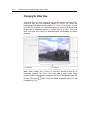
At the end of a TZS Full Scan, a message such as "Scan finished. Processing
the data....You may disconnect the instrument" appears at the top left corner
of the View 3D and points are displayed. Adding another TZS Full Scan under
the same Station brings up a dialog which prompts you to replace the existing
one. Choosing Yes overwrites the existing TZS format file. Choosing No adds
the new TZS Full Scan under the Station. The new TZS Full Scan name is
then incremented by one digit.
A CMF Full Scan
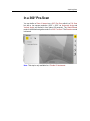
At the end of a CMF Full Scan, a message such as "Scan finished.
Processing the data....You may disconnect the instrument" appears at the top
left corner of the View 3D as well as a dialog. If adding another CMF Full
Scan under the same Station, the new CMF Full Scan name is then
incremented of one digit.