1
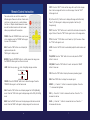
Remote Control Instruction
The remote control can control the camera from
different angles. Please note that an infrared remote
control can only be used up to a certain distance
from the unit. Objects situated between the visualiser and the infrared remote control and a weak
battery may interfere with the reception.
POWER: Press the “POWER” button once to power
on the visualiser, press the “POWER” button again
to power off the visualiser
NEG: Press the “NEG” button once to display file
negatives and press the
“NEG” again to display normal
MIRROR: Press the “MIRROR” button to vertically reverse the image; press
the “MIRROR” button again to exit the mirror mode
LAMP: Each time you press
button, the lighting changes as below:
The body lights on
The back light on
All the lights off
FREEZE: Press the “FREEZE” button once to freeze the image. Press the
“FREEZE” button again to exit the freeze mode
XGA: Press the “XGA” button once to display images from SVGA (800x600)
mode. Press the “XGA” button again to display images at the XGA (1024x786)
mode
B&W: Press the “B&W” button once to display images at the black and white
mode. Press the “B&W” button again to display images at the colour mode
6
SPLIT: Press the “SPLIT” button and the image will be split into two images.
One is the live image and the other is a frozen image. Press the “SPLIT”
button again to exit
D./S: Press the “D./S” button once to display still images with better clarity.
Press “D./S” button again to display moving objects at real time (30
frame/second)
TEXT: Press the “TEXT” button once to switch to the text mode to sharpen the
edge of the text. Press the “TEXT” button again to return to the image mode
TITLE: Press the “TITLE” button once to freeze top 1/8 of the screen. Press
the “TITLE” button again to exit
AUTO: Press the “AUTO” button to automatically adjust the white balance and
focus
TELE/WIDE: Press the “TELE” button to zoom in and press the “WIDE”
button to zoom out
FAR/NEAR: Press the “FAR” button to focus far and press the “NEAR”
button to focus near
CDD: Press the “CDD” button to display the camera (visualiser) signal
RGB: Press “RGB” button to display the computer signal
BRIGHT +/-: Press the “+” button to increase the brightness. Press the
“-” to decrease the brightness
RED +/-: Press the “+” button to increase the red hue. Press the “-” to
decrease the red hue
BLUE +/-: Press the “+” button to increase the blue hue. Press the “-”
to decrease the blue hue
7