1
Accessing the CDISC Portals
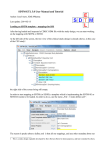
You can access the portal by going to the CDISC website homepage and clicking on the "Portal" on the top right corner or by directly
using the CDISC Portal URL: http://portal.cdisc.org/Pages/Home.aspx
Introduction / Sign In
Welcome to CDISC Portals, where members and volunteers can collaborate on projects and documents. Our Home Page features the
calendar of CDISC Events and the contact email for the Portal Administrator. Visitors can also navigate through the “Public Comment
Tracker” and “CDISC User Groups” without signing in. If you would like to gain further access to the CDISC Portals, you can contact
our Portal Administrator .
To sign in, please click on the “Sign In” link on the top-right corner of the webpage. Once you have successfully verified your account,
you will be able to change your password by clicking again on your username on top right corner, a drop down menu will appear and
you will find the option to “Change Your Password”.
If you have already been provided a log in, it is highly advised that you change your password immediately post sign-on. Please keep
in mind that when you change the password, it has to be:
- Not less than 7 characters
- At least one non-alphanumeric character is required. Example: the underscore _
- Password is case-sensitive
FORGETTING THE PASSWORD:
If the user forgets the password, they must contact the Portal Administrator ([email protected]) to request recovering the
password. An automated email will be sent to the user’s email account that is connected to the portal account, with instructions on how
to change the password during the first log in duration.
ENTERING A WRONG PASSWORD:
If a user tries to log in for five times with the wrong password, the account will be locked and the user will have to contact the Portal
Administrator ([email protected]) to unlock the account and to recover the password. The user will subsequently receive an
automated email with a new password and will be requested to copy and paste this password in order to change it in the first log in
duration.
SharePoint User Guide – Reader/Contributor v1
3