1
Setting up alerts to an item:
•
•
•
•
•
•
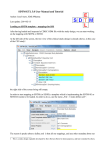
Go to the document Library/List you would like to visit
Move the mouse pointer on right side of the required document
An arrow will appear, by clicking on the arrow a drop down menu will appear
Choose “Alert Me”, Alert dialog box will emerge to specify the type of alert you would like to have
Choose the type of alert that you would like to receive from the “Change Type” section.
You can filter alerts and specify frequency in the “When to Send Alerts” section.
•
By clicking “OK” the alert is set up and you are taken back to the Document library or List
Manage My Alert Settings:
•
•
•
Click on the username at the top right corner of the ribbon bar
Select “My Settings” from the drop down menu that emerges
Click “My alerts” to update alerts settings, a new edit screen appears where entries can be added or modified.
Managing Documents within a Document Library:
Purpose: The Document library tool enables teams to share information and documents to facilitate group collaboration; enhancing both
individual as well as team productivity. Various document files and folders can be stored, organized or shared within a library. The
Document Libraries are listed under the word “Documents” on the left quick launch of each portal page.
SharePoint User Guide – Reader/Contributor v1
6