1
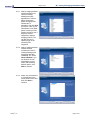
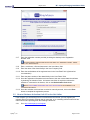
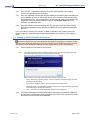
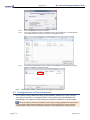
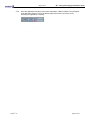
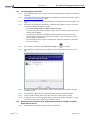
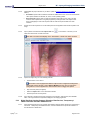
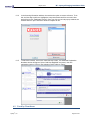
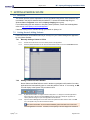
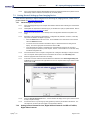
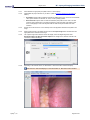
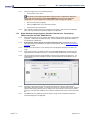
May 28, 2014 5.3.1 Intraoral Digital X-ray Sensors 5.3.1.1 Attach the imaging device(s) to the computer and install the hardware drivers following the manufacturer’s instructions. 5.3.1.2 Install/update the required device extension(s) for your hardware from Apteryx’s update website. Refer to Accessing and Running Upgraders for details. 5.3.1.3 Double-click on the XrayVision icon on the desktop to launch the application and test the acquisition of an image. 5.3.1.4 Depending on the manufacturer’s specifications, a configuration file (calibration, correction, or Gain file) may need to be added for the digital x-ray system. Select Tools > Hardware Options > Sensors >Add X-ray Sensor. If more than one sensor extension was added in Step 2, make sure to click on the appropriate sensor extension and click Options. If the selected sensor requires a configuration file, the software will prompt the user to locate it. Follow the prompts to locate the file (on the computer, network, or other media such as a CD-Rom drive) and add the configuration file. If the selected sensor does not require a configuration file, a dialog box will display to notify the user that one is not required. 5.3.1.5 Open a patient record and select the Capture Sensor Image icon ( 5.3.1.6 The ‘Capture Sensor Image’ selection screen displays. Select the applicable sensor and then click on OK. 5.3.1.7 A ‘Sensor Tooth Selection’ screen will appear. Select the appropriate teeth to associate to the image. Click OK to continue. 5.3.1.8 A ‘Select Modality’ window will open. Select the appropriate modality for the image being taken. 5.3.1.9 A sensor indicator will display and turn green when the sensor is ready to capture an image. 5.3.1.10 Proceed to shoot the x-ray following safety guidelines provided by the hardware manufacturer. The new image from the sensor will soon appear on the application’s desktop. 5.3.2 ) on the toolbar. Analog Intraoral Camera Devices; Digital Intraoral Cameras via USB or FireWire; Digital Video Cameras 5.3.2.1 Apteryx®, Inc. WI – Apteryx® Imaging Installation Guide Attach hardware to appropriate port (USB, Firewire, or video capture). Page 21 of 30