1
Installing a GigE Vision Camera
AW00061107000
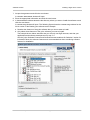
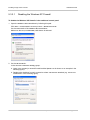
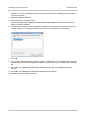
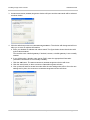
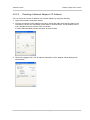
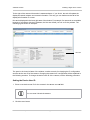
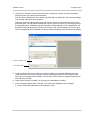
3. An Internet Protocol (TCP/IP) Properties window will open and the General tab will be selected
as shown below.
4. Click the radio button next to Use the following IP address. The window will change and will now
allow you to enter IP address information.
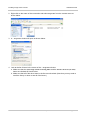
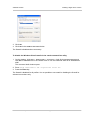
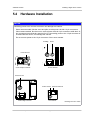
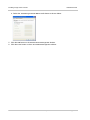
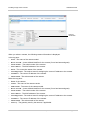
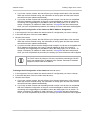
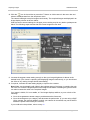
a. Enter your desired IP address and subnet mask. The figure below shows the window with
typical values entered.
You can also enter a default gateway if desired, however, a default gateway is not normally
needed.
b. If you will be using a domain name server (DNS), enter the appropriate information.
(A domain name server is not normally needed.)
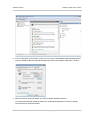
c. Click the OK button. The Internet Protocol (TCP/IP) Properties window will close.
d. Click the Close button on the Local Area Connection Properties window.
e. Your system will wait for several seconds while the new settings take effect. Once the new
settings are in place, the Local Area Connection Properties window will close.
52
Installation and Setup Guide for Cameras Used with Basler’s pylon API