1
Error! Unknown document property name.User's Manual
ries
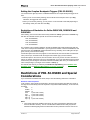
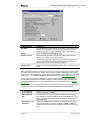
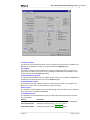
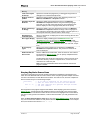
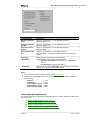
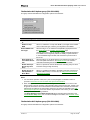
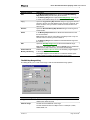
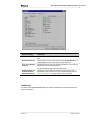
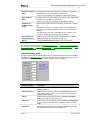
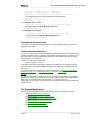
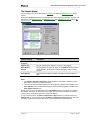
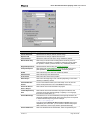
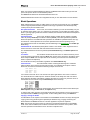
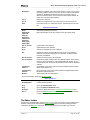
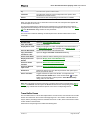
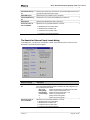
Search All Source Files in Project option and by wildcards.
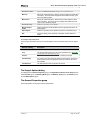
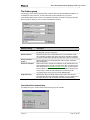
Starting Path
Begin search from the directory specified in this text box. This directory
serves as the common path and is useful, when there are several wildcards like the following ones:
c:\prog\text\source\*.txt;c:\prog\text\source\*.doc
In such case, make use of wildcards (*.txt;*.doc) and common
path
(c:\prog\text\source).
Search
Replace the first found occurrence of the search string.
Change All
Replace all the found occurrences of the search string.
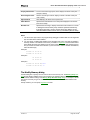
Notes
1. When you specify a file for search, which is opened in the Source window, then the window
buffer will be searched, not the file on disk.
2. Multi-file search is performed in all source files of the project and the dependency files in accordance with the tree built by the Project Manager in the Project window. Upon finishing, the
Multi-File Search Results dialog is opened.
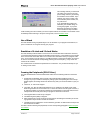
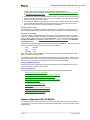
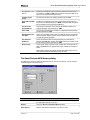
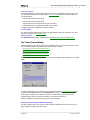
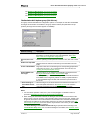
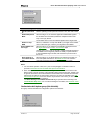
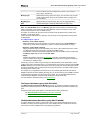
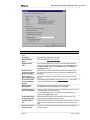
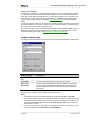
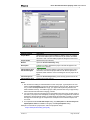
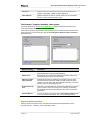
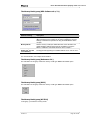
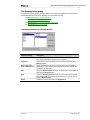
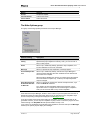
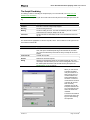
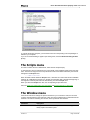
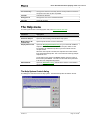
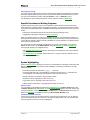
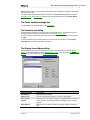
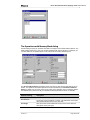
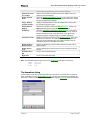
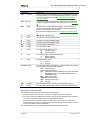
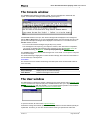
The Confirm Replace dialog
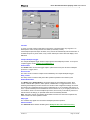
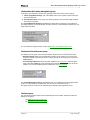
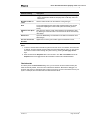
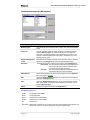
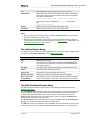
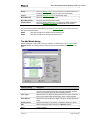
This dialog asks you to confirm the replace operation for the current found string. To toggle opening
this dialog, use the Prompt at Replace flag in the Replace Text dialog.
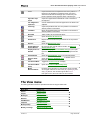
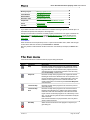
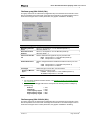
Button
Function
Yes
Replace this found string.
No
Do not replace. If the procedure is started with the Change All button
for all occurrences in the search area, then the search-and-replace process will be continued.
Non-Stop
From this moment, replace all found strings in this file without prompt.
Cancel
Cancel the search-and-replace process.
Skip this File
Stop search in this file and switch to the next one.
Replace in All Files
Replace all occurrences in all other files without confirmation.
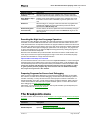
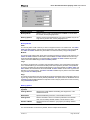
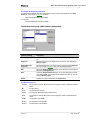
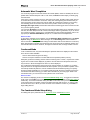
Move cursor to the
Yes/No Buttons
When the flag is on, the cursor will be automatically placed on the Yes
button in each inquiry for confirmation. This function is for convenience.
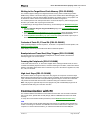
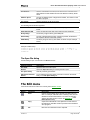
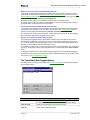
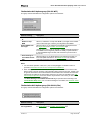
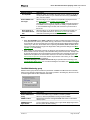
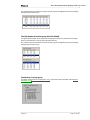
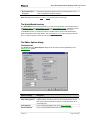
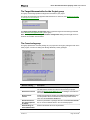
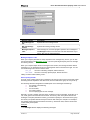
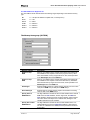
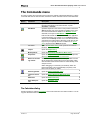
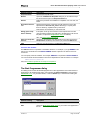
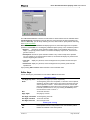
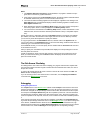
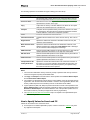
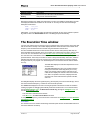
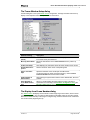
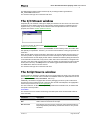
The Multi-File Search Results dialog
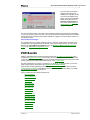
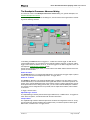
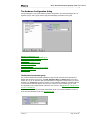
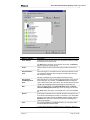
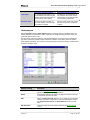
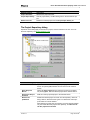
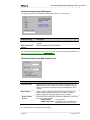
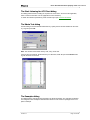
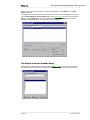
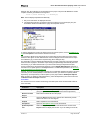
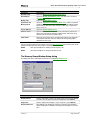
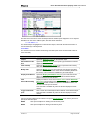
This dialog displays the multi-file search results. To learn about the multi-file search, see the
Search for Text dialog.
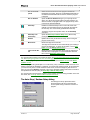
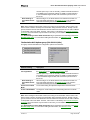
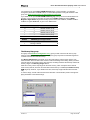
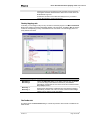
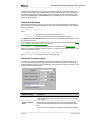
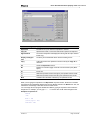
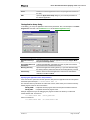
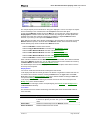
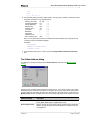
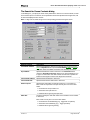
The List of Matched Files box lists the files, where the search string is found: the file name on the
left and its directory on the right. The line with green text immediately below this box displays information about the file selected in the box. "File in memory" means the file is opened in the
Source window. General info from FAT means the file is on disk, not loaded. The Preview area
shows the source line with the text string found.
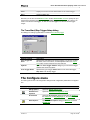
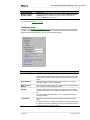
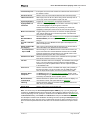
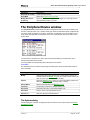
The Sort Files by area is the radio button with the file sorting options. When the Consider Directory flag is on, the files are sorted with respect to their directories.
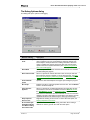
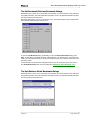
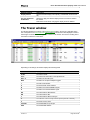
The Edit button opens the selected file in the new Source window and places the cursor to the line
with the found string. The found string is marked with the background color. To check if there are
Version 1.1
Page 184 of 245