1
iTeach
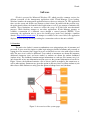
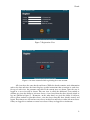
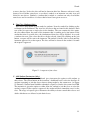
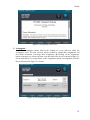
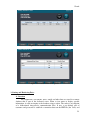
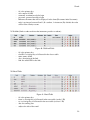
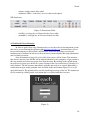
Figure 9: Student Dashboard
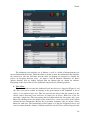
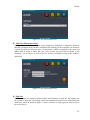
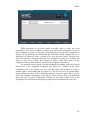
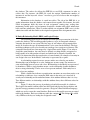
Figure10: Instructor Dashboard
The dashboard view includes sets of buttons as well as a block of information that are
located underneath the header. While the block is meant to show the information that identifies
the current user (the user full name and the rank), the buttons are designed to simplify the
process of navigating between views. As figures 9 and 10 illustrate, instructors are shown
options (buttons) that are slightly different than the buttons that are shown for students.
Depending on the rank of the user, the dashboard can provide the following options:
A. View Class:
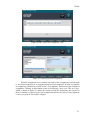
This is the default view that the dashboard loads once the user is logged in (Figures 9 and
10). This view can be reached by clicking on the green button on the dashboard. A list of
classes is also shown in this view. This list represents the classes that the current user has
already joined. First-time users will have an empty list of classes. Each row of the list
represents a single class. The row contains the class abbreviation, the class name, and a view
button. By clicking on the view button of the desired class, a new view will be loaded which
contains the class information. Besides the view button, instructors only are shown a delete
button for each class. The functionality of this button is to drop the designated classes and
erase its content from the database. Students enrolled in a deleted class will no longer be able
10