1
HotSpot Printer Operator’s Guide
J. Printer Name
If you would like to identify your HotSpot Printer(s) using another printer name, e.g., change the
default printer model name to, for example, Lobby Printer, proceed as follows:
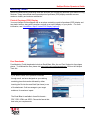
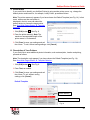
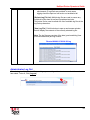
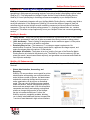
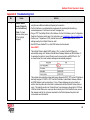
Note: The printer name only appears if you have chosen the Default Template (see Fig. 14). In that
event, when more than one printer is
displayed in the list, users can select the
desired button to choose the target printer.
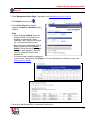
See About Web Pages Screen, B. Template
Selection.
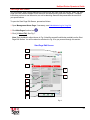
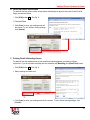
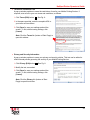
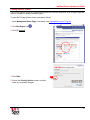
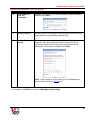
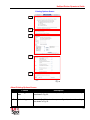
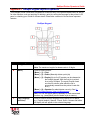
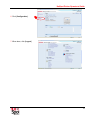
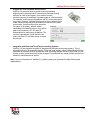
1. Click [Edit] button J . See Fig. 8.
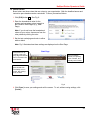
2. Enter the printer name(s). Note: The
maximum recommended length of the
printer name is 15 characters.
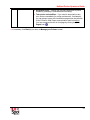
3. Click [Save] to save your settings and exit
the screen. To exit, without saving settings, click [Cancel].
K. Description of Your Printers
If you would like to enter additional printer information, such as description, location and pricing,
proceed as follows:
Note: The description only appears if you have chosen the Default Template (see Fig. 14).
See About Web Pages Screen, B. Template Selection.
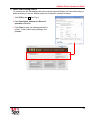
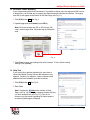
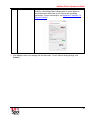
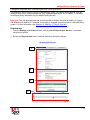
1. Click [Edit] button K . See Fig. 8.
2. Enter Text, as needed.
3. Click [Save] to save your settings and exit
the screen. To exit, without saving
settings, click [Cancel].
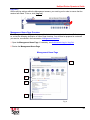
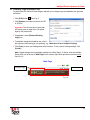
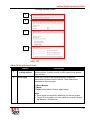
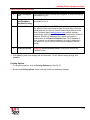
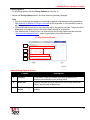
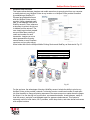
Default Template
Printer Name(s)
Description of Your Printer(s)
Fig. 14
40