1
charging when LED1 light up. LED1 will go out when it is fully recharged. During charging,
LED 1 will light up with a steady on.
z
Active the backlit - If you wish to operate this Bluetooth Handheld Keyboard in a
darkened room then you will want to use the Backlight keyboard feature. In order to
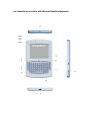
activate the Backlit feature please press key (RF). Indicated by arrow 10. Press this key
again, backlit will go out.
z
The Touch Mouse Pad (TMP) is quite versatile. To create input with the TMP place
your finger on the pad. Just move your finger on the TMP as though you were using your
mouse pad. Watch the mouse move to where you want it, then use the keyboard for
whatever action you desire. You can draw patters using the TMP if you have installed MS
Paint, ScreenPen or other Paint software.
z
Arrow 8 points to the Fn key - In order to bring users more convenience, the
Bluetooth Handheld Keyboard also provides F1,F2,F3...F10 which operate like those keys
on the standard keyboard. Please press Key Fn together with the key you want to operate
them, but if you only press Fn on the Wireless Keyboard and Laser Pointer, that will make
no sense.
z
Arrow 11 points to Ctrl+Alt+Del key - As we know, in many occasions we need to
use keys: Ctrl+Alt+Del in standard keyboard when operate computer, such as restart
system, lock users, terminate applications.... But now with Bluetooth Handheld Keyboard
you only press Fn together with “Ctrl+Alt+Del” to complete your mission.