1
Song Browsing.
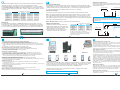
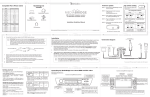
The DICE iPod integration kit gives you the following features while browsing from
your radio: The DISC 1-5 modes select how your next/previous and fast
forward/rewind buttons will function. To change between DISCS 1-5, use the DISC
+/- buttonIf text display is enabled, the radio will display the currently playing song
as "Song * Artist" or the selected mode as "Playlist", "Album" and "Chapter". See the
matrix below:
Previous
Fast Forward
Rewind
next track
prev. track
FF song
RW song
DISC 2
next playlist
prev. playlist
--
--
DISC 3
next album
prev. album
--
--
DISC 4
next chapter
prev. chapter
--
--
DISC 5
next source
prev. source
--
--
DISC 1
Next
Gain. Should be adjusted if the input level from the auxiliary device is too low or to high.
If you hear distorted audio while playing the auxiliary device, you need to reduce (-) the
gain setting. If you notice the audio is too quiet while listening to an auxiliary device, the
gain setting should be increased (+). Default settings are "50" ("68" is default for gain) and
values may be adjusted between 01-99.
ie. When you select DISC 1 the next button will select the next song. If you select DISC 2 then then the next button will select the next
playlist.
Text Display.
To enable/disable text display on selected Toyota/Lexus/Scion radios, press the
TEXT button a . When text display is enabled, the radio will display the song title, a
"*" and the artist. If an arrow to the right ot the text b is displayed, it indicates that
you can scroll to view addtional text for the song. To scroll, press and hold the text
CD1
Selecting the AUX Source.
Selecting DISC 5 and then pressing the next track or previous track buttons will toggle
between the iPod and an auxiliary audio device. Auxiliary device support does not include
controls from the radio or charging. While DISC 5 is selected track 1 indicates that the
iPod is selected and track 2 indicates that the AUX source is selected.
SONG * ARTIST
b
Bass, Mid and Treble. Should be adjusted to personal preference.
Selected Mode
Left RCA
DISC 1
gain +
gain -
DISC 2
bass +
bass -
DISC 3
mid +
mid -
DISC 4
treble +
treble -
ie. When you select DISC 1, pressing the
next/previous button will adjust +/- gain settings. If
you select DISC 2, the next/previous button will
adjust +/- bass settings.
+
+
Troubleshooting.
OR
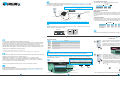
A Ground-Loop Isolator (not included) may be required when the auxiliary device is
charged/powered from the vehicle's 12V battery source. This additional part can be
found at Radio Shack (Cat.No. 270-054) and will eliminate unwanted noise caused
by ground loops.
R
Ground-Loop
Isolator
To DICE Module
1/8" Male Stereo
Tip (Left audio)
Ring (Right audio)
Sleeve (Ground)
Important Disclaimer, please read!
Driving is dangerous and requires concentration. Do not allow the DICE iPod Integration Kit to
distract you from prevailing traffic conditions. If in doubt, only operate the unit when stationary
or ask a passenger to operate it for you.
Do not submerge or expose to water or other fluids. DICE components are NOT water resistant
and will be damaged by water. You must properly insulate its casing if your installation
environment may subject the unit to water, such as a convertible vehicle.
Sleek Design.
Unique Mount.
Video Out.
You cannot control the iPod from the radio:
1. Make sure the firmware on your iPod is supported. See pg.4 of this guide.
2. Disconnect and reset the iPod. Please refer to the documentation included with your iPod or
visit http://www.apple.com/support/ipod
iPod does not charge:
1. Check all connections.
2. See if the iPod will charge when connected to a computer or wall charger.
Music is distorted or the sound level is too low:
1. Check and make sure all EQ and BASS boost options are turned off on your iPod.
DICE Video Cradle.
An iPod docking cradle with a sleek design that compliments the car's interior! The DICE
Video Cradle can be mounted almost anywhere, thanks to its unique ball and cup mount
solution, allowing it to be angled, tilted and rotated. Featuring a universal iPod dock
connector and 1/8" video out jack for use with video compatible iPods.
The DICE Video Cradle can be added to any dock cable compatible iPod solution,
regardless of the manufacturer!
For more accessories, visit http://www.diceelectronics.com
9
Radio Shack (Cat.No. 270-054) or
equivalent recommended.
Disclaimer.
Optional Hardware.
The "OK to disconnect (checkmark)" screen will not go away.
1. Disconnect and reset iPod. Please refer to the documentation included with
your iPod or visit http://www.apple.com/support/ipod.
2. Turn radio off and then on again.
iPod does not turn on:
1. Verify that the iPod's battery is not depleted by attempting to turn it on without
connecting it to the car.
2. Turn off both your car stereo and the iPod before connecting to the interface. Power on your
radio and select the appropriate source.
To auxiliary device
8
You cannot switch your radio to CD changer/ SAT mode:
1. Check cables to make sure everything is tight. VW and Audi vehicles have a
separate ground cable that MUST be grounded to the chassis.
2. Remove the fuse of the radio, wait 30 seconds, then reinsert the fuse. This will reset your
radio and the interface. You may have to enter the radio security code so please keep it at
hand.
3. Consult with your installer or contact your support center
You cannot hear music playing:
1. Make sure that the correct mode (CDC/SAT/AUX) is selected on your radio. Check
your radio's owner's manual to find how this is done.
2. Make sure that the iPod can play music on its own and that it has playlists with music.
3. Nano iPods may need to be reset (select + menu buttons) to enable external audio out.
Some nano iPods do not have audio output through the dock connector.
1/8" Male Stereo
Tip (Left audio)
Ring (Right audio)
Sleeve (Ground)
7
6
Right RCA
1/8" Male Stereo
Previous
Next
To auxiliary device
To DICE Module
Radio Buttons and Features
Making the Adjustments.
While listening to the auxiliary device, the
next/previous buttons will adjust gain, bass,
mid and treble. The DISC 1-4 modes select
what functionality your next/previous
buttons will have. See the matrix for the
complete list of what each mode does.
a
?
AUX Source Connections.
These are examples of component cables that can be used to connect an AUX
device to the DICE module. These cables can be found at any stereo shop and are
not included in this kit.
AUX Source Settings.
The auxiliary input has settings for gain, bass and treble in order to optimize sound.
Radio Buttons and Features
Selected Mode
+ Auxiliary Input.
10
Keep away from children !
DICE components may contain small parts, can be broken or disassembled and components
may become loose from vibration and heat. Small components and packaging materials may be
a choking hazard when handled by children.
Unauthorized reproduction or reverse engineering is strictly prohibited ! Intellectual property
included is distributed under specific license agreement with respective vendor(s). No warranty,
explicit or implied, is stated and neither DICE Electronics, LLC., nor any of its distributors,
dealers or vendors shall be liable for damages. IN NO EVENT SHALL DICE ELECTRONICS'
LIABILITY EXCEED THE PRICE PAID FOR THE PRODUCT FROM DIRECT, INDIRECT,
SPECIAL, INCIDENTAL, OR CONSEQUENTIAL DAMAGES RESULTING FROM THE USE OF
THE PRODUCT, ITS ACCOMPANYING SOFTWARE, OR ITS DOCUMENTATION.DICE
Electronics, LLC. is a trademark. All other products are registered and copyrighted by their
respective owners.
Warranty and Support.
DICE Electronics products carry a one year limited warranty that protects you from defects in
material and workmanship of products sold by DICE Electronics or its authorized agents,
distributors and dealers. We do not warrant any installation. If you experience any problems or
need help, please contact your DICE Electonics retailer.
Proof of purchase is required.
Warranty does not cover normal tear and wear, damages due to negligence, improper
installation or operation.
11