1
Troubleshooting
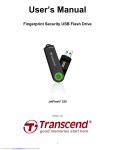
If a problem occurs with your JetFlash 220, please first read the information listed below before sending your
JetFlash 220 in for repair. If you are unable to remedy the problem after following the suggestions below,
please see the FAQ and Support pages at www.transcend.com.tw or consult your dealer, service center, or
local Transcend branch office.
Operating System cannot detect the JetFlash 220
Check the following:
1. The JetFlash 220 can only be used with computers that are running Windows® 7/Vista/XP
2. Is your JetFlash 220 properly connected to the USB port? If not, unplug it and plug it in again. If it is
properly connected, try using another available USB port.
3. Is the USB port enabled? If not, refer to the user’s manual of your computer (or motherboard) to enable it.
Why is my Fingerprint not being recognized by the JetFlash 220
The built-in scanner for reading your fingerprint is very sensitive and requires a clear fingerprint scan in order
to compare the scanned print with that of the saved fingerprint profile. Therefore, you need to slide your
finger/thumb slowly and deliberately along the strip to register a good fingerprint image.
1. Has the finger/thumb you are scanning been setup as a recognized fingerprint? If not, open System
Settings > Fingerprint Management to enroll it.
2. You might be sliding your finger/thumb too quickly across the sensor strip. Try sliding it slowly so that an
accurate and even scan can be made.
Why does a “Restart Computer” message window appear when I plug in my
JetFlash 220?
Sometimes the computer will mistakenly interpret the JetFlash 220 as a new piece of hardware that
needs to be installed. You can disregard this message and click on the “Cancel” button to continue.
Cannot find a file that was just copied to the JetFlash 220
You should always open a transferred file in its new location to ensure it has transferred successfully.
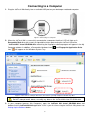
Re-copy the file and refer to the “Disconnecting from a Computer” section to remove the JetFlash 220
after the copy process is completed.
A File that was just deleted still appears
Re-delete the file and refer to the “Disconnecting from a Computer” section to remove the JetFlash 220
after the delete process is completed.
21