1
ActivityInsight Basic User Manual
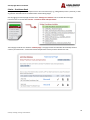
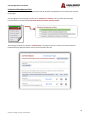
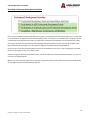
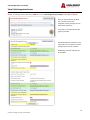
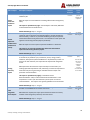
There are five possible actions you can take from the Summary page, although not all of these actions will always be
available:
Add a New Item
To Edit a
Record
To Delete a
Record
To View a
Record
To Copy a
Record
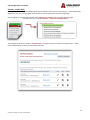
Note: Once an “Item” has been saved it becomes a “Record”
Note: Records that you can view but not edit or delete have been set by your ActivityInsight Administrator as read-only. If
read-only records need revision, contact your Administrator using the Submit Your Feedback link.
Saving Your Data
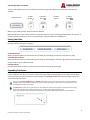
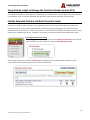
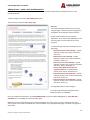
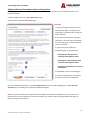
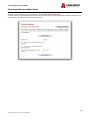
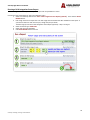
When working in the system, if you make changes and want to preserve them, you need to click one of the Save Buttons at
the bottom of the screen prior to leaving it.
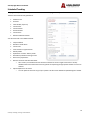
SAVE AND RETURN:
When you click this button you will save the current record you are working on and return to the Summary Page
SAVE AND ADD ANOTHER:
When you click this button you will save the current record you are working on. When the page refreshes you will be given
a blank screen to add an additional record.
RETURN (CANCEL):
Click this button when you want to cancel your action and not save anything on the page.
Expanding Text Boxes
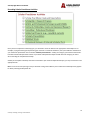
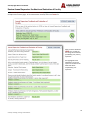
In ActivityInsight you will be asked to make comments, add descriptive information or write a brief explanation. In most
cases you will enter this data into a text box. Just like all the open fields in ActivityInsight you can paste into these areas.
Another key feature is that the text boxes in ActivityInsight are Expanding Text Boxes that have the ability to grow and
shrink without the loss of data.
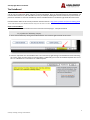
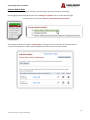
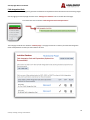
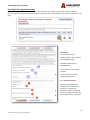
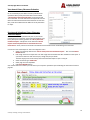
If you are using Internet Explorer (IE) or Firefox web browser you may see a blue arrow next to or under text boxes.
Clicking this blue arrow makes the text box next to it grow vertically to give you more space. Once expanded, it can be
minimized by clicking the arrow again.
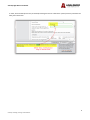
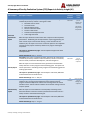
In Firefox web browser you can grab the corner of the text box and drag it to the right; this will cause the box to grow
horizontally and vertically but unlike the “blue arrow”, you will need to drag it back to shrink it.
Keep in mind that your data will always be saved (if you click the save button) regardless of the size of the textbox.
6
Center for Teaching, Learning, and Assessment