1
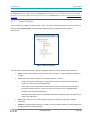
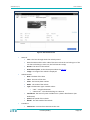
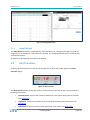
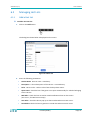
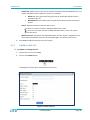
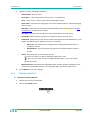
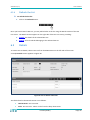
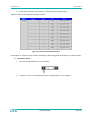
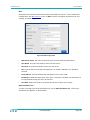
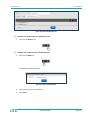
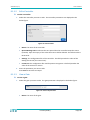
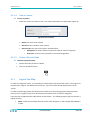
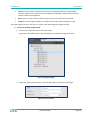
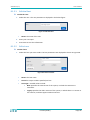
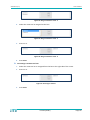
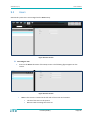
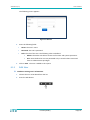
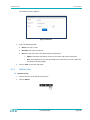
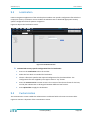
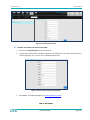
SeeControl (v.3) User’s Manual 3. Press Advanced for all the parameters. For all the lane parameters (new and legacy), see Edit a Lane. 4. Add the new parameters. 5. For New Lane Type, assign gates, and assign cameras. 6. Press Save. The new lane has been added. 9.1.2.6 Assign/UnAssign Gates to Lane To assign a gate to a lane: 1. Select a lane 2. On the edit lane/add lane screen press on advanced. 3. The list of the exiting gates appears on the box at the left side of the screen, as shown in the figure below. Figure 63: Assign a Gate to Lane 4. Select the gate to be assigned to the lane. 5. Press Save. To un-assign gate from lane: 1. Select the gate to be un-assigned from the box at the right side of the screen. 2. Press on Unassign gate. 3. Press Save. 9.1.2.7 Assign/Unassign Cameras to Lane To assign a camera to a lane: 1. Select a lane. 2. On the edit lane/add lane screen press on Advanced. 3. The list of the exiting cameras appears in the box at the left side of the screen, as shown in Figure 64. HTS Proprietary Page 62