1
8.
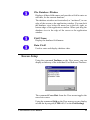
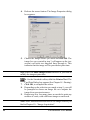
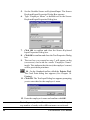
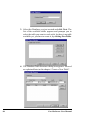
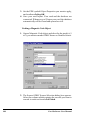
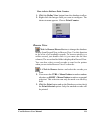
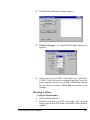
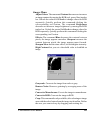
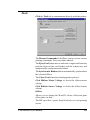
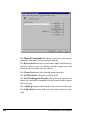
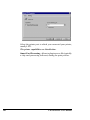
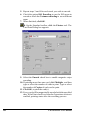
Click OK to confirm and close the Source Keyboard
Input Properties Dialog Box.
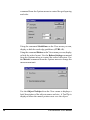
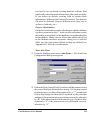
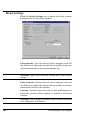
9. Click OK to close the PDF Symbol Properties dialog
box.
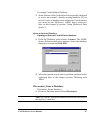
10. The PDF Symbol, which appears on the (on-screen) card,
contains the encrypted information “Employee’s ID
Number”. At print time you’ll provide the correct data.
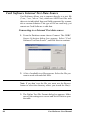
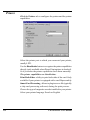
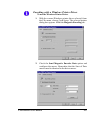
11. On the Standard toolbar, click the Printer Tool. The
Card Print dialog box appears (See Chapter 18 - Printing).
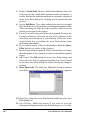
12. Click OK. The Text Input Dialog box appears prompting
you to enter data to the employee’s ID number.
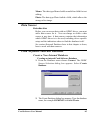
Note: repeat step 11 and 12 as many times as needed to print
any number of cards, with a different PDF Symbol on each
card.
Card Software User Manual
73