1
DREAM
Chapter 2. Starting Up
2-9
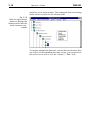
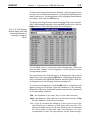
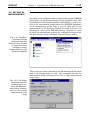
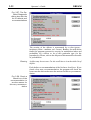
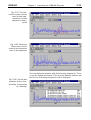
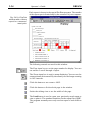
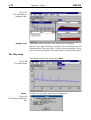
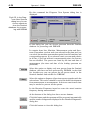
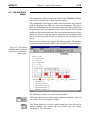
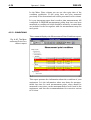
Fig. 2.14
The main window of
the DREAM software
after using the Open
command
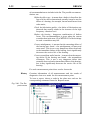
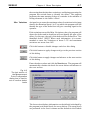
To select a node in the plant tree, click it with a left mouse button.
To display the next level in the plant hierarchy, double click the
closed door near a node in the plant tree. To collapse a branch in
the tree, double click an opened door with the left mouse button.
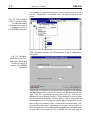
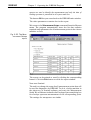
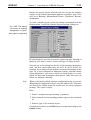
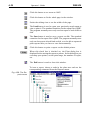
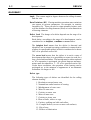
The measurement points have different icons in the plant tree. To
display the condition of the measurement point, double click its
icon with the left mouse button.
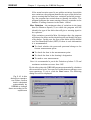
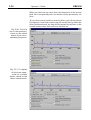
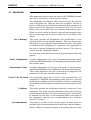
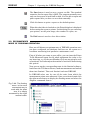
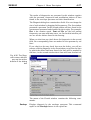
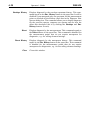
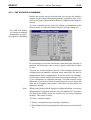
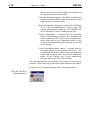
Fig. 2.15
The main window of
the DREAM software
with the Diagnostics
Results dialog box
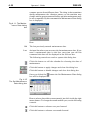
All operations in DREAM can be made with a selected node in the
plant tree. For example, if you selected a node and issued a report,
the report will be created for the whole branch below this node.
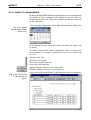
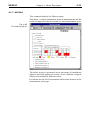
Besides the standard menu bar, you can access several commands
by the floating menu. To access it, click with the right mouse button