1
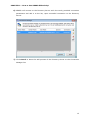
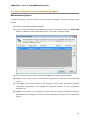
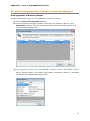
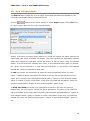
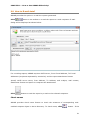
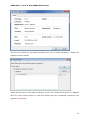
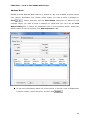
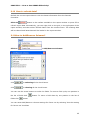
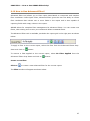
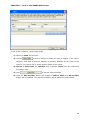
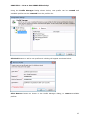
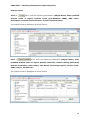
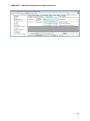
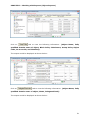
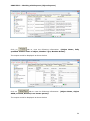
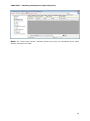
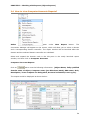
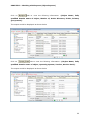
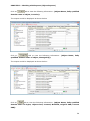
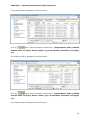
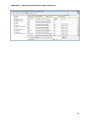
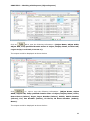
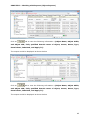
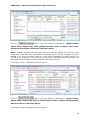
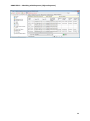
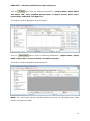
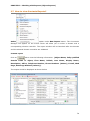
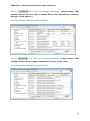
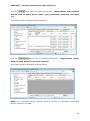
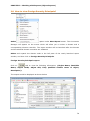
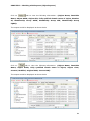
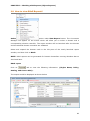
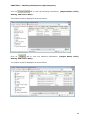
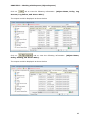
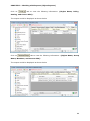
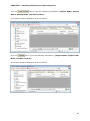
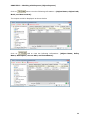
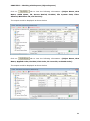
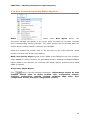
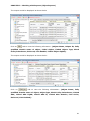
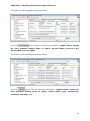
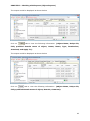
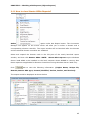
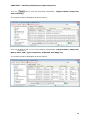
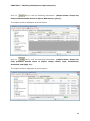
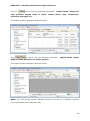
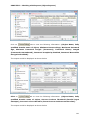
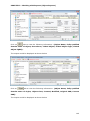
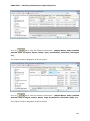
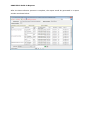
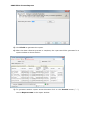
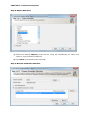
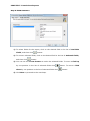
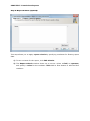
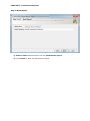
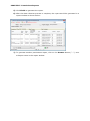
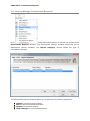
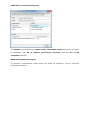
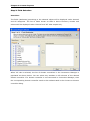
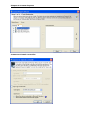
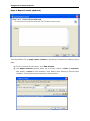
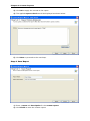
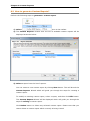
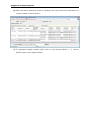
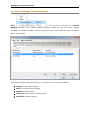
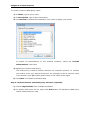
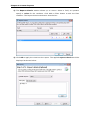
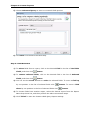
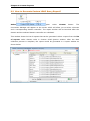
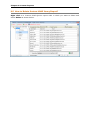
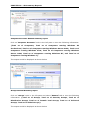
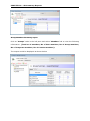
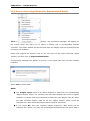
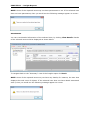
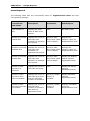
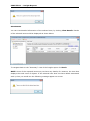
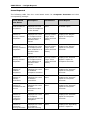
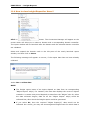
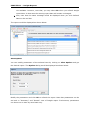
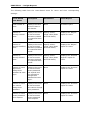
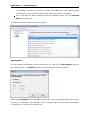
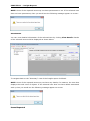
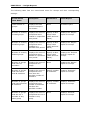
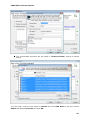
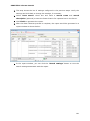
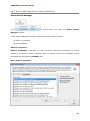
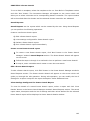
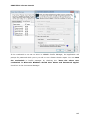
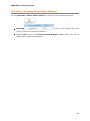
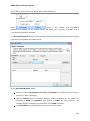
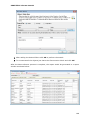
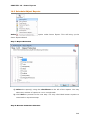
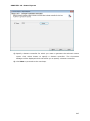
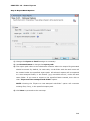
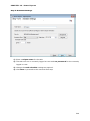
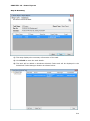
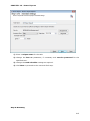
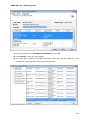
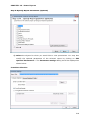
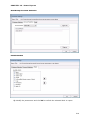
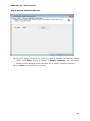
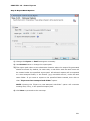
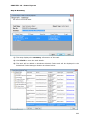
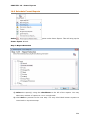
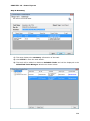
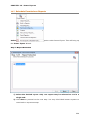
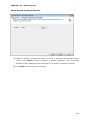
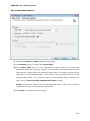
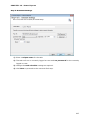
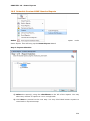
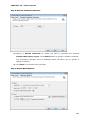
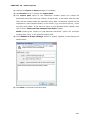
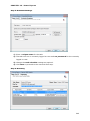
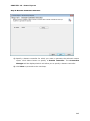
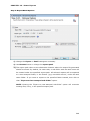
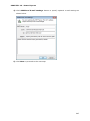
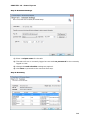
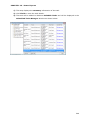
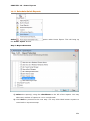
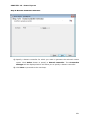
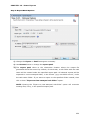
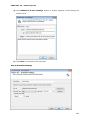
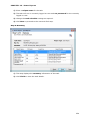
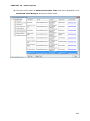
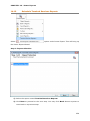
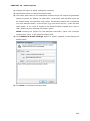
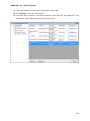
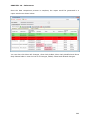
CHAPTER-7–Permissions Reports Generate a Permissions Report Create a new Permissions Report 1) To create a new permissions report click New button in the Permissions Reports Window. The Permissions reports Wizard will appear on the screen. 2) Follow the steps as outlined in How to create Permissions reports? Edit an existing Permissions report 1) To edit permissions report click Edit button in the Permissions Reports Window. The Permissions reports Wizard will appear on the screen which will guide you through the edit operation. 2) During the edit operation you can modify the list of objects, User/Group accounts, AD containers, fields that make up the permissions report and the report's description. Delete a permissions report To delete a permissions report, select the report you want to delete, and then click Delete button. The selected permissions report and all its associated saved filters, if any, will be deleted permanently. Further, the permissions report will be removed from scheduled tasks, if any, already scheduled. View settings for a permissions report To view details of a permissions report select the report, and then click View Details button. The selected permissions report's details would be shown as below: