1
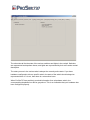
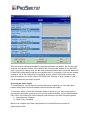
want under the “Screens” menu.
To manipulate the size and location of a screen, you must first select it. You do this by
clicking on the screen, or pressing TAB until there is a green border around the screen. You
can now move or resize the screen. This can be done by dragging the mouse and using the
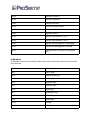
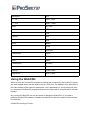
scrollwheel of the mouse to resize. For fine tuning the following keys can be used:
Cursor keys
Move the screen
Shift + Cursor keys
Quickly move the screen
Numpad +/-
Adjust size of screen
Shift + Numpad +/-
Quickly adjust size of screen
[ / ] (bracket keys)
Adjust only the width of the screen
Shift + [ / ] (bracket keys)
Quickly adjust only the width of the screen
*
Reset Height/Width of screen to Square
TAB
Select next screen