1
.
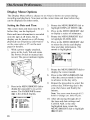
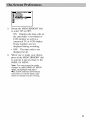
Press in the MENU/BRIGHT
dial
to return to the main menu icons.
To exit the menus and return to
DATE/TIME
TIME CODE
LOCK ADJ.
normal viewing, press in the
MEN U/BRIGHT dial when the
END icon (_-_) is highlighted.
Note: For different date/time display
options, see the following instructions.
.
.
.
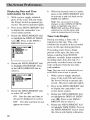
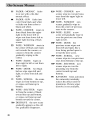
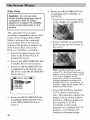
LCD
Displays information
only on the camcorder's
LCD
monitor and not on a connected
TV screen.
on the
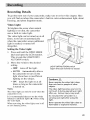
With a power supply attached,
press in the Lock Tab and rotate
the Power Switch to manual ([])
record.
LCD/TV
Makes the camera's
display appear on a connected
TV or VCR display as well as
the camcorder's
LCD monitor.
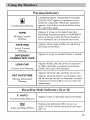
The power indicator
SIMPLE
Keeps on-screen
indicators (except the tape
running indicator, warning icons,
and date/time information) from
appearing on screen. This also
keeps the camcorder's
intorn]ation (except date and
time) from appearing on a
connected TV or VCR display-.
lights.
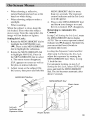
Press in the MENU/BRIGHT
dial
to display the camcorder's
onscreen menu system.
FADER/WIPE
1
1
WIPE+SHUTTER
RANDOM
OFF
[]
FADER+WHITE
[_PWIPE-SCROLL
[]
FADER+BLACK
[]
FADER+MOSAIC
_R
i
.
.
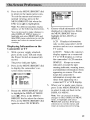
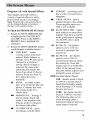
'hoose which information will be
displayed on what devices. Rotate
the MENU/BRIGHT dial to
highlight LCD, LCD/TV, or
SIMPLE.
You can proceed to make changes to
other DISPLAY MENU items, or
highlight and select 4RETURN and
then END menu selections to exit the
menus and return to normal record
viewing.
Displaying Information
Camcorder or TV
LCD/TV
SIMPLE
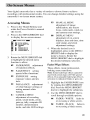
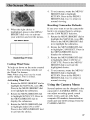
Rotate the MEN U/BRIGHT dial
to highlight the DISPLAY MENU
icon (t_). Press in the MENU/
BRIGHT dial to select the choice.
Press in the MEN U!BRIGHT dial
again to select ON SCREEN.
When you've made your choice,
press in the MENU/BRIGHT
dial
to select it and exit back to the
DISPLAY MENU.
Note: You can proceed to make
changes to other DISPLAY MENU
i/ems, or highlight and select
"RETURN
and then END menu
selections to exit the menus and
return to normal record viewing,
19