1
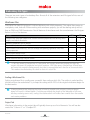
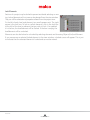
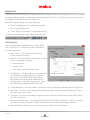
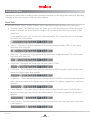
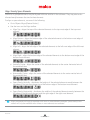
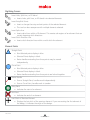
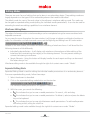
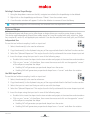
Digitizing Cursors
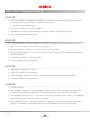
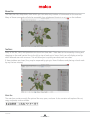
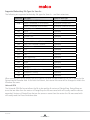
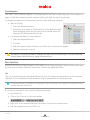
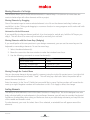
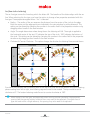
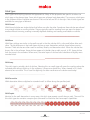
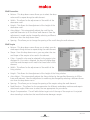
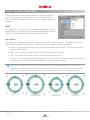
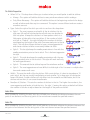
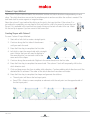
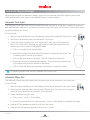
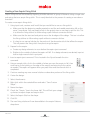
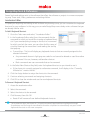
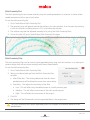
Insert Hole, Split Line, or Fill Island
• Inserts holes, split lines, or fill islands into selected elements.
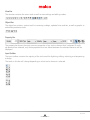
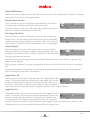
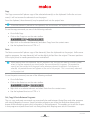
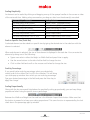
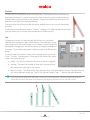
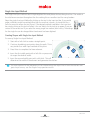
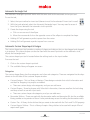
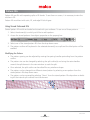
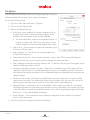
Insert Entry/Exit Points
• Insert or change the entry and exit points of the selected element.
• This tool can also resequence with multiple elements selected.
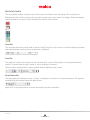
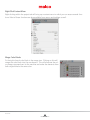
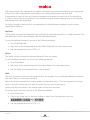
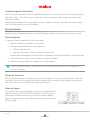
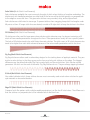
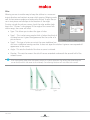
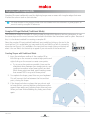
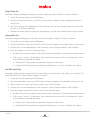
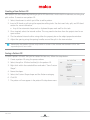
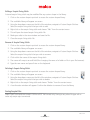
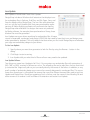
Insert Splice Line
• Inserts splice lines within a fill element. This creates sub-regions of an element that can
contain opposing stitch directions.
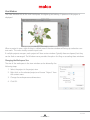
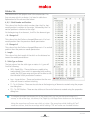
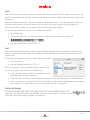
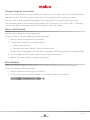
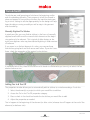
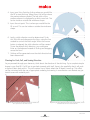
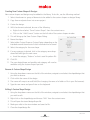
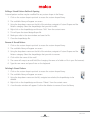
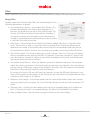
Insert Stitch Direction Line
• Inserts stitch direction lines within a multi stitch-line element.
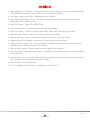
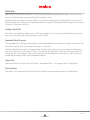
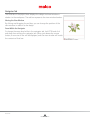
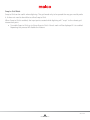
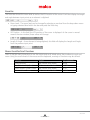
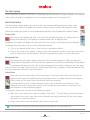
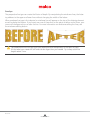
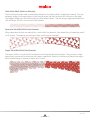
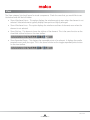
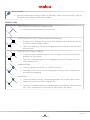
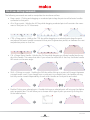
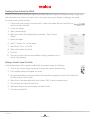
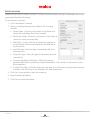
Element Points
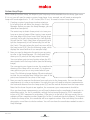
Straight Point
• Non-Selected points display in blue.
• Selected Points display in black.
• Bezier handles extending from these points may be moved
independently.
Curve Point
• Non-Selected points display in blue.
• Selected Points display in black.
• Bezier handles extending from these points are locked together.
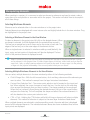
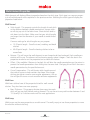
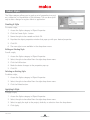
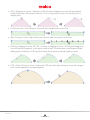
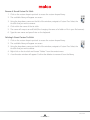
Bezier Handle
• From a Straight Point, handles work independently.
• From a Curve Point, handles work in tandem.
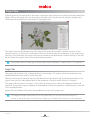
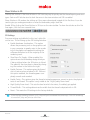
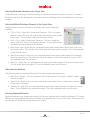
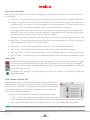
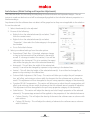
Entry Point
• Indicates the start of an element.
Exit Point
• Indicates the end of an element.
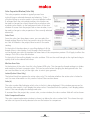
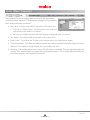
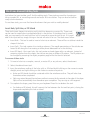
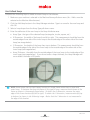
Last Stitch of Previous Element
• Displays the last stitch of the previous element. If you are creating the first element of
the design, it indicates the origin of the design.
136 of 216
Table of Contents