1
Atomos Ninja-2 ~ Quick Start Guide
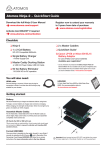
Record & Record While Monitoring
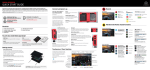
Main Interface:
fig. 9
fig. 10
Monitor & Record: Configurations
Record while Monitoring
Press to Record in Monitor Mode
Record:
Press to start/stop recording.
Smart Log: Smart Log Mode
Play: Enter playback mode
Back: Takes user back to the
main control screen (Refer fig. 9)
Monitor: Enter monitor mode
Smart monitor
Menu: Device settings / options
Headphone line-out
volume adjustment
Rolling Timecode Record trigger
Headphones: Volume adjustment
Timecode Display
Audio Indicator: The Audio Levels associated with the current Recording
Audio Indicator: The Audio Levels associated with the current Recording
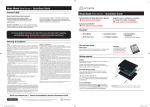
Monitor & Assist: One-touch Monitoring
Monitoring: Main Interface
fig. 11
fig. 12
Smart Monitor: Activates
monitor assist options / tools
Smart Monitor Interface
Focus Assist: Peaking
Exposure Assist: Zebra
Headphone Line-out
Volume Adjustment
False Colour Twin Mode
Blue Only: Exposure Check
Record in monitor mode
Monitor Assist: Control
adjustments for individual filters
Smart Log
Audio Indicator: The audio levels associated with the current recording
Back Arow: Takes User Back to the previous screen
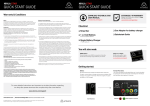
Playback & Edit: One-touch Review
Smart Log: Tagging Interface
fig. 13
fig. 14
Back: Back to previous page
Super RWD / Super FFWD
Smart Log
Play: Press to play clip
Smart Monitor Mode
Loop IN Point
Playback: Play, Loop & Scrub
Jump to beginning / end
Frame by Frame: RWD / FFWD
Loop: Loop Playback
SmartLog: Clear all smartlog tags
Loop OUT Point
Timecode Display
Tagged Clips: Areas of the video clip can be tagged & highlighted
Tag for Favourite: Touch once to set the IN point. Touch again to set OUT point.
Timecode Display Indicator: Video clip playback information
Tag for Reject: Touch once to set the IN point. Touch again to set OUT point.
Connect & edit
Master Caddy Docking Station:
To access and edit your recorded material:
Connect the Master Caddy Docking Station to a Mac® or Windows® editing
workstation via FireWire® 800, USB 2.0 and/or USB 3.0 compatible port/s.
Insert
Master
Caddy
When using USB, you may also need to connect power to the Docking Station
using the included USB power cable and connecting it to a USB 2.0 port. Try this if
you encounter problems.
Ready to edit:
Finally, eject the Master Caddy from the Ninja-2 and insert it into the Docking
Station. After a short wait your recorded video will become accessible as a
standard external disk (Native ExFAT / FAT32 formatted disc/s also supported).
Optional power input
May be required when
and if using USB 3.0
fig. 15
2x FireWire
800® ports
1x USB 2.0 / 3.0 compatible port
ATTENTION: For more detailed instructions and important up-to-date information regarding
the Ninja-2 please consult the user manual available for download from
http://www.atomos.com/support