1
6.2 SAMPLE SESSION
6.2.1 SETTING UP A NEW SESSION
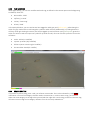
Upon opening iTag, you will encounter the start page. If you wish to setting up a new session, you’ll need to
go to ‘New Session (Ctrl-N)’ first by either clicking on File -> New Session (Ctrl-N) or by pressing ctrl + N
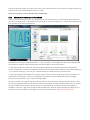
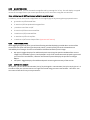
A new session wizard will open, which will guide you through your session setup. The session wizard loads
the default settings from disk, however, you can always specify a previously saved option file and later define
this as your new default file. On the first slide, you will be prompted to enter your username. Characters that
are not allowed will not be displayed. The username in combination with the information from the
photographs will then be used to organize the output on your computer.
Additionally, you can enter up to 9 generic parameters that could describe the specifics of your survey, e.g.
the type of vessel you used, the weather conditions etc.
Note: while theses parameters will be saved upon ending the session, they will not appear in any table. The
export of a session table containing these info is still under construction.
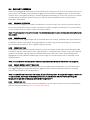
The next slide will prompt you to specify the image directory. You can click on ‘Choose Directory’ and select
the folder that contains your images.
Note: you should create a folder (such as one folder per survey day) and put all the images as JPG files or BMP
into that folder. iTag will not parse subfolders and will not identify duplicates!
Upon successfully loading the images from the directory, a small summary of the files is displayed within the
wizard.
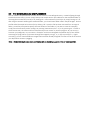
In the next Wizard slide, you can further set up the categories and modifiers that will be available during
your session. You can define up to 9 different categories and modify the text that is associated with the
modifier keys.
Note: If you don’t want to use some of the modifiers, just keep them as they are (but avoid duplicate modifier
names).
By clicking on the coloured button next to each category, you can then pick a colour for the category. iTag
will warn you if you pick a colour that is very similar to another existing colour, but you will still be able to use
duplicate colours!