1
B–5
Using H2 Series EBCs with Think & Do
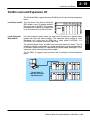
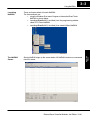
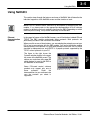
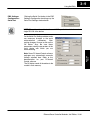
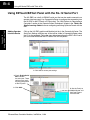
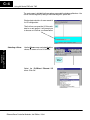
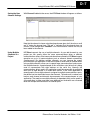
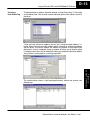
Once the EZTouch or EZText panel has been added, it will show up in the list of the
configured devices, and an EZTouch/Text panel graphic symbol will be located
under the I/O base next to the EBC.
Appendix B
Using H2 EBCs w/ T&D
Using Monitor I/O
to Verify Panel
Operation
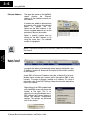
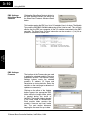
Re–connect to the I/O in ConnectivityCenter by either clicking on Configuration,
then Connect or by clicking on the Connect toolbar button. Then scan the I/O by
either clicking on Configuration, then Scan or by clicking on the Scan toolbar
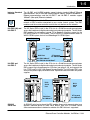
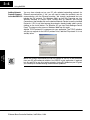
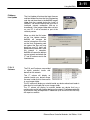
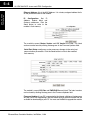
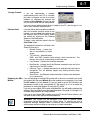
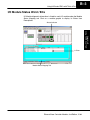
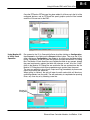
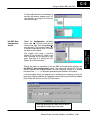
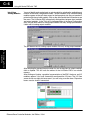
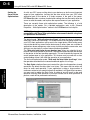
button. Doubleclick on the EZ panel box graphic to launch the Monitor I/O Dialog
Box. The Monitor I/O tool allows the user to update the fields at any moment, altough
the panel continuously updates the fields with changes as well. All of the “Value”
fields in the Monitor I/O Dialog Box are read/write and are updated from the the
Monitor I/O Dialog box which takes precedence over updates from the panel.
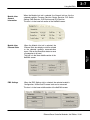
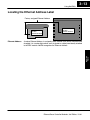
The user can update bit values (Input, Output and Flag) immediately by one mouse
click or by pressing the space bar.
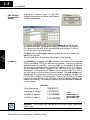
When typing in numbers, the grid will enter the edit mode which will block any
conflicting updates from the panel. The edit mode entry is completed after pressing
Enter, any arrow key or by selecting a new line.
Monitor I/O
Dialog Box
Ethernet Base Controller Modules, 3rd Edition, 11/04