1
Manual Software Pro-Access
Page: 27
•
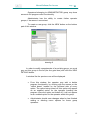
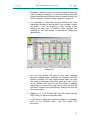
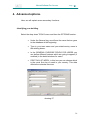
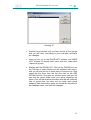
Highlight, using the mouse, the day or group of days you
want to assign a category to, and then click on the little
square representing the kind of day you want to define for
selected day(s). (normal, holiday, special 1, special 2).
•
It is important to remember that just because we have
classified a holiday or special day in the calendar, it does
not mean a user is not going to have access to the
building on that day. It depends upon whether you
enabled (or not) time zones to operate on holidays or
special days.
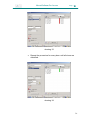
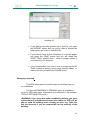
drawing 24
•
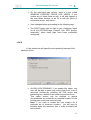
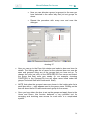
We can also define two days a year when daylight
savings changes apply. Although the software sets two
dates by default, you can change these dates (or even
the times) so that they take effect when you want, (Click
on the Enable DST box and use the mouse to change
these days or times). By using this function, the SALTO
electronic furniture will automatically change the time on
the chosen days.
•
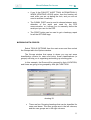
Marking a X in the Enable DST box will mean that the
DST hours you have set will take effect.
•
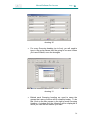
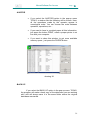
If you want to delete the selections made in a calendar,
click on the CLEAR button, note this clears ALL
selections.
27