1
Raspberry Pi LCD User Manual
share awesome hardware
1.
Programming the image file
1)
RPi LCD needs to use a SPI interface, but in the original image file of Raspberry Pi, the displayer is
driven via a HDMI port. So the original image is not applicable for RPi LCD, and you should use
the system image file provided by Waveshare.
2)
The image file provided by Waveshare is located at the directory of IMAGE in the CD provided
with the product (for more information about how to programming the image file, please refer
to the document Writing IMG files to SD Card). When finished the programming, please power
on the module, and wait more than 30 secs. Then, you will see the boot screen of Raspbian
shown in the LCD and enter the desktop of the system.
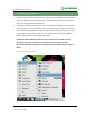
Descriptions: Under LCD display mode, the screen touch function is available. For data
inputting, you can click the start menu in the bottom-left of the screen, and select
Accessories->Keyboard, to enable the Virtual Keyboard for command inputting, as Figure 1
shows.
Figure 1: Enabling the virtual keyboard
2
th
Rev 2.3, April 29 2015