1
share awesome hardware
Raspberry Pi LCD User Manual
3.
Touch screen calibration
1)
Enter the following commands for touch screen calibration:
su pi
DISPLAY=:0.0 xinput_calibrator
2)
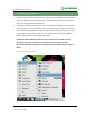
After running these commands, there will be a prompt for four-point calibration shown in the
LCD screen. Click the points one by one to finish the touch calibration. Then, the new calibration
data will be displayed in the terminal, as shows below. Please get these data for future use.
Doing dynamic recalibration:
Setting new calibration data: 126, 3734, 3892, 199
3)
Enter the following command to edit 99-calibration.conf:
sudo nano /etc/X11/xorg.conf.d/99-calibration.conf
Then, the old calibration data will be displayed in the terminal:
Section “InputClass”
Identifier
“calibration”
MatchProduct
“ADS7846 Touchscreen”
Option
“Calibration”
“160 3723 3896 181”
Option
“SwapAxes”
“1”
EndSection
4)
Modify the calibration data to the new calibration data displayed in the step 2):
Section “InputClass”
Identifier
“calibration”
MatchProduct
“ADS7846 Touchscreen”
Option
“Calibration”
“126, 3734, 3892, 199”
Option
“SwapAxes”
“1”
EndSection
5)
Press the keys Ctrl+X, and select the option Y to save the modification.
6)
The modification will be valid after rebooting the system. Enter the following command for
system rebooting:
sudo reboot
Notices: In case of inaccurate touch, please perform screen calibration again and reboot the
system.
4
th
Rev 2.3, April 29 2015